
If your iPad Pro 2026 (M4) is showing a "Not Registered on Network" or "No Service" error, it means your cellular connection is completely down. You won't be able to use mobile data, make calls, or send SMS texts. This can happen for a bunch of reasons, from a simple software hiccup to a more involved carrier issue.
Before you start worrying about hardware, work through these fixes in order. I'd start with the first few, as they solve the problem most of the time without much fuss.
Toggle Airplane Mode
This is the quickest thing to try. Turning Airplane Mode on and off forces your iPad's cellular modem to completely restart its connection to the carrier. Swipe down from the top-right corner to open Control Center and tap the airplane icon. Wait about 15 seconds, then tap it again to turn it off. You should see it search for a signal again.
Restart Your iPad Pro
A full restart clears out any temporary glitches in iPadOS 26 that might be interfering with the cellular radio. Just hold the top button and either volume button, slide to power off, and wait a minute before turning it back on. For a more thorough refresh, you can try a force restart. Quickly press and release the Volume Up button, then quickly press and release the Volume Down button. Finally, press and hold the top Power button until you see the Apple logo appear, then let go.
Check and Reseat the SIM Card
If your iPad Pro uses a physical SIM, a loose or dirty connection can cause this error. Grab the SIM eject tool (a paperclip works in a pinch) and pop open the SIM tray on the device's frame. Carefully remove the SIM card, give both the card and the slot a gentle blow to dislodge any dust, and firmly reseat it. Push the tray all the way back in until it clicks. Power the iPad back on and see if it registers.
For models using an eSIM, you can try removing and re-adding the cellular plan. Go to Settings > Cellular > Cellular Plans, tap on your plan, and select "Remove Cellular Plan." Then, you'll need to contact your carrier to have them help you re-provision the eSIM, which usually involves scanning a new QR code.
Verify Your Carrier Account Status
Sometimes the issue is on your carrier's end, not your iPad. An unpaid bill, expired prepaid plan, or a temporary service outage will prevent registration. Use another device to log into your carrier account online or give their support line a call. Confirm your line is active and in good standing. It's also worth asking if there are any known network issues in your specific area.
Update iPadOS
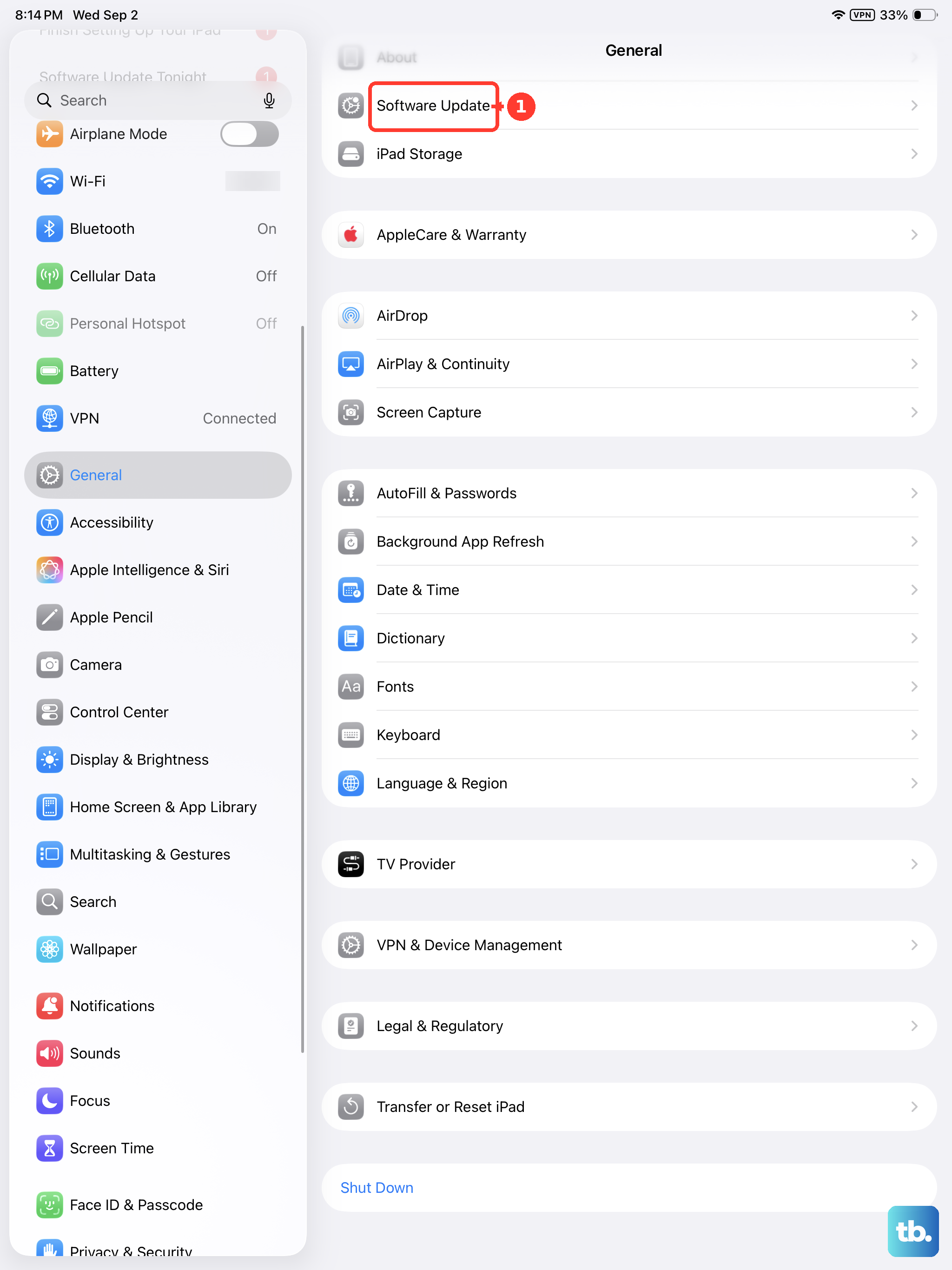
Apple frequently releases updates that include fixes for cellular connectivity bugs. An outdated version of iPadOS 26 could have a known issue that's already been patched. Connect to Wi-Fi and go to Settings > General > Software Update. If an update is available, install it. These updates often include carrier settings updates too, which are crucial for network compatibility.
Reset Network Settings
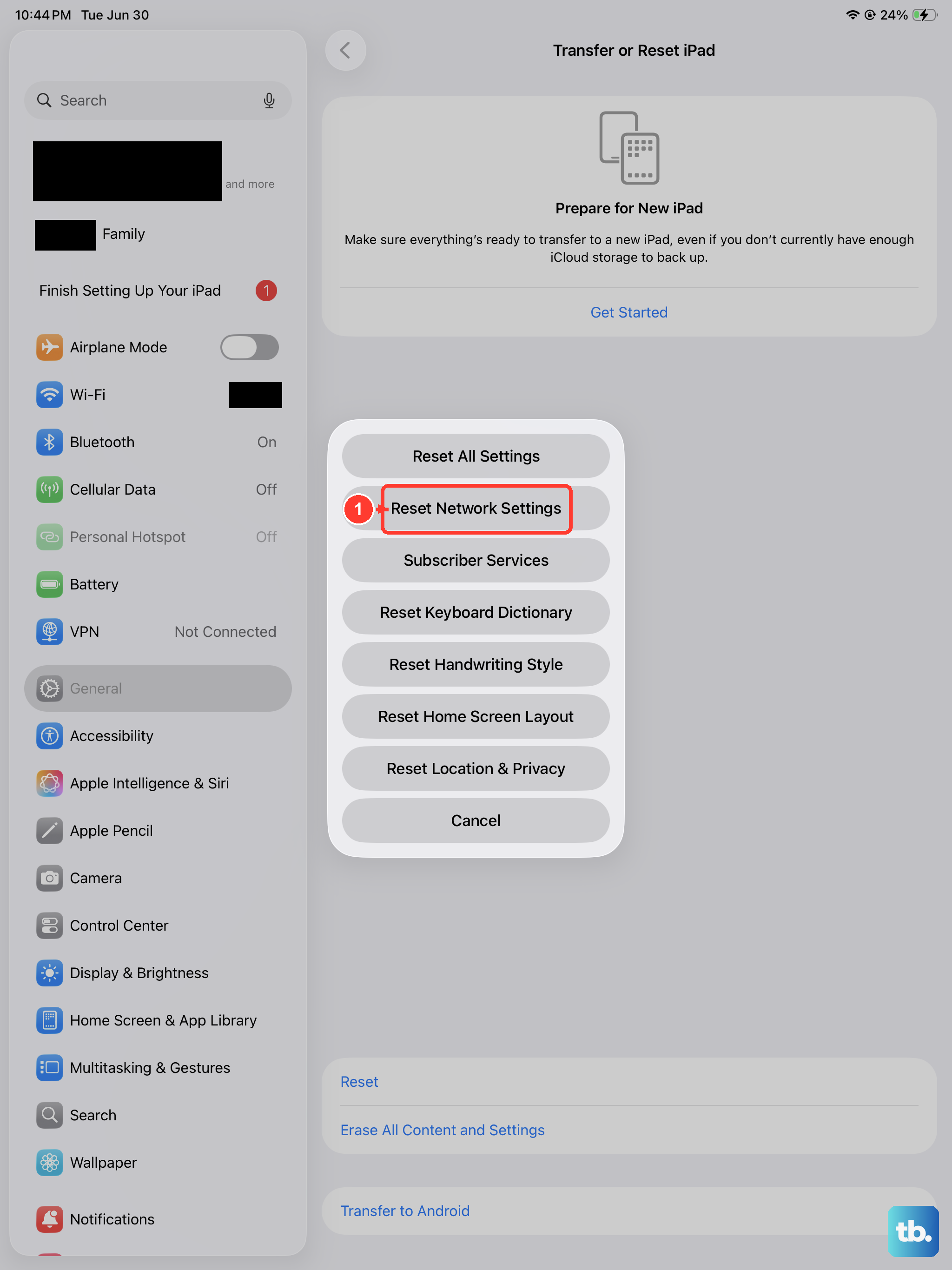
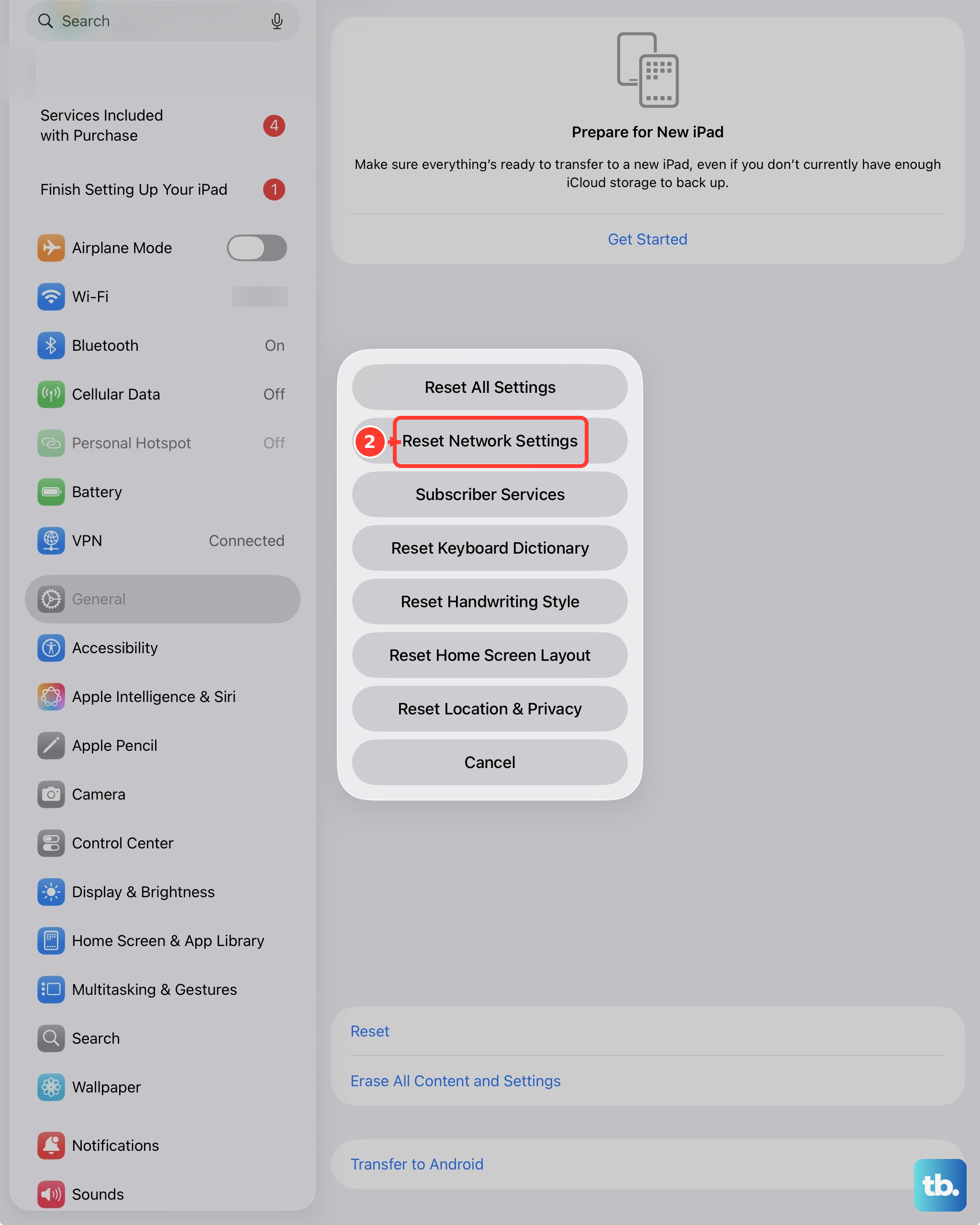
This step clears all your saved network configurations, including Wi-Fi passwords, Bluetooth pairings, VPN settings, and cellular network preferences. It's a very effective way to wipe out any corrupted settings causing the problem. Go to Settings > General > Transfer or Reset iPad > Reset. Then, tap Reset Network Settings. Your iPad will restart, and you'll need to reconnect to Wi-Fi and re-pair Bluetooth devices, but it often resolves stubborn cellular issues.
Manually Select a Network
Your iPad might be trying to latch onto a weak or incompatible tower from your carrier. You can tell it to search for all available networks and pick one manually. Go to Settings > Cellular > Network Selection. Turn off "Automatic." After a moment, a list of available networks will appear. Select your carrier's name from the list. If your carrier doesn't appear, it could indicate a coverage problem or a more serious account issue.
Try a Different SIM Card
This is a great way to isolate the problem. If you have access to another active SIM card from the same carrier (or even a different one), pop it into your iPad Pro. If the new SIM card connects to the network without any trouble, then your original SIM is likely faulty or deactivated. You'll need to contact your carrier for a replacement. If the new SIM also fails to register, the issue is almost certainly with the iPad itself.
Restore Your iPad
This is the last resort software fix. A full restore via a computer reinstalls a clean copy of iPadOS, which can fix deep-seated software corruption. First, make sure you have a recent backup in iCloud or on your computer. Connect your iPad to a Mac or PC, open Finder (on Mac) or iTunes (on PC), select your device, and choose "Restore iPad." This will erase everything and install the latest software. After it's done, you can set it up as new to test the cellular connection immediately, or restore from your backup.











