
If your iPad Pro with M4 is running out of battery faster than expected, start by checking what is using power and then work through the settings Apple documents for iPad battery life.
Check Battery Health and Usage
Before you change a bunch of settings, go to Settings > Battery. Review Battery Usage to see today's usage and recent activity, and turn on Low Power Mode if you need to extend battery life right away.
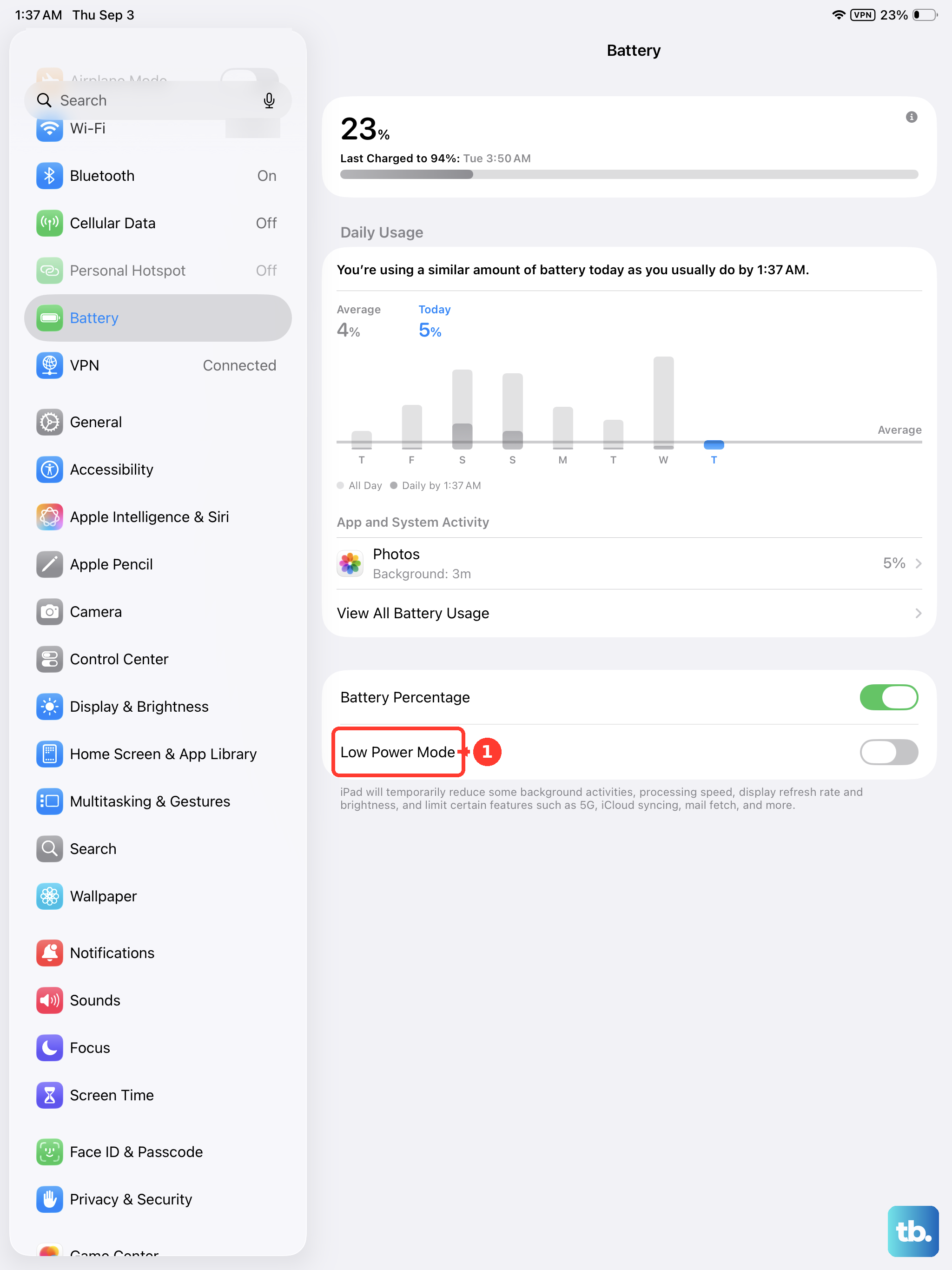
Look for any apps that seem to be using a surprisingly high percentage. A graphic design app or a game making heavy use of the M4's GPU might be expected, but a simple note-taking app shouldn't be at the top. This screen tells you if an app is draining battery in the background, which is a common issue.
On supported iPad models, tap Battery Health to review maximum capacity, cycle count, manufacture date, and first use date. Battery life and charge cycles vary with use and settings, so do not assume the screen must show 100% capacity; if the battery service information looks abnormal, follow Apple's onscreen service guidance.
Manage Display and Motion Settings
The stunning ProMotion display is a battery hog if left unchecked. A great first step is to go to Settings > Display & Brightness and lower the brightness slider. Even a small reduction can make a big difference over a full day.
Next, tap Auto-Lock and choose a shorter time so the display locks sooner. If you want to limit ProMotion, go to Settings > Accessibility > Motion and turn on Limit Frame Rate, which caps supported ProMotion iPad models at 60 frames per second.
Finally, enable Dark Mode from this same settings page. On the iPad Pro's OLED screen, displaying black pixels actually turns them off, which saves a meaningful amount of power, especially at higher brightness levels.
Control Background Activity
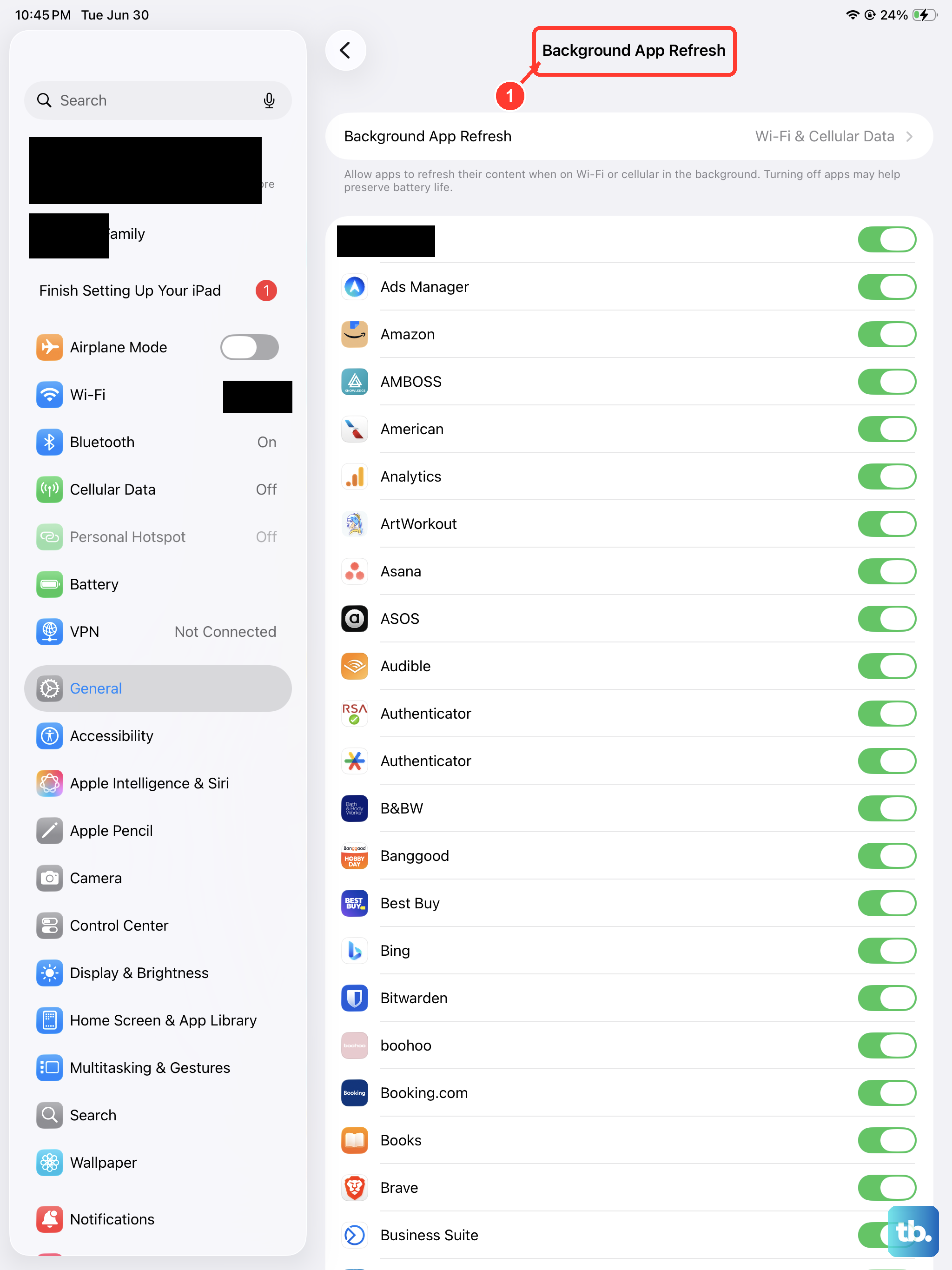
Background App Refresh allows apps to update content even when you're not using them. To manage this, go to Settings > General > Background App Refresh. You can turn it off entirely or just for specific apps that don't need live updates.
Location Services are another major drain. Navigate to Settings > Privacy & Security > Location Services. Review the list and set apps to "While Using the App" or "Never" instead of "Always," unless it's absolutely necessary for the app to function.
For your email, change how often it checks for new messages. In current iPadOS, go to Settings > Apps > Mail > Mail Accounts > Fetch New Data, then choose a schedule under Fetch. Setting a less frequent fetch schedule can reduce background checks for accounts that do not use Push.
Disable Unnecessary Features and Connections
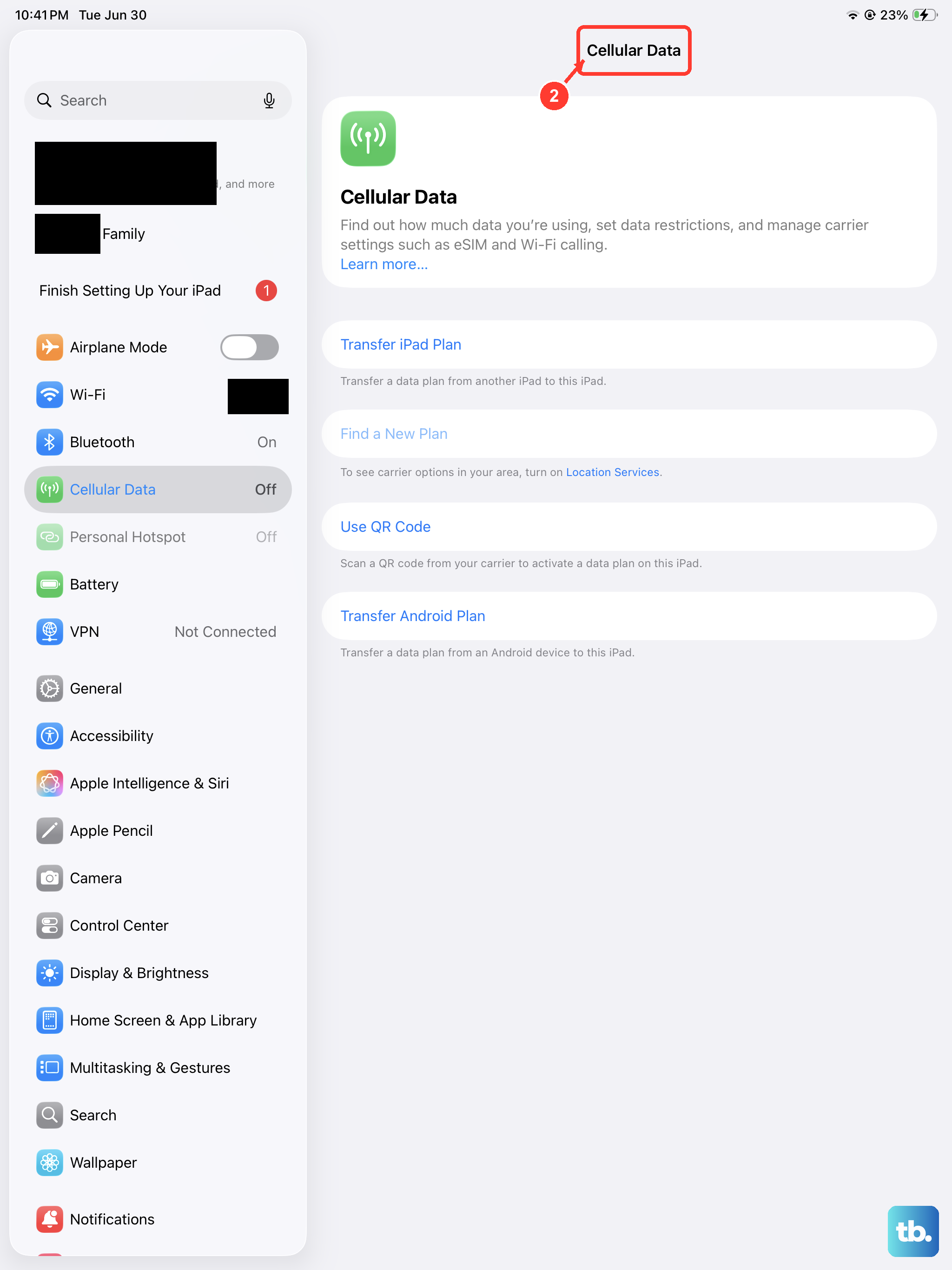
If you need to reduce wireless activity, turn off Wi-Fi in Settings > Wi-Fi and Bluetooth in Settings > Bluetooth. Control Center only disconnects Wi-Fi or Bluetooth temporarily; Apple says those features remain available for services such as AirDrop, AirPlay, Apple Pencil, Continuity, and Location Services. On cellular models, use Settings > Cellular Data to turn cellular data off for apps or services that do not need it.
If you don't use voice requests often, you can turn off listening for Siri. Go to Settings, tap Siri or Apple Intelligence & Siri, tap Talk to Siri or Talk & Type to Siri, then choose Off.
Review your widgets on the Home Screen and Today View. Each widget that provides live information (like weather or stock tickers) requires periodic updates. Remove any widgets you don't actively use by long-pressing them and selecting "Remove Widget."
Update Software and Perform a Reset
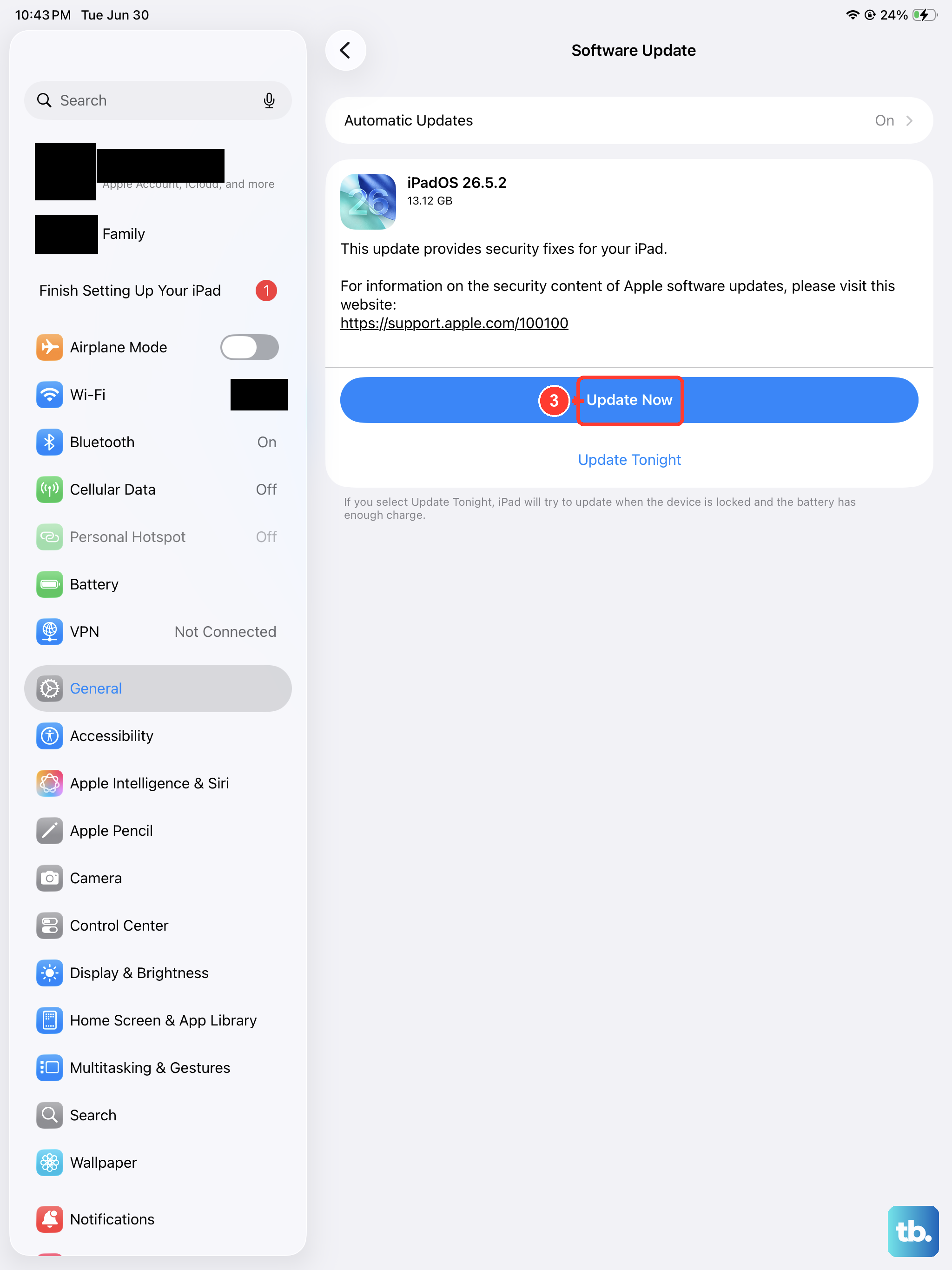
Software bugs can sometimes cause abnormal battery drain. Make sure your iPad is running the latest compatible version of iPadOS. Go to Settings > General > Software Update to check for and install available updates.
If you've tried everything and the drain persists, restart the iPad first. For an iPad without a Home button, press and quickly release the volume button closest to the top button, press and quickly release the volume button farthest from the top button, then press and hold the top button until you see the Apple logo.
As a last resort, you can reset all settings. This returns iPad settings to their defaults without deleting your content. Go to Settings > General > Transfer or Reset iPad > Reset, then choose Reset All Settings. Apple says this removes or resets settings including network settings, the keyboard dictionary, location settings, privacy settings, and Apple Pay cards; no data or media are deleted.