
Missing calls on your iPad can be confusing, especially when you see the notification pop up but never hear a sound. Since iPads handle calls differently than iPhones, the fixes are a bit specific to the tablet. Let's run through the common reasons your iPad might stay silent and how to get it ringing properly again.
Check Your iPad's Physical Switches and Volume
First, check Silent Mode. Go to Settings > Sounds and turn "Silent Mode" off. You can also turn it off in Control Center. Silent Mode stops ringtones, alerts, and system sounds, but music and videos still play, so hearing those doesn't mean your iPad will ring.
Next, check your volume. Go into Settings > Sounds and drag the volume slider below "Ringtone" to a comfortable audible level. If "Change with Buttons" is on, you can also press the volume up button while no media is playing to raise the ringer volume.
Manage Focus Modes and Do Not Disturb
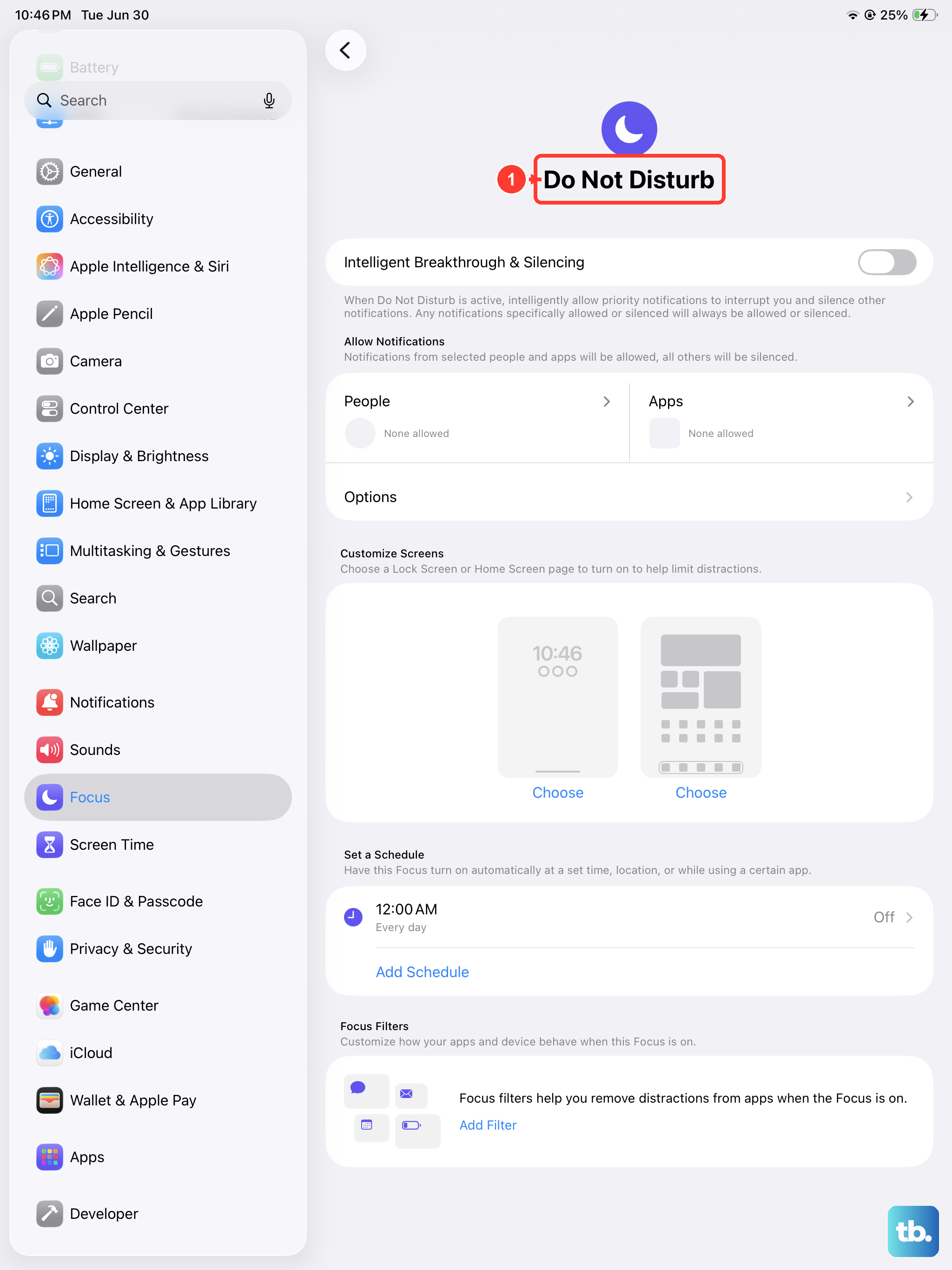
Focus modes, including Do Not Disturb, are a major culprit for missed call sounds. When a Focus is active, it can silence all notifications, including calls. Swipe down from the top-right corner to open Control Center and look for the Focus icon (it might be a moon, a person, or another symbol). Tap Focus, then tap the Focus that's on to turn it off.
You should also check your scheduled Focus times. Go to Settings > Focus. Look through each Focus profile (like Do Not Disturb, Personal, or Work) and ensure they are turned off. Also check "Set a Schedule" and "Smart Activation" under each one to make sure a Focus isn't activating without you realizing it.
Verify Your Call Relay and Silence Settings
Regular phone calls on your iPad can be relayed through your iPhone, whether or not your iPad has a cellular plan. On your iPhone, go to Settings > Apps > Phone > Calls on Other Devices. Turn on "Allow Calls on Other Devices" and select your iPad. Keep both devices nearby, connected to the same Wi-Fi network, and signed in to the same Apple Account.
On your iPad, go to Settings > Apps > Phone and set Screen Unknown Callers to Never if you want calls from unknown numbers to ring. The other options screen those calls or send them to voicemail.
Disconnect Bluetooth Accessories
Your iPad might be routing the call audio to a connected Bluetooth device like headphones, a speaker, or even a car stereo. Disconnect the accessory to check whether you can hear the call on your iPad. The quickest fix is to turn Bluetooth off entirely to test.
Go to Settings > Bluetooth and toggle the main switch off. The Bluetooth button in Control Center only disconnects accessories; it doesn't turn Bluetooth off entirely. Try a test call now to see if the sound comes through the iPad's speakers.
Restart and Update Your iPad
A simple restart can clear out temporary software glitches that might be interfering with the sound. Go to Settings > General > Shut Down, drag the slider, then hold the top button to turn your iPad back on. If it isn't responding and you can't restart it normally, try a force restart. For iPads without a Home button, quickly press and release the volume button nearest the top button, then the volume button farthest from it, then hold the top button until the Apple logo appears.
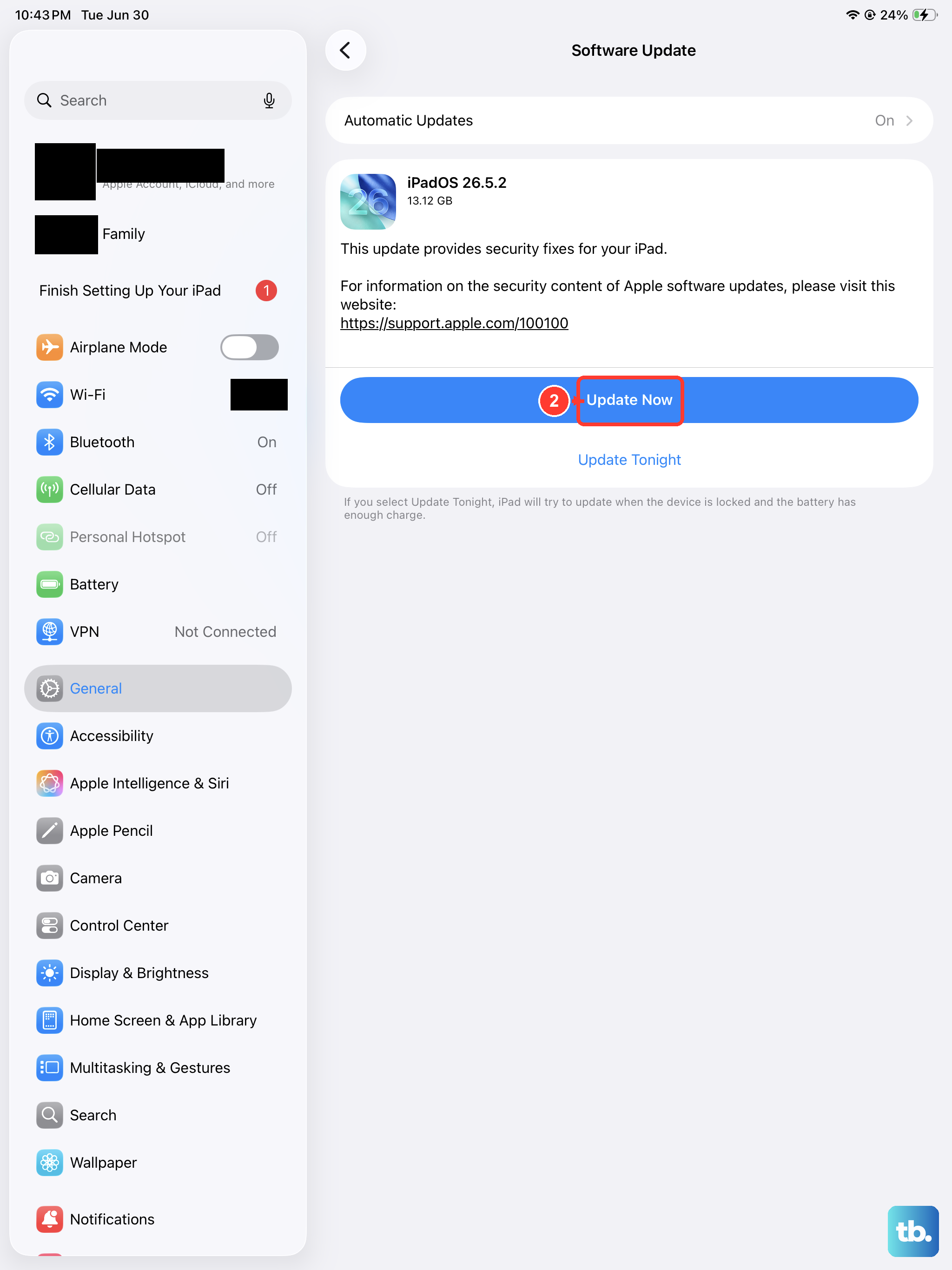
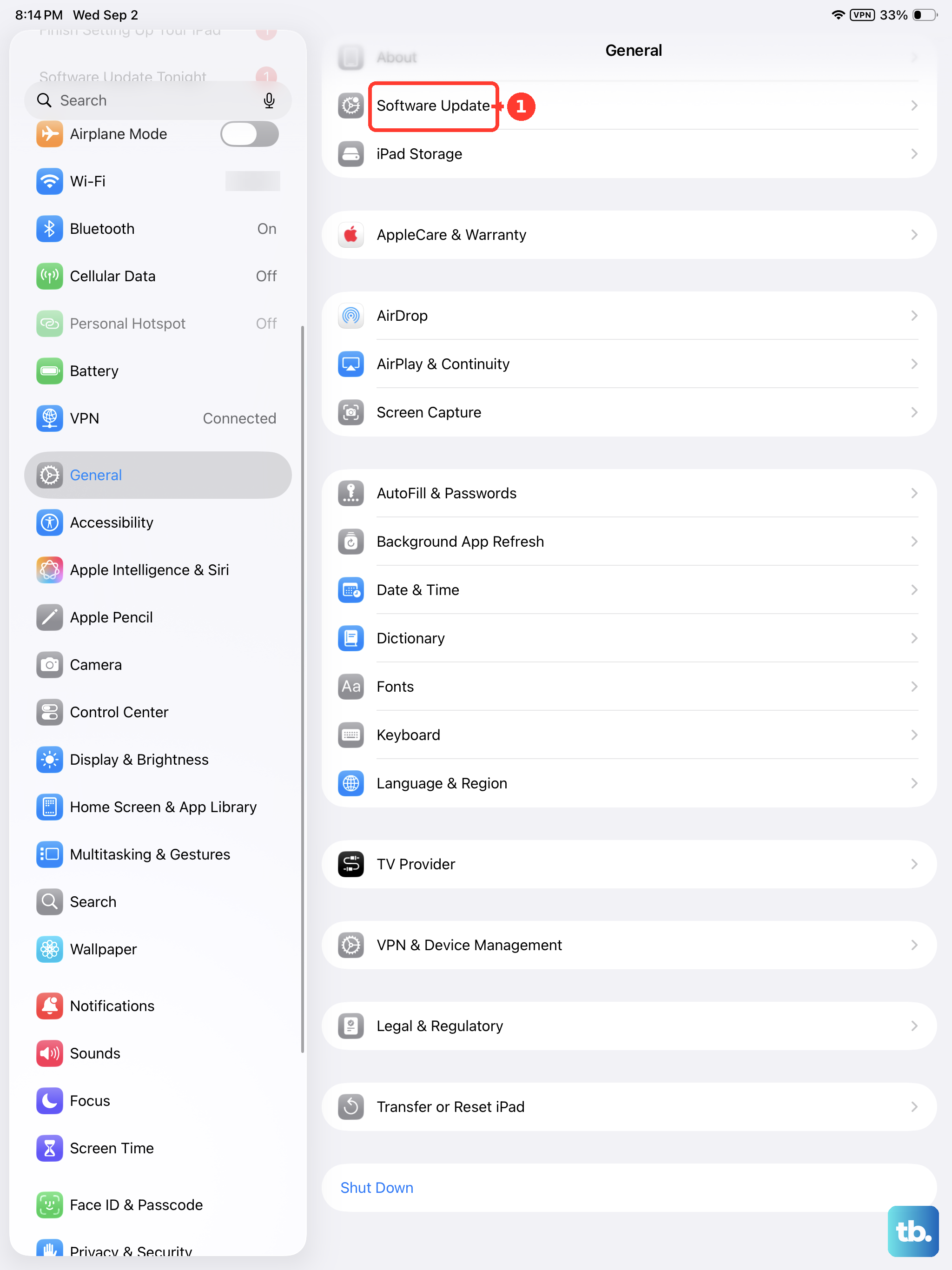
For iPads with a Home button, just press and hold both the Top button and the Home button together until the Apple logo appears. After it restarts, check for a software update by going to Settings > General > Software Update. Back up your iPad before updating. If an update is available, tap "Download and Install" and follow the onscreen instructions.
Reset Relevant Settings
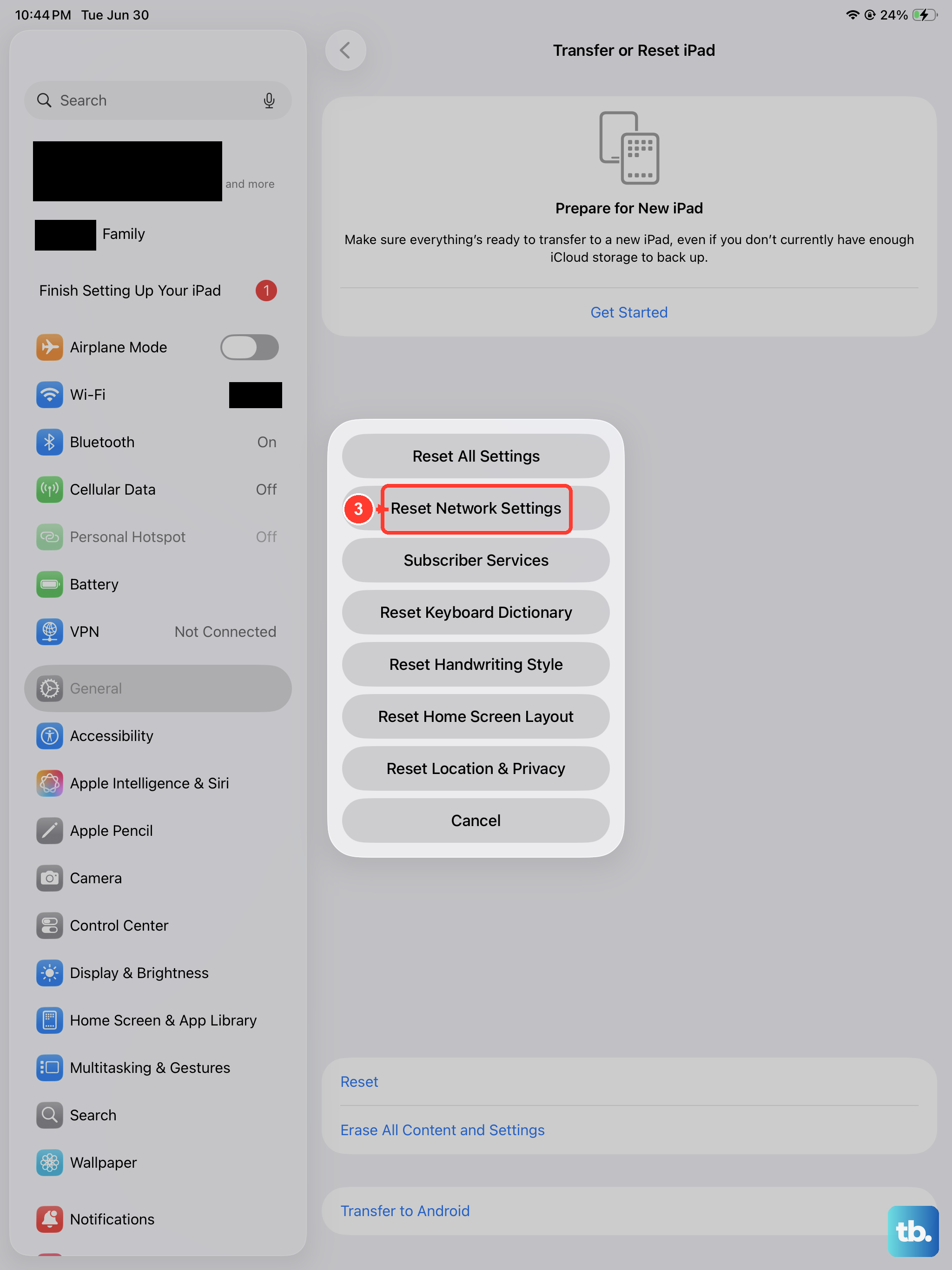
If the problem persists, you can try resetting specific settings without losing your data. Go to Settings > General > Transfer or Reset iPad > Reset. Here, tap "Reset All Settings." This will revert your wallpaper, network settings, and preferences back to default, but it won't delete any apps or personal files.
Another targeted reset is for network settings, which can help if you're having issues with Wi-Fi Calling or FaceTime audio calls. From the same Reset menu, choose "Reset Network Settings." This removes saved Wi-Fi networks and passwords, along with VPN settings not installed by a configuration profile or device management, so you'll need to reconnect afterward. On Wi-Fi + Cellular models, cellular data roaming may also be turned off.
Check App-Specific Permissions for FaceTime and VoIP Calls
On an iPad, calls can come through FaceTime, other calling apps, or your iPhone's call relay. If calls from a specific app aren't ringing, you need to check that app's notification permissions. Go to Settings > Apps and find the app in question (like FaceTime).
Tap on the app and then select "Notifications." Make sure "Allow Notifications" is turned on. For apps like FaceTime, also make sure "Sounds" is enabled so notifications can be audible. Also, head to the App Store and make sure all your communication apps are updated to their latest versions.
Sign Out and Back Into FaceTime and iMessage
For FaceTime calls, an account sign-in problem may cause issues. Try signing out and back in. Open Settings > Apps > FaceTime. Tap your Apple Account and select "Sign Out."
Wait a moment, then sign back in with your Apple Account and password. Do the same for iMessage by going to Settings > Apps > Messages and tapping "Send & Receive." For calls relayed from your iPhone, make sure both devices are signed in to the same Apple Account.