
When your iPad stops ringing for incoming calls, it can be confusing, especially if your iPhone is working fine. This usually comes down to a setting or a sync issue between your Apple devices. I'd start by checking a few key places in Settings that control where your calls go.
The quickest thing to try is toggling your cellular connection off and back on. Swipe down from the top-right corner to open Control Center and tap the cellular icon to turn it off, wait a few seconds, then tap it again to turn it back on. This can often kickstart a stalled connection.
Check Your Call Forwarding Settings
Your iPad and iPhone share call functionality through a feature called Wi-Fi Calling. If calls aren't coming to your iPad, the first place to look is on your iPhone. Open the Settings app on your iPhone, tap Phone, and then select Calls on Other Devices.
Make sure the toggle for Allow Calls on Other Devices is turned on. Then, scroll down and verify that your specific iPad is listed and its switch is enabled. If it's off, tap it to turn it on. This is the master switch that lets your iPad receive calls.
Verify Wi-Fi Calling is Active
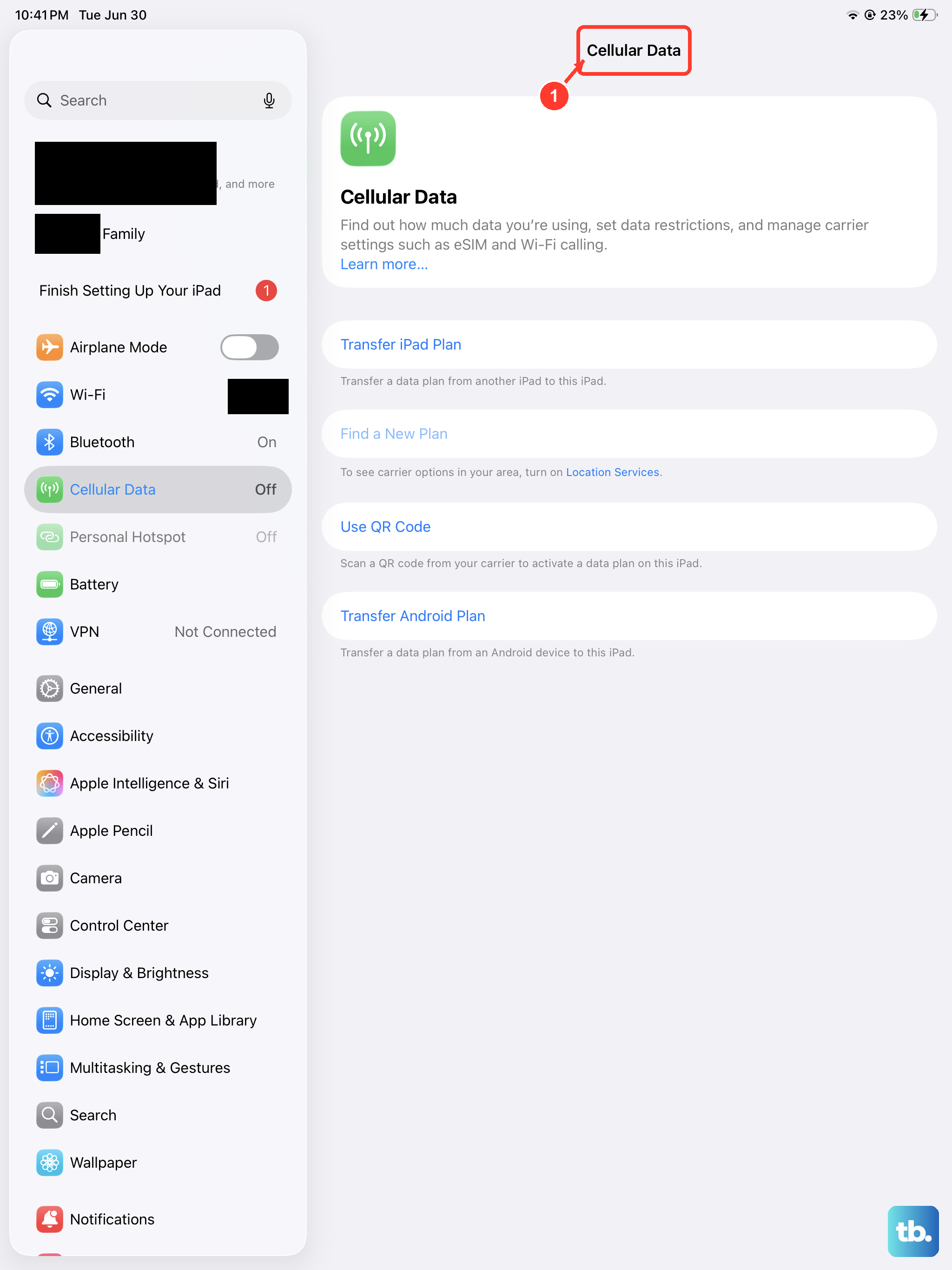
For this feature to work, Wi-Fi Calling needs to be active on both devices and they need to be on the same Wi-Fi network. On your iPad, go to Settings > Cellular (or Mobile Data). If you have a cellular model, look for Wi-Fi Calling and make sure it's turned on.
On your iPhone, you also need to enable Wi-Fi Calling. Go to Settings > Apps > Phone > Wi-Fi Calling and turn on Wi-Fi Calling on This iPhone. Your carrier needs to support this feature, so if you don't see the option, that might be the reason.
Restart Both Your iPad and iPhone
Sometimes, the connection between devices just needs a refresh. A simple restart can clear out temporary glitches. For iPads without a Home button, quickly press and release the Volume Up button, then the Volume Down button, then press and hold the Top button until you see the Apple logo.
For iPads with a Home button, just press and hold both the Home button and the Top button until the Apple logo appears. Do the same for your iPhone by pressing and holding the side button and a volume button. Once both are back on, check if calls come through.
Review Do Not Disturb and Focus Modes
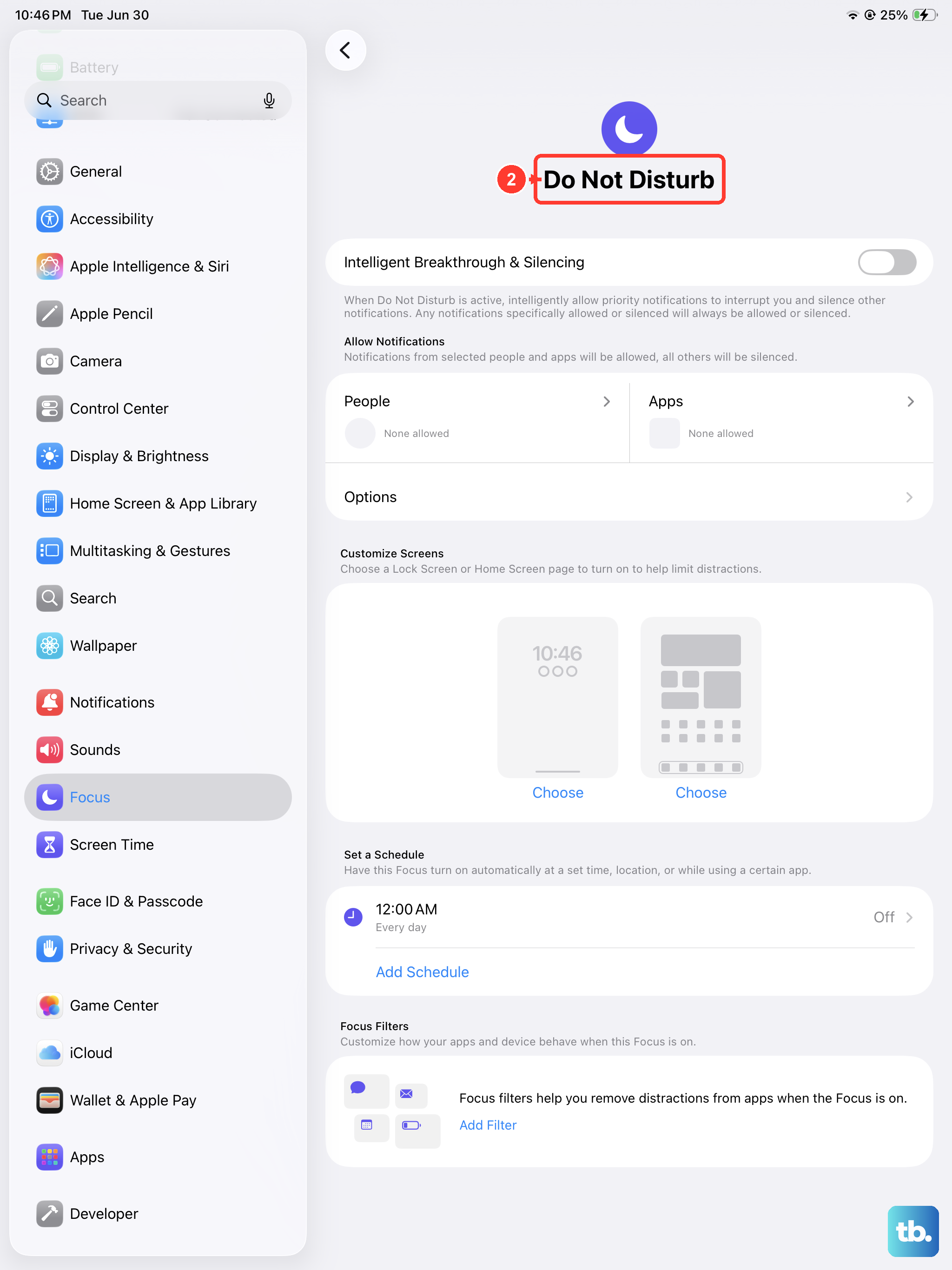
Do Not Disturb or a custom Focus mode could be silencing calls on your iPad. Swipe down from the top-right corner to open Control Center and look for the moon icon. If it's highlighted, tap it to turn off Do Not Disturb.
You should also check your Focus settings. Go to Settings > Focus. Tap on any active Focus, like Work or Sleep, and look at the People section. Make sure Allow Calls From is not set to No One or a very limited group.
Sign Out and Back Into Your Apple ID
The call handoff feature relies on your Apple ID being properly synced across devices. A hiccup here can break the chain. On your iPad, go to Settings and tap your name at the top. Scroll all the way down and choose Sign Out.
You'll be asked if you want to keep a copy of your data on the iPad; it's safe to say yes. After signing out, restart your iPad, then go back to Settings and sign in with your Apple ID again. This can re-establish a clean connection for call sharing.
Check for iPadOS and Carrier Updates
An outdated software version can cause compatibility issues with call features. On your iPad, open Settings, go to General, and tap Software Update. Install any available updates.
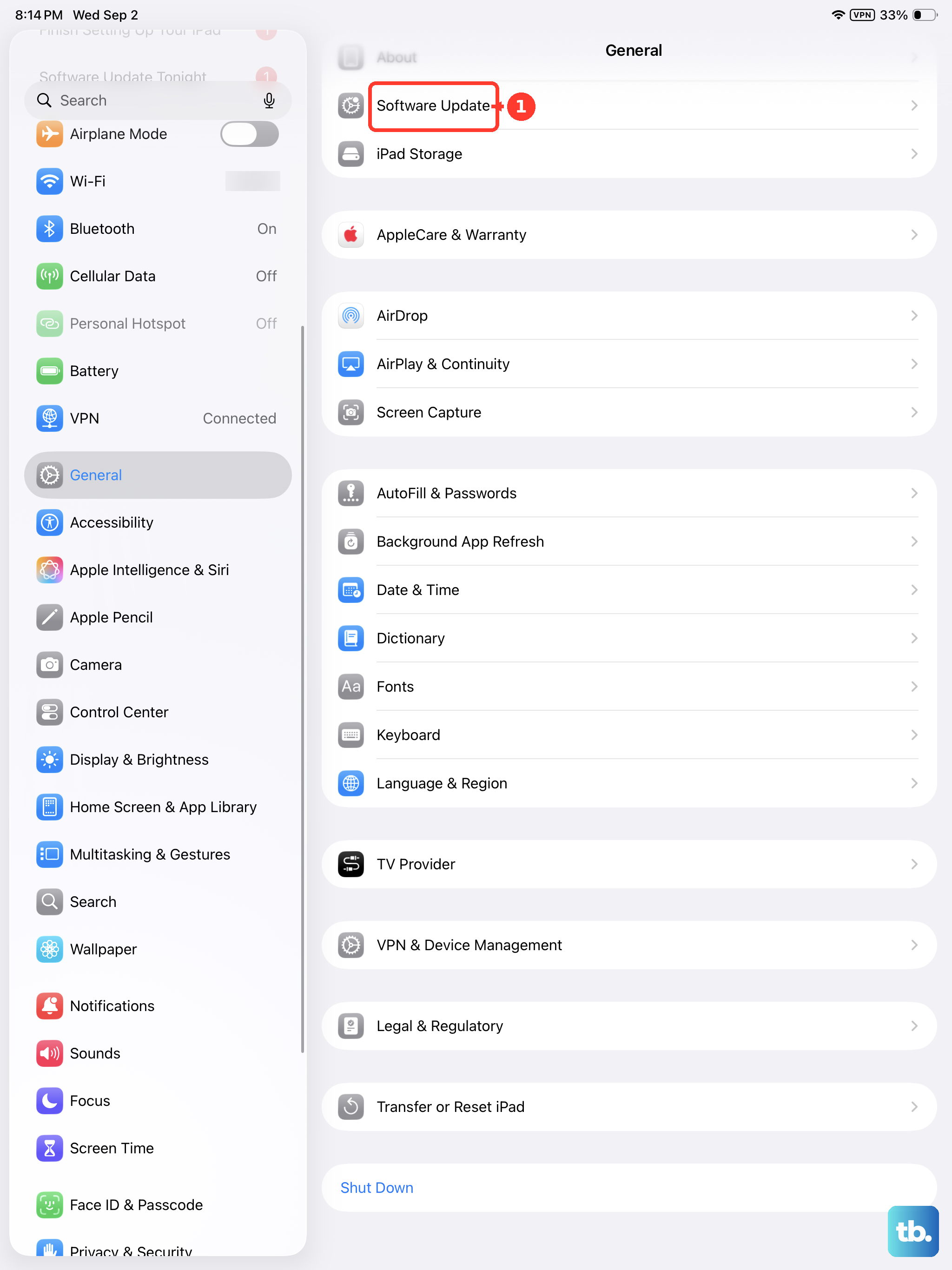
Carrier settings updates are also important. These happen automatically sometimes, but you can check by going to Settings > General > About. If an update is available, a prompt will appear. Make sure your iPhone is also updated to the latest iOS version.
Reset Network Settings on Your iPad
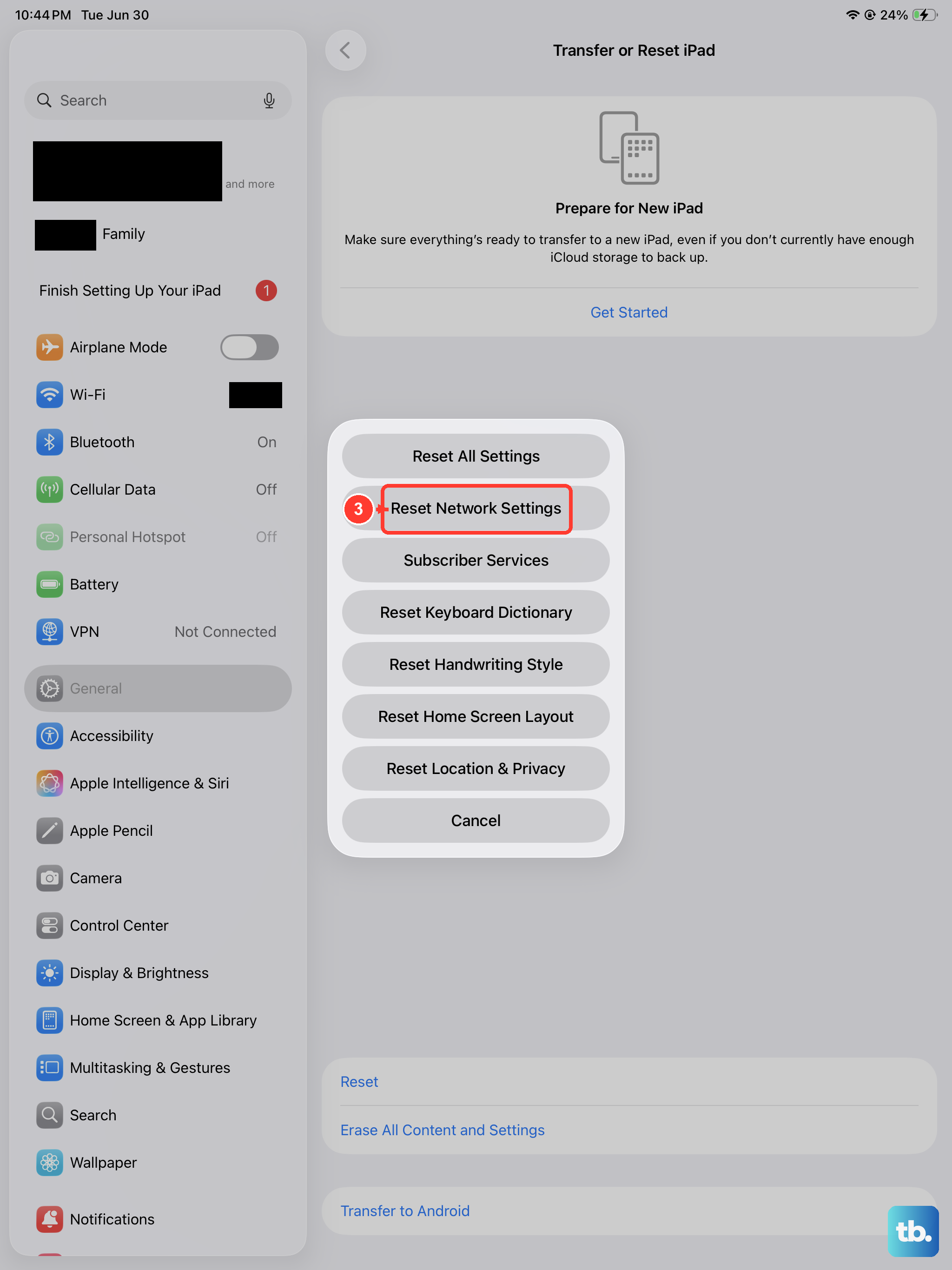
If the issue seems related to connectivity, resetting network settings can help. This clears all Wi-Fi networks, passwords, and cellular settings back to default. Go to Settings > General > Transfer or Reset iPad.
Tap Reset and then choose Reset Network Settings. You'll need to enter your passcode and confirm. Your iPad will restart, and you'll have to rejoin your Wi-Fi network and re-enable Wi-Fi Calling afterward.