
Seeing "No Service" or searching for a signal on your iPad can be frustrating, especially when you need to get online. This usually means your iPad can't connect to your cellular carrier's network for data, and sometimes for calls and texts if you have that capability.
The causes range from simple software hiccups to being in a poor coverage area. I'd start with the quick fixes below, as they resolve the majority of these "No Service" alerts.
Start With These Quick Fixes
First, toggle Airplane Mode on and off. Swipe down from the top-right corner to open Control Center and tap the airplane icon. Wait ten seconds, then tap it again to turn it off. This resets all the iPad's radios at once.
Next, perform a force restart. This clears temporary glitches without deleting any data. For iPads without a Home button, quickly press and release the Volume Up button, then the Volume Down button, then press and hold the Top button until you see the Apple logo.
If your iPad has a Home button, just press and hold both the Home button and the Top button until the Apple logo appears. Release both buttons and let it reboot.
Check Your Cellular Data Settings
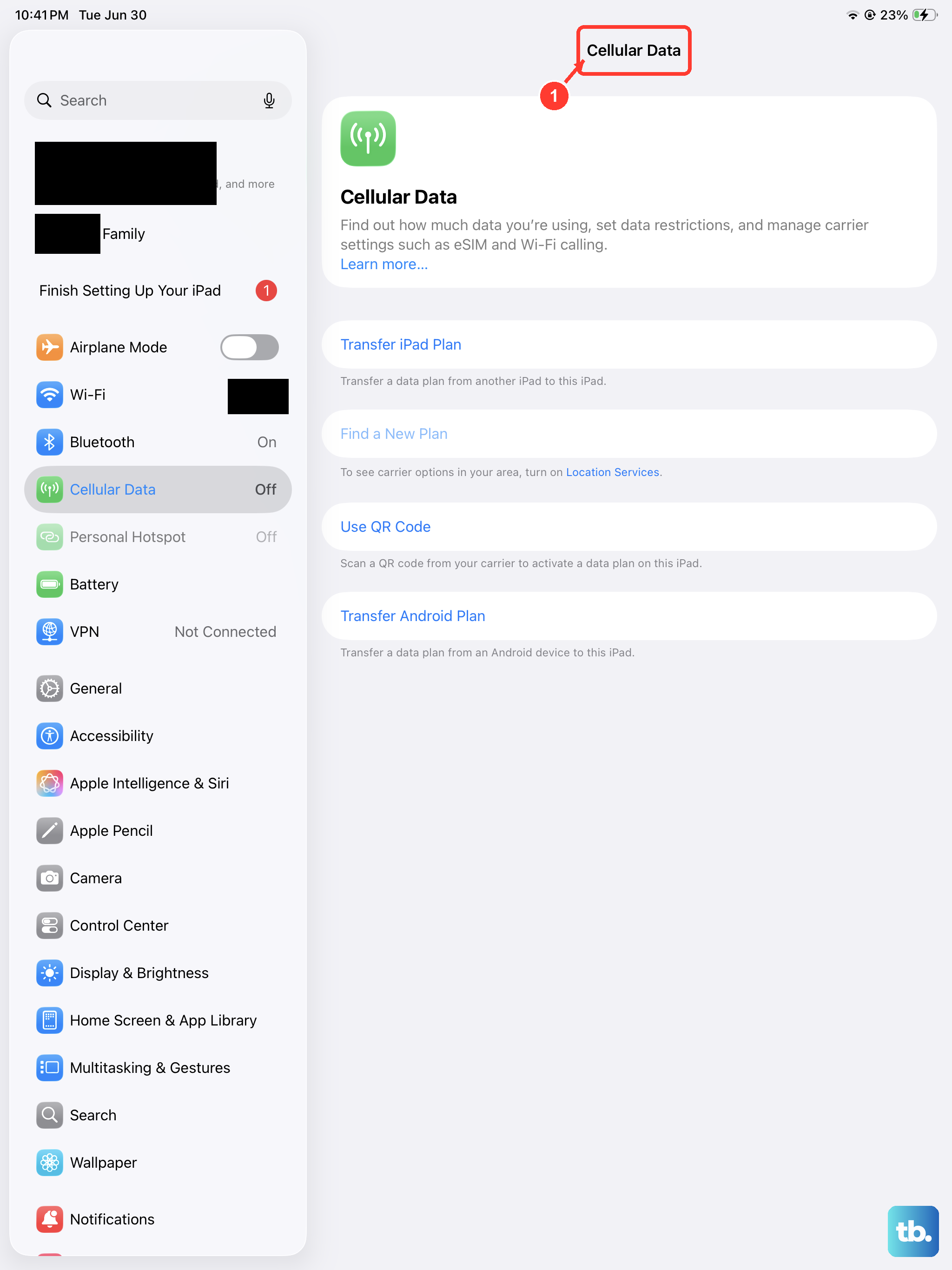
Open the Settings app and tap Cellular Data. Make sure the Cellular Data switch at the top is turned on. It's easy to accidentally toggle this off, especially if you were trying to conserve battery.
While you're there, look at the list of apps below. Ensure that the apps you're trying to use, like your browser or email, have permission to use cellular data. Their individual switches should be green.
Re-Insert Your SIM Card
A loose or dirty SIM card is a common culprit. You'll need the SIM eject tool that came with your iPad or a small paperclip. Find the SIM tray on the side of your iPad and gently push the tool into the small hole.
Pull the tray out and carefully remove the SIM card. Give both the gold contacts on the card and the inside of the tray a gentle wipe with a soft, dry cloth. Re-insert the SIM card, making sure it's seated correctly in the tray, and slide the whole tray back into the iPad.
Check for a Carrier Settings Update
Carrier settings are small files that help your iPad communicate properly with your specific network. Updates for these can fix connectivity issues. To check, go to Settings > General > About.
If an update is available, a pop-up notification will appear on this screen. Just tap Update to install it. Your iPad may restart briefly. This process doesn't affect your personal data.
Reset Your Network Settings
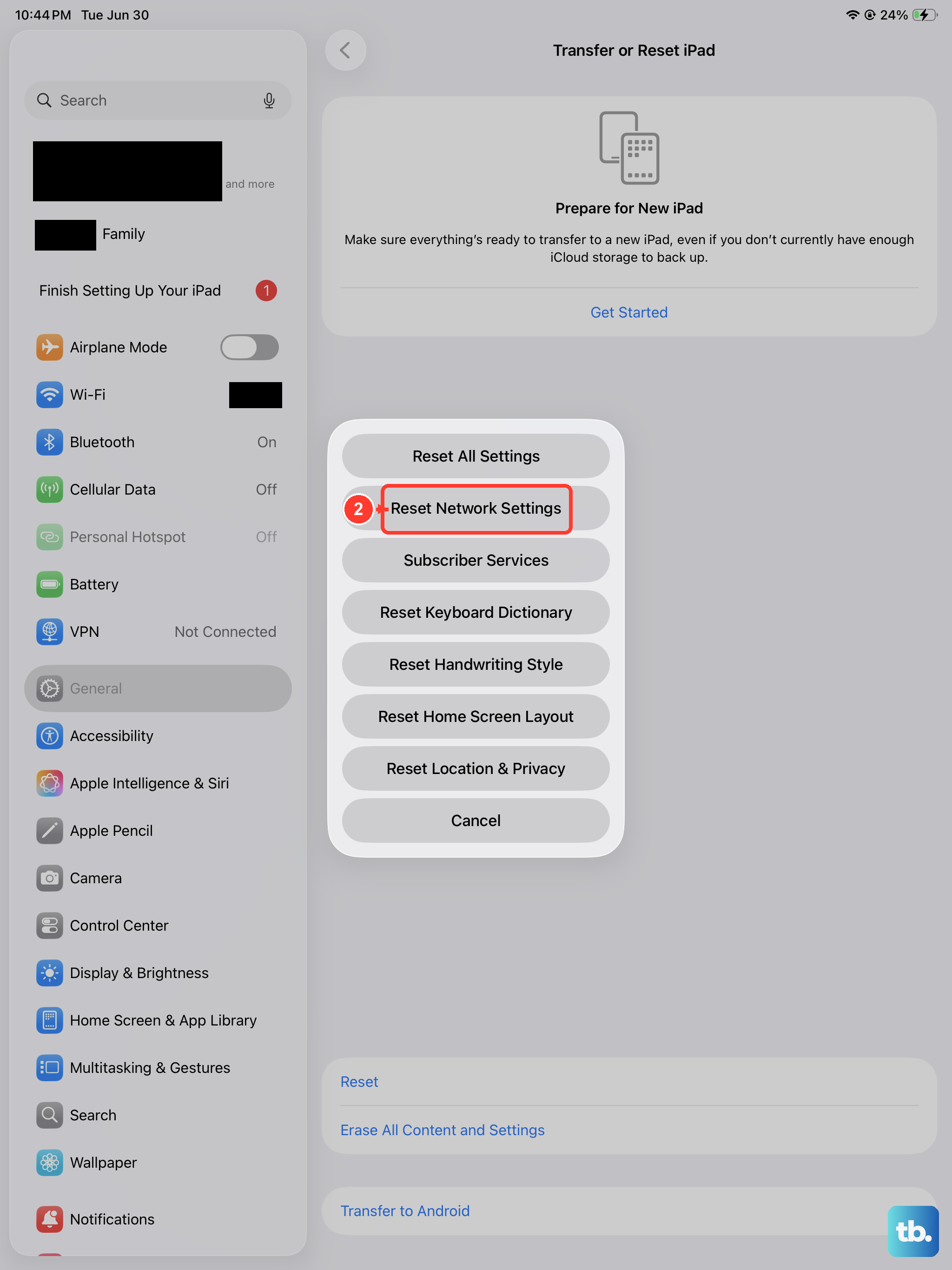
This is a more thorough step that can fix deeper configuration problems. It will erase all saved Wi-Fi networks and passwords, Bluetooth pairings, and your cellular network preferences.
To do it, go to Settings > General > Transfer or Reset iPad. Tap Reset at the bottom, then choose Reset Network Settings. You'll need to enter your passcode and confirm. After the iPad restarts, you'll need to re-join your Wi-Fi networks.
Manually Select Your Network
Sometimes your iPad might be trying to latch onto a weak or incompatible network. You can force it to choose your specific carrier. Go to Settings > Cellular > Network Selection.
Turn off the Automatic switch. Your iPad will search for available networks. After a moment, a list will appear. Select your carrier's name from the list. If it doesn't connect, turn Automatic back on.
Update Your iPadOS Software
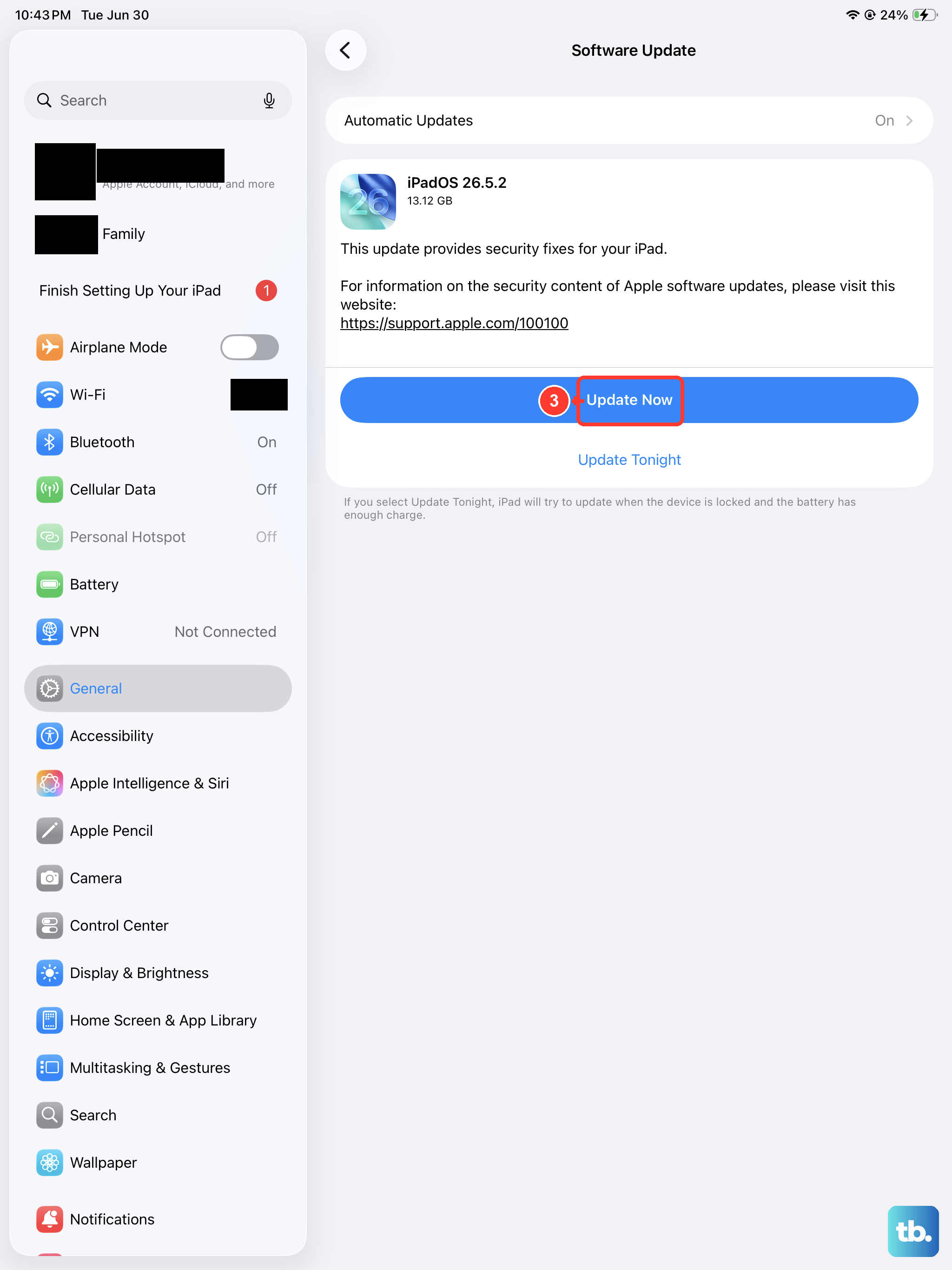
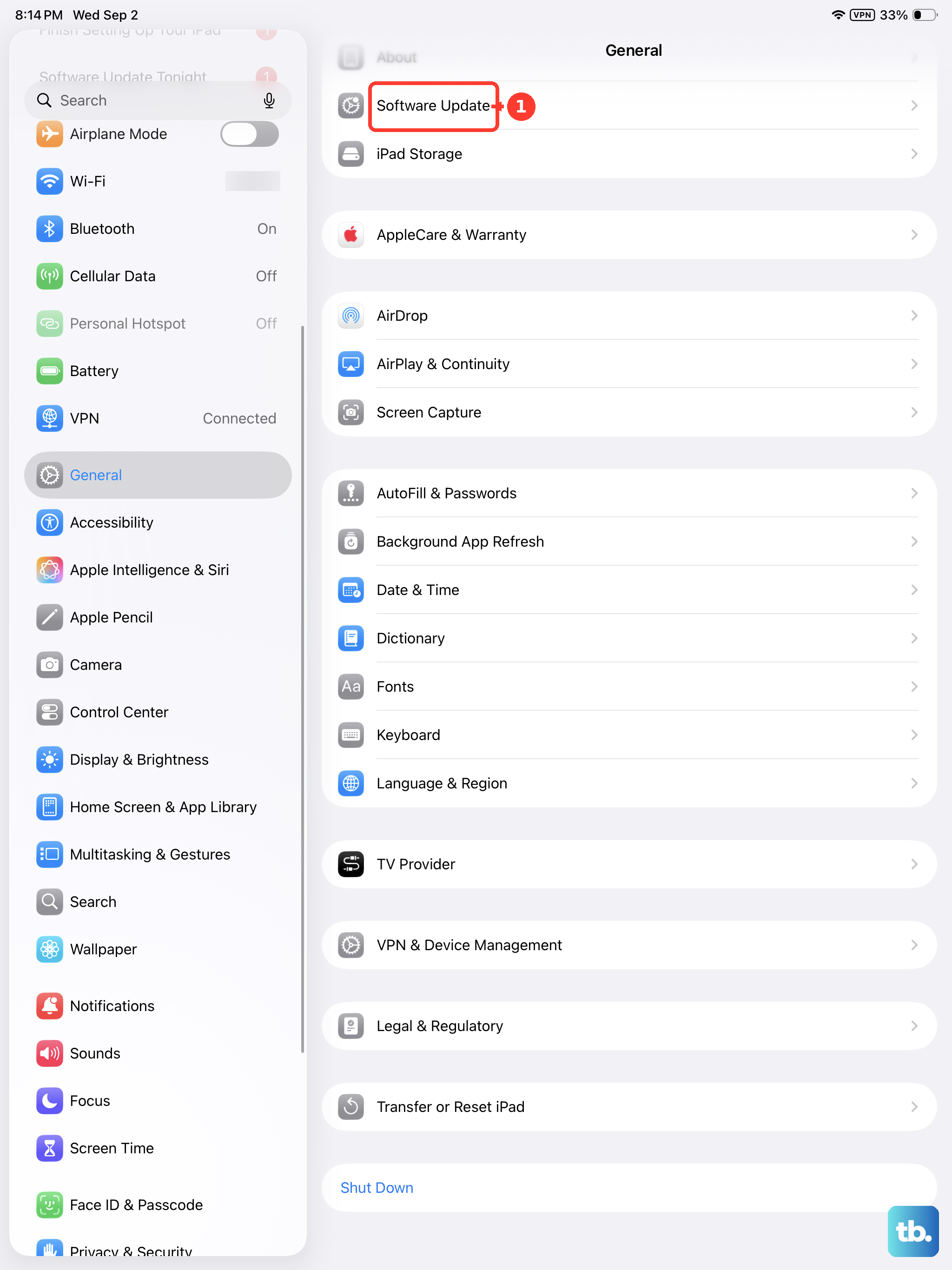
Apple frequently releases iPadOS updates that include bug fixes for cellular connectivity. Make sure you're running the latest version. Go to Settings > General > Software Update.
Your iPad will check for updates. If one is available, tap Download and Install. It's best to do this over Wi-Fi if possible, and make sure your iPad is plugged in or has plenty of battery charge.
Check for Service Outages
Before assuming the problem is with your iPad, check if it's a wider issue with your carrier. Service outages can happen due to maintenance or technical problems.
Try visiting your carrier's website on another device or check their social media accounts for outage reports. You can also try calling your carrier's customer service from another phone to ask if there are known issues in your area.
Try Your SIM Card in Another Device
This test helps pinpoint whether the issue is with your iPad or the SIM card itself. If you have another cellular-enabled device, even an old phone, power it off and insert your iPad's SIM card.
Turn the other device on and see if it gets service. If it also shows "No Service," the problem is likely with the SIM card or your carrier account. If the other device gets a perfect signal, the issue is probably with your iPad.
Contact Your Carrier for Support
If you've tried everything else, your carrier's support team can run diagnostics on their end. They can check your account status, see if your line is properly provisioned for data, and verify there are no blocks or restrictions.
They can also determine if your SIM card has failed and needs to be replaced. For eSIM models, they can help you re-provision the digital SIM directly over the air or via a QR code.