
Missing FaceTime calls or not hearing alerts on your iPad mini can be confusing, especially when you're sure the volume is up. While the iPad mini isn't a traditional phone, it handles calls and notifications through apps and cellular connectivity. This guide walks through the specific settings and fixes for the 7th generation model to get your alerts sounding again.
Check the Physical Mute Switch and Volume
First, look at the top edge of your iPad mini. If you see the side switch, its function depends on your settings. By default, it acts as a mute switch. If you see an orange line, your iPad is muted. Slide it to unmute.
You can change what this switch does in Settings. Go to Settings > Sounds and look for the "Lock Rotation" or "Mute" option under "Use Side Switch to." Make sure it's set to your preference.
Next, press the volume up button on the side. Do this while you're on the Home Screen or in an app, not while the screen is off, to ensure you're adjusting the ringer volume and not media playback. You can also go to Settings > Sounds and drag the "Ringer and Alerts" slider to the right.
Review Focus Modes and Do Not Disturb
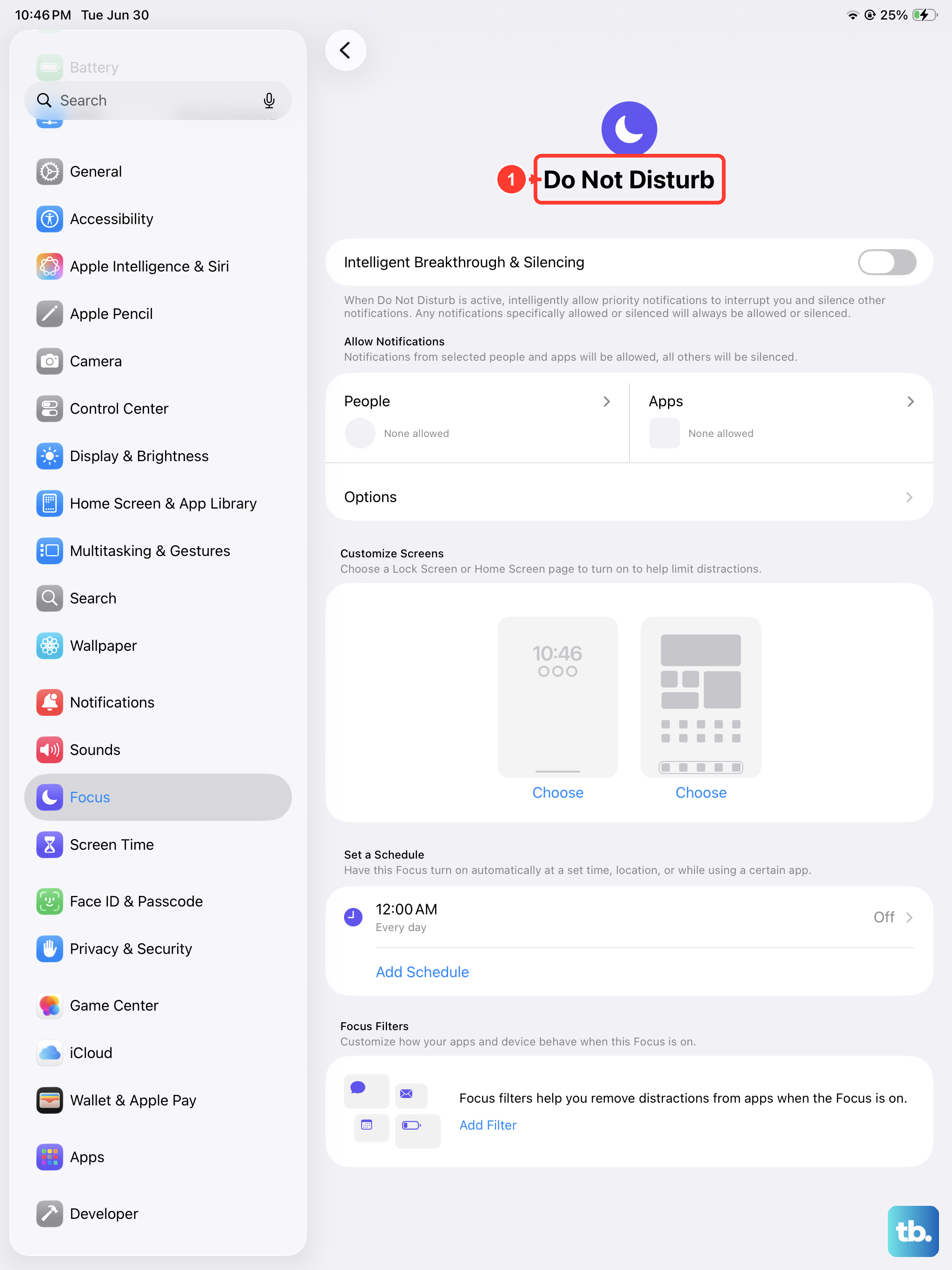
Focus modes in iPadOS 26 are powerful but can easily silence incoming FaceTime calls and other alerts. Swipe down from the top-right corner to open Control Center. If you see a moon, bell, or other Focus icon highlighted, tap it to turn that Focus off.
For a more thorough check, open Settings > Focus. Look at each Focus profile, like Do Not Disturb, Personal, or Work. Ensure they are all toggled off. Also, tap into each one and check "Turn On Automatically" to make sure there isn't a schedule or location-based rule activating it without you realizing.
Disconnect Bluetooth Accessories
If your iPad mini is connected to Bluetooth headphones, a speaker, or a car stereo, audio for calls and alerts will route there by default. This means your iPad itself will stay silent. The quickest fix is to turn Bluetooth off temporarily.
Swipe into Control Center and tap the Bluetooth icon to disconnect all devices. You can also go to Settings > Bluetooth and toggle it off. Try a test call or notification afterward to see if the sound returns to the iPad's speakers.
Configure FaceTime and Call Settings
Since the iPad mini handles calls via FaceTime and, on cellular models, regular cellular calls, you need to check a few specific settings. Open the FaceTime app and ensure your Apple ID is signed in and that "FaceTime" is toggled on at the top.
For cellular calls, go to Settings > Apps > FaceTime and look for "Calls from iPhone." If this is on, you can receive calls to your iPhone number on your iPad. Make sure this feature is enabled if you want it. Also, check Settings > Apps > Phone (on cellular models) for any call forwarding or blocking settings that might be interfering.
Reset All Settings on Your iPad
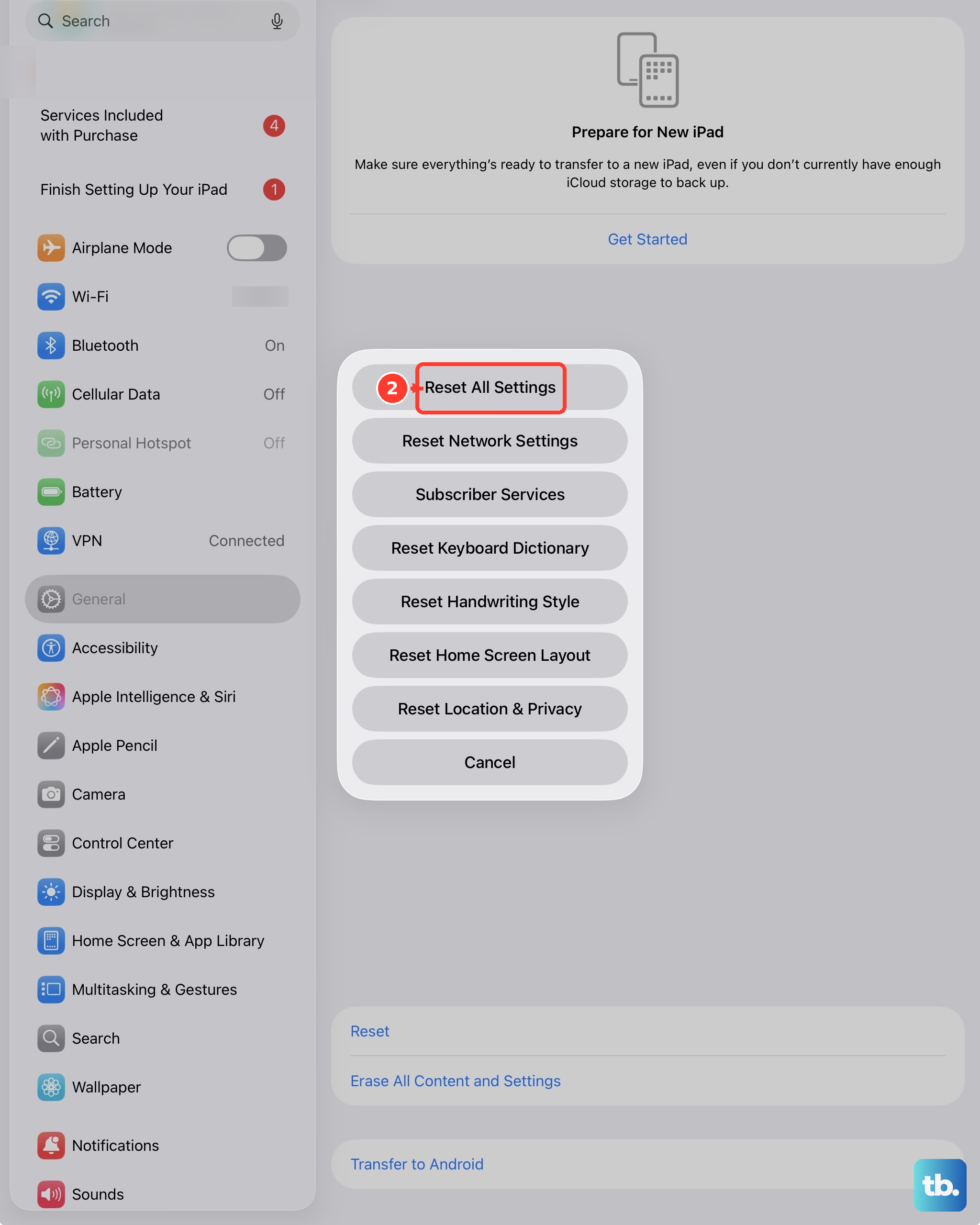
A software glitch in iPadOS 26 can sometimes cause sound settings to behave incorrectly. Resetting all settings can clear this up without deleting your personal data like photos or messages. It will revert Wi-Fi passwords, wallpaper, and sound settings back to defaults.
To do this, go to Settings > General > Transfer or Reset iPad. Tap "Reset" at the bottom, then choose "Reset All Settings." You'll need to enter your passcode to confirm. After the iPad restarts, you'll need to reconnect to Wi-Fi and adjust any custom settings again, but this often resolves persistent sound issues.
Update iPadOS to the Latest Version
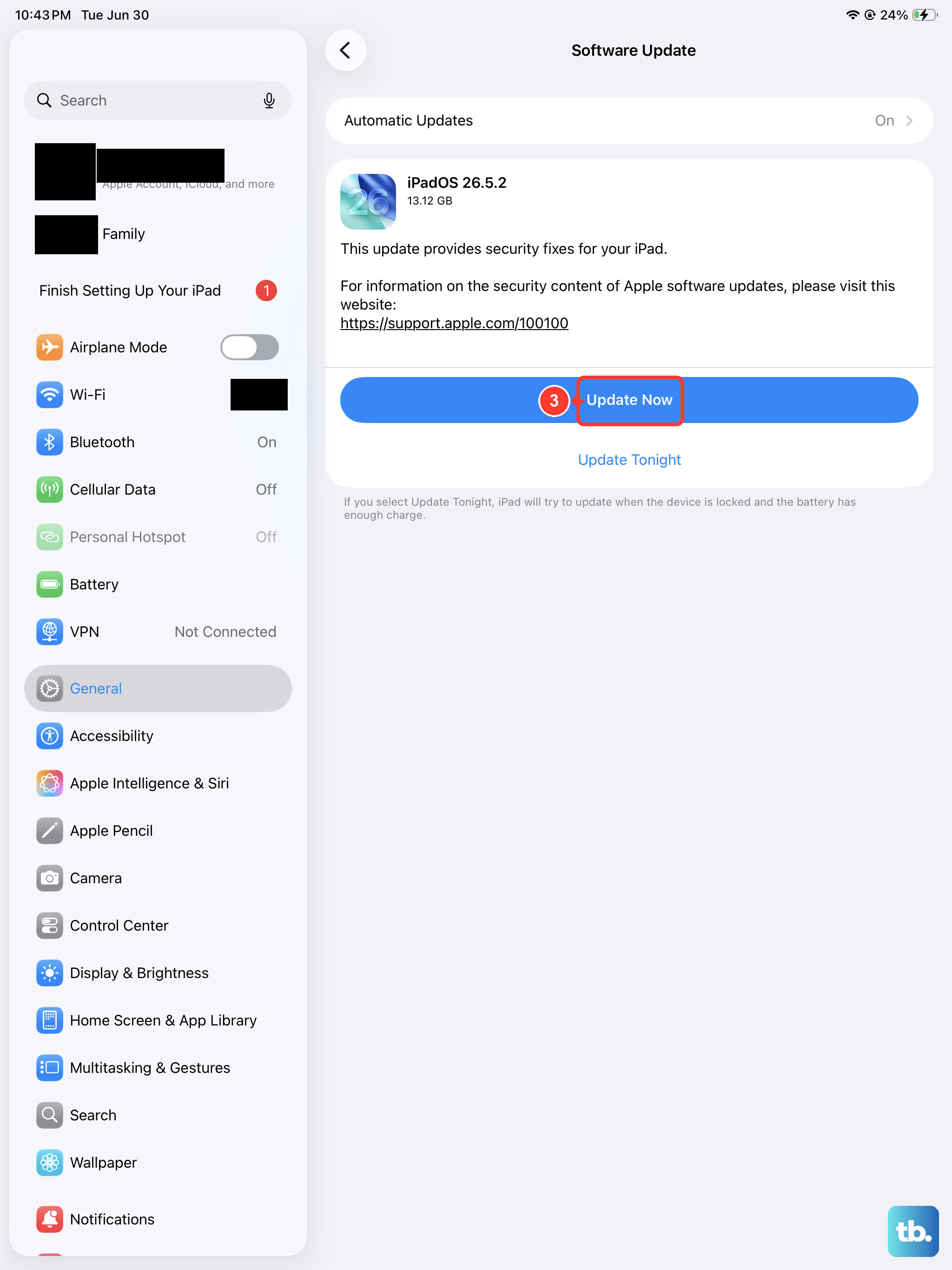
Apple releases software updates that include bug fixes for issues just like this. It's a good idea to make sure your iPad mini is running the latest version of iPadOS 26. Connect to a Wi-Fi network and plug in your iPad with its USB-C charger to ensure it has enough power.
Then, go to Settings > General > Software Update. If an update is available, tap "Download and Install." I've seen minor point updates (like 26.1 to 26.2) resolve odd audio and notification bugs on other iPad models.
Check Notification Settings for Specific Apps
The problem might not be with system sounds, but with how individual apps are allowed to notify you. For example, FaceTime, Messages, or email apps need permission to play sounds.
Go to Settings > Notifications. Scroll through the list and tap on each app you're having trouble with, like FaceTime. Make sure "Allow Notifications" is on. Then, check that "Sounds" is enabled within that app's notification style. You can also try changing the alert sound here as a test.
Force Restart Your iPad mini
A force restart is different from a normal power off and on. It clears the device's memory and can fix temporary glitches affecting the audio system. For the 7th generation iPad mini, press and quickly release the Volume Up button, then press and quickly release the Volume Down button. Finally, press and hold the Top button until you see the Apple logo appear on the screen, then release it.
Review Sound and Haptics Settings
Dive deeper into the sound settings. Go to Settings > Sounds. Here, you can adjust several options. Make sure "Change with Buttons" is enabled if you want the volume buttons to control ringer volume. You can also try changing the default ringtone under "Sounds and Vibration Patterns" to see if a particular tone file is corrupted.
While you're there, check the "Lock Sound" and "Keyboard Clicks" options. If those other system sounds are playing, it helps narrow down the issue to call-specific settings rather than a complete speaker failure.