
If your iPad won't connect to your AirPods, keyboard, or car, it can be incredibly frustrating. Bluetooth issues on iPadOS can have several causes, and you may be able to resolve them yourself. Start by restarting both the iPad and the accessory.
Before anything else, make sure both devices have enough charge and are close together. Put the Bluetooth accessory into discovery mode by following its instructions. Check that Bluetooth is enabled on your iPad by opening Settings > Bluetooth and making sure it is turned on.
Toggle Bluetooth and Restart Your iPad
Open Settings > Bluetooth and turn Bluetooth off, then turn it back on. The Bluetooth button in Control Center disconnects accessories without turning Bluetooth off. Try connecting your accessory again from the Bluetooth screen in Settings.
If that doesn't work, give your iPad a fresh start. Go to Settings > General > Shut Down and drag the slider, then hold the top button to turn it on. If your iPad isn't responding and you can't restart it normally, force restart it. For iPads without a Home button, quickly press and release the volume button nearest to the top button, then the volume button farthest from it. Hold the top button and release it when the Apple logo appears.
For iPads with a Home button, press and hold both the Home button and the top button until the Apple logo appears, then release both buttons. Don't forget to turn the Bluetooth device you're trying to connect to off and back on as well.
Forget and Re-Pair the Device
If a previously paired accessory won't connect, try removing it from your iPad's devices list and pairing it again. Open the Settings app and go to Bluetooth. Find the problematic device in your list and tap the info icon (a small "i" in a circle) next to it.
On the next screen, tap Forget This Device, then Forget Device to confirm. If you unpair AirPods, they are also unpaired from other devices signed in to your Apple Account. Now, put your accessory back into discovery mode and select it again from the list of available devices on your iPad's Bluetooth screen. Enter its PIN or passcode if prompted.
Check for iPadOS Updates
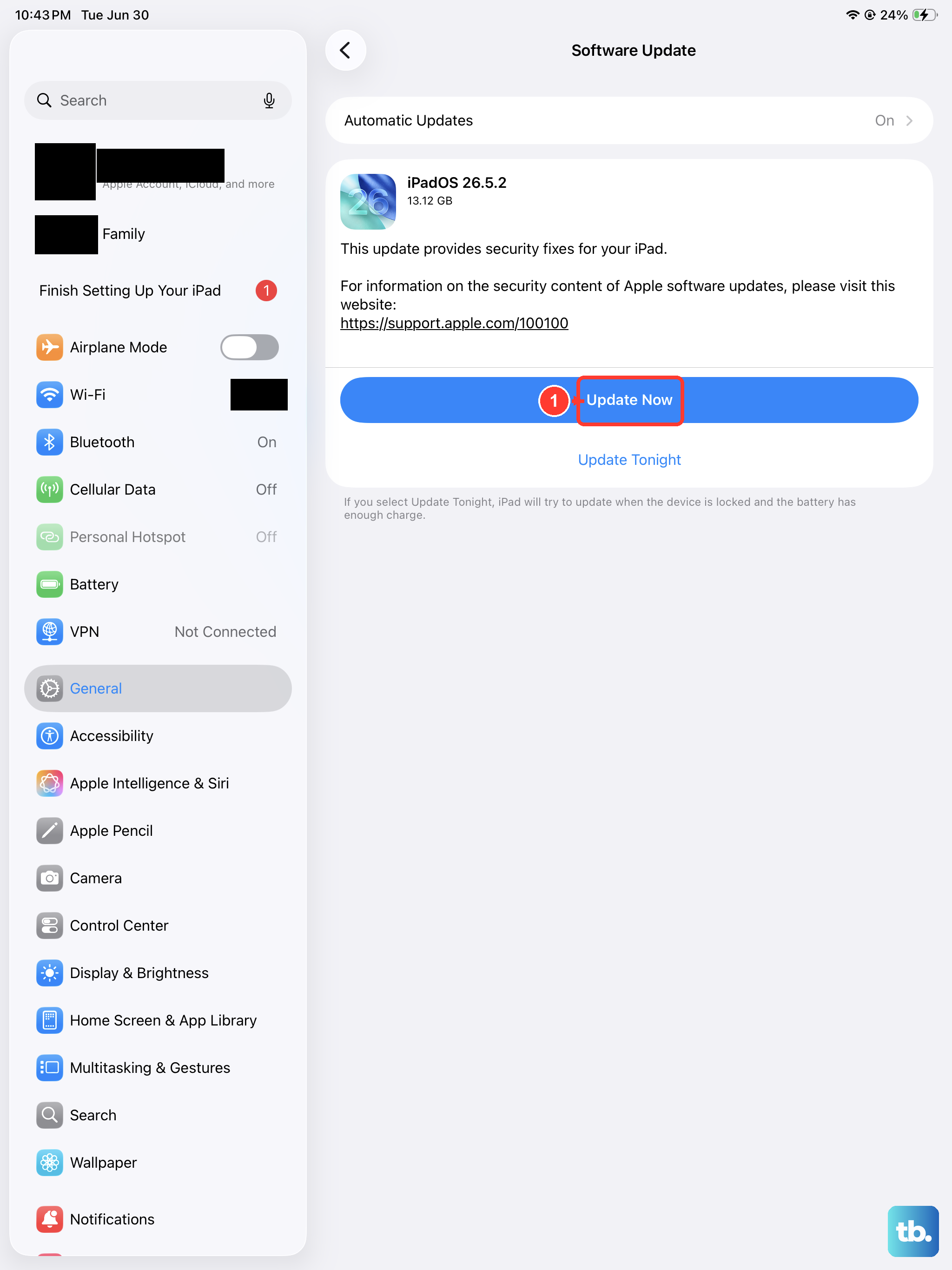
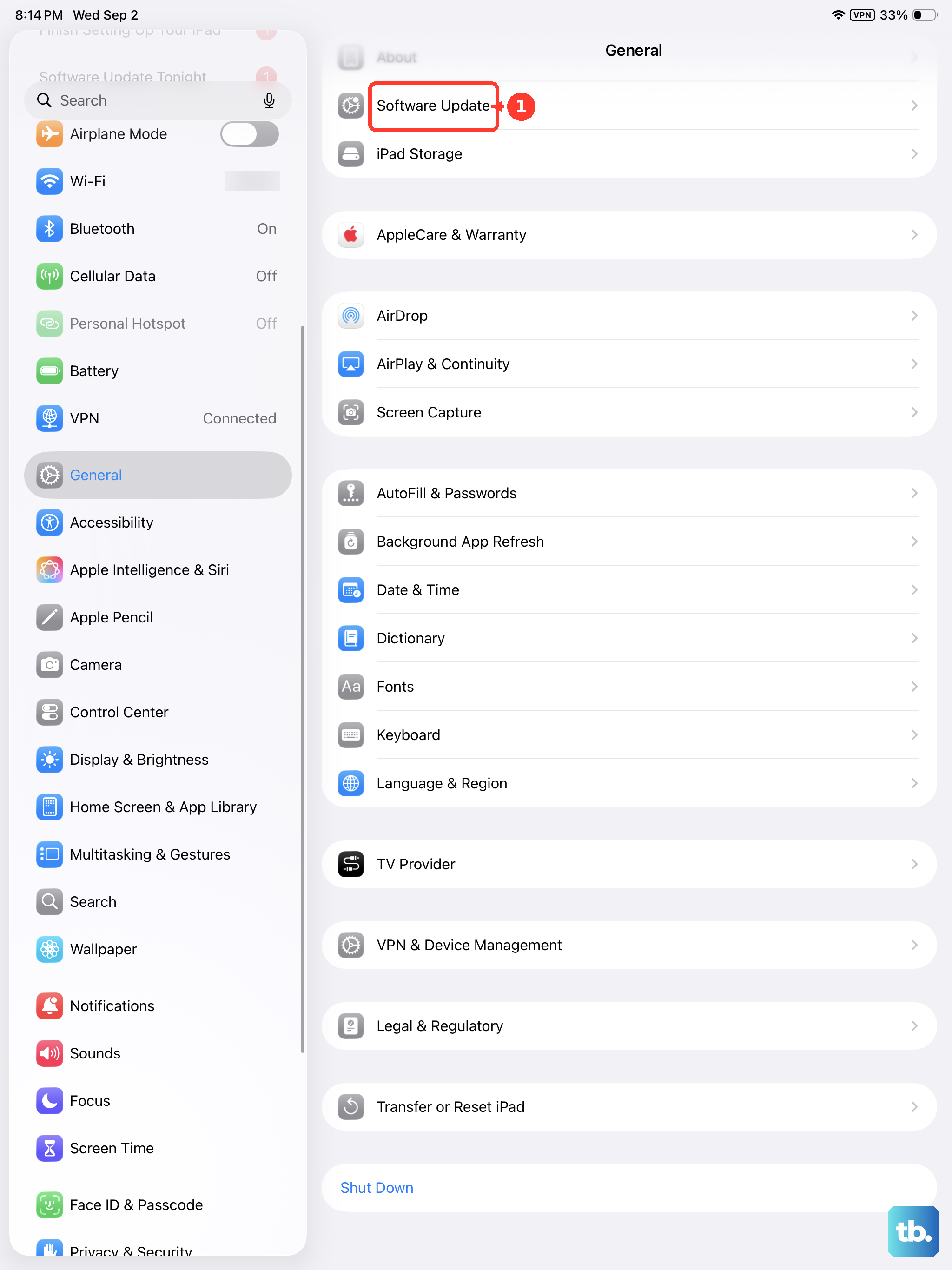
Software updates can include bug fixes. It's worth checking if your iPad is running the latest version of iPadOS. Go to Settings > General > Software Update.
Before updating, back up your iPad. If an update is available, tap Download and Install and follow the onscreen instructions. Keep your iPad connected to power and Wi-Fi during the update. Check for an update if the problem began after a recent software update.
Reset Your Network Settings
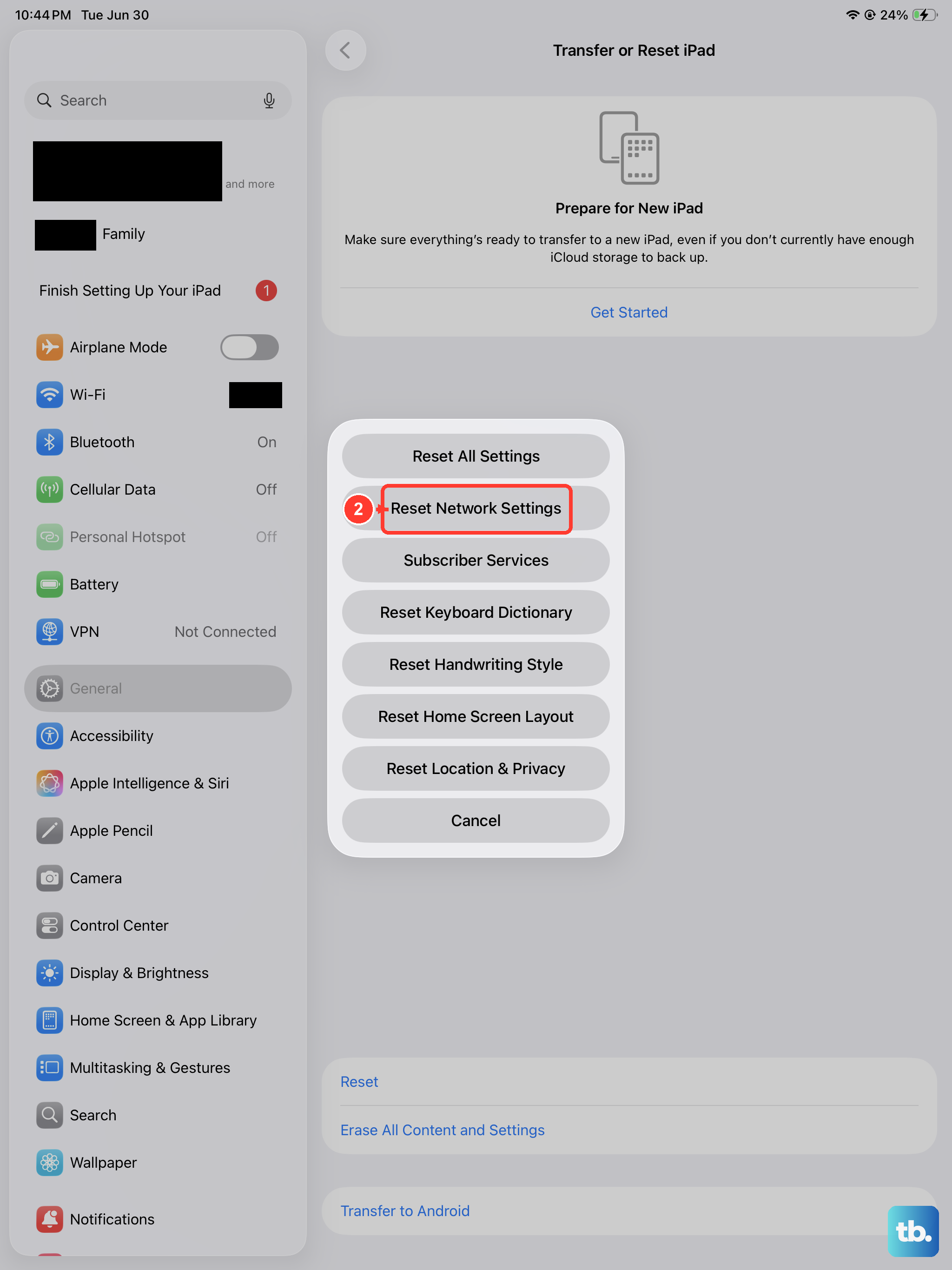
Try this only after simpler checks. Reset Network Settings removes previously used Wi-Fi networks and VPN settings that weren't installed by a configuration profile or mobile device management (MDM). You'll need to reconnect to Wi-Fi afterward, so have your Wi-Fi passwords ready.
To do this, navigate to Settings > General > Transfer or Reset iPad. Tap Reset and then select Reset Network Settings. Enter your passcode if prompted and confirm. After the reset, try connecting your Bluetooth accessory again.
Disconnect Other Accessories and Check for Interference
If you're using a USB-C hub, external drive, or even a Magic Keyboard case, try disconnecting it. Some accessories may affect wireless performance. Try pairing your device with the iPad alone, without any other attachments.
Also, move away from potential sources of wireless interference. This includes microwaves, fluorescent lights, routers, and even other active Bluetooth devices. Physical obstructions and distance can weaken the signal, so keep your iPad and the accessory within a clear line of sight, ideally within 30 feet.
Check the Bluetooth Device Itself
The issue might not be with your iPad at all. Test the Bluetooth accessory with another device, like your iPhone or a friend's tablet, to see if it pairs there. If it fails everywhere, the accessory may be the cause; contact its manufacturer for help.
Consult the accessory's manual to see if it needs a firmware update, which is often done through a companion app on your iPad. Also, if the accessory pairs with another phone or computer but not your iPad, unpair it from those other devices and try pairing it with your iPad again. If it uses a companion app, go to Settings > Privacy & Security > Bluetooth and make sure Bluetooth access is turned on for that app.