
Seeing a black screen on your iPad can be worrying, but it's often a temporary glitch rather than a permanent failure. The device might be on but the display is frozen, or the battery could be so drained it needs a proper charge. Let's go through the steps to get it working again.
Force Restart Your iPad
This is almost always the first thing I'd try. The process depends on your iPad model. For iPads without a Home button, like most recent models, quickly press and release the Volume Up button, then quickly press and release the Volume Down button. Finally, press and hold the Top button until you see the Apple logo, which can take 10-15 seconds.
If your iPad has a Home button, press and hold both the Home button and the Top button at the same time. Keep holding them until the Apple logo appears on the screen. This command works even if the display seems completely dead.
Charge Your iPad Properly
An iPad's battery is much larger than an iPhone's, so it needs more power to wake up from a deep discharge. Don't use the small 5W iPhone charger, as it will charge incredibly slowly. Plug your iPad into a wall outlet using its USB-C cable and a power adapter rated for at least 20W.
Leave it plugged in for a solid 30-60 minutes without touching it. If the battery was completely empty, it might take several minutes before any charging indicator appears on the screen. If you see nothing after an hour, try a different USB-C cable and a different, higher-wattage power adapter.
Check Your Charging Setup
iPads can be picky about their charging accessories. If you're using a USB-C hub, dock, or keyboard case like the Magic Keyboard, disconnect it. These accessories can draw power for themselves, which might prevent the iPad from getting enough juice to turn on.
Try charging the iPad directly with just the cable and power adapter. Also, make sure the USB-C port on the bottom of your iPad is clean and free of lint, which can block the connection. A can of compressed air can help clear it out gently.
Connect to a Computer
If a force restart didn't work, connect your iPad to a Mac or Windows PC using a USB-C cable. On a Mac with macOS Catalina or later, open Finder. On a Windows PC or an older Mac, open iTunes.
If the computer recognizes your iPad, you'll see it listed. Click on it and choose Update. This reinstalls iPadOS without erasing your data. If the update fails or isn't available, you may need to choose Restore, which will erase everything and install a fresh copy of the operating system.
Put Your iPad in Recovery Mode
If your computer doesn't see the iPad when you plug it in normally, you'll need to use recovery mode. First, connect the iPad to your computer with the cable. Then, immediately perform the force restart button sequence for your model.
For iPads without a Home button, press Volume Up, then Volume Down, then hold the Top button. For iPads with a Home button, hold the Home and Top buttons together. Don't release the buttons when you see the Apple logo.
Keep holding until you see a recovery mode screen showing a cable pointing to a computer icon. At this point, your Finder or iTunes window will prompt you to either Update or Restore the device.
Look for Signs of Life
While the screen is black, listen closely or feel the device. Does it make a charging chime when you plug it in? Does it vibrate for notifications? Try asking "Hey Siri" a question to see if it responds.
If you hear sounds or Siri works, the iPad itself is on and functioning. The problem is isolated to the display or its connection, which could be due to physical damage or a loose internal cable.
Inspect for Physical Damage
Examine the iPad carefully under good light. Look for any cracks in the glass, dark spots under the screen, or dents on the edges. Even a small drop can sometimes jar a display cable loose internally.
If you find obvious damage, or if the iPad was recently exposed to liquid, the issue is likely hardware-related. For liquid exposure, the best course is to power it off and let it dry completely in a well-ventilated area for at least 48 hours before trying to turn it on again.
Consider a Software Glitch
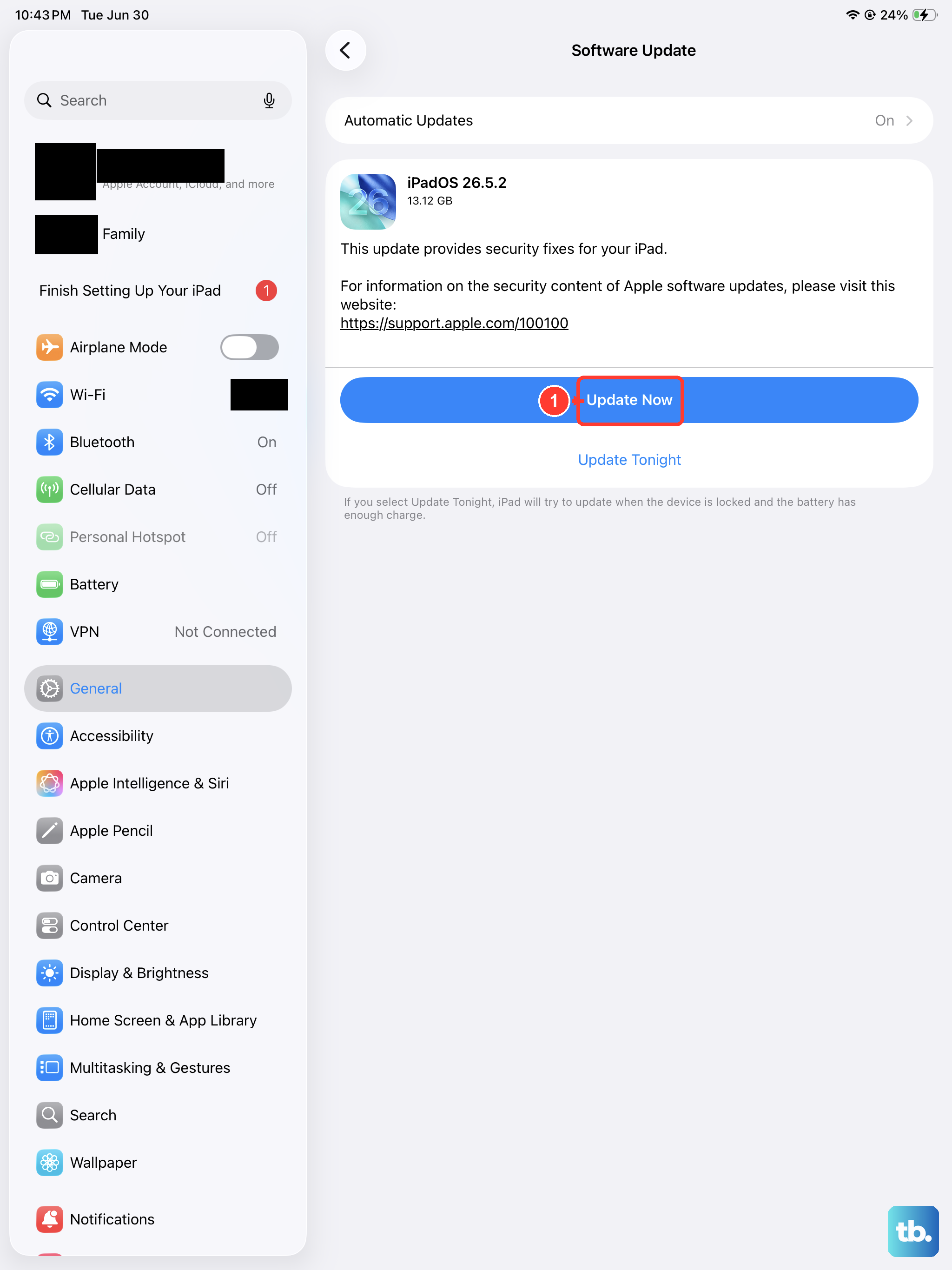
Occasionally, an iPadOS update can introduce bugs that affect charging or display detection. If your iPad went black shortly after a software update, the restore process via a computer is your best bet to fix any corrupted system files.
This is why trying the Update option in Finder or iTunes is a good middle step before a full restore, as it preserves your personal data while replacing the operating system files.