
Press and quickly release the Volume Up button, then press and quickly release the Volume Down button. Immediately after, press and hold the Top button. Keep holding it until you see the Apple logo appear, then let go. This force restart is the single most effective fix for an unresponsive iPad Air screen and often resolves temporary software glitches.
I'd start with this one every time. It doesn't delete any of your data or settings, it just gives the system a clean slate to boot from. If the screen is completely black, you'll just feel a vibration when the iPad restarts.
Clean Your iPad Screen and Hands
It sounds simple, but a surprising number of touch issues are caused by a dirty screen or wet fingers. Use a soft, slightly damp, lint-free cloth to wipe the entire screen clean. Make sure your hands are completely dry, as moisture can confuse the capacitive touch sensors.
Also, check if you have a screen protector installed. A poorly applied or low-quality protector can interfere with touch sensitivity. Try gently peeling back a corner to see if touch response improves without it.
Check for a Software Update
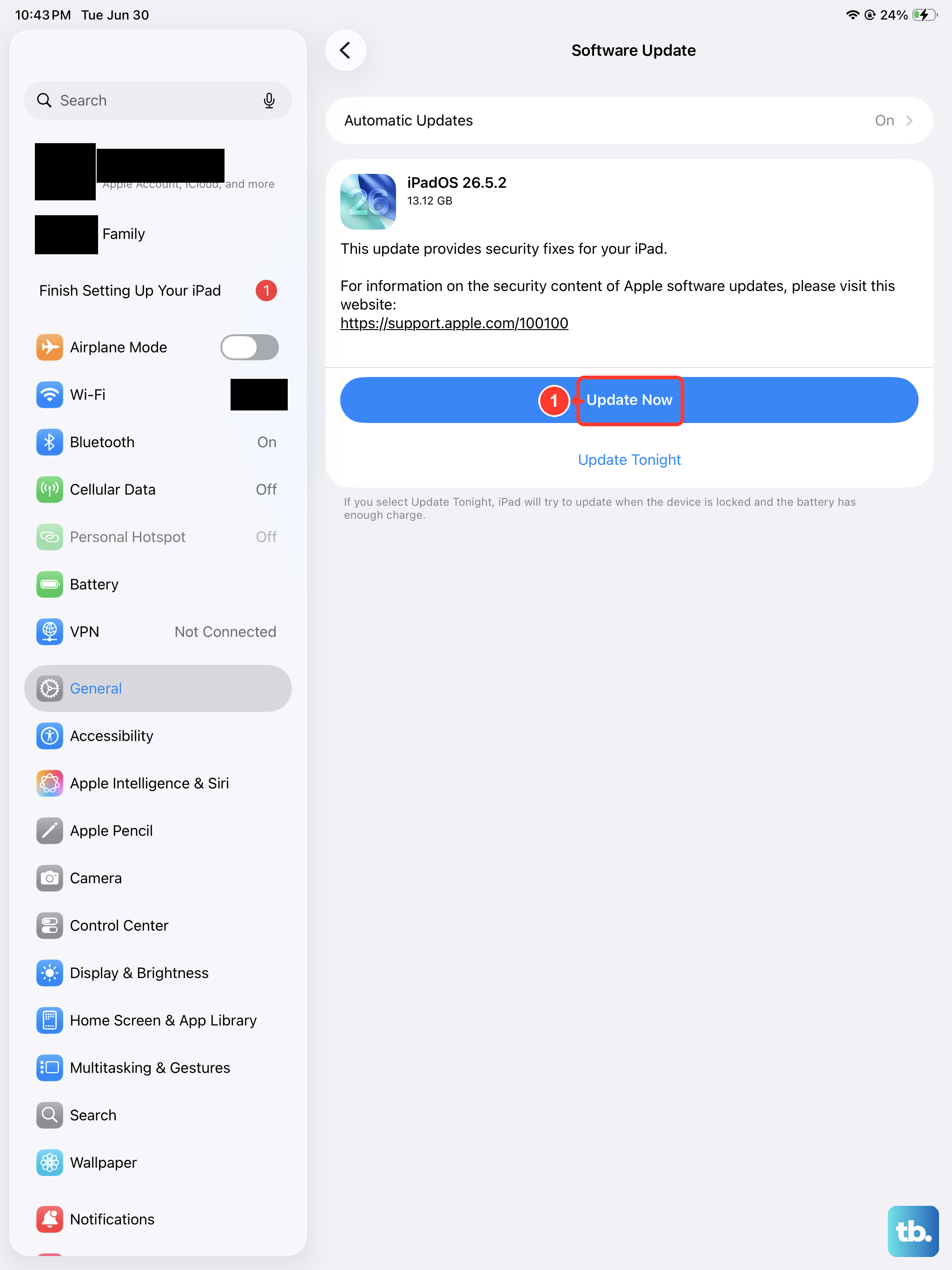
An unresponsive screen can sometimes be a symptom of a bug in iPadOS. Connect your iPad Air to its charger and, if you can, try to navigate to Settings > General > Software Update.
If the touchscreen is too uncooperative to manage this, you can update via a computer. Connect your iPad to a Mac or PC with a USB-C cable, open Finder (on Mac) or iTunes (on Windows), and check for an update there. Installing the latest iPadOS version can patch the specific issue causing the problem.
Charge Your iPad Air
A very low battery can cause all sorts of erratic behavior, including a non-responsive display. Plug your iPad into its 30W USB-C Power Delivery charger and let it charge for at least 30 minutes.
Don't use a low-power charger or a computer port for this initial charge, as they may not provide enough power. Use the official Apple USB-C charger or a certified high-wattage alternative. The screen may wake up and begin responding once the battery reaches a sufficient charge level.
Disconnect All Accessories
Any connected accessories could be causing a conflict. Unplug any USB-C hubs, external drives, or keyboards. If you're using a case with a built-in magnetic cover or a folio-style keyboard, try removing the iPad from the case entirely.
Some third-party chargers or docks can also send incorrect signals to the iPad. After disconnecting everything, perform the force restart sequence again to see if the touchscreen returns to normal.
Check for Physical Damage
Look very closely at the iPad Air's screen, especially around the edges. Even a hairline crack you can barely see can disrupt the touch digitizer layer beneath the glass. Gently press around the screen's perimeter and see if any areas cause a change or briefly make the touch work.
Think back to any recent drops or impacts, even minor ones. Pressure damage from being in a tightly packed bag can sometimes cause issues. If you find any new damage, it's likely the cause of the touch failure.
Reset All Settings
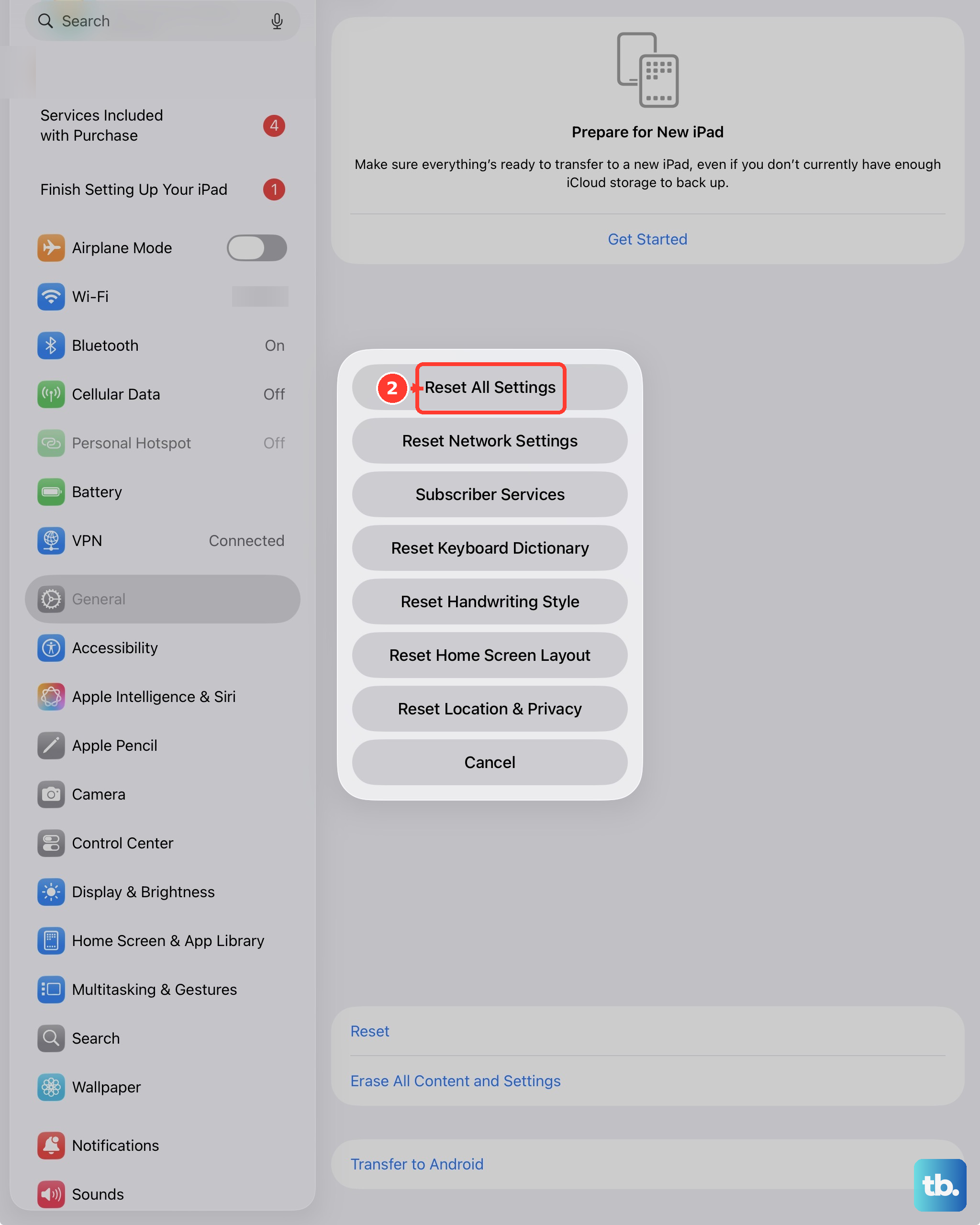
This is a stronger step that resets all your preferences, like Wi-Fi passwords, wallpaper, and privacy settings, back to default without erasing your personal data. If you can't use the touchscreen to do this, you'll need to use a computer.
Connect the iPad to a computer, open Finder or iTunes, and put the iPad into Recovery Mode. To do this, quickly press Volume Up, then Volume Down, then hold the Top button until you see the recovery mode screen on your computer. From there, you can choose the "Restore" option, which reinstalls iPadOS and completely erases the device. Remember, this will delete everything, so it's a last resort.
Consider a Hardware Issue
If you've tried every software fix, the screen is clean and undamaged, and the problem persists, the issue is likely internal. The touch digitizer, its connection to the logic board, or another component may have failed.
Since the 2026 iPad Air doesn't have wireless charging, you can rule out issues with charging coils interfering with the display. The next step would be to contact Apple Support or visit an Apple Store or Authorized Service Provider. They can run diagnostics to pinpoint if it's a repairable component or a deeper logic board problem.