
When your iPad Air (2026) doesn't show up on your Windows PC, it can stop you from transferring photos, syncing files, or doing a local backup. This connection hiccup is usually a simple software or cable issue, not a sign of a broken iPad.
I'd start by checking the cable and port, as that's the fix about half the time. The process is straightforward and you can often get things working again in a few minutes.
Check Your USB-C Cable and Port
Grab a different USB-C cable, preferably the one that came with your iPad or a certified high-quality one. Cheap cables often only handle power, not data. Plug it into a different USB port on your computer, ideally a USB 3.0 or USB-C port on the back of a desktop.
While you're at it, take a look inside the USB-C port on your iPad. Shine a light in and see if there's any lint packed down at the bottom. You can gently clear it out with a dry, soft-bristled brush or a plastic toothpick. Be very careful not to damage the central connector pin.
Restart Your iPad and Computer
A simple restart clears out temporary glitches that can block the connection. On your iPad, perform a force restart by pressing and quickly releasing the Volume Up button, then the Volume Down button, then pressing and holding the Top button until you see the Apple logo.
For your Windows PC, go to the Start menu and choose Restart, not just Shut Down. Modern PCs use Fast Startup, and a full restart clears more system processes. Once both devices are back on, try connecting the cable again.
Unlock Your iPad and Tap "Trust"
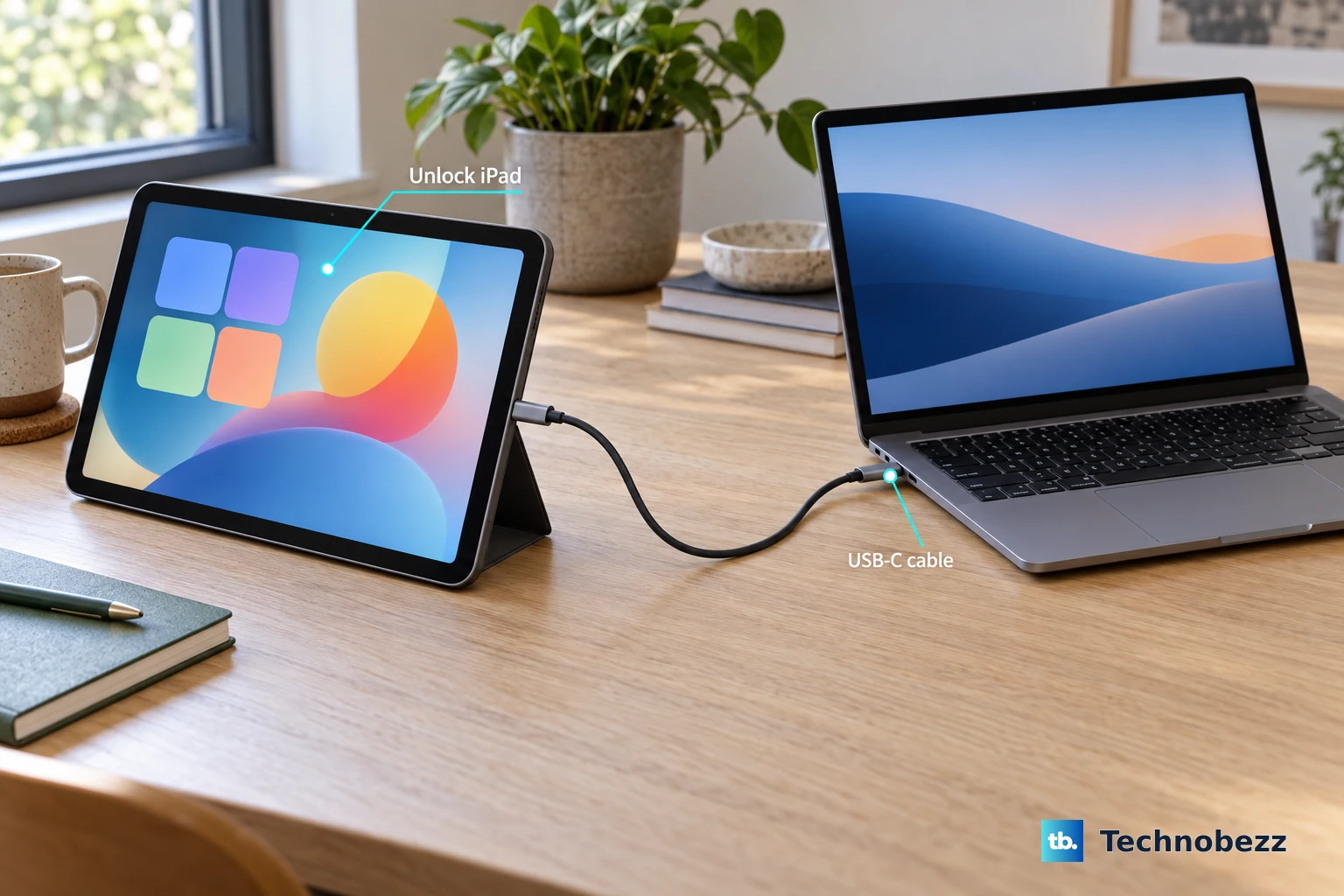
This is a common oversight. Your iPad's screen must be awake and unlocked when you connect it to a new computer. When you plug it in, a prompt should appear on the iPad's screen asking, "Trust This Computer?"
You need to tap "Trust" and enter your passcode. If you accidentally tapped "Don't Trust" before, the computer is blocked. To reset this, go to your iPad's Settings > General > Transfer or Reset iPad > Reset. Then tap Reset Location & Privacy. The next time you connect, the "Trust" prompt will appear again.
Update iPadOS on Your iPad
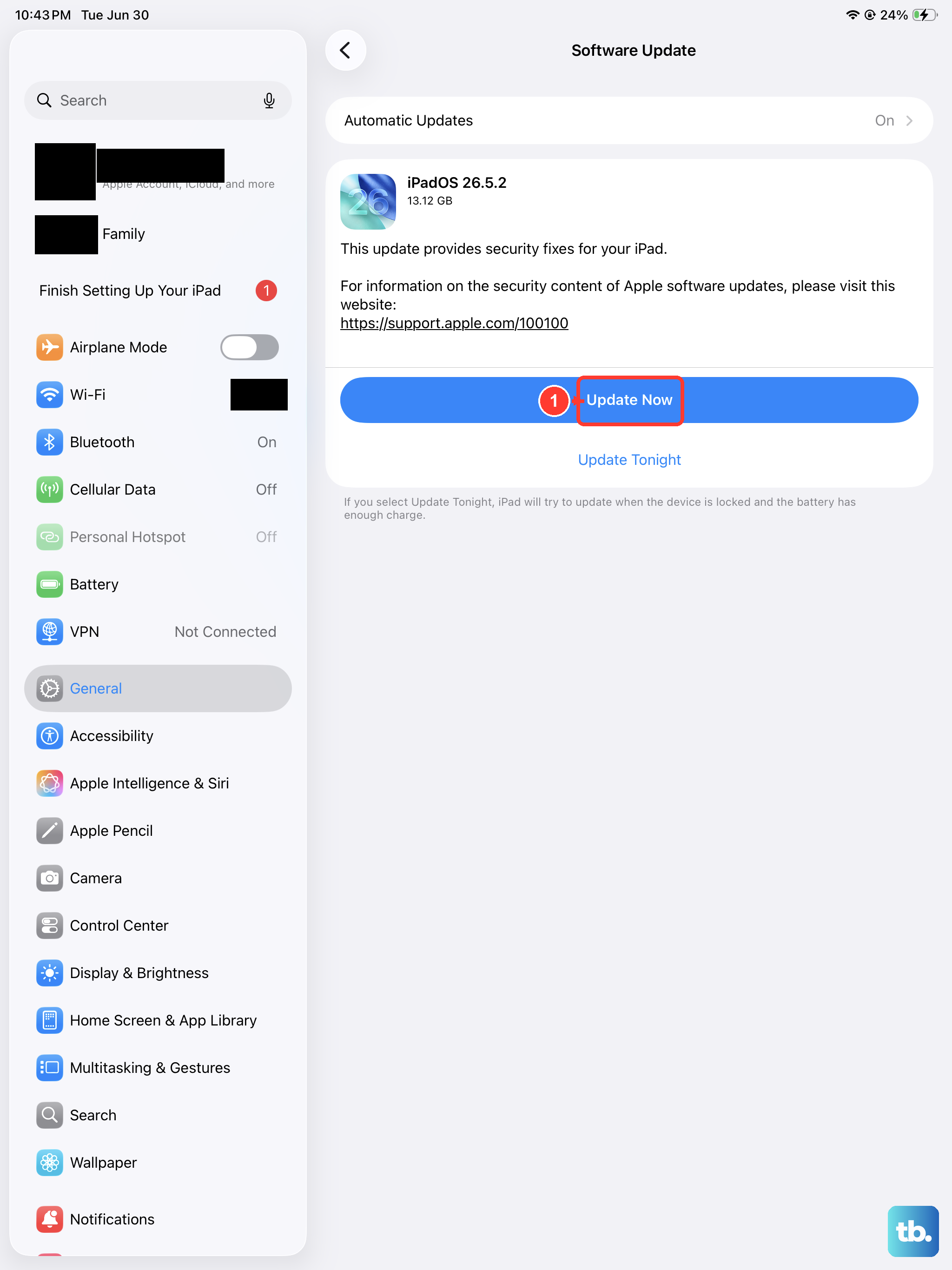
An outdated version of iPadOS can have bugs that affect connectivity. Connect your iPad to Wi-Fi and go to Settings > General > Software Update. If an update is available, install it. These updates often include fixes for obscure hardware communication issues.
It's a good habit to check for updates regularly, as they also bring performance improvements and security patches for your 2026 model.
Check for Windows Driver Issues
Windows might be missing or using a corrupted driver for the iPad. Connect your iPad to the PC, then right-click the Start button and select Device Manager. Look under Portable Devices or Universal Serial Bus controllers.
If you see your iPad listed with a yellow exclamation mark, right-click it and select Update driver. Choose "Search automatically for updated driver software." If it's not listed at all, try connecting to a different USB port, which can force Windows to re-detect it.
Install or Reinstall Apple Devices and iTunes
On Windows, the necessary drivers for iPad connectivity are provided through an app called Apple Devices, or the older iTunes software. Open the Microsoft Store and search for "Apple Devices" to install it. If you have the older iTunes from the Apple website, you can use that instead.
If the app is already installed, try repairing it. Go to Settings > Apps > Installed apps, find "Apple Devices," click the three dots, and select Modify. Choose the repair option. This reinstalls the drivers without affecting your media library.
Try a Different Computer or User Account
This is a great way to figure out where the problem lies. Try connecting your iPad Air to a different Windows PC or even a Mac. If it works on another machine, the issue is with your original computer's configuration.
You can also try creating a new user account on your Windows PC and logging into it. If the iPad connects fine in the new account, then something in your main user profile is corrupted, like a permission or registry setting.
Check Your Security Software
Sometimes, overzealous antivirus or firewall software can block the connection between your iPad and PC. Try temporarily disabling your third-party security software's real-time protection.
You can usually do this by right-clicking the software's icon in the system tray. Remember to turn it back on after testing. Also, check Windows Defender Firewall to ensure it's not blocking Apple Mobile Device Service.
Reset the iPad's Network Settings
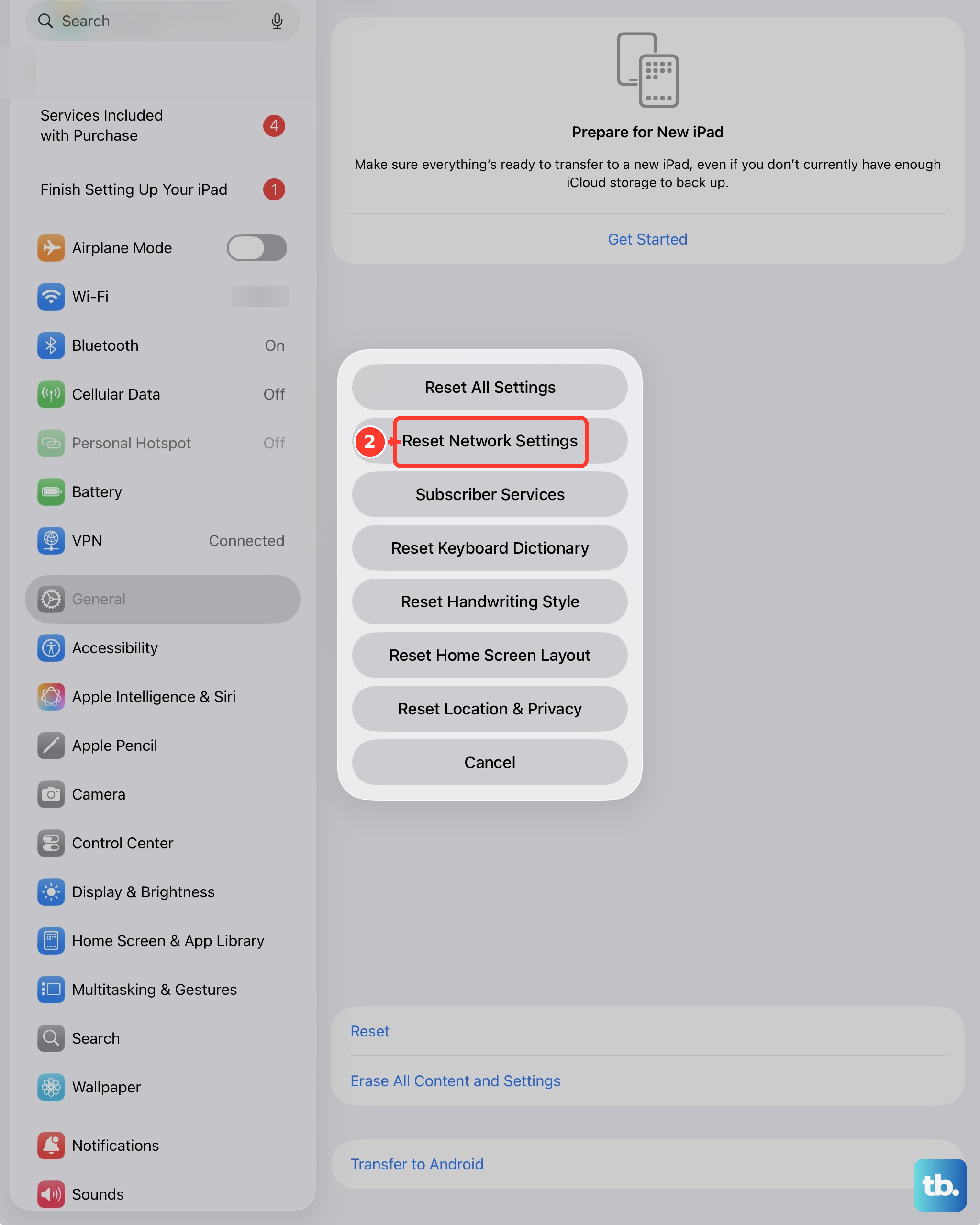
This resets Wi-Fi networks and passwords, cellular settings, and VPN configurations. It can sometimes clear up deeper system communication issues. Go to your iPad's Settings > General > Transfer or Reset iPad > Reset.
Then tap Reset Network Settings. You'll need to enter your passcode and confirm. Your iPad will restart, and you'll have to rejoin your Wi-Fi network, but it won't delete any personal data or files.
Update Your PC's Motherboard Chipset Drivers
This is a more advanced step, but outdated USB controller drivers on your PC's motherboard can cause all sorts of device recognition problems. Visit your PC or motherboard manufacturer's website.
Look for the support or downloads section, enter your model number, and find the latest chipset driver or USB driver for your system. Download and install it, then restart your computer before trying the iPad connection again.