
Seeing "No SIM" or "Invalid SIM" on your iPad Air (2026) can stop your cellular data in its tracks. This usually happens because of a simple software hiccup or a physical issue with the card itself, and it's often something you can fix without a trip to the store.
Let's start with the quickest solutions that tend to work for most people. I'd try these in order, as they're the least disruptive.
Restart Your iPad Air
A simple restart can clear out temporary software glitches that might be confusing the cellular modem. Just press and hold the top button and either volume button until you see the power off slider. Slide it to turn off, wait about 30 seconds, then press the top button again to turn it back on.
Toggle Airplane Mode
This is a classic network refresh trick. Swipe down from the top-right corner to open Control Center and tap the airplane icon to turn it on. Wait about 10 seconds, then tap it again to turn it off. This forces the iPad to re-establish its connection to the cellular network.
Check for a Carrier Settings Update
Sometimes, your cellular carrier pushes small updates that help your device connect properly. To check, make sure you're connected to Wi-Fi, then go to Settings > General > About. If an update is available, a prompt will appear right there on that screen.
Reinsert Your Physical SIM Card
If you're using a physical nano-SIM, the connection might just be loose. You'll need the SIM eject tool that came with your iPad (a small paperclip works in a pinch). Turn off your iPad completely first.
Find the SIM tray on the frame of the iPad. Insert the tool into the small hole to pop the tray out. Carefully remove the SIM card, inspect the gold contacts for any dust or debris, and give it a gentle wipe with a dry, soft cloth. Reinsert the card into the tray, making sure it's seated correctly, and push the tray back in until it clicks.
Update iPadOS
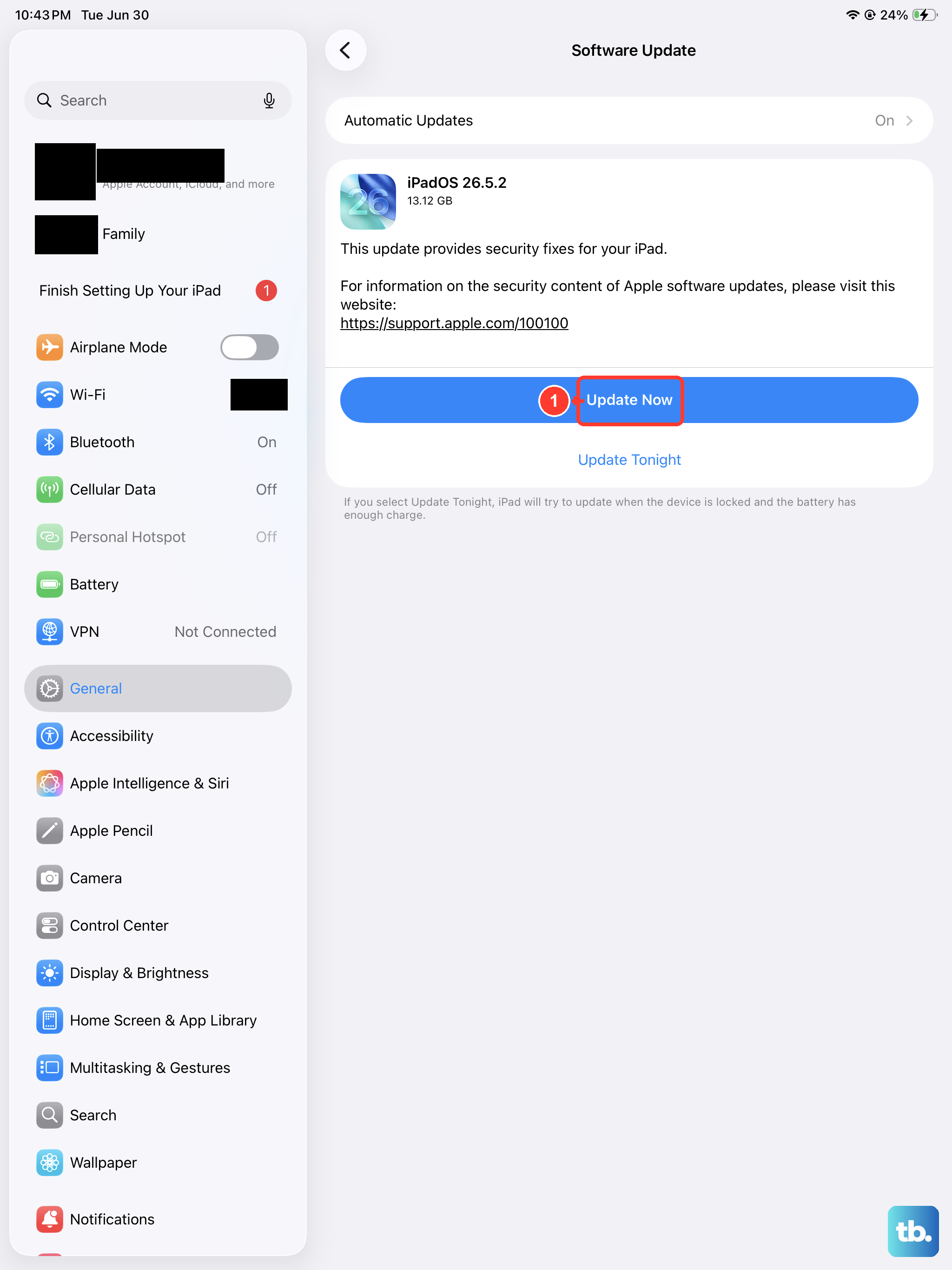
A bug in the system software could be causing the problem. Apple frequently patches these kinds of issues. Head to Settings > General > Software Update to see if a newer version of iPadOS is available. Installing the latest update is a good habit for overall performance, too.
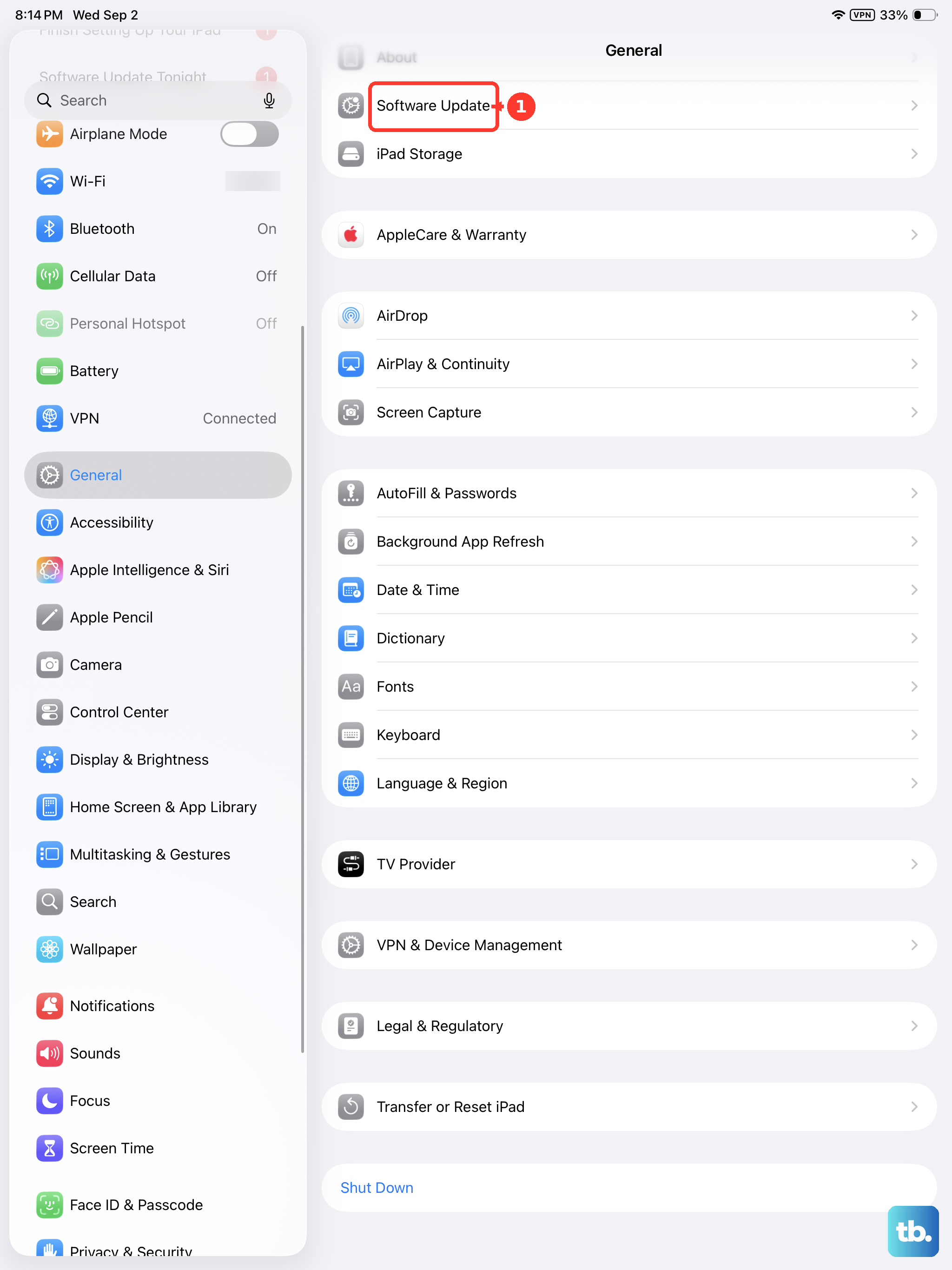
Reset Your Network Settings
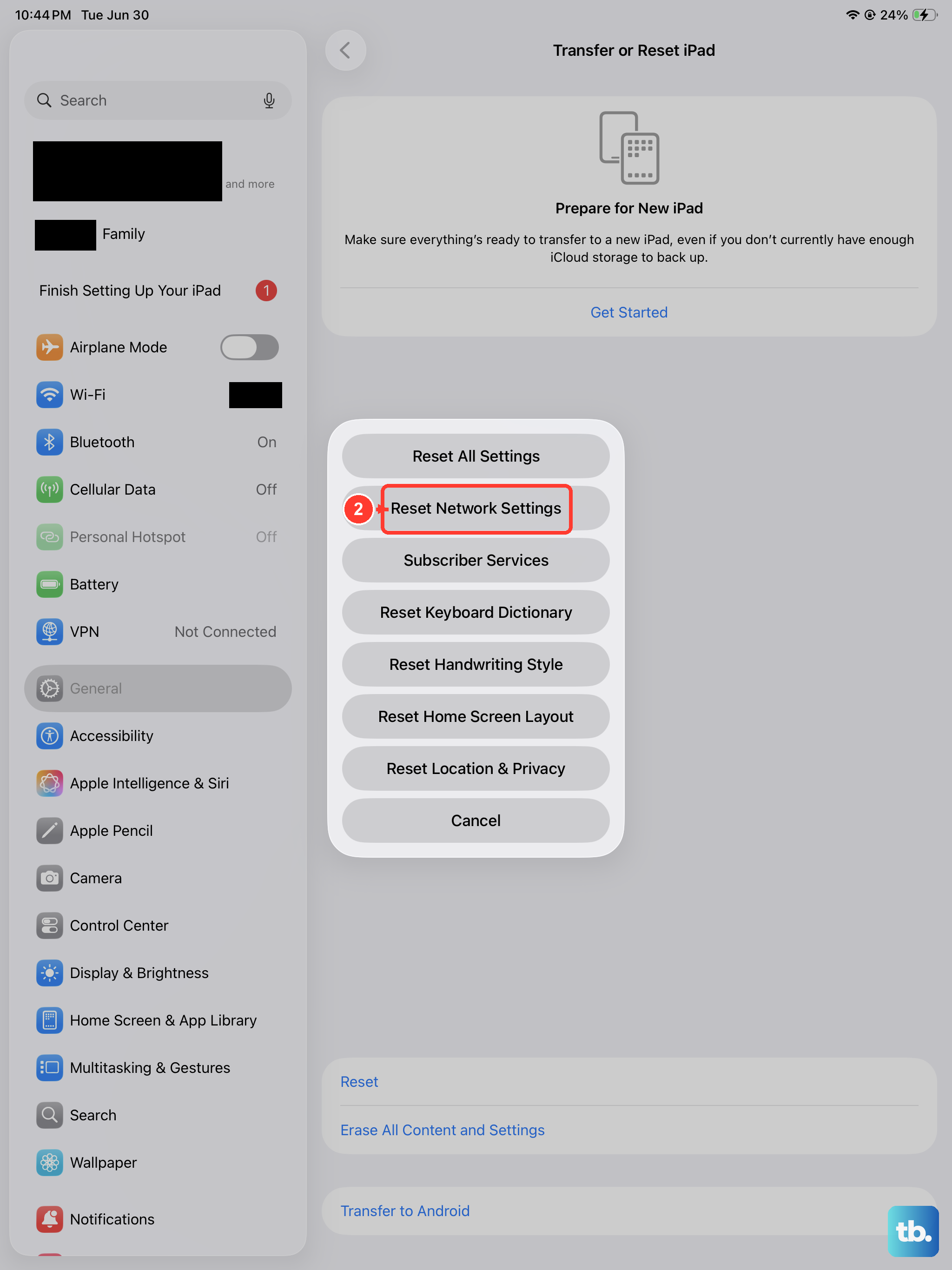
This clears out all your saved Wi-Fi passwords, Bluetooth pairings, and cellular network configurations, which can resolve deeper connection issues. Go to Settings > General > Transfer or Reset iPad > Reset. Then, tap Reset Network Settings. You'll need to re-join your Wi-Fi networks afterward, but it won't touch your personal data or apps.
Try a Force Restart
This is a slightly more thorough restart than the standard one and can clear more stubborn glitches. On the iPad Air (2026), quickly press and release the Volume Up button, then quickly press and release the Volume Down button. Immediately after, press and hold the Top button. Keep holding it until you see the Apple logo appear, then let go.
Test the SIM in Another Device
This is the best way to figure out if the problem is with your SIM card or with the iPad itself. If you have another cellular iPad or an unlocked iPhone, power it off, insert your SIM, and turn it back on. If that device also says "No SIM," then the issue is almost certainly with the SIM card itself, and you'll need to contact your carrier for a replacement.
Contact Your Cellular Carrier
Your carrier can run a diagnostic on their end to see if your line is active and provisioned correctly for data. They can also check if there's an outage in your area. It's a quick call or chat, and they can often push a refresh signal to your iPad that might solve the problem instantly.
Consider Switching to eSIM
If you have a physical SIM that seems problematic, many carriers now support eSIM for iPads. This is a digital SIM profile downloaded directly to your device. You can ask your carrier if they support eSIM for the iPad Air and if you can convert your line. It eliminates any physical connection issues entirely.