
Seeing "No Service" or a missing signal bar on your iPad Air (2026) can be a real headache, especially if you rely on cellular data on the go. This usually means the iPad can't connect to your carrier's network for data, and sometimes for calls and texts if you have that plan.
The good news is that most of the time, this is a temporary glitch you can fix yourself in a few minutes. I'd start with the simplest solutions first, as they often do the trick.
Toggle Airplane Mode and Restart
First, swipe down from the top-right corner to open Control Center and tap the airplane icon to turn on Airplane Mode. Wait about 15 seconds, then tap it again to turn it off. This forces the cellular modem to restart its connection search.
If that doesn't work, give your iPad a full restart. On the iPad Air (2026), press and hold the Top button and either volume button until the power slider appears. Slide to power off, wait 30 seconds, then press the Top button again to turn it back on.
For a more thorough refresh, try a force restart. This doesn't erase any data. Quickly press and release the Volume Up button, then quickly press and release the Volume Down button. Finally, press and hold the Top button until you see the Apple logo appear on the screen.
Check Your Cellular Data Settings
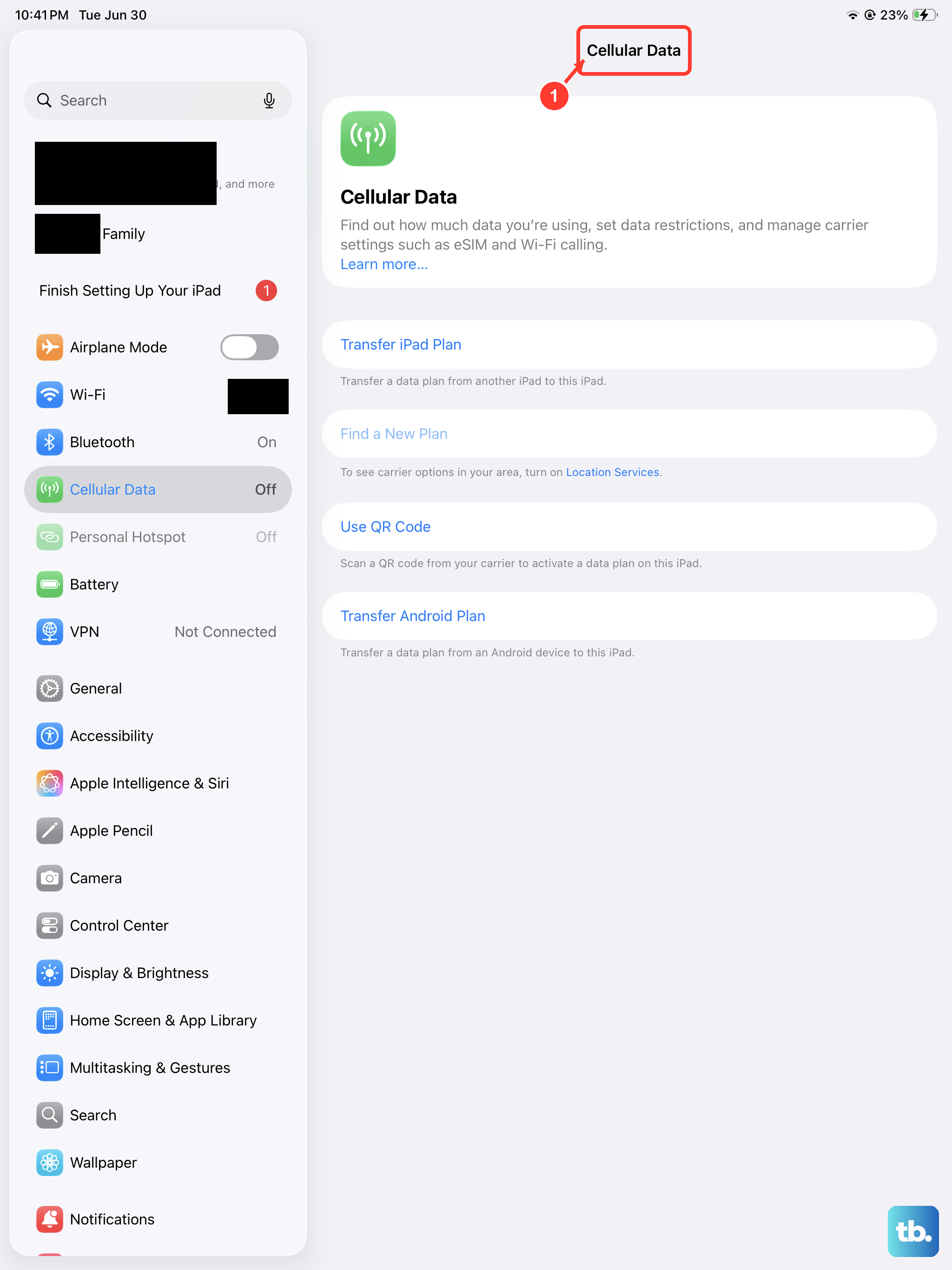
Open the Settings app and tap Cellular Data. Make sure the Cellular Data switch at the top is turned on. It's easy to accidentally toggle this off, especially if you were trying to save battery.
While you're there, look at the section for your cellular plan. Tap on it and ensure that the line is turned on. You can also try turning Data Roaming on temporarily, as being in a fringe coverage area might require it, though be mindful of potential carrier charges.
Finally, scroll down in the main Cellular Data settings and check that any apps you need to use are permitted to use cellular data. Sometimes an app will act like it has no connection because it's been restricted to Wi-Fi only.
Reinsert Your SIM Card or Check eSIM
If your iPad Air uses a physical nano-SIM card, the connection can get finicky. You'll need a SIM eject tool or a small paperclip. Find the SIM tray on the frame of the iPad, insert the tool into the small hole, and gently pop the tray out.
Remove the SIM card, give the gold contacts a quick wipe with a soft, dry cloth, and carefully re-seat it in the tray. Push the tray firmly back into the iPad until it clicks. Wait a minute for the iPad to search for the network again.
If you're using an eSIM, the process is digital. Go to Settings > Cellular Data and tap "Add Cellular Plan." You might need to scan a new QR code from your carrier or contact them to re-provision the eSIM on your account, which they can usually do over the phone.
Update Your iPadOS Software
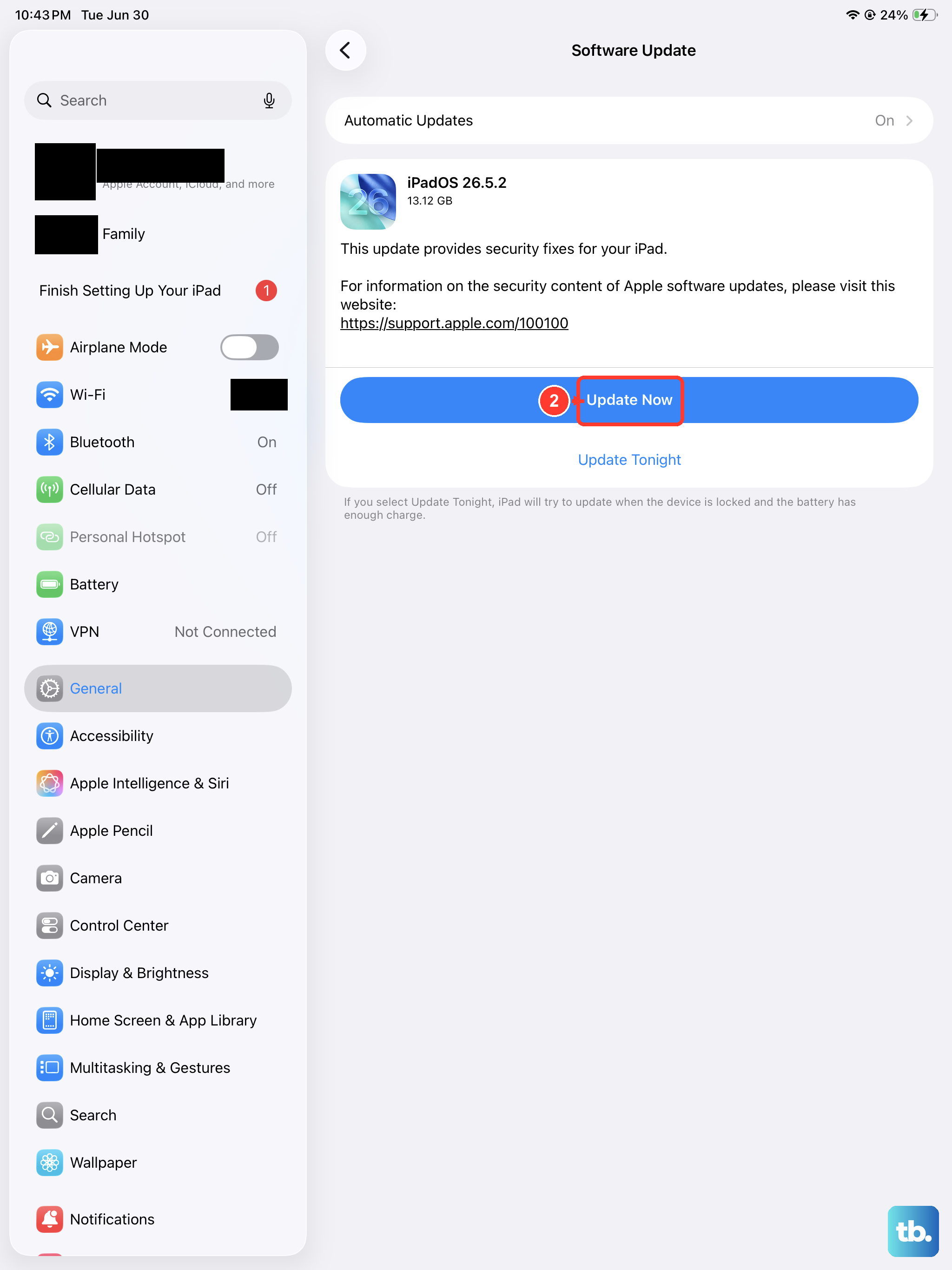
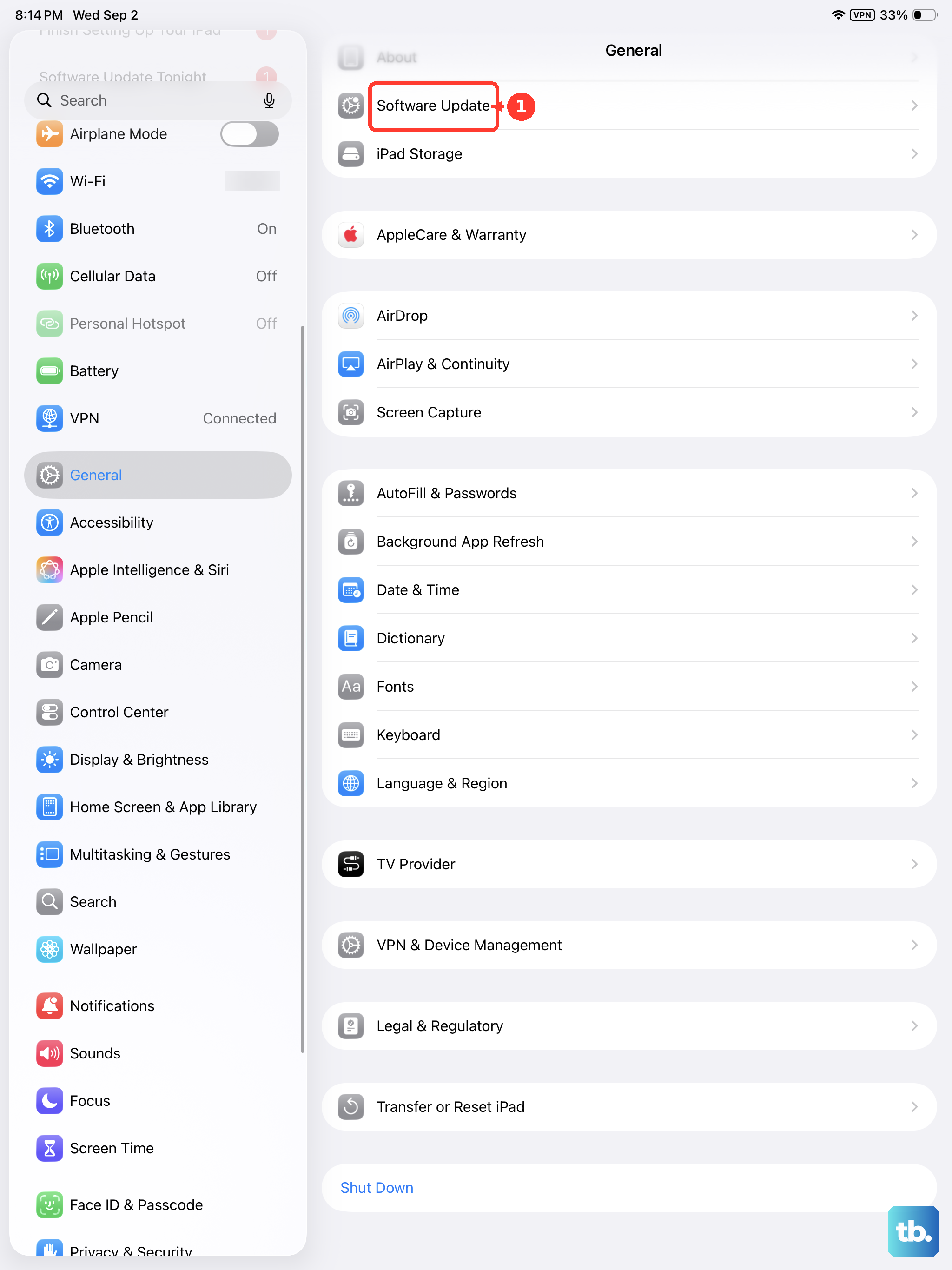
Outdated software can have bugs that affect cellular connectivity. Apple regularly releases updates with fixes for these kinds of issues. Connect to a Wi-Fi network, then go to Settings > General > Software Update.
If an update for iPadOS 26 (or later) is available, tap "Download and Install." It's best to plug your iPad into power using a 30W USB-C PD charger during this process. Keeping your iPad updated is one of the best ways to maintain performance and stability.
Reset Your Network Settings
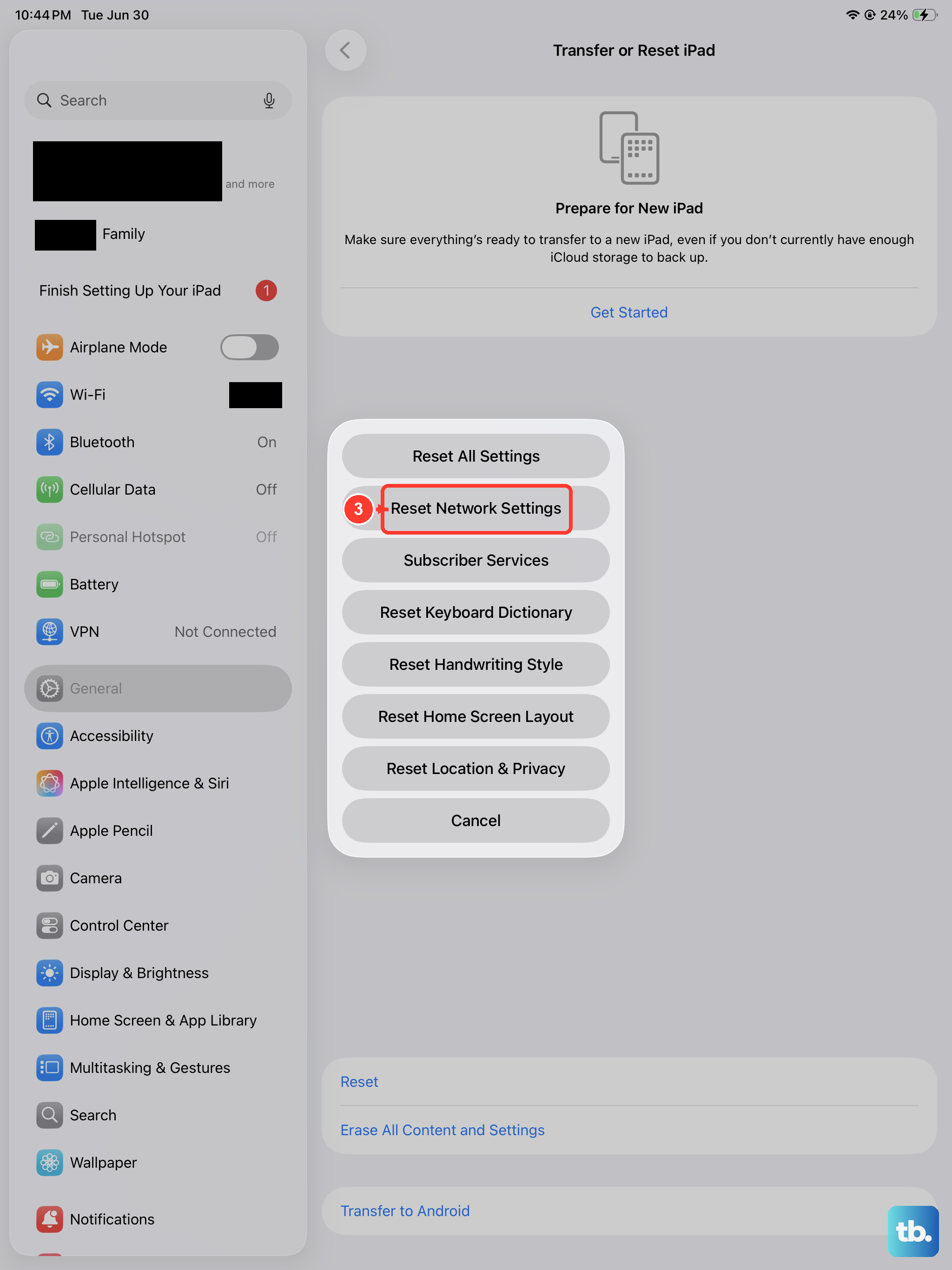
This is a more significant step that clears all network-related configurations. It will erase saved Wi-Fi passwords, Bluetooth pairings, and any custom APN settings, but it won't touch your personal data or apps.
To do this, open Settings and go to General > Transfer or Reset iPad. Tap Reset at the bottom, and then choose "Reset Network Settings." You'll need to enter your passcode to confirm. After the iPad restarts, you'll need to reconnect to Wi-Fi and re-pair Bluetooth devices.
Manually Select Your Network Carrier
Sometimes your iPad gets stuck trying to connect to a weak or incorrect network tower. You can force it to search again. Go to Settings > Cellular Data > Network Selection.
Turn off the "Automatic" switch. Your iPad will search for all available networks in your area. After a moment, a list will appear. Select your carrier's name from the list. If you don't see it, wait a bit and tap "Search" again.
Once it's selected, you can turn Automatic selection back on. This manual refresh often kicks the connection back into gear.
Check for a Carrier Settings Update
Separate from iPadOS updates, carriers push small configuration files to your device. These updates can improve network connectivity and enable new features. They usually install automatically in the background.
You can check if one is pending. Go to Settings > General > About. If a carrier settings update is available, a pop-up notification will appear on this screen. Just follow the prompts to install it. You don't need Wi-Fi for this, and it only takes a few seconds.
Verify Your Account and Coverage Area
It's worth checking that the problem isn't on your carrier's end. Use another phone on the same network, if possible, to see if it has service in your exact location. You can also check your carrier's website or app for any reported service outages in your area.
Log into your carrier account online or give them a call. Confirm that your cellular plan for the iPad is active, paid up, and hasn't been suspended. Ask them to reprovision your line or SIM/eSIM, which is a common fix they can do remotely.
If you're in a new area, like a basement or a rural location, you might simply be in a dead zone. Try moving to a window or going outside to see if your signal returns.
Review Any VPN or Content Blocker Configurations
Third-party VPN apps or Safari content blockers can sometimes interfere with how your iPad routes its network traffic. If you have a VPN app installed, try opening it and disconnecting from the VPN server.
For a more complete check, go to Settings > General > VPN & Device Management. If any VPN configuration is listed here, you can tap the (i) icon and delete it. Also, check Settings > Apps > Safari > Extensions to see if any active content blockers could be causing an issue.
Contact Apple Support
If you've tried everything here and your iPad Air still shows no service, there's a chance it could be a hardware issue with the cellular antenna. Before assuming the worst, you can use the Apple Support app to run a remote diagnostic with an advisor.
They can check for any internal flags or errors. If hardware service is needed and your iPad is under warranty or you have AppleCare+, the repair will be covered. For cellular issues, they'll ensure you've exhausted all software solutions first, which you will have done by following these steps.