
When your iPad's Personal Hotspot stops sharing your cellular connection, it can leave your laptop or other devices stranded without the internet. Whether other gadgets can't find the hotspot, fail to connect, or get dropped, a few specific checks usually get things back online.
Start with the quickest fix. Open the Settings app on your iPad and tap Personal Hotspot. Turn the toggle for Allow Others to Join off, wait a moment, and then turn it back on. This simple reset often clears a temporary software hiccup that's preventing the hotspot from broadcasting properly.
Restart Your iPad
A full restart can clear out cached network processes that might be interfering. To restart your iPad, press and quickly release the Volume Up button, then quickly press and release the Volume Down button. Finally, press and hold the Top button until you see the Apple logo appear on the screen. This is the standard force restart procedure for this model.
Verify Your Cellular Data Connection
The hotspot feature relies entirely on your iPad's own cellular data. First, make sure you're in an area with a decent signal. Then, go to Settings > Cellular and ensure that Cellular Data
Update iPadOS
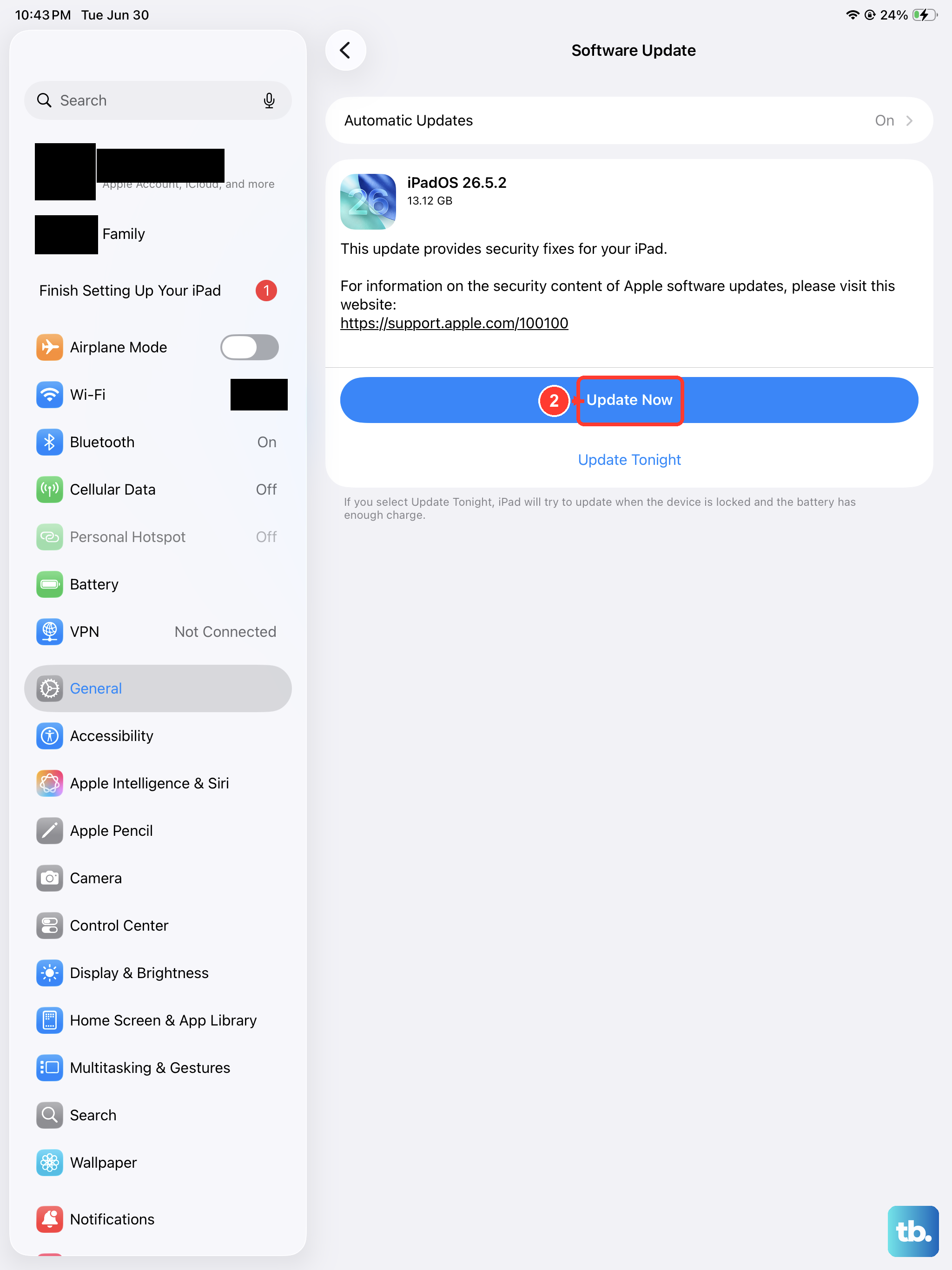
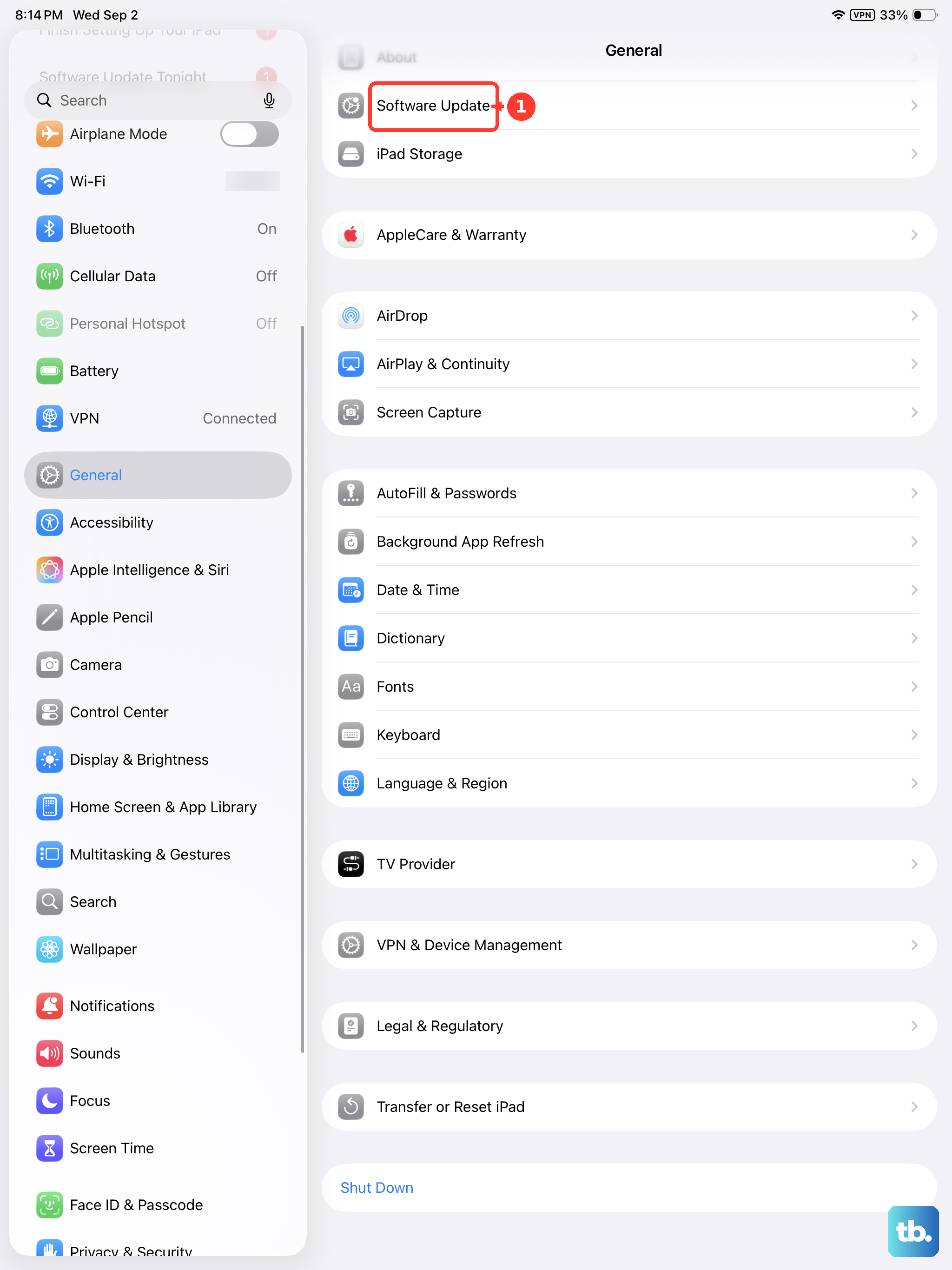
Software bugs that affect connectivity, including hotspot functionality, are frequently patched in system updates. Navigate to Settings > General > Software Update. If an update for iPadOS is available, download and install it. I've seen updates resolve persistent hotspot issues that other fixes couldn't touch.
Reset the iPad's Network Settings
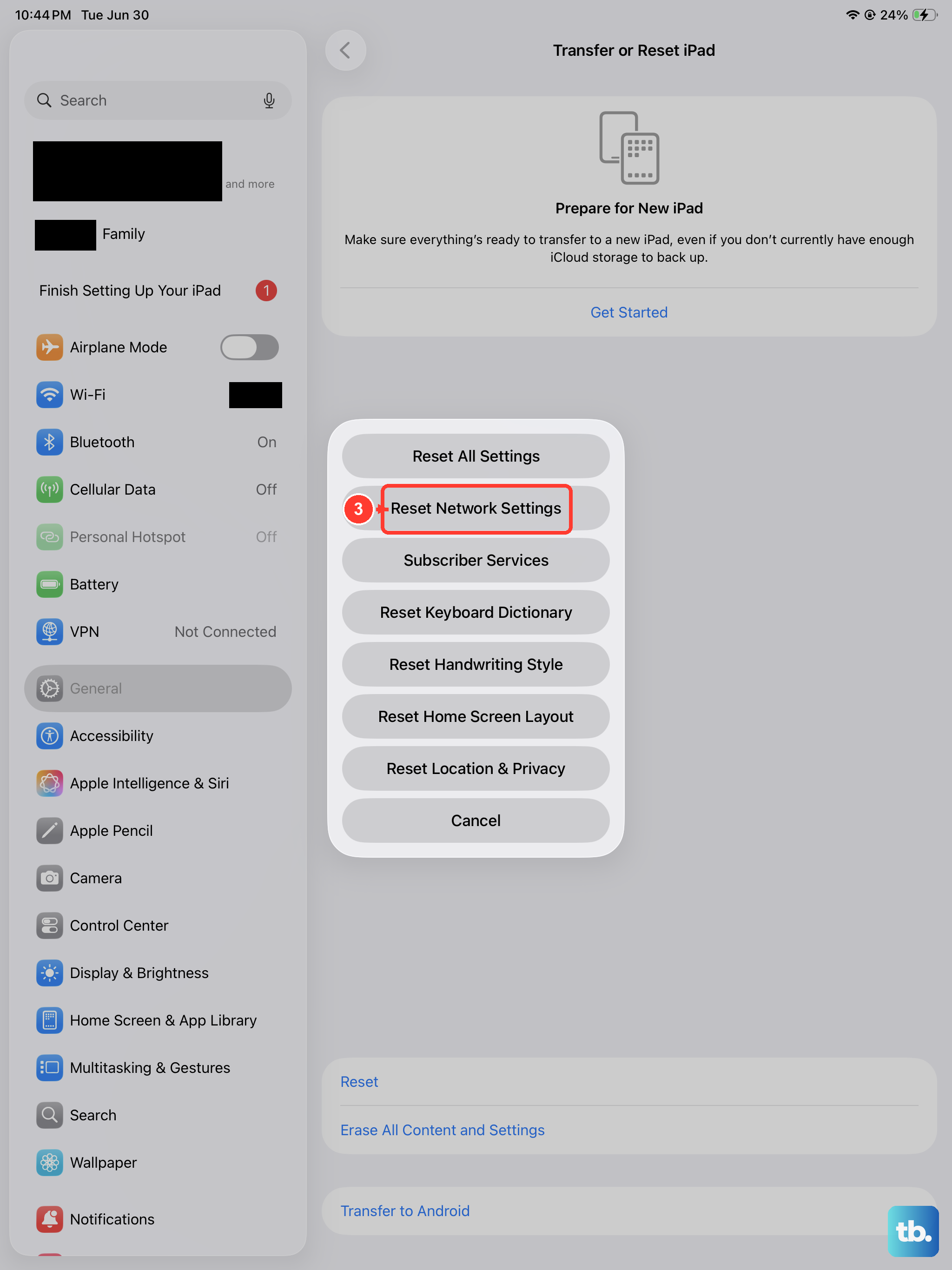
This is a more thorough step that can resolve deeper configuration problems. Go to Settings > General > Transfer or Reset iPad. Tap Reset and then choose Reset Network Settings. This will erase all your saved Wi-Fi networks, Bluetooth pairings, and VPN settings, so you'll need to reconnect to Wi-Fi networks afterward. It rebuilds your network stack from scratch, which often fixes stubborn hotspot troubles.
Check for a Carrier Settings Update
Your mobile carrier occasionally releases small updates that improve network connectivity. To check for one, open Settings > General > About. If an update is available, a notification will pop up on this screen prompting you to install it. These updates install in seconds and can specifically address tethering problems.
Forget the Network on the Connecting Device
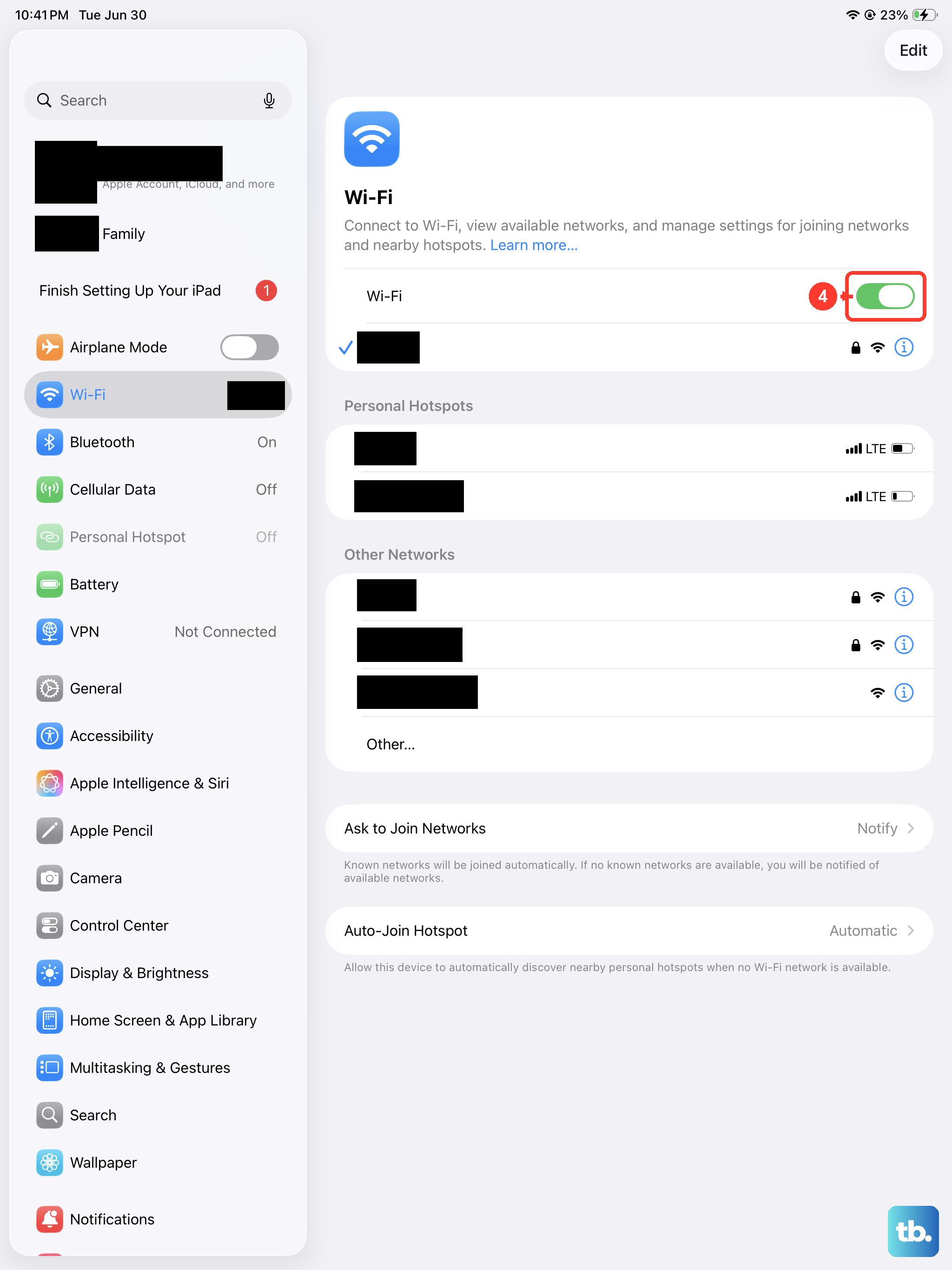
The problem might be with the device trying to connect, not your iPad. On your laptop or other gadget, go into its Wi-Fi settings and find the network name of your iPad's hotspot. Choose to "Forget" this network. Then, search for available Wi-Fi networks again, select your iPad, and enter the password fresh. This clears any corrupted connection data on the client device.
Change Your Hotspot's Wi-Fi Password
Sometimes the authentication handshake between devices gets stuck. You can force a new one by changing the hotspot password. On your iPad, go to Settings > Personal Hotspot > Wi-Fi Password. Enter a new password, tap Done, and then try connecting your other devices using this new password. Make sure it's a strong password that other devices can easily accept.
Try a Wired or Bluetooth Connection
If the Wi-Fi hotspot is being difficult, you can bypass it. For a wired connection, use a USB-C cable to connect your iPad directly to a Mac or Windows PC with the necessary drivers. Ensure the hotspot is enabled in Settings, and the computer should recognize it as a network interface. For Bluetooth, pair your iPad with the other device first in the Bluetooth settings, then enable the Personal Hotspot.
Contact Your Mobile Carrier
If you've tried everything else, the issue might be on your carrier's end. There could be a temporary network outage in your area, a provisioning error on your account, or a restriction on your plan. Give your carrier's customer support a call. They can check your account status, refresh your connection on their network, and confirm that hotspot service is active for your line.