


When your iPad's App Store stops working, it can feel like you're locked out of your device's potential. Whether you're trying to download a new app, update an existing one, or just browse, a non-functional App Store is a major roadblock. The good news is that most issues are caused by temporary glitches or simple settings that are easy to fix.
Let's go through the most effective ways to get your iPad's App Store back up and running.
Check Your Internet Connection First
This is the most common culprit. The App Store needs a stable connection to Apple's servers. Open Safari and try to load a website like apple.com. If the page doesn't load, your internet is the issue.
Try toggling Wi-Fi off and on in Control Center. If you're on a public network, you might need to sign in through a captive portal page in Safari first. I'd also recommend trying a different Wi-Fi network if one is available, as some networks can block the ports the App Store uses.
Force Close and Reopen the App Store
Sometimes the App Store app itself gets stuck. To force close it, swipe up from the bottom of the screen and pause in the middle to enter the app switcher. Find the App Store card and swipe it up and off the top of the screen to close it.
Wait a few seconds, then tap the App Store icon on your Home Screen to relaunch it. This clears the app from memory and often resolves minor hiccups without affecting any data.
Restart Your iPad
A simple restart can clear out temporary software bugs that might be interfering with the App Store. To restart your iPad, hold down the top button and either volume button until the power off slider appears.
Drag the slider, wait about 30 seconds for the device to fully power down, then press and hold the top button again until you see the Apple logo. Once it boots back up, try the App Store again.
Check for iPadOS Updates
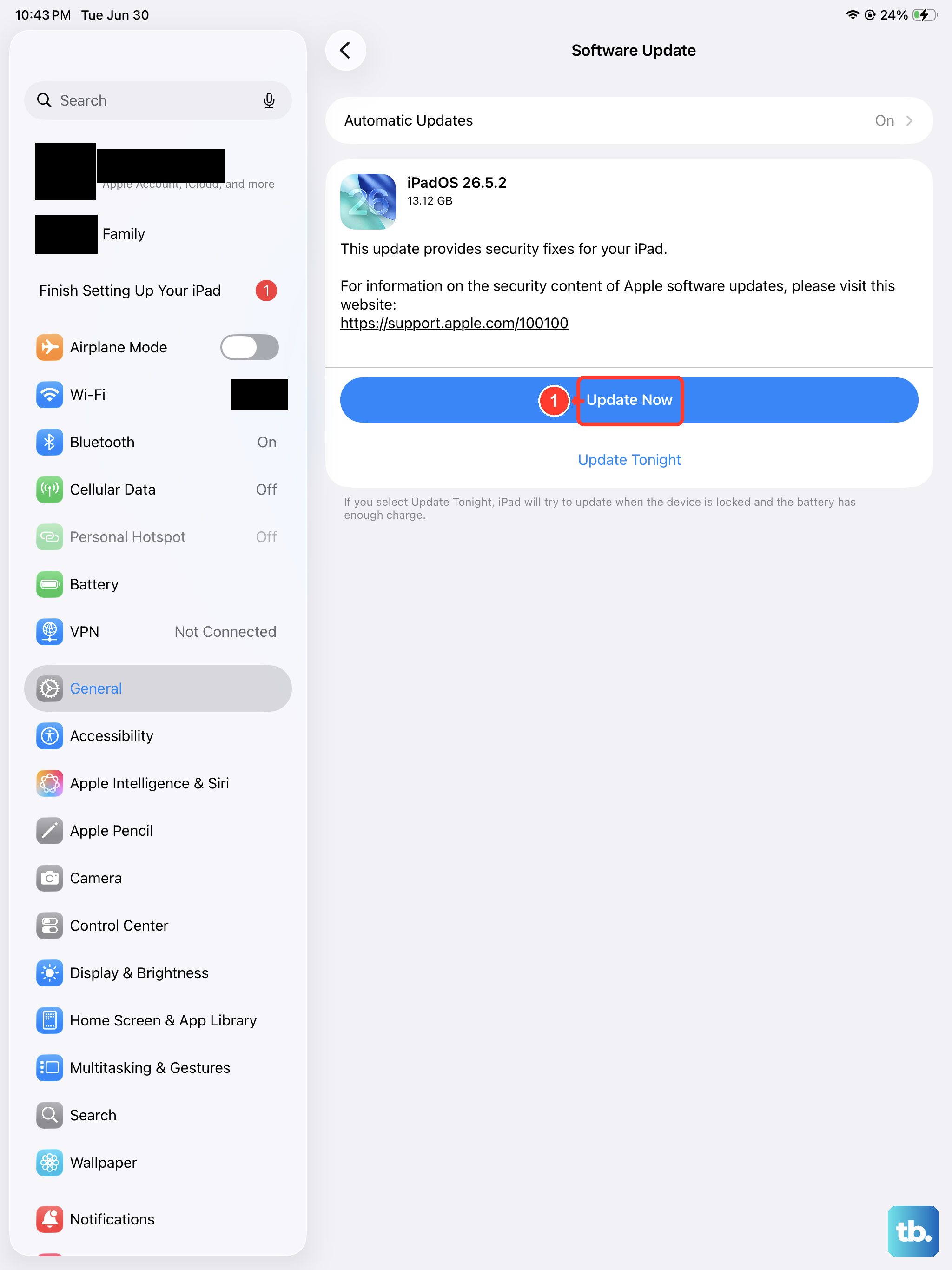
Running an outdated version of iPadOS can cause compatibility problems with the App Store. Apple frequently releases updates that include bug fixes for the App Store and other system services.
Go to Settings > General > Software Update. If an update is available, tap "Download and Install." Make sure your iPad is connected to power and Wi-Fi during this process, as it can take a little while.
Sign Out and Back Into Your Apple ID
Your Apple ID is the key to the App Store. If there's a temporary authentication issue, signing out and back in can refresh the connection. Go to Settings and tap your name at the top.
Scroll all the way to the bottom and tap "Sign Out." You'll be asked if you want to keep a copy of your data on the iPad; you can say yes. After signing out, restart your iPad, then go back to Settings to sign in with your Apple ID and password again.
Check Your Date & Time Settings
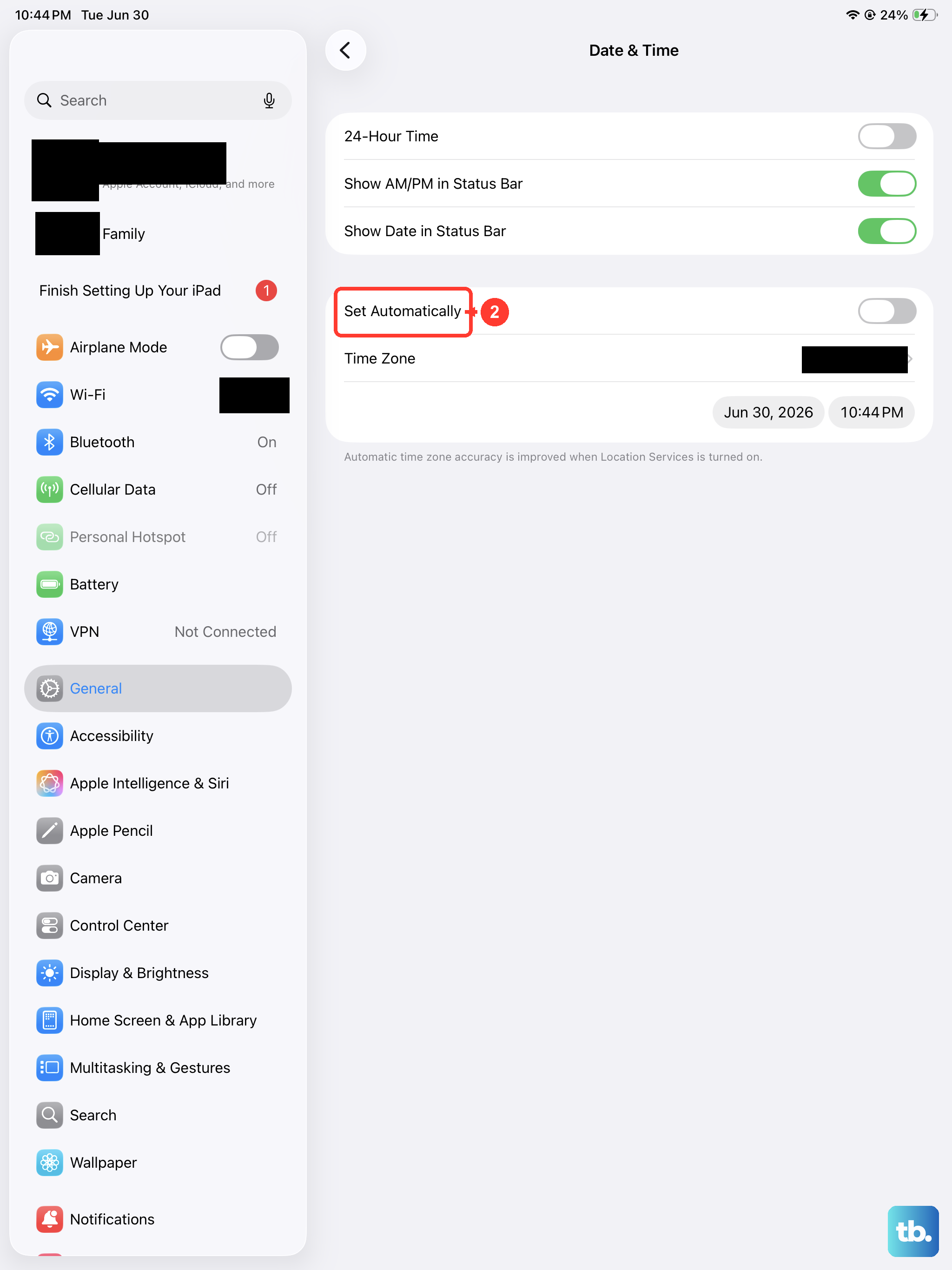
This one catches a lot of people off guard. If your iPad's date and time are incorrect, it can break secure connections to services like the App Store. The fix is to make sure it's set automatically.
Open Settings > General > Date & Time. Make sure the switch for "Set Automatically" is turned on (green). If it was off, turn it on and check the App Store again.
Reset Your Network Settings
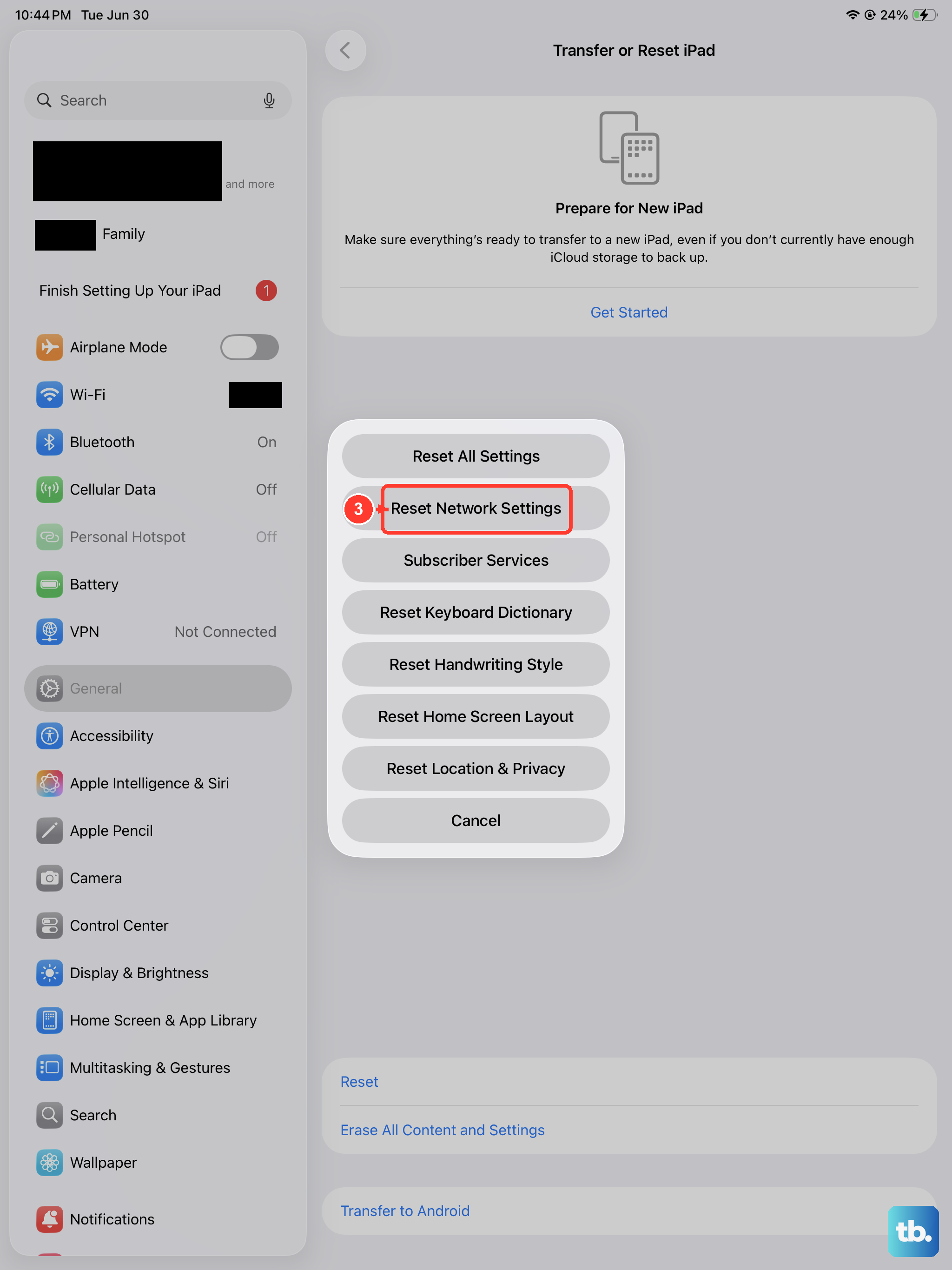
If you're sure your internet is working but the App Store still isn't, corrupted network settings could be the cause. This reset will erase all your saved Wi-Fi passwords and cellular settings, so you'll need to rejoin your networks afterward.
Go to Settings > General > Transfer or Reset iPad. Tap "Reset" at the bottom, then choose "Reset Network Settings." Enter your passcode if prompted and confirm. Your iPad will restart, and then you can reconnect to Wi-Fi.
Check Screen Time and Content Restrictions
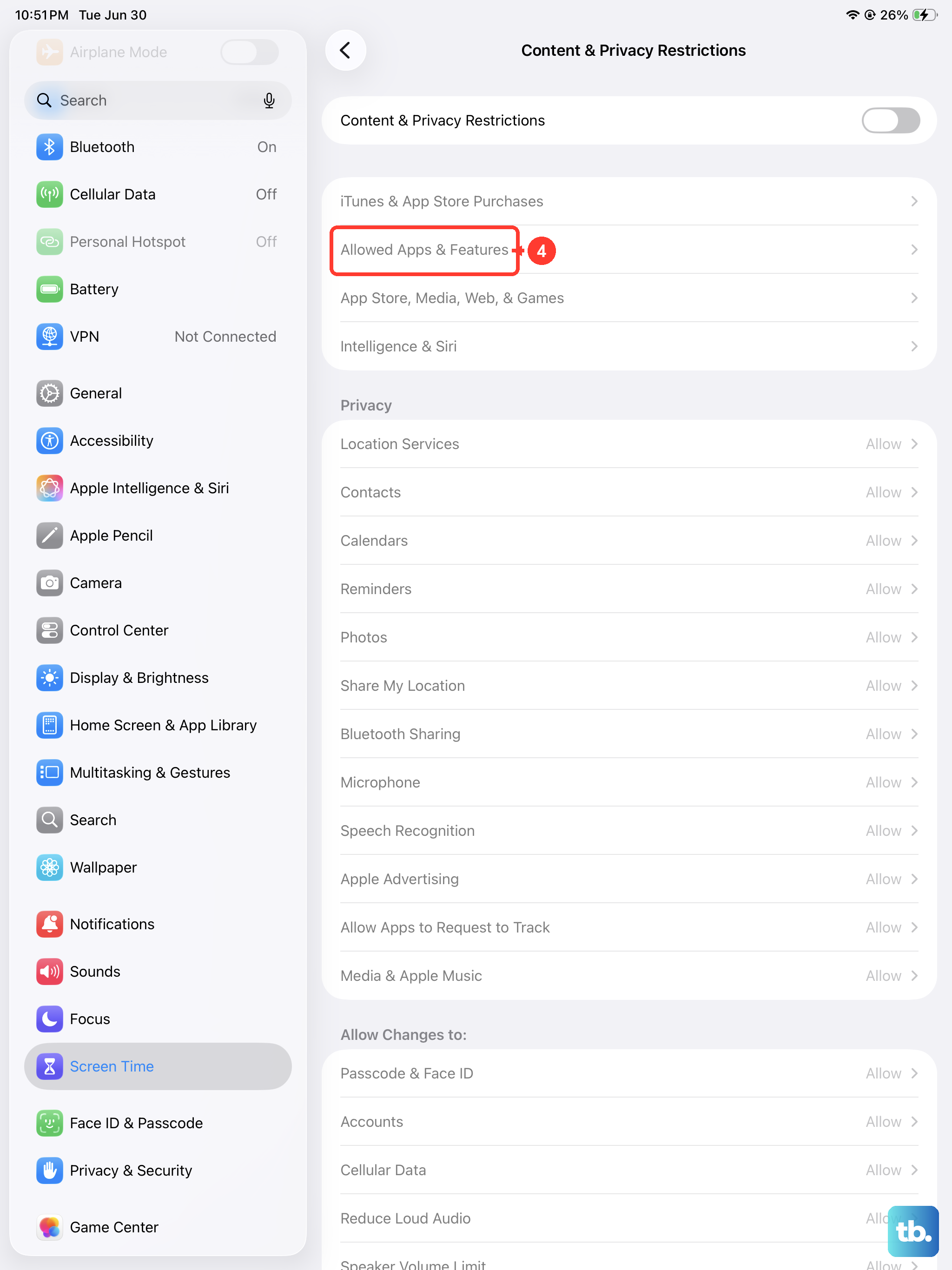
Screen Time settings can block the App Store entirely or prevent downloads. It's worth a quick check, especially if other people use your iPad. Go to Settings > Screen Time.
Tap "Content & Privacy Restrictions." If it's enabled, tap "iTunes & App Store Purchases." Make sure "Installing Apps" is set to "Allow" and that "In-App Purchases" isn't blocking you if you're trying to download a paid app.
Force Restart Your iPad
A force restart is more thorough than a standard shutdown and can clear deeper system issues. For the iPad (11th generation), the process is quick. Press and quickly release the Volume Up button, then press and quickly release the Volume Down button.
Immediately after, press and hold the Top button. Keep holding it until you see the Apple logo appear on the screen, then release. This doesn't erase any data, it just gives the system a fresh start.
Update Apps Manually (If Possible)
If the main App Store app is broken but you can still open it, sometimes you can trigger a fix by manually updating an app. Open the App Store and tap your profile icon in the top right corner.
Scroll down to see pending updates. If any are listed, try tapping "Update" next to one. If it works, it can sometimes kick-start the rest of the store's functionality. If you see a message saying you must sign in, it confirms your Apple ID session needs refreshing.
Check Apple's System Status Page
Very rarely, the problem isn't with your iPad at all. Apple's servers themselves can have an outage. On another device, like a computer or phone, visit Apple's System Status page online.
Look for "App Store" in the list. If there's a yellow or red icon next to it, the issue is on Apple's end and you'll just need to wait for them to fix it. Everything else on the list should have green dots.