
When your iPad 10th Generation won't send texts, it can be confusing since it's not your primary phone. Messages might fail to send, get stuck, or only work for iMessage. The fixes are a bit different on an iPad, but they're usually straightforward.
Check Your Internet Connection First
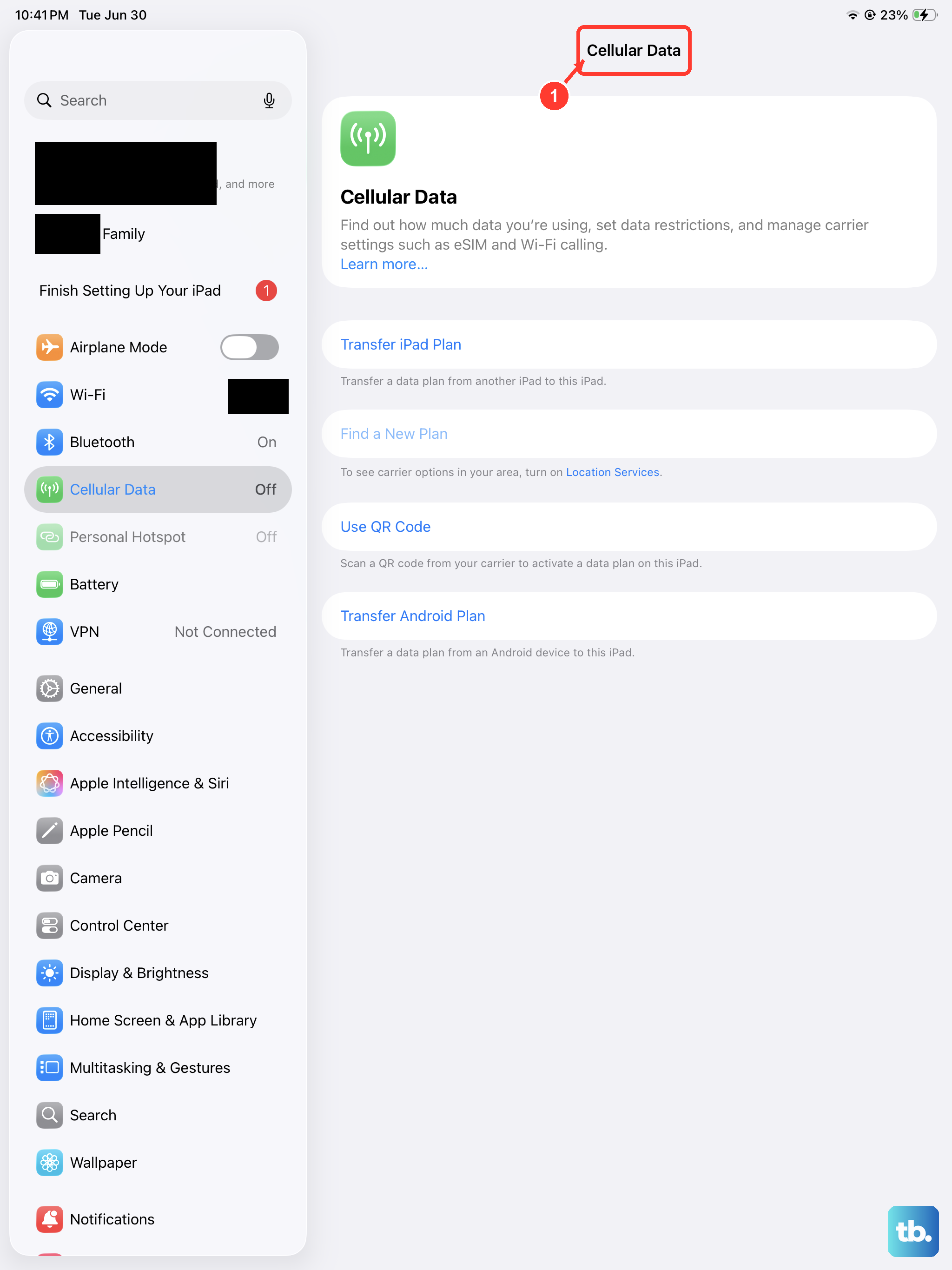
Your iPad relies entirely on an internet connection for iMessage and SMS forwarding. Make sure you're connected to Wi-Fi or have an active cellular data plan if your model has it. Open Safari and try loading a webpage to test the connection. A quick toggle of Airplane Mode in Control Center can often refresh a weak signal.
Restart Your iPad
A simple restart clears out temporary software glitches that can stall the Messages app. Press and quickly release the Volume Up button, then the Volume Down button. Finally, press and hold the Top button until you see the Apple logo appear, then let go.
Verify iMessage Is Set Up Correctly
Go to Settings > Apps > Messages and ensure iMessage is switched on. Tap Send & Receive and check that the Apple ID and phone number or email address you want to use are selected. Your iPad needs to be registered with Apple's servers to send blue bubble messages.
Toggle iMessage Off and On
If iMessage is on but messages are failing, turn it off. Go to Settings > Apps > Messages and switch iMessage off. Wait about 30 seconds, then turn it back on. This forces your iPad to re-register with Apple's messaging system, which can clear up sending errors.
Check for SMS Forwarding (If Using iPhone)
If you're trying to send regular SMS texts from your iPad, this requires a feature called Text Message Forwarding from your iPhone. On your iPhone, go to Settings > Apps > Messages > Text Message Forwarding. Make sure your iPad 10th Gen is listed and the switch is turned on. You might need to enter a verification code that appears on your iPad.
Reset Your Network Settings
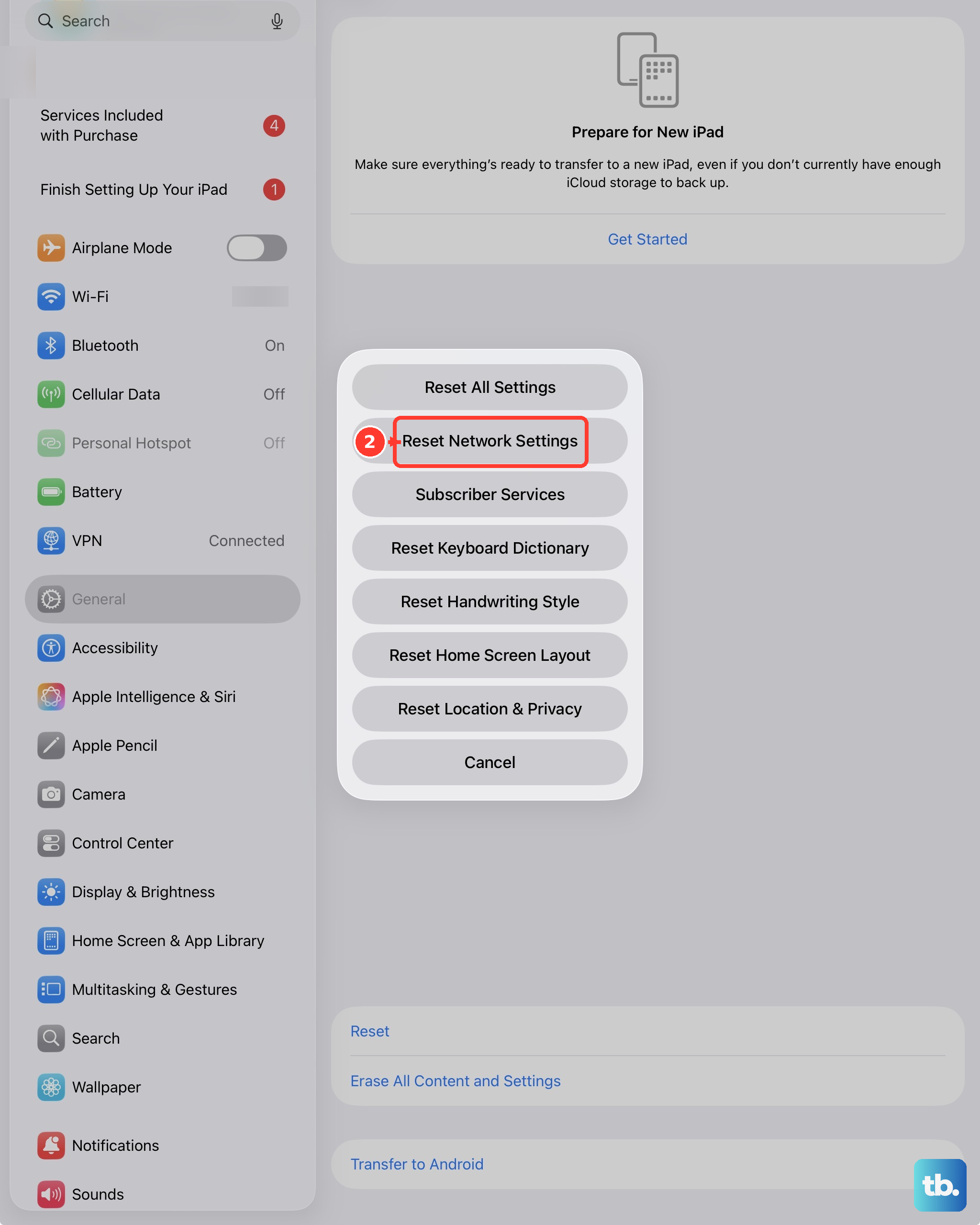
This is a reliable fix for persistent network-related messaging problems. Go to Settings > General > Transfer or Reset iPad > Reset and tap Reset Network Settings. This will erase all Wi-Fi passwords and network configurations, so you'll need to reconnect to your Wi-Fi afterward.
Update Your Software
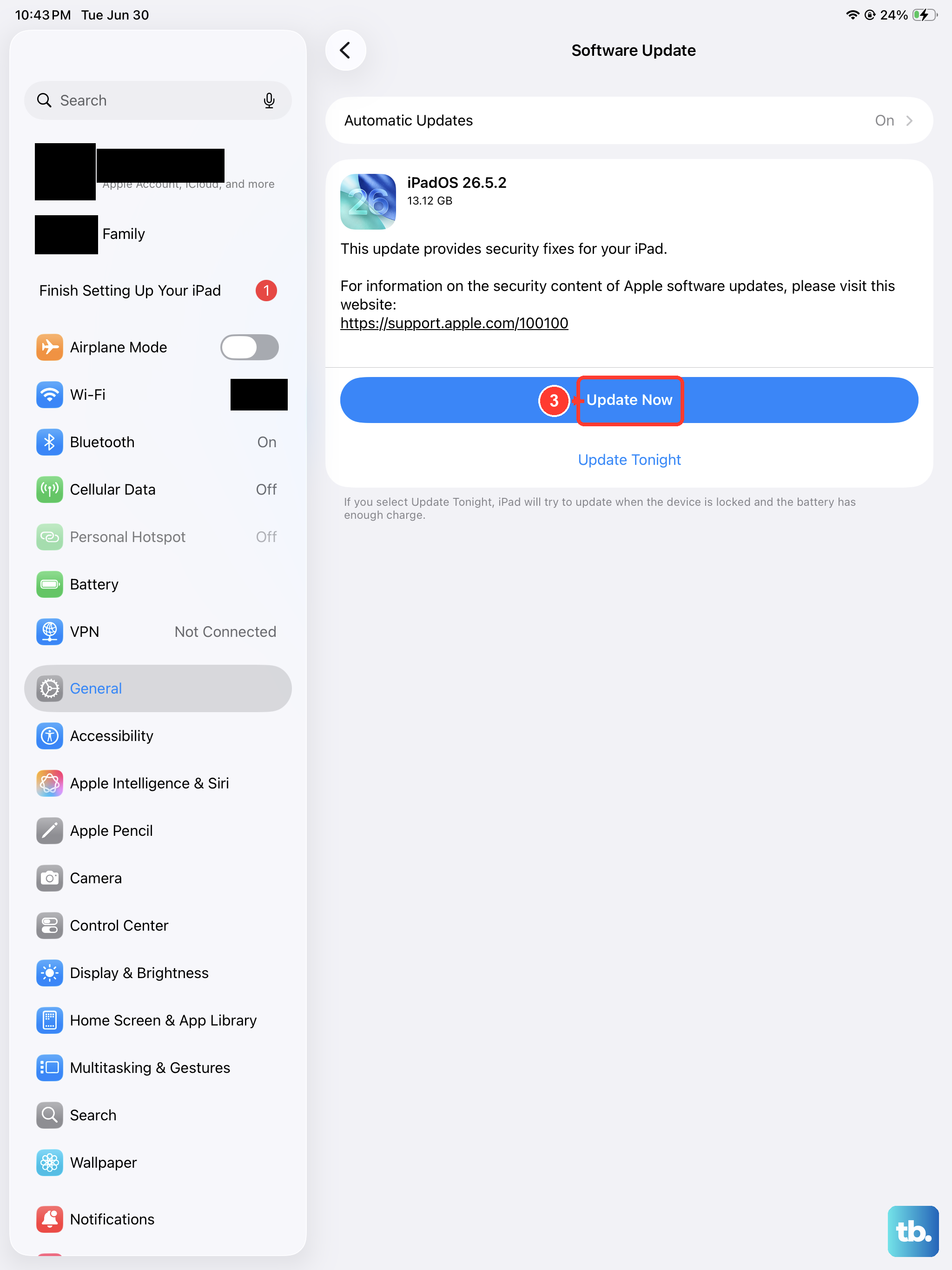
Outdated iPadOS can have bugs that affect the Messages app. Go to Settings > General > Software Update and install any available updates. I've seen updates specifically mention fixes for iMessage connectivity, so this is always worth checking.
Check the Date & Time Settings
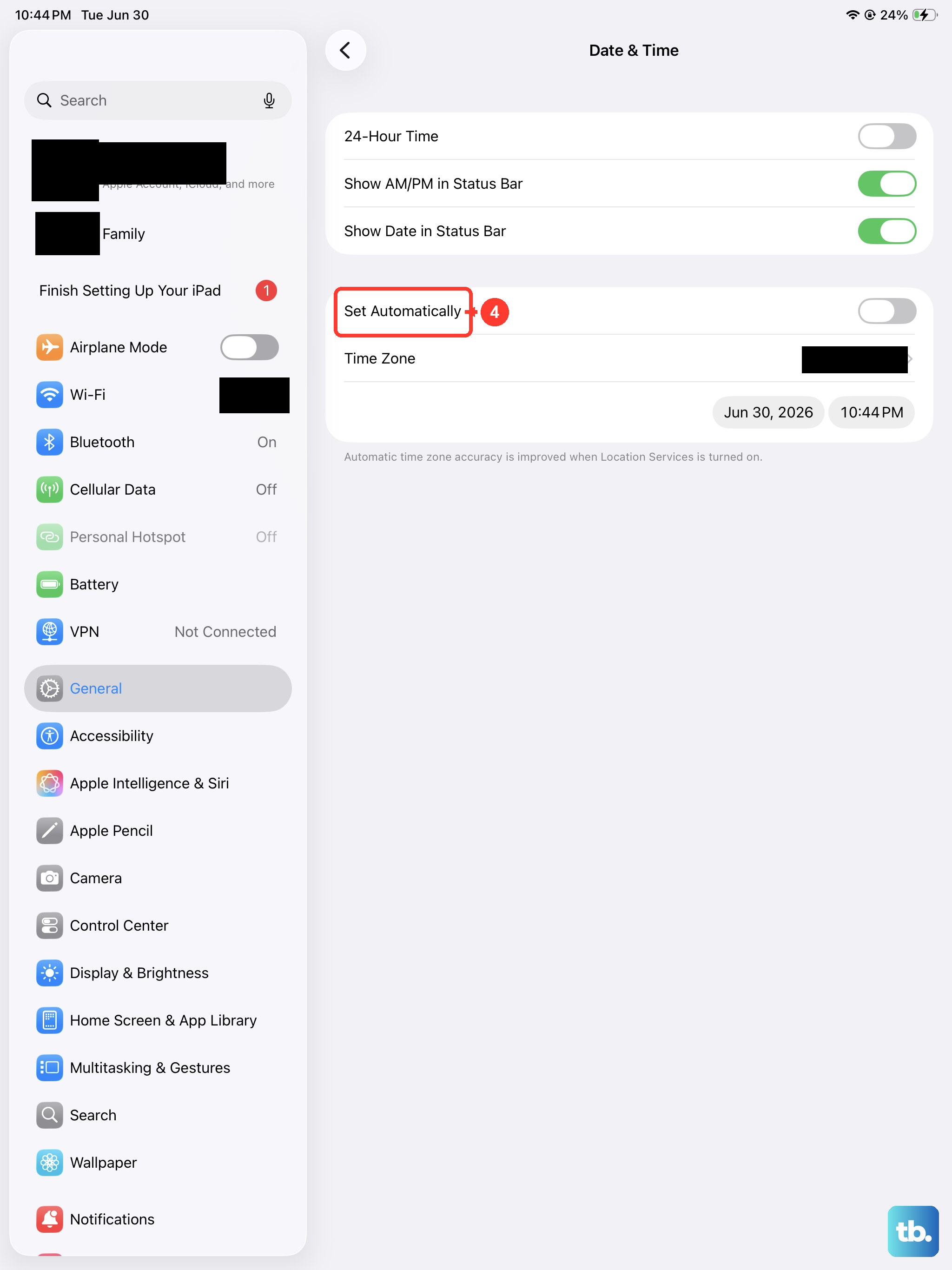
iMessage requires your device's date and time to be accurate. Go to Settings > General > Date & Time and make sure Set Automatically is enabled. If it's already on, try turning it off and back on to refresh the time sync.
Sign Out and Back Into Your Apple ID
Since iMessage is tied to your Apple ID, signing out can reset its connection. Go to Settings, tap your name at the top, scroll down, and choose Sign Out. Restart your iPad, then sign back in. Go back to Messages and make sure iMessage activates.
Check for Carrier Updates (Cellular Models)
If you have the cellular model of the iPad 10th Gen, carrier updates can fix messaging issues. Go to Settings > General > About. If an update is available, a prompt will appear. Installing it ensures your iPad has the latest settings from your mobile provider.