QuickBooks Desktop updates can feel messy because a release update, payroll tax table update, and year-version upgrade are three different jobs. Start with the built-in updater, then move to the download, reset, or repair path that matches the problem. Here is the clean order to get QuickBooks current without using outdated purchase or install advice.
Check Your Current Release First
The most common reason QuickBooks looks out of date is that the year version gets checked instead of the release number. Open QuickBooks Desktop, then press F2, or press Ctrl+1, to open the Product Information window. Check the version and release number shown there.
Compare it with the current release listing for your QuickBooks Desktop product. For Windows, Intuit currently lists QuickBooks 2024 R21_65 as the latest release. If your release number matches, QuickBooks Desktop is already current.
Turn On Automatic Updates In QuickBooks
Open QuickBooks Desktop, go to Help, and select Update QuickBooks Desktop. Select the Options tab, then select Yes to enable automatic updates. Select Close, and leave this on when you want future maintenance releases to download without starting each update by hand.
Run A Manual Update Now
Use the built-in updater when you want the latest QuickBooks Desktop maintenance release right away. In QuickBooks Desktop for Windows, open Help and select Update QuickBooks Desktop.
Choose the Update Now tab, then select Get Updates. Let the download finish before closing the program.
Restart QuickBooks Desktop after the update completes. When QuickBooks asks to install the update, select Install Now.
Reset A Stuck Windows Update
This method applies when QuickBooks opens but the update does not finish, repeats, or needs administrator permission. A reset clears the update download and forces QuickBooks to get a fresh copy.
Open the Windows Start menu.
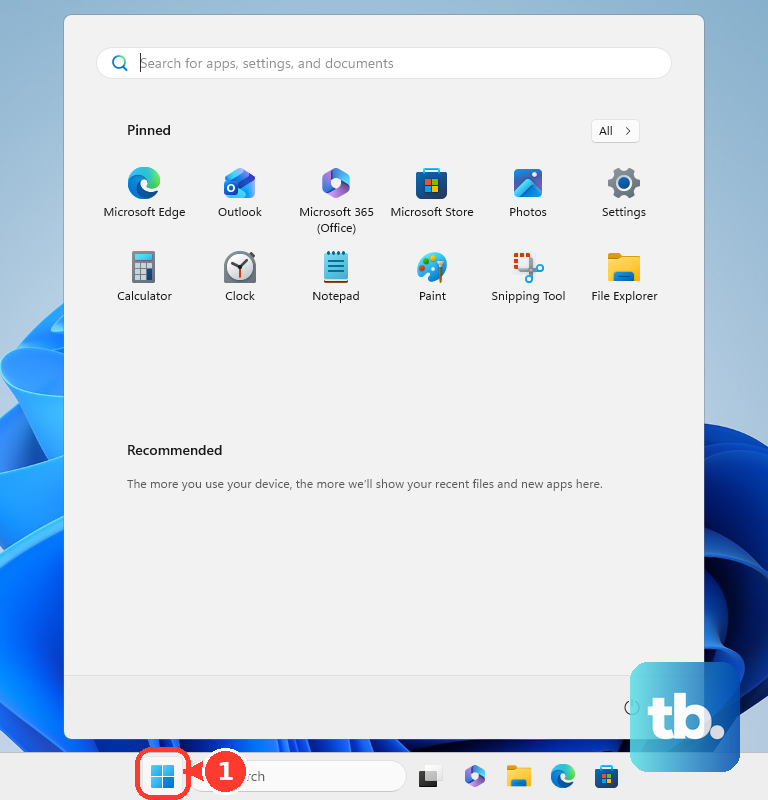
Search for QuickBooks, right-click your QuickBooks version or year, and select Run as administrator. Inside QuickBooks, go to Help and select Update QuickBooks Desktop. Open Options.
Select Mark All, then select Save. Open Update Now, select Reset Update, and select Get Updates. After the update finishes, close and reopen QuickBooks Desktop. Select Yes when QuickBooks asks to complete the installation.
Use Intuit Downloads And Updates
This fixes failed in-product updates or a release number that does not advance. Go to Intuit's Downloads & Updates page, then select the standard setup. Choose your Country, your Product, and your Version.
Select Search, then select Get the latest updates. Open the downloaded file to install the update, and restart the computer after installation.
Update QuickBooks Desktop For Mac
On QuickBooks Desktop for Mac, press Command+1 to open Product Information and check your release number. Intuit lists QuickBooks Desktop for Mac Plus 2024 current release R13 and Mac Plus 2023 current release R7.6.
To update from the app, open QuickBooks and choose Check for QuickBooks Updates. Select Install and Relaunch.
To keep future Mac updates automatic, use the update window and select Automatically download and install updates in the future. When the in-product updater fails, use Intuit's Downloads & Updates page, choose Country, Product, and Version, then select Search and Get the latest updates.
Upgrade To A New QuickBooks Year Version
The most common mix-up is treating a maintenance update and a year-version upgrade as the same thing. A maintenance update keeps your installed QuickBooks year current. A year-version upgrade moves you to a newer QuickBooks Desktop version included with eligible subscription plans.
Intuit has replaced annual product launches with continuous updates, and QuickBooks Desktop Plus 2024 and Enterprise 24.0 are the last annual platform releases. This section applies to eligible 2022 and 2023 subscribers moving up to 2024 or 24.0. After that, new features, security patches, and tax compliance changes arrive as maintenance releases, not as a newer year version.
Back up your company file before you upgrade. When QuickBooks Desktop shows an upgrade prompt on Windows, select Upgrade Now. To keep the current version installed, select Keep old version on my computer, then choose Let's go. To remove the current version, leave that option blank and choose Let's go.
Wait for QuickBooks to download, install, and activate the new version. Select Open QuickBooks when the upgrade finishes. If the Windows prompt does not appear, select Discovery Hub next to your profile icon, choose Upgrade to QuickBooks 2024, then select Proceed to upgrade and Upgrade Now.
You can also restore missing prompts from Edit, Preferences, General, My Preferences, Bring back all one time messages, then OK. Back up your company file before you upgrade on Mac. On QuickBooks Desktop Mac Plus, select Upgrade for Free when the prompt appears, choose Let's go, and select Open QuickBooks after the upgrade.
If the Mac prompt does not appear, disable Multiuser Mode under File, then go to Help, choose Upgrade QuickBooks, select Upgrade for Free, and activate or register the new version after it installs.
Update Payroll Tax Tables
Payroll updates are separate from the main QuickBooks Desktop release. They apply to QuickBooks Desktop Payroll Assisted, Basic, and Enhanced with an active Payroll subscription.
Open your QuickBooks Desktop company file and go to Employees, then Get Payroll Updates. To see your current tax table, look for You are using tax table version: and select Payroll Update Info.
To download the latest tax table, select Download Entire Update, then choose Update. Intuit lists Payroll Update 22614, released August 20, 2026.
If the payroll update does not download, update QuickBooks Desktop itself first. Then reopen the company file and try Employees, Get Payroll Updates again.
Repair A Failed QuickBooks Update
Use these repair paths after the normal updater, reset update, and Downloads & Updates installer do not solve the problem. Close QuickBooks Desktop, then download the latest QuickBooks Tool Hub. Open QuickBooksToolHub.exe and follow the prompts.
Open QuickBooks Tool Hub and use Installation Issues. For QuickBooks Desktop 2022 or newer, repair QuickBooks. Reapply updates from Help, Update QuickBooks Desktop, Update Now, and Get Updates. When the download finishes, restart QuickBooks Desktop and select Install Now when it asks to install the update.
On Windows, have your installer and license number ready. Remove QuickBooks through Control Panel, Programs and Features or Uninstall a Program.
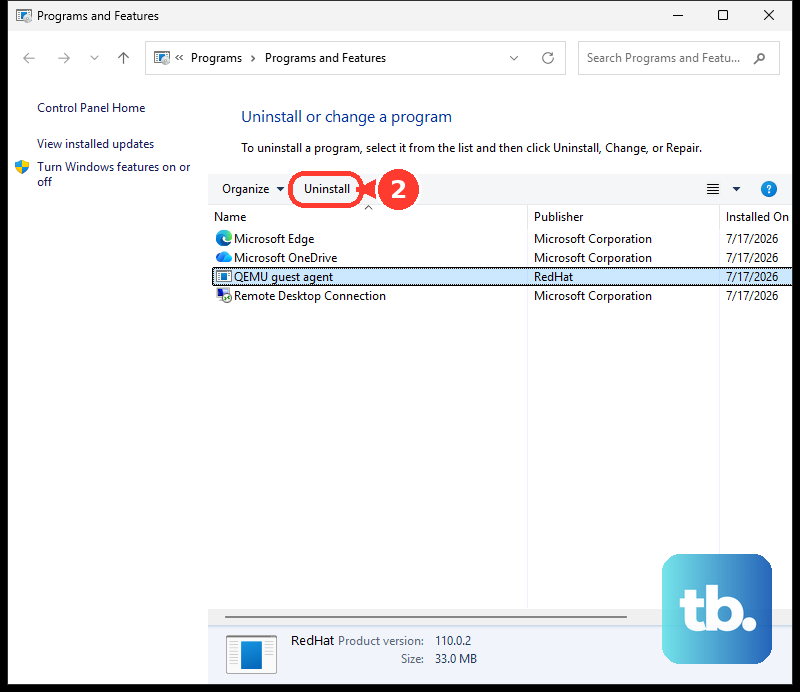
Install QuickBooks Desktop again. On Mac, close QuickBooks, then drag the QuickBooks icon from Applications to Trash. Remove the QuickBooks PLIST files from the user and system Preferences folders. Empty Trash, restart the Mac, and reinstall QuickBooks.
For QuickBooks Enterprise on your own server, run the downloaded installer on the server and choose Server Install. Choose Database Server and QuickBooks Application. Update every workstation to the same version, because a workstation left on an older version cannot open the company file once it updates.
On Rightworks hosting, a standard user with catalog access can install the update on their own hosted desktop. The account owner or an account admin can install it for themselves and for other users. With any other hosted desktop provider, contact the provider for its update path instead of changing files from a regular workstation.
Frequently Asked Questions
Is updating QuickBooks Desktop the same as upgrading it?
No. Updating installs a maintenance release for your current QuickBooks year. Upgrading moves you to a newer year version, such as an eligible subscription upgrade to QuickBooks 2024.
Can new US customers still buy QuickBooks Desktop Pro Plus, Premier Plus, or Mac Plus to get updates?
No. Intuit says those QuickBooks Desktop products are not available to new US subscribers after September 30, 2024. Existing subscribers can renew and keep receiving updates, and Enterprise is not affected.
Do I need to update my company file after every maintenance update?
No. The company file update step applies after upgrading to a newer QuickBooks Desktop year version, not after every maintenance release.
What should I do after upgrading to a newer QuickBooks Desktop year version?
Make sure all users sign out, open the company file in the new QuickBooks version, sign in as admin, select Update Now, and choose Done when QuickBooks finishes. For QuickBooks Desktop 2024 and Enterprise 24.0, reset non-admin user passwords after the file update.











