
Your Pixel 10a runs Android 16, which means Google sends regular updates directly to your phone. Keeping it updated gives you new features, security patches, and bug fixes. Here’s how to make sure your Pixel stays current.
Update Your Pixel 10a Wirelessly
This is the easiest method. Go to Settings > System > Software updates, then open System update. Your phone will show the current update status and any available update instructions.
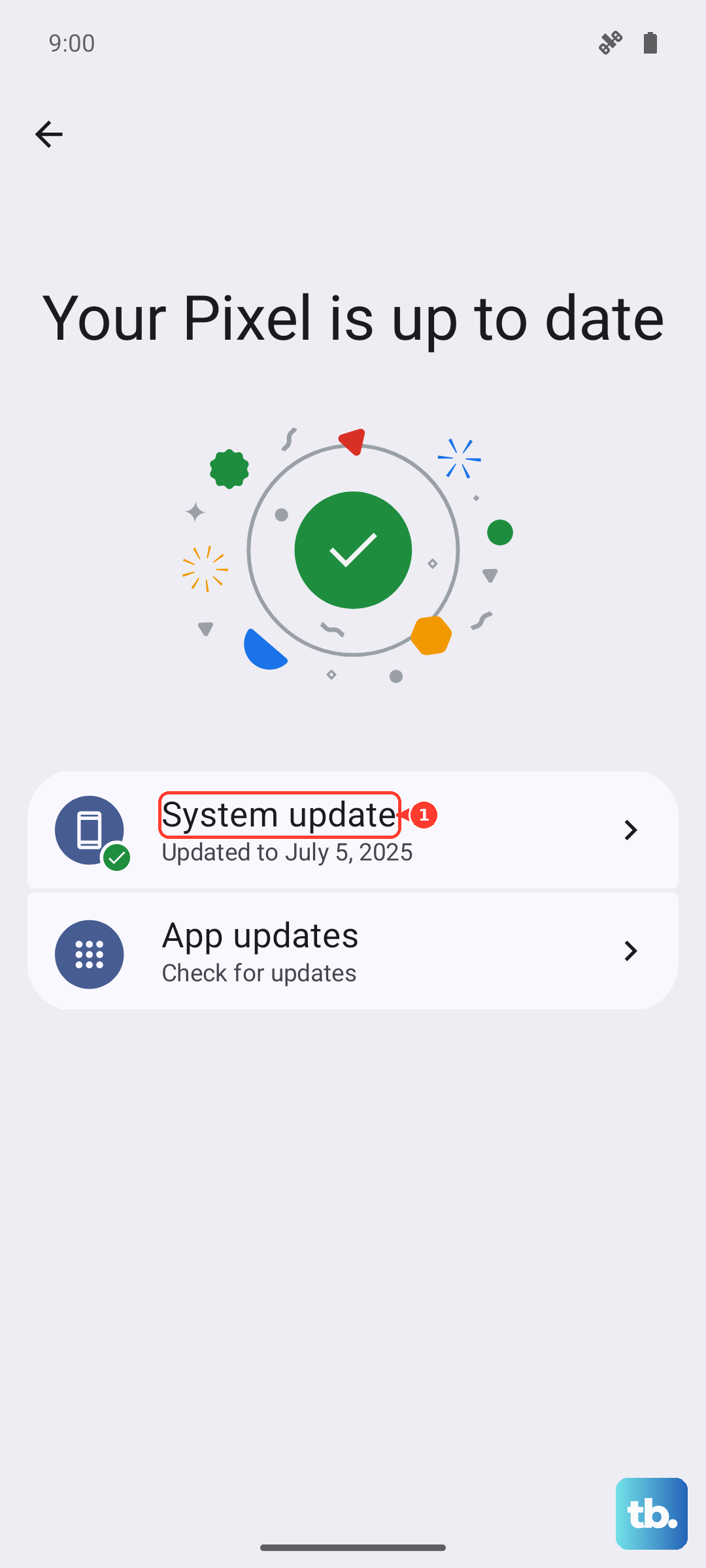
Make sure your Pixel has at least 75% battery or is plugged into a charger. You also need a stable Wi-Fi connection. Updates range from small monthly security patches to larger Android feature drops.
Set Up Automatic Updates
Pixel phones can install downloaded Android updates in the background and make them active after the next restart. If an update does not finish downloading, Google says the device will automatically try again over the next few days and notify you when action is available.
See What Version You’re Running
Go to Settings > About phone. You’ll see your Android version (16), the security patch level, and the build number. This is useful when checking if a specific fix or feature has landed on your device.
What to Do If an Update Fails
If an update gets stuck or won’t download, try force restarting your Pixel 10a. Press and hold the Power button for up to 60 seconds, releasing when the Google "G" logo appears. If you only need the power menu, press Power + Volume Up and tap Restart.
If that doesn’t help, go to Settings > Apps > See all apps, tap the three-dot menu and select Show system. Find Google Play services or System updates, tap Storage & cache, and clear the cache. Then try the update again.
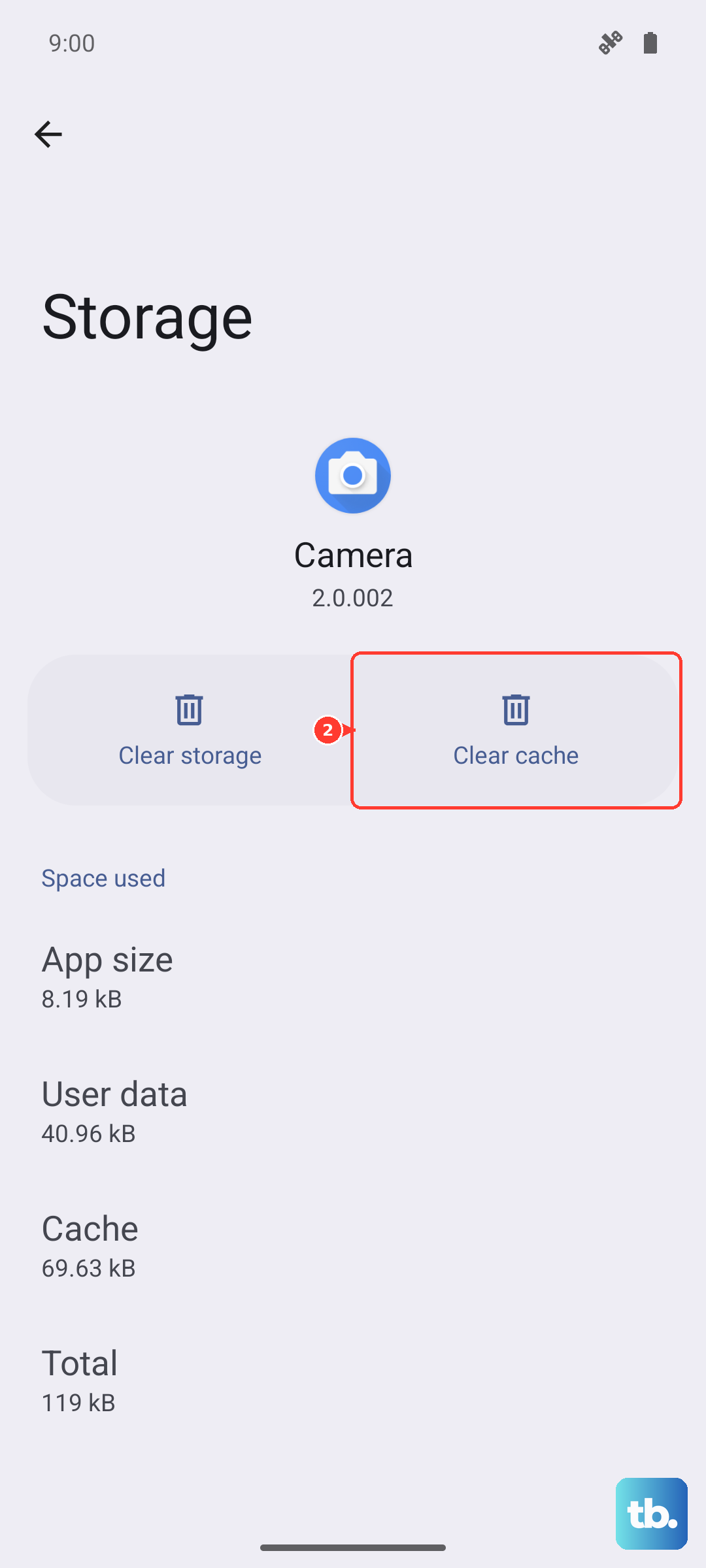
Switching to a different Wi-Fi network sometimes fixes download failures. Do not look for a Wipe cache partition option on current Pixel recovery screens; Google's current recovery instructions are for factory reset, which erases data, not for routine update troubleshooting.
Update Using a Computer
If wireless updates are not working and you are comfortable with ADB, use Google's full OTA package route for the matching Pixel build. Google describes full OTA packages as useful after failed over-the-air updates and notes they do not require wiping the device or unlocking the bootloader. Back up first and follow Google's instructions exactly.
Don’t Forget Your Apps
System updates are only half the story. Open the Google Play Store, tap your profile picture, then Manage apps & device > Update all. Outdated apps can cause crashes, battery drain, and security holes, even on an updated phone.
Check Google Play System Updates
On a Pixel 10a, Google also pushes important updates through Google Play itself. Go to Settings > Security & privacy > System & updates > Google Play system update. If an update is available, install it. These updates patch core system components without needing a full OS upgrade, and they’re separate from the monthly security patches.
That covers everything you need to keep your Pixel 10a up to date. Each update improves performance and protects against the latest threats, so it’s worth checking every month or turning on automatic updates.