
Your Google Pixel 10 Pro XL runs Android 16, which handles background tasks efficiently. Even so, every app builds up temporary files over time, and that cache can eat into your storage or cause minor glitches. Clearing it out is one of the easiest ways to keep your phone running like new.
Clear Cached Data for Specific Apps
Go to Settings > Apps and tap any app that you use heavily, Instagram, Chrome, Spotify, or your camera app. Tap Storage & cache, then hit Clear cache. This removes temporary data without logging you out or deleting personal files.
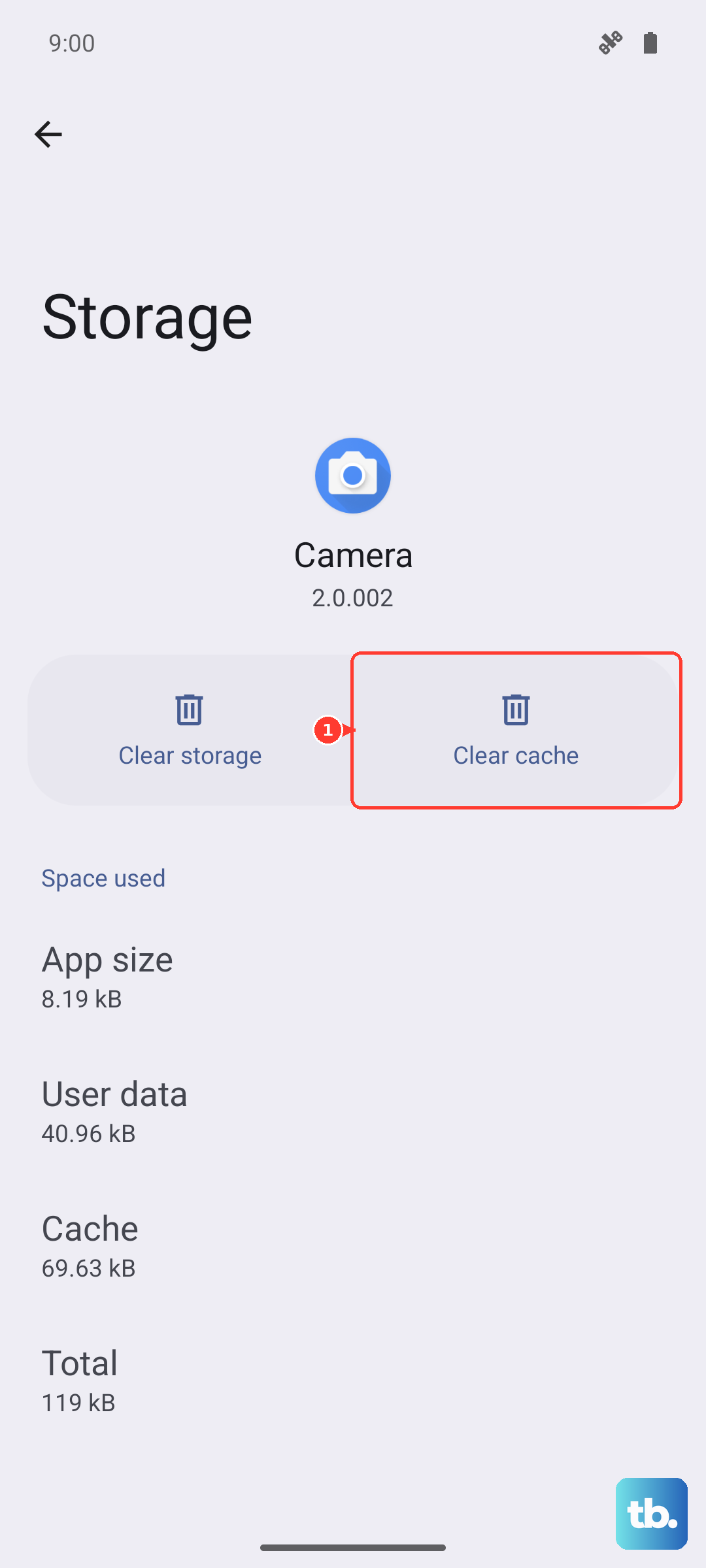
Focus on social media apps and games first. They're the biggest offenders when it comes to cache bloat. Clearing them once a month keeps things fresh.
Use Files by Google (It's Already on Your Pixel)
Pixel phones come with Files by Google pre-installed, and it's the easiest way to do a deep clean. Open the app, tap the Clean tab at the bottom, and let it scan for junk files, temporary app files, and outdated downloads. Tap Confirm and free up to wipe them all at once.
I run this once a month and usually free up a couple gigabytes without removing anything important. It also catches duplicate files and large media you might have forgotten about.
Clear System Cache in Storage Settings
Android 16 puts storage management front and center on the Pixel 10 Pro XL. Head to Settings > Storage. You'll see a detailed breakdown of exactly what's using your space, Apps, Images, Videos, Audio, and more. Tap Free up space and look for Cached data in the list.
Confirming this clears cached files across the entire system. It's completely safe and won't touch your photos or documents.
Wipe Browser Cache (Chrome)
Open Chrome, tap the three dots in the top right, and go to Settings > Privacy and security > Clear browsing data. Make sure Cached images and files is checked. Set the time range to All time for the deepest clean, then tap Clear data.
This fixes most weird loading errors in websites and frees up significant space if you browse a lot. It won't log you out of sites unless you also clear cookies.
Restart Your Phone (The Pixel Way)
A simple restart clears temporary system caches and frees up RAM. Hold the Power and Volume Up buttons together for a second to bring up the power menu, then tap Restart. Do this weekly, especially after big app updates.
If your phone ever becomes completely unresponsive, press and hold the Volume up and Power buttons simultaneously for 10 seconds, then release when the device restarts. This hard restart dumps a lot of temporary system data and fixes weird software hangs.
Check Storage Usage and Clear Downloads
Open Files by Google or go to Settings > Storage and scroll down to Downloads. Old PDFs, APKs, and screenshots you saved months ago pile up quickly. Delete what you no longer need. Also check your messaging apps for conversations with heavy media attachments.
The Pixel 10 Pro XL's storage settings are incredibly granular. You can see exactly how much space Android 16 itself uses, right down to the system cache. If you're low on space, delete offline maps in Google Maps or clear large video files you've already backed up to Google Photos.
A Quick Note on Heat and Charging
If your Pixel 10 Pro XL gets hot while charging, take off the case. Heat slows down charging and can throttle performance, making the phone feel laggy even after a cache clear. This is a known issue with the device, so keeping it cool is key.
When using wireless charging, center the phone perfectly on the Qi2 pad. Misalignment causes the phone to overheat and charge slowly, which can interfere with background app refreshing. For the fastest wired top-ups, use a 30W+ USB-C PPS charger.