
Force restarting your Pixel 10a is the fastest way to clear up the temporary glitch that's kicking your apps out. Press and hold the Power button for about 30 seconds, or for up to 60 seconds until the device restarts. This works whether the screen is frozen or just acting sluggish. After it boots back up, try opening the app that was closing, chances are good it'll run normally now.
So why do Pixel 10a apps keep shutting down? A few things can be at play. Running too many apps at once eats up memory, corrupt cache files trip up the app's code, and a weak internet connection can make network-dependent apps crash instead of just showing an error. Low storage space is another big one on a phone with Android 16's expanded app sizes.
Get App Updates from the Play Store
An outdated app is one of the most common reasons for random shutdowns. Developers push bug fixes for a reason, your Pixel 10a won't automatically update every app the second a patch drops.
Open the Google Play Store, tap your profile icon in the top right, and select Manage apps & devices. Under the Updates available section, tap Update all. If you only want to fix one specific app, just hit Update next to its name. Give the update time to install, then relaunch the app.
Clear an App's Cache to Fix Crashes
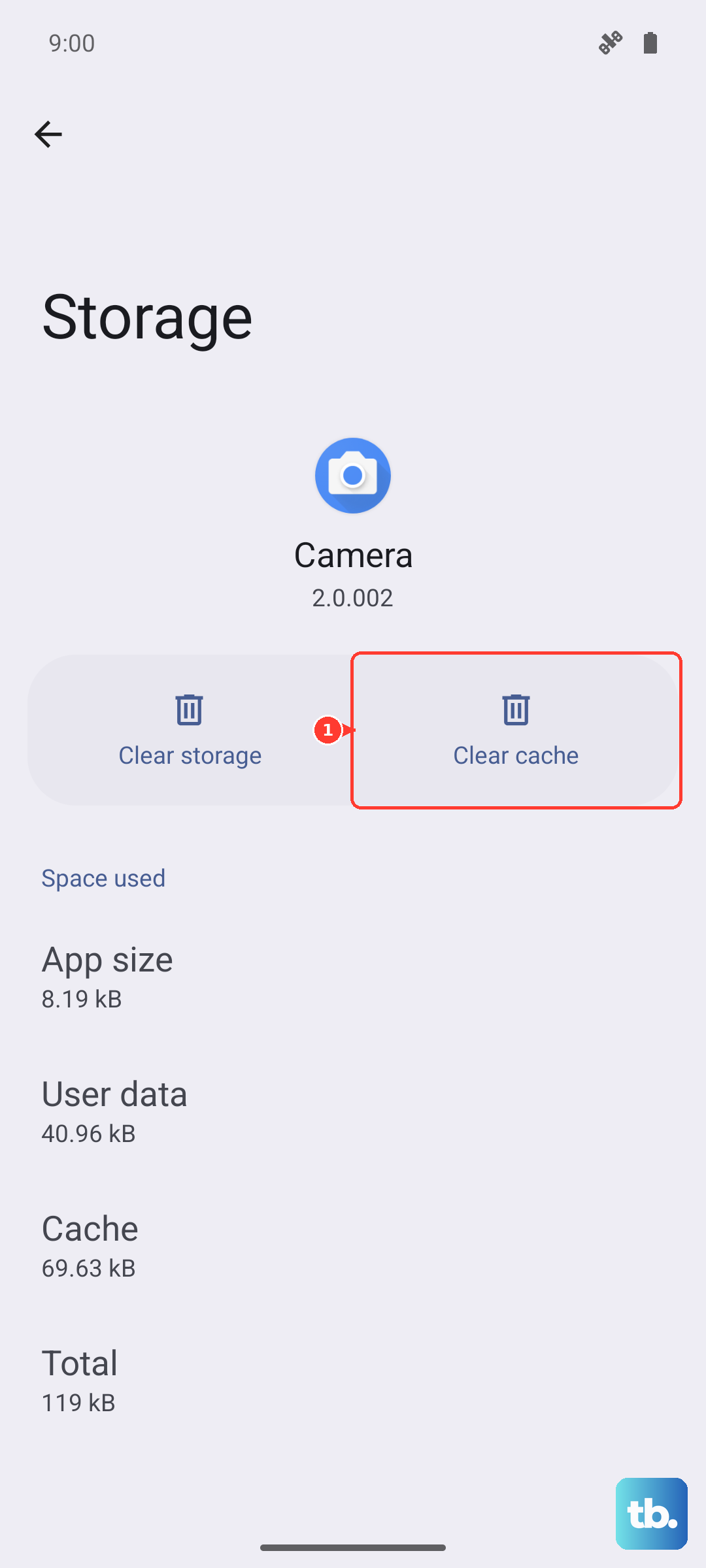
Corrupted cache data can make an app repeatedly crash on launch. Clearing it gives the app a clean slate without deleting your login info or saved progress.
Go to Settings > Apps and tap the app that's closing unexpectedly. Then tap Storage & cache and hit Clear cache. Don't tap Clear storage yet, that wipes all app data (which logs you out and resets settings). Start with cache only. If the crashing continues, go back and tap Clear storage as a next step, and you may need to sign in again.
Check Your Internet Connection
Some apps rely on a stable connection to load their core content. If your Pixel 10a's Wi-Fi is weak or your mobile data is fluctuating, apps may close instead of showing a "no connection" message.
Try toggling Airplane Mode on and off for 10 seconds, then turn it off. This forces the phone to reconnect to the strongest available network. If you're on Wi-Fi, restart your router by unplugging it for 30 seconds. You can also switch from Wi-Fi to mobile data (or vice versa) to see if the app works on the other connection.
Free Up Storage Space
Android 16 needs room to breathe, and so do your apps. When the internal storage is nearly full, the system may force-stop running apps to free up memory, making it look like they're crashing.
Head to Settings > Storage to see how much space you have left. If it's below 10% of total capacity, start clearing things out. Uninstall apps you haven't used in months, delete old screenshots and downloads, and offload photos and videos to Google Photos or a cloud service. You can also use the Free up space suggestion in Storage settings to bulk-delete temp files and cached downloads.
Reinstall the Problematic App
If one specific app keeps closing even after a cache clear and an update, the app installation itself may be damaged. Uninstalling and reinstalling it gives you a fresh copy.
Long-press the app icon and tap Uninstall. You can also go to Settings > Apps, tap the app, then tap Uninstall. After it's gone, open the Play Store, search for the app, and tap Install. This usually fixes deep corruption that cache clearing can't touch.
Force Stop a Frozen App
Sometimes an app gets stuck in a bad state and won't shut down on its own. Force stopping it kills every process tied to that app.
Open Settings > Apps, tap the app, and hit Force Stop. A warning will pop up saying the app may misbehave, that's fine since it's already misbehaving. After a few seconds, launch the app from your home screen. It should start fresh.
Update Android 16 on Your Pixel 10a
Google pushes system updates to fix bugs that affect how apps run. An outdated system build can cause crashes across multiple apps.
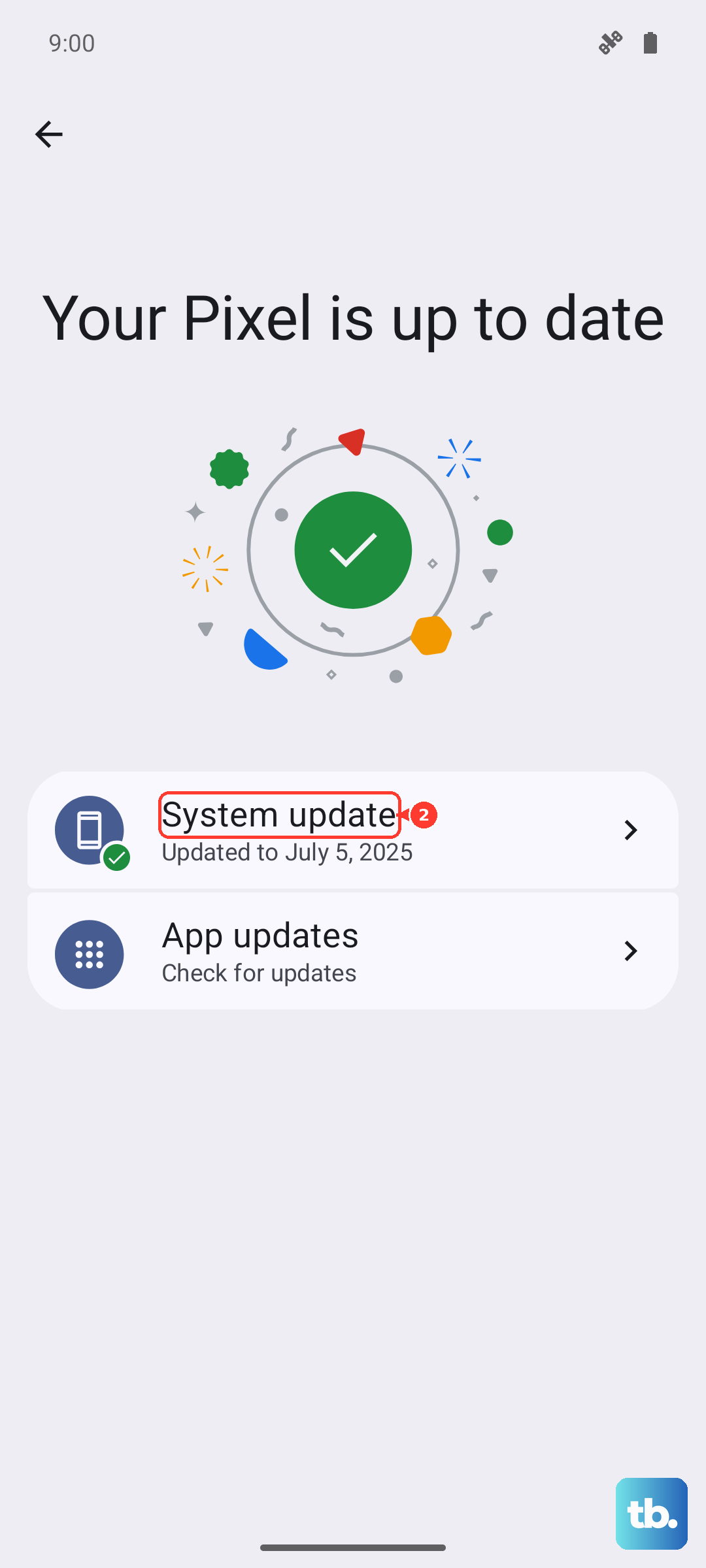
Go to Settings > System > System update. If an update is available, tap Download and install. Your phone will restart to apply it. Keep it plugged in during the update to avoid any battery interruptions.
Factory Reset as a Last Step
If your Pixel 10a still has apps closing after everything above, a factory reset wipes the slate clean. Back up your data first, photos, contacts, texts, everything. This erases all local data and returns the phone to its out-of-box state.
Head to Settings > System > Reset options > Erase all data (factory reset). Follow the prompts to confirm. After the reset, restore your data from the backup and reinstall your apps. Most people find app crashes vanish after this.