
Your Google Pixel 10 Pro XL running Android 16 gets direct software updates from Google, which means you're first in line for new features and security patches the moment they're ready. Here's how to get them installed.
Update Over the Air
Open Settings > System & updates > System update. Your phone checks for available updates automatically. If one shows up, tap Download and install.
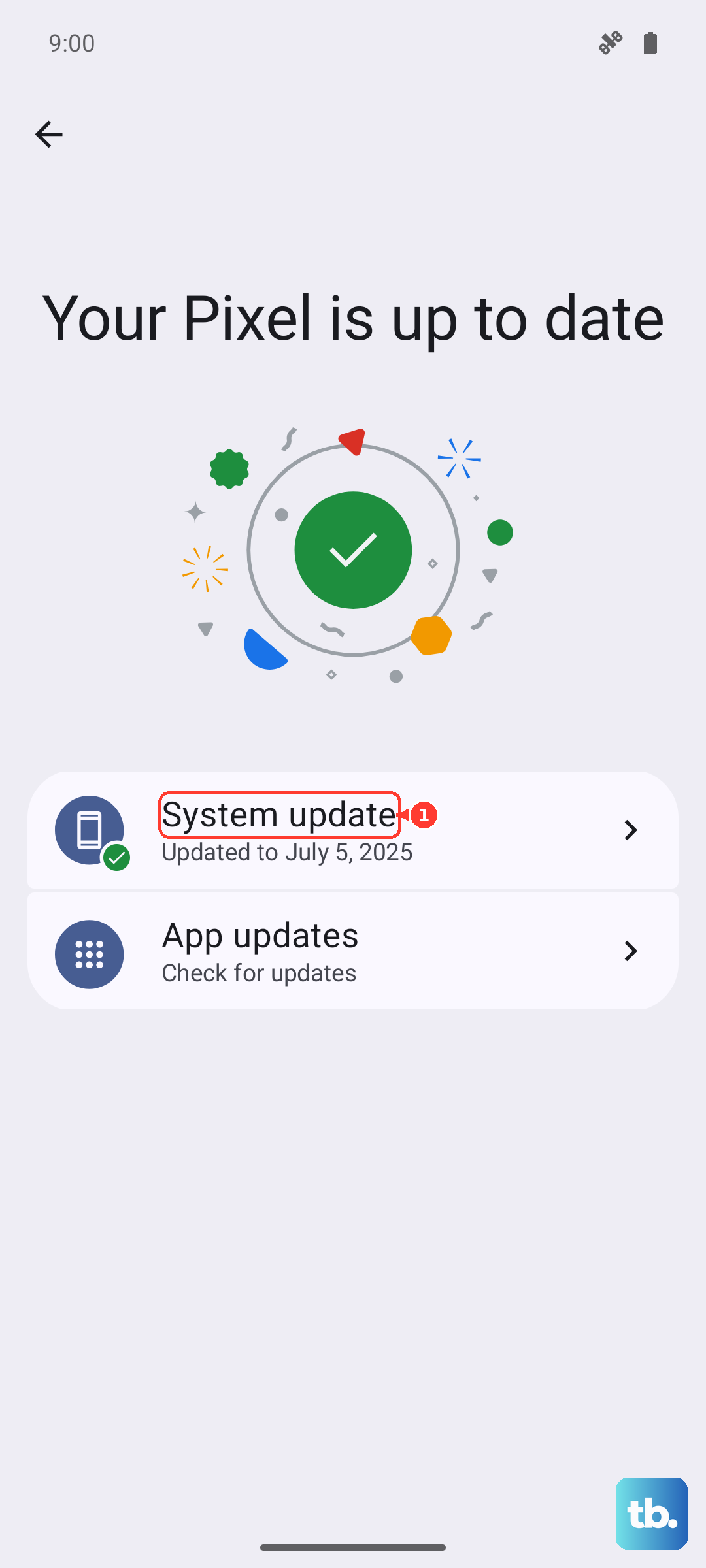
Make sure you're on Wi-Fi and your battery is above 50% (or keep it plugged in). Pixel updates range from monthly security patches to the big Android version upgrades, and they download in the background so you can keep using your phone.
Set Up Automatic Updates
In Settings > System & updates > System update, tap the three-dot menu and enable Automatic updates. Your phone downloads updates over Wi-Fi without asking, though you'll still get a notification when it's time to restart and finish the install.
You can also check Settings > Security & privacy > System & updates > Google Play system update. These are separate from the main OS updates and patch core components like the Google Play Services layer without requiring a full reboot.
Flash an Update from Your Computer
If the over-the-air update isn't working or you'd rather do a clean install, Google provides the Android Flash Tool through a web browser. Connect your Pixel 10 Pro XL to your computer with the USB-C cable, visit the Android Flash Tool site in Chrome, and follow the on-screen instructions.
This method wipes your device, so back up your data first. For a less destructive approach, you can download the full factory image and flash just the system update while keeping your files intact.
What to Do When an Update Gets Stuck
If the download stalls or the phone freezes during installation, force restart it. Press and hold the Volume up and Power buttons simultaneously for 10 seconds, then release when the device restarts. This won't erase anything and usually gets things moving again.
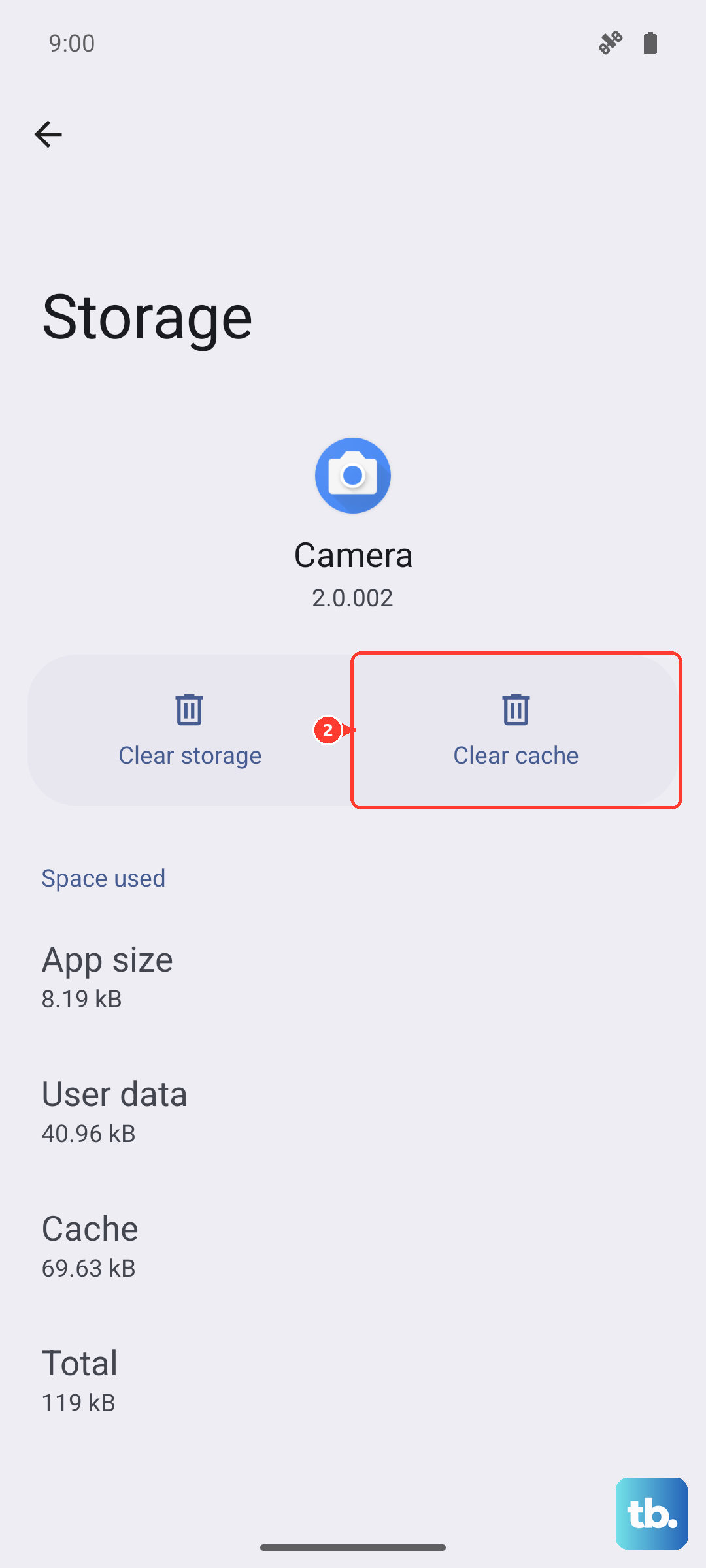
Still stuck? Go to Settings > Apps, tap Show system, find Google Play services or System update, select Storage & cache, and choose Clear cache. Try the update again after that. Switching to a different Wi-Fi network sometimes fixes download corruption too.
Check Your Current Build
Navigate to Settings > About phone. You'll see your Android version (hopefully Android 16), the security patch date, and the build number. This is useful when comparing against release notes or confirming you're on the latest update before reaching out to support.
If you're a few patches behind, you might need to install updates sequentially rather than jumping to the newest one all at once.
Don't Forget App Updates
System updates handle the OS, but your apps update separately. Open the Google Play Store, tap your profile icon, then Manage apps & device > Update all. Outdated apps are a common source of battery drain, crashes, and security holes even on a freshly updated phone.
You can also enable auto-update from the Play Store settings so you never fall behind.
The Security Case for Staying Current
Every update bundles patches for known vulnerabilities. Google's security bulletins come out monthly, and skipping even one update leaves your Pixel exposed to issues the fix was designed for. Beyond security, updates tune performance, improve battery life, and occasionally add the features that make Android 16 feel fresh.