You're sitting there with a Pixel 10 Pro XL that just won't connect to Wi-Fi, and the usual quick fixes aren't doing a thing. It happens more often than you'd expect on Android 16, especially after a system update or when you switch routers. The good news is that almost every Wi-Fi issue on the Pixel 10 Pro XL has a straightforward fix, and you don't need to be a tech wizard to sort it out.
Toggle Wi-Fi and Force Restart
Start with the easiest thing. Pull down your notification shade, tap the Wi-Fi icon to turn it off, wait about five seconds, then tap it back on. That forces your Pixel to re-scan for networks, and it's surprising how often that's all it takes.
If that didn't work, do a force restart. On the Pixel 10 Pro XL, press and hold the Volume up and Power buttons simultaneously for 10 seconds, then release when the device restarts. This clears out any temporary software gremlins that might be blocking your connection, and it's safer than pulling the battery.
Turn Airplane Mode On and Off
This trick works because it resets all your wireless radios at once. Swipe down to open your quick settings and tap the airplane icon to enable Airplane Mode. Leave it on for about 15 seconds, then tap it off again. Your Wi-Fi should start scanning immediately and reconnect to any saved networks in range.
Forget the Network and Reconnect
Sometimes your Pixel is holding onto bad connection data. Head to Settings, then Network & Internet, then Internet. Tap the gear icon next to your network name, and select Forget. Now go back, tap the network again, and type in the password fresh.
This is especially useful if you recently changed your Wi-Fi password or got a new router. Your phone might be trying to authenticate with old credentials, which will fail every time.
Double Check the Password and Network Name
It sounds basic, but make sure you're connecting to the right network. If a neighbor's network has a similar name, your Pixel might be trying to join theirs instead. Pay attention to caps lock too, because Wi-Fi passwords are case-sensitive on Android 16.
Turn Off Bluetooth for a Minute
Bluetooth and Wi-Fi both use the 2.4GHz frequency band, and on the Pixel 10 Pro XL they can interfere with each other. Swipe down to your quick settings, tap the Bluetooth icon to disable it, and try connecting to Wi-Fi again. If it works, you know you've got some interference happening.
Disable Smart Network Switch
Android 16 has a feature that automatically switches you to mobile data when your Wi-Fi signal gets weak. That sounds helpful, but it can actually prevent your Pixel from connecting to Wi-Fi in the first place. Go to Settings, then Network & Internet, then Internet, tap the three-dot menu and select Wi-Fi preferences. Turn off the toggle for Switch to mobile data.
Check Power Saving Mode
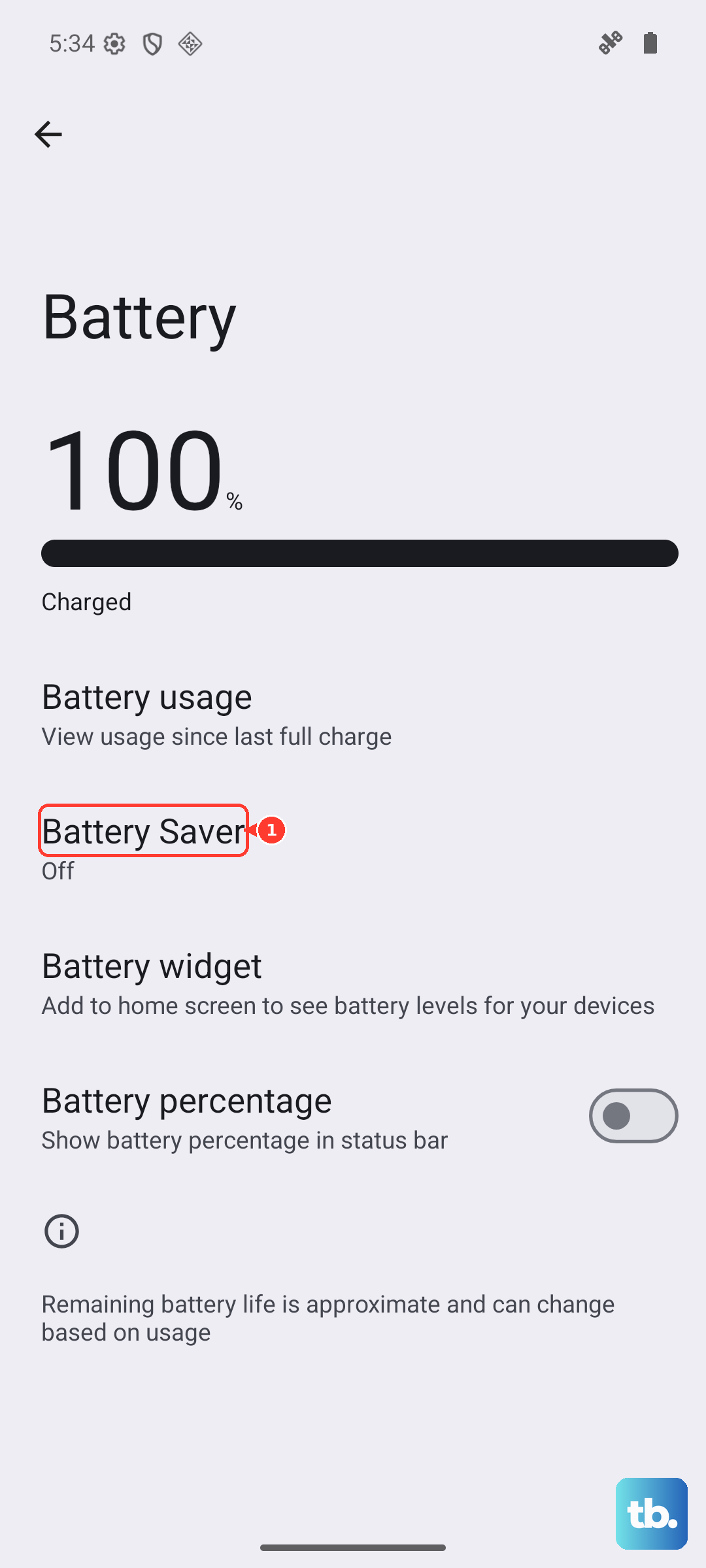
Battery saver is great for keeping your Pixel alive through a long day, but it can throttle or even disable Wi-Fi in the background. Go to Settings, then Battery, and turn off Battery Saver if it's on. Your Wi-Fi connection should bounce back almost immediately after you disable it.
Update Your Pixel's Software
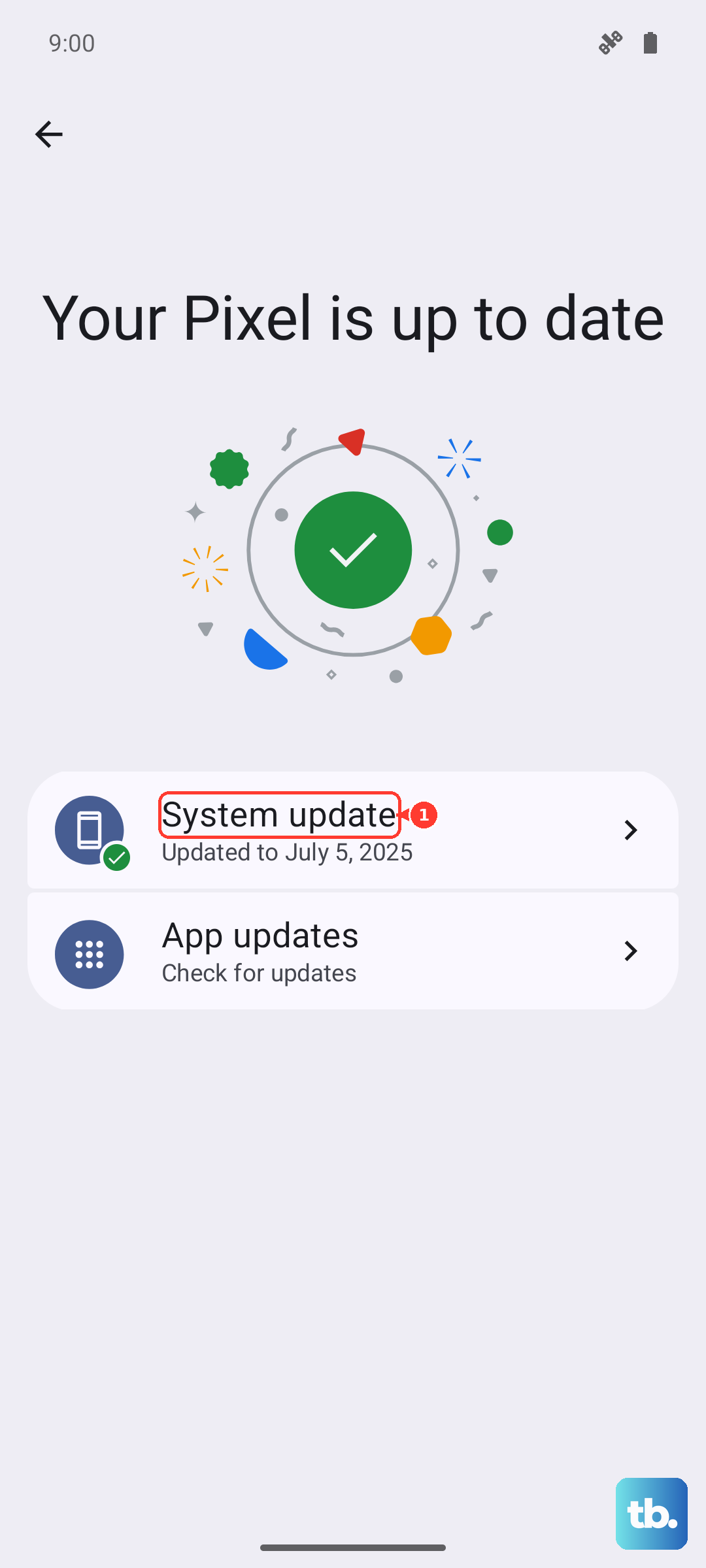
Running an outdated version of Android 16 can cause weird connectivity bugs. Go to Settings, then System, then System update, and check for any available updates. Google regularly pushes patches that address Wi-Fi stability issues, so installing the latest update might solve the problem entirely.
Fix Your Date and Time
This one catches a lot of people off guard. If your phone's date and time are wrong, Wi-Fi authentication can fail because security certificates won't validate properly. Go to Settings, then System, then Date & time, and make sure the toggle for Set automatically is turned on. Give it a few seconds to sync, then try connecting again.
Restart Your Router
The problem might not be your Pixel at all. Unplug your router from power, wait a full 60 seconds, then plug it back in. If other devices in your house are also having Wi-Fi issues right now, the router was almost certainly the culprit.
While you're at it, check if your router's firmware needs an update. Older firmware can have compatibility issues with newer Android versions, and the Pixel 10 Pro XL tends to be pickier than most phones about router compatibility.
Reset Network Settings
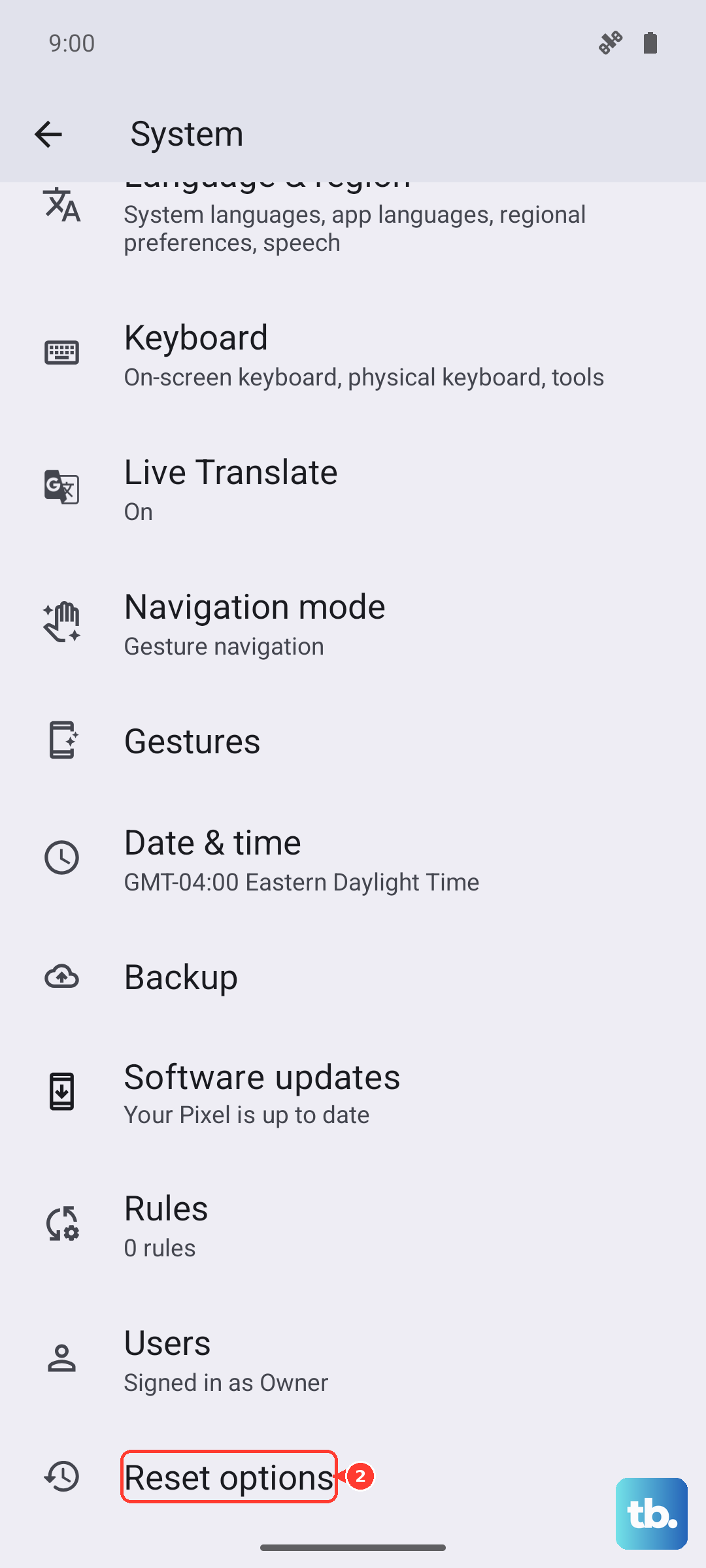
If you've tried everything above and Wi-Fi still won't cooperate, it's time to reset your network settings. Go to Settings, then System, then Reset options, and tap Reset Wi-Fi, mobile & Bluetooth. This wipes all saved networks, Bluetooth pairings, and mobile data settings, so you'll need to reconnect to everything afterward. For most people, this is the fix that finally gets them back online.