Apple Pay verification is stuck, and the code never arrives or the card won’t finish setup. The fix depends on whether the request comes from your bank, your Apple Account, or Apple’s security system. Start with the card’s verification options, then follow the checks that match your error.
Start with the bank’s verification request
When you add a debit or credit card, your issuer handles its verification. An Apple Account sign-in code is a separate check. Apple Cash and Apple Card identity requests also have their own support routes.
Ask your issuer whether your specific card supports Apple Pay. For Could Not Add Card, Invalid Card, or Card Device Limit, contact the issuer for assistance. Removing the card does not guarantee that an issuer block will clear.
If the issuer confirms eligibility but verification remains unfinished, open the affected card in Wallet and try one of its offered verification methods below.
Complete verification through Wallet
Use a verification method offered for your card; the choices depend on your issuer.
- 1.Open Wallet and select the affected card.
- 2.Tap Complete Verification.
- 3.Select an offered method, such as SMS, email, the bank’s app, a website, an App Clip, or phone verification.
- 4.Tap Next.
- 5.Enter the issuer’s code or finish authentication through the selected app, website, App Clip, or phone verification flow.
- 6.If the code never arrives, contact your issuer to confirm the contact details it has on file or to ask about another verification option. Not every issuer offers every option.
Find a missing verification code
These checks address missing texts, hidden messages, and outdated bank contact details.
Look for the issuer’s text in Messages > Filters > Unknown Senders.
For a sender you recognize, choose Mark as Known in the conversation.
On iOS 27, open Messages > Filters > Manage Filtering > Allow Notifications.
Enable Time Sensitive to allow alerts for time-sensitive verification texts. Available notification categories vary by country or region.
If you use a third-party text filter, inspect Messages > Filters > Manage Filtering > Text Message Filter.
Confirm that the relevant phone line is turned on in Settings > Cellular. SMS requires cellular service or supported Wi-Fi Calling.
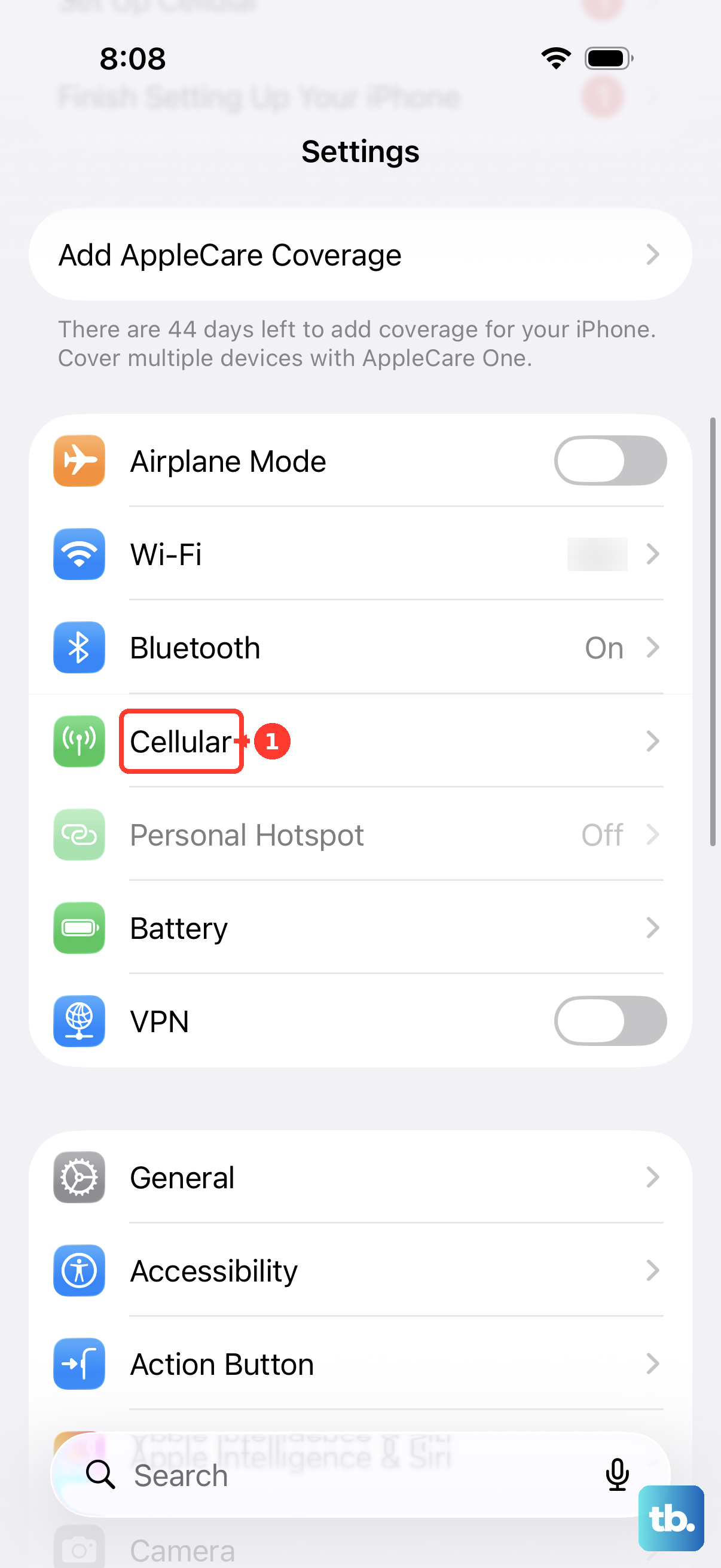
Contact your carrier if SMS delivery still fails.
For NatWest, allow up to 15 minutes for the code.
If it still hasn’t arrived, retry verification or contact NatWest.
Ask NatWest to update its records if your mobile number changed. Its codes go to the number recorded by the bank.
For a Chase card, ask the primary cardholder to check for the activation code. Chase always sends activation codes to that person, even when the card is being added to another person’s Apple Pay wallet.
Resolve Apple Account setup blocks
Use these steps when the request concerns your Apple Account rather than your bank card. Apple Pay requires two-factor authentication and a device passcode.
On an unsigned-in iPhone running iOS 27, open Settings > Apple Account > Sign in Manually.
Enter your account credentials and the requested verification code.
To enable two-factor authentication on iPhone or iPad, open Settings > [your name] > Sign-In & Security.
On Mac, open System Settings > [your name] > Sign-In & Security.
Turn on Two-Factor Authentication and complete its setup prompts.
For a missing Apple Account sign-in code, choose Allow on a trusted device’s sign-in notification.
Alternatively, select Didn’t Get a Code? or Can’t get to your devices? on the sign-in screen.
Request a text message or phone call.
If your trusted devices and phone numbers are permanently unavailable, choose Can’t use [phone number] from those verification options.
Follow the account-recovery instructions. Allow days or longer for recovery.
For a locked or inactive account, choose Request Access in the alert or open Apple’s account-recovery website.
For an account disabled for security reasons, follow the password-reset instructions in Apple’s locked-account help.
If your iPhone or iPad has no passcode, open Settings > Face ID & Passcode or Touch ID & Passcode > Turn Passcode On.
Enter and confirm a passcode.
Check the connection and Apple’s services
Open Apple System Status and inspect Apple Pay, Wallet, and Apple Cash. If an outage is listed, retry after service returns.
Test your internet connection by opening a website in a browser.
If it fails, try another Wi-Fi or cellular connection.
Test another device on the original network to check whether the failure affects that network.
Restart the router if the network is failing.
On iPhone or iPad, correct an inaccurate date or time in Settings > General > Date & Time.
On Mac, use the Apple menu > System Settings > General > Date & Time.
If a VPN, firewall, or filtering app is interfering, temporarily disable the implicated feature in its app.
Retry verification after disabling that feature.
For managed settings, ask your organization’s administrator to inspect the connection restrictions.
For persistent iPhone network problems, select Settings > General > Transfer or Reset iPhone > Reset > Reset Network Settings. This removes saved network settings and manually configured VPN settings.
Reconnect to Wi-Fi afterward.
If verification still fails with a working connection, try the stalled-app fixes below when the interface freezes, or contact your issuer for an unfinished card check.
Get a frozen Wallet or bank app responding
A frozen verification screen points to an unresponsive Wallet or issuer app.
On a Face ID iPhone, swipe up from the bottom and pause to open the app switcher.
On a Home-button iPhone, double-click the Home button instead.
Swipe the stalled app’s preview up to close it.
Reopen the app.
Resume verification.
If the app remains unresponsive, begin a restart: on a Face ID iPhone, hold either volume button and the side button; on a side-button Home model, hold the side button.
Drag the power-off slider.
Wait 30 seconds.
Hold the side button until the Apple logo appears.
For a malfunctioning issuer app, open App Store > profile icon > App Updates.
Install the issuer app’s available update.
Before updating iOS or iPadOS, back up your device.
Connect it to power.
Connect it to Wi-Fi.
Install the latest compatible software through Settings > General > Software Update > Download and Install.
These fixes address app and software faults. They do not clear an issuer’s verification decision.
Try adding the card again
Check your device against Apple’s compatibility list. Compatible iPhones have Face ID or Touch ID, excluding iPhone 5s; some regions have higher requirements.
If your device is excluded, use a compatible device.
To remove an existing card before retrying setup on iPhone, select Wallet > the affected card > More (…) > Card Details > Remove Card.
Start setup again through Wallet > Add Card (+) > Debit or Credit Card > Continue.
Tap or hold an eligible physical card near the iPhone, or choose Enter Card Details Manually.
For a previously associated eligible card, open Wallet > Add Card (+) > Cards Found For You instead.
Select the card.
Tap Continue.
For a normally paired Apple Watch, open the paired iPhone’s Watch app > My Watch > Wallet & Apple Pay > Add Card.
Choose Debit or Credit Card or Cards Found For You.
Tap Continue.
Follow the setup prompts to tap, scan, or manually enter the card.
Complete any issuer verification requested during the new setup.
Expect another verification request when re-adding a card; removal does not guarantee that an issuer block will clear.
Request Apple’s card-adding security review
Apple’s unusual-activity block has a separate review process. Use it when the Cannot Add Card alert offers Request a Review.
On the affected iPhone or iPad running iOS 27 or iPadOS 27 or later, attempt to add the card.
At Cannot Add Card, choose Request a Review.
Read the guidance.
Choose Send to Apple.
For an affected Apple Watch running watchOS 27 or later, attempt card addition through the Watch app on its paired iPhone.
Choose Request a Review at the Cannot Add Card alert.
Read the guidance.
Choose Send to Apple.
Allow a few days for Apple’s decision.
To check progress, retry card addition on the same device.
Calling Apple cannot submit this review. Apple’s decision determines whether card adding is reinstated or permanently disabled.
Handle Apple Cash and Apple Card identity checks
These steps address identity-verification problems with Apple Cash or an Apple Card application.
For Apple Cash, open Settings > Wallet & Apple Pay > Apple Cash > Verify Identity.
On iOS 27, choose Continue with ID in Wallet if you already have an eligible driver’s license in Wallet.
Accurately complete the requested identity information.
Open the Apple Cash card to check its status.
If the account is under review, allow up to two business days.
If the card provides no instructions or verification does not resolve its restriction, contact an Apple Cash Specialist at Green Dot Bank through Apple’s Apple Cash support page.
During an Apple Card application, supply the requested birth date, home address, income, and Social Security information.
Scan your driver’s license or state-issued photo ID if prompted.
For unresolved Apple Card identity checks, use the Apple Card Specialist at Goldman Sachs link on Apple’s identity-verification help page.
Frequently Asked Questions
Does changing my Apple Pay phone number fix a missing bank verification code?
Apple Pay checkout contact details and your bank’s verification records are separate. Changing checkout defaults does not update the bank’s recorded number. Contact your issuer to correct its verification contact details.
Why is my verified Apple Pay card still declined?
A purchase decline is separate from card verification. Contact your bank or card issuer for its approval decision. To pay with another verified card, select Change Payment Method or Other Cards & Pay Later Options at checkout.
Can I add a debit card to an Apple Watch set up for my child?
Credit or debit card Apple Pay is unavailable on Apple Watch For Your Kids. Eligible US children can use Apple Cash Family instead.
How do I get help with a persistent Wallet or device fault?
Open Apple Pay Support at https://support.apple.com/apple-pay and choose Get started under Still need help? Describe your device, the exact error, and the troubleshooting you have completed.











