Your files won't sync between computers just because you installed Dropbox. Automatic desktop syncing starts when you sign in to the same account and put your files in the Dropbox folder. Here's how to get that working, choose what stays on each computer, and access your files on your phone.
Set up Dropbox on your computers
The desktop app enables automatic syncing for files in your Dropbox folder. For Windows or Mac, download the app from Dropbox's installation page. For a supported Linux computer, download the package for your distribution from Dropbox for Linux.
Install the downloaded app on your computer. Installation on network drives is unsupported. Follow the setup prompts to sign in or create an account. Complete the sync setup in the app.
Repeat the installation on your other computers, signing in to the same Dropbox account. On Dropbox Basic, you can be signed in on up to three computers and phones at a time. If you reach that limit, Dropbox prompts you to sign out of one. Admins on some team plans can also limit how many devices members link.
Put your files in the Dropbox folder
On Windows, open File Explorer. On a Mac, open Finder.
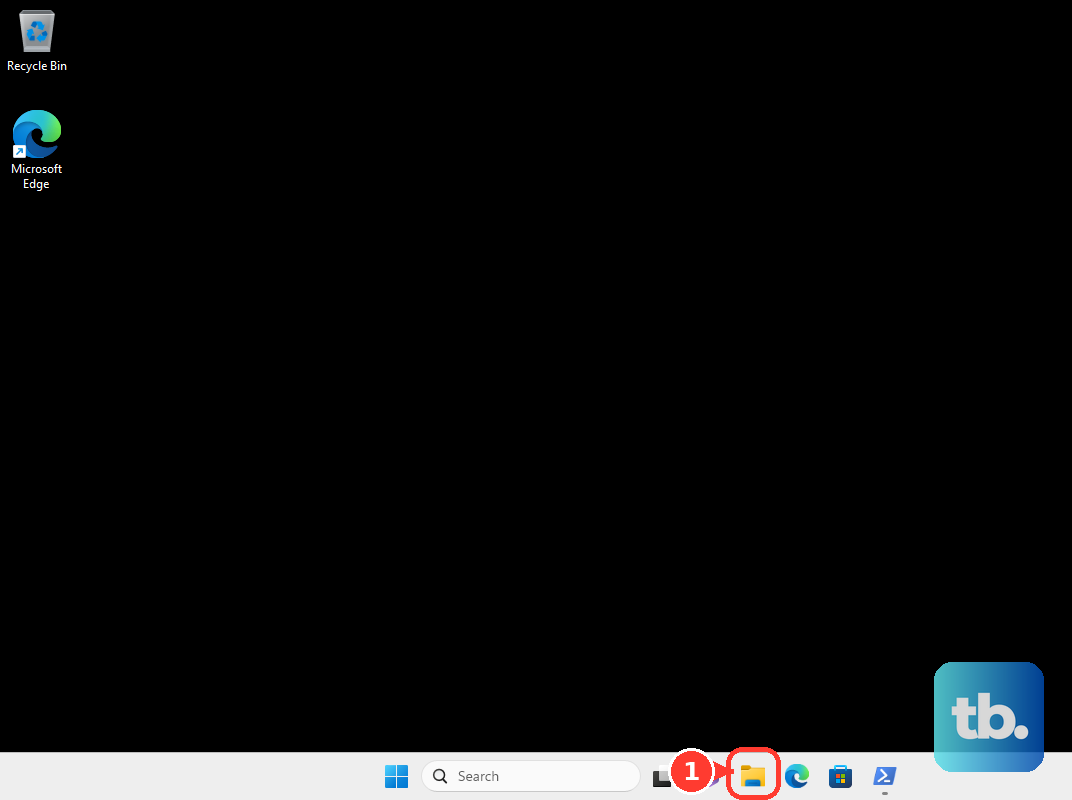
Select Dropbox. Drag the files or folders you want to sync into that folder. Copying and pasting them there also works, as does saving documents directly into Dropbox from another application. Subsequent changes to those Dropbox files sync automatically.
Files left outside the Dropbox folder aren't included. Dropbox no longer follows external symlinks to upload their target contents, and the Windows desktop app doesn't support junctions or symlinks. Keep the actual files inside Dropbox.
If the desktop upload fails, try a browser upload. Sign in to dropbox.com. Select Upload beneath the search bar. Choose File.
Select your files. Click Open. The uploaded files become available to connected Dropbox apps, but later changes to the original local files won't upload automatically. To get continuous syncing working, check that the desktop app is running and resume it if paused, as covered below.
Choose which folders sync to each computer
Selective sync works on all plans, including Basic, and removes excluded folders from that computer while keeping their cloud copies; set it separately on each computer.
- 1.On Windows or Mac, click the Dropbox taskbar or menu-bar icon.
- 2.Open the round account menu, then select Preferences and Sync.
- 3.On Windows, find Selective Sync and click Modify. On Mac, find Select folders to sync to this Mac and click Modify.
- 4.Check the folders you want on this computer and uncheck those you want to exclude.
- 5.Click Update to apply your selection.
- 6.On Linux, use the Dropbox tray icon instead: open Preferences → Selective sync…, select your folders, and click OK.
If syncing stops after setup
A closed or paused desktop app stops ongoing syncing. Open Dropbox on your computer. The app must remain running for changes to sync.
For paused syncing on Windows or Mac, click the Dropbox taskbar or menu-bar icon. Click the sync-status text at the bottom. Select Resume. Timed pauses also resume automatically.
To enable automatic startup, open the round account menu from the Dropbox taskbar or menu-bar icon. Go to Preferences → General. Enable Start Dropbox on system startup.
On Windows, check whether you installed Dropbox Lite. It doesn't provide desktop folder syncing. Dropbox Lite is the version for Windows in S mode. If you have it, switch Windows out of S mode first, then install the full desktop app from dropbox.com/install.
Keep essential files available offline
Online-only files save local storage space. Files marked available offline stay downloaded so you can use them without an internet connection. On Windows or Mac, open Dropbox in File Explorer or Finder.
Right-click the file or folder you want to keep downloaded. Select Make available offline. To free up its local storage later, right-click the item again. Select Make online-only.
Opening an online-only file while connected downloads it again. To make new files and folders added directly to the top level of your Dropbox folder online-only by default, click the Dropbox taskbar or menu-bar icon. Open the round account menu. Go to Preferences → Sync → Default sync preference.
Select Online-only. This leaves existing items unchanged. Files you create locally and move into Dropbox stay offline until you explicitly change their availability. If you can't find the folder to change its availability, return to selective sync and include it on this computer first.
Access and upload files on your phone
Use the mobile app to access Dropbox files and upload content from your phone. Mobile uploads and offline downloads have separate controls from desktop folder syncing.
Install the app through Dropbox's mobile download page. Sign in to the same account you use on your computer. Open the destination folder in the Dropbox app. Tap +.
On Android, choose Upload files. Select your content. Tap Upload.
On iPhone or iPad, choose Create or Upload File. Tap Upload File. Choose your content.
For offline access, open a file's more-options menu. Turn on Make Available Offline. Individual offline files work on all plans. Whole offline folders require Plus, Family, Professional, Standard, Advanced, or Enterprise.
To refresh downloaded files over Wi-Fi, open the offline-files list through Account → Manage offline files on Android or Manage Offline Files on iPhone or iPad.
Turn on automatic photo uploads
Camera uploads automatically adds your phone's photos to Dropbox. On Android, open Account → Settings → Features → Camera uploads. Tap Back up my photos. Choose Allow to grant access.
On iPhone or iPad, tap the account icon. Open Camera uploads → Upload from → Settings. Grant access to your photos. Choose the content you want uploaded.
Set your cellular upload preferences. Tap Turn on camera uploads.
Frequently Asked Questions
Is Dropbox Backup the same as syncing files between computers?
No. Updated Dropbox Backup keeps source folders in their original locations. Access backups from other devices through dropbox.com/backup/all. For everyday desktop file syncing, save your files inside the Dropbox folder.
How do I get a shared folder to sync with my account?
Sign in to the invited account on dropbox.com. Open Home → Shared. Hover over the folder, then select Join folder. Your email address must be verified, and your account needs enough storage.
How do I enable LAN sync between computers on the same network?
Click the Dropbox taskbar or menu-bar icon. Open the round account menu, then go to Preferences → Network. Turn on LAN Sync to let eligible computers transfer files over the same network. LAN sync is unsupported on Dropbox for macOS with File Provider.
Does importing Google Drive files keep both cloud accounts in sync?
No. Dropbox's import option brings files into Dropbox. It doesn't establish continuous two-way syncing between the cloud accounts.











