A keyboard that will not appear, freezes mid-message, or throws a "Samsung Keyboard has stopped" error makes a phone almost unusable. The good news is that most of these failures come from a single misbehaving app or a corrupted cache, not from your hardware.
This guide covers Samsung Keyboard and Google's Gboard on current Galaxy phones running One UI and on other Android devices. The fixes are ordered easy to advanced, so start at the top and stop as soon as your keyboard comes back.
If your keyboard works but predictions, autocorrect, or suggestions feel wrong, that is a separate problem with its own fixes. This article focuses on the keyboard failing to show up, crashing, or stopping entirely.
Quick Fix Summary
Use this table to jump to the right fix for your situation. The first few steps clear the most common temporary glitches in under a minute.
| Fix | When To Use It | Time |
|---|---|---|
| Force stop the keyboard | Keyboard frozen or "has stopped" error | 1 min |
| Restart your phone | Keyboard missing after using the phone a while | 2 min |
| Clear cache and data | Repeated crashes or lag | 2 min |
| Update the keyboard | Crashes started after an update | 3 min |
| Switch default keyboard | One keyboard broken, need to type now | 1 min |
| Safe mode | Suspect a third-party app conflict | 5 min |
| Factory reset | Nothing else worked | 30 min+ |
Force Stop the Keyboard
Force stopping clears whatever process locked up and is the fastest way to recover a frozen keyboard or clear a "has stopped" error.
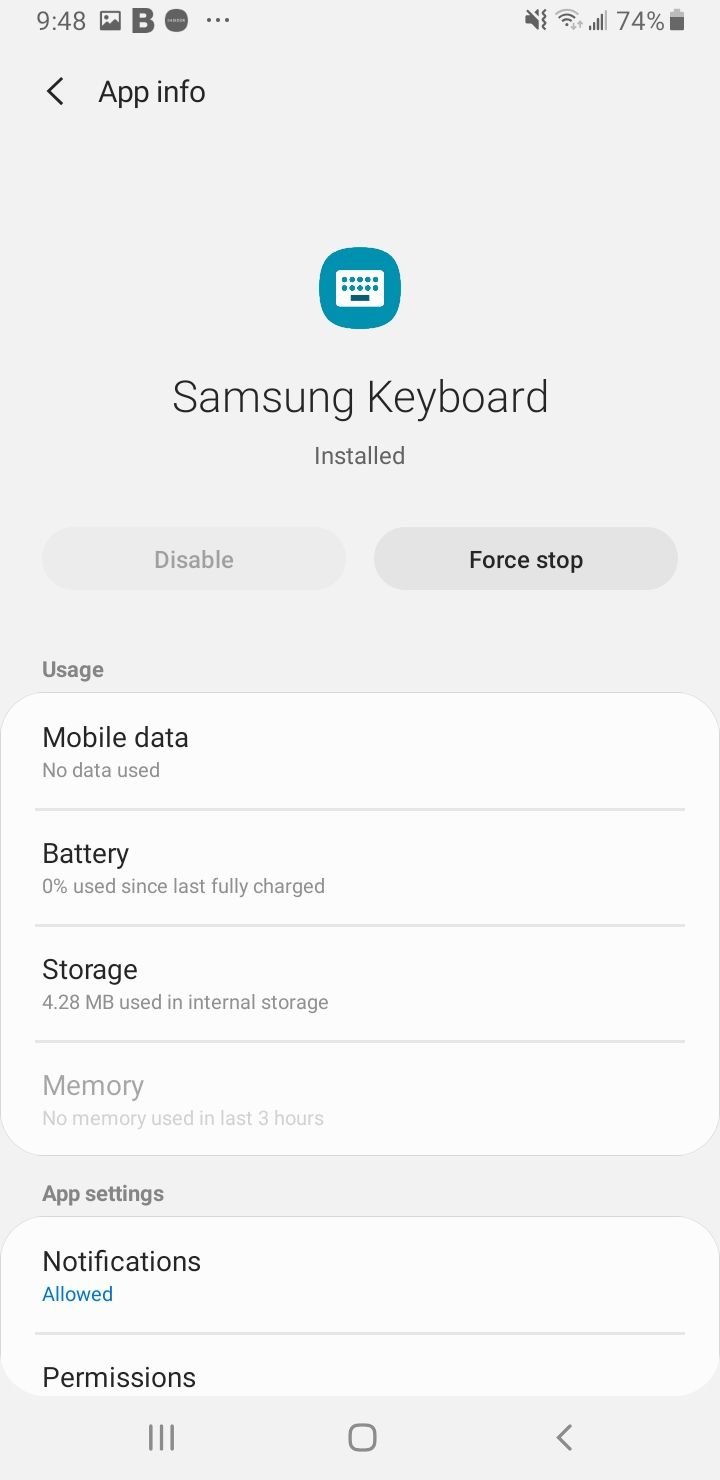
On a Samsung phone, go to Settings > Apps, tap the sort icon, and turn on Show system apps. Find Samsung Keyboard, open it, then tap Force stop and confirm.
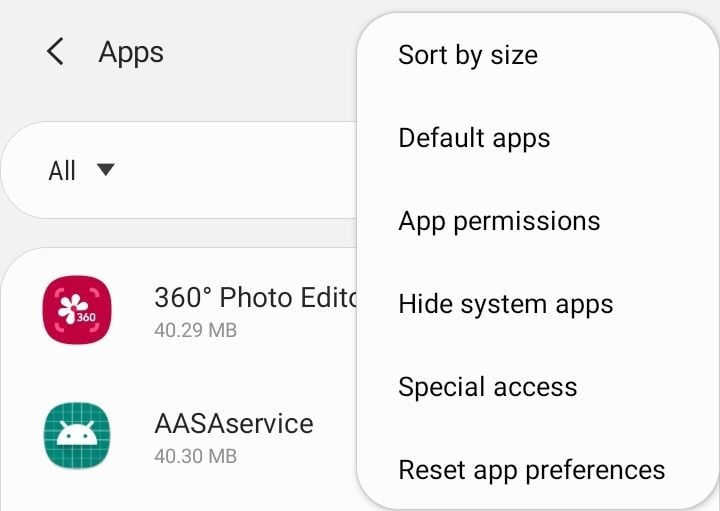
On other Android phones running Gboard, open Settings > Apps > Gboard and tap Force stop. Exit Settings and open any chat or notes app to test typing.
Restart Your Phone
A reboot clears memory and ends background processes that may be blocking the keyboard from loading. It is the single most reliable fix for a keyboard that simply will not appear.
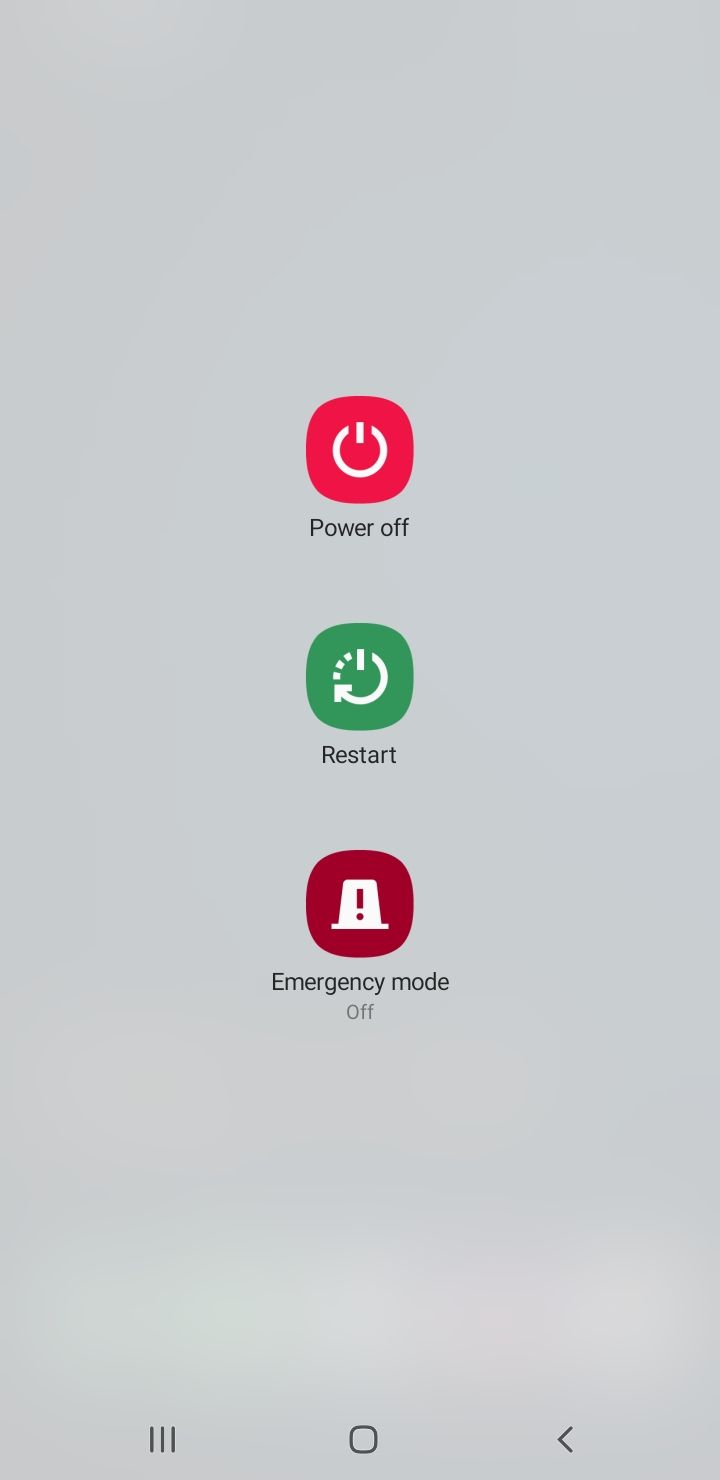
Press and hold the Power button until the power menu appears, or swipe down with two fingers and tap the Power icon. Choose Restart, wait for the phone to boot, then test the keyboard.
Clear Keyboard Cache and Data
Corrupted cache files are a common cause of repeated keyboard crashes and lag. Clearing the cache is safe, while clearing data resets your keyboard to defaults and removes custom settings and learned words.
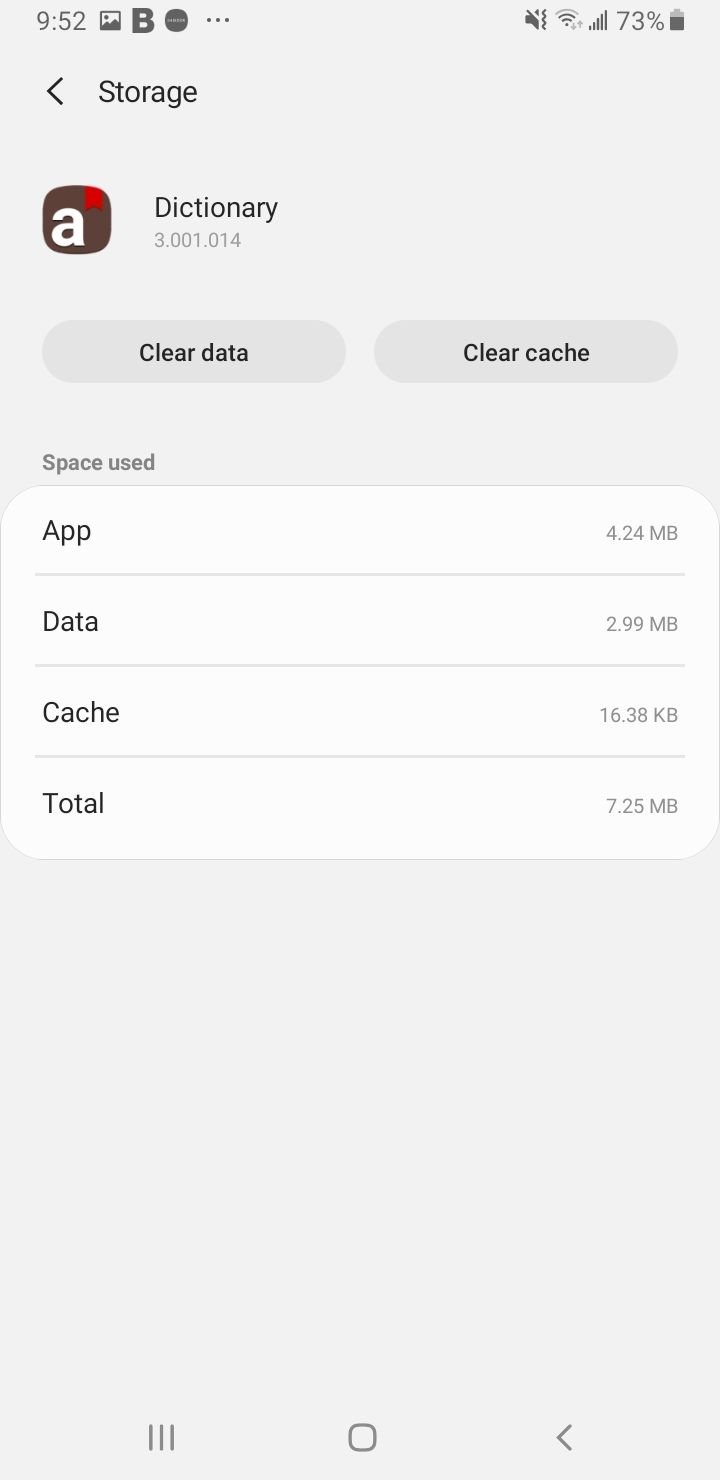
For Samsung Keyboard, go to Settings > Apps, turn on Show system apps, then open Samsung Keyboard > Storage. Tap Clear cache first and test typing. If it still fails, return and tap Clear data, then Delete to confirm.
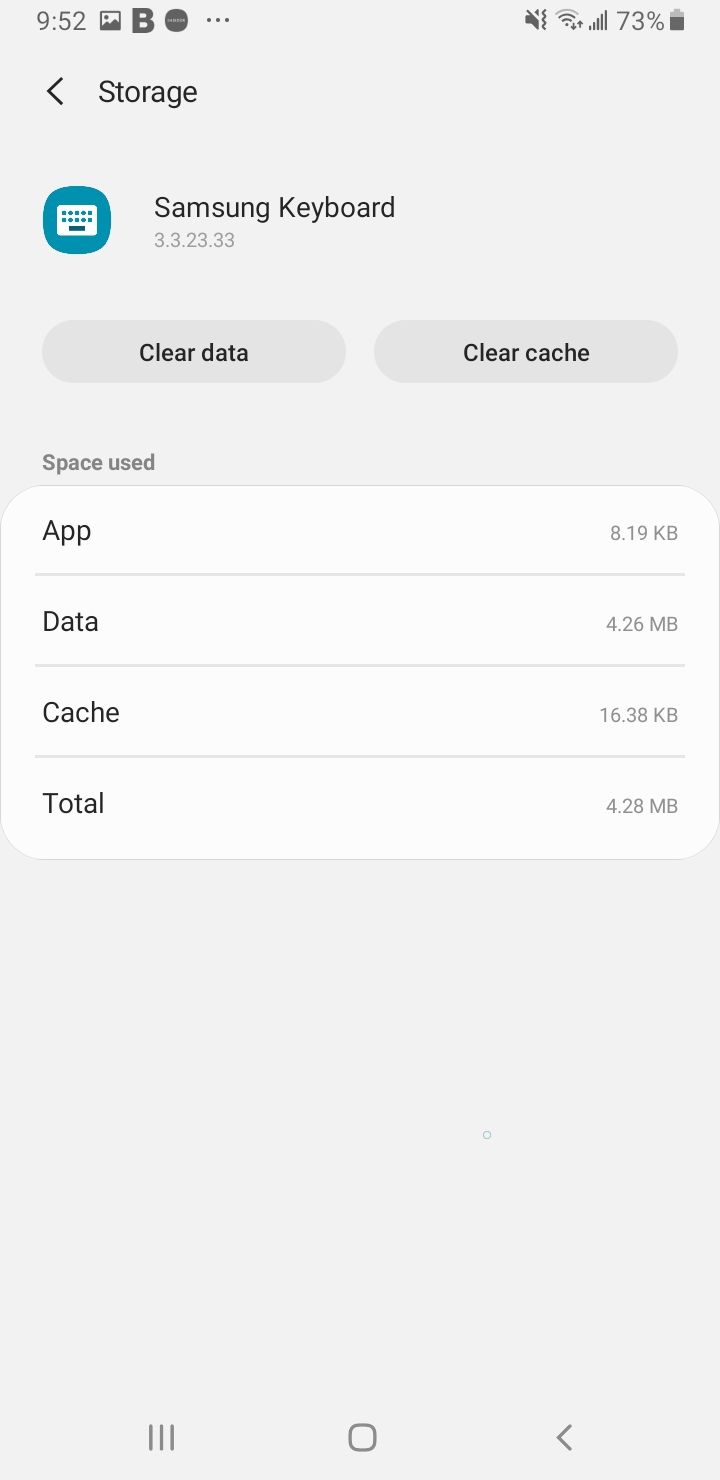
For Gboard, open Settings > Apps > Gboard > Storage and cache, tap Clear cache, and test. If the problem continues, tap Clear storage or Clear data. Restart your phone after clearing data.
Optimize Your Device
Samsung's built-in optimizer closes background apps and frees memory, which can revive a keyboard that stalls when the phone is low on resources.
Go to Settings > Device care and tap Optimize now. Let it finish, then open a messaging app and check whether the keyboard responds.
Update Your Keyboard App
Crashes that began right after a software change are usually fixed by the next keyboard update. Samsung Keyboard updates through the Galaxy Store, while Gboard updates through the Play Store.
For Samsung Keyboard, open the Galaxy Store, tap your profile icon, choose Updates, and install any pending Samsung Keyboard update. After One UI 8.5 reached stable Galaxy phones in 2026, some owners reported keyboard lag and dropped letters, and Samsung Keyboard updates ship through the Galaxy Store, so this step alone fixes many recent issues.
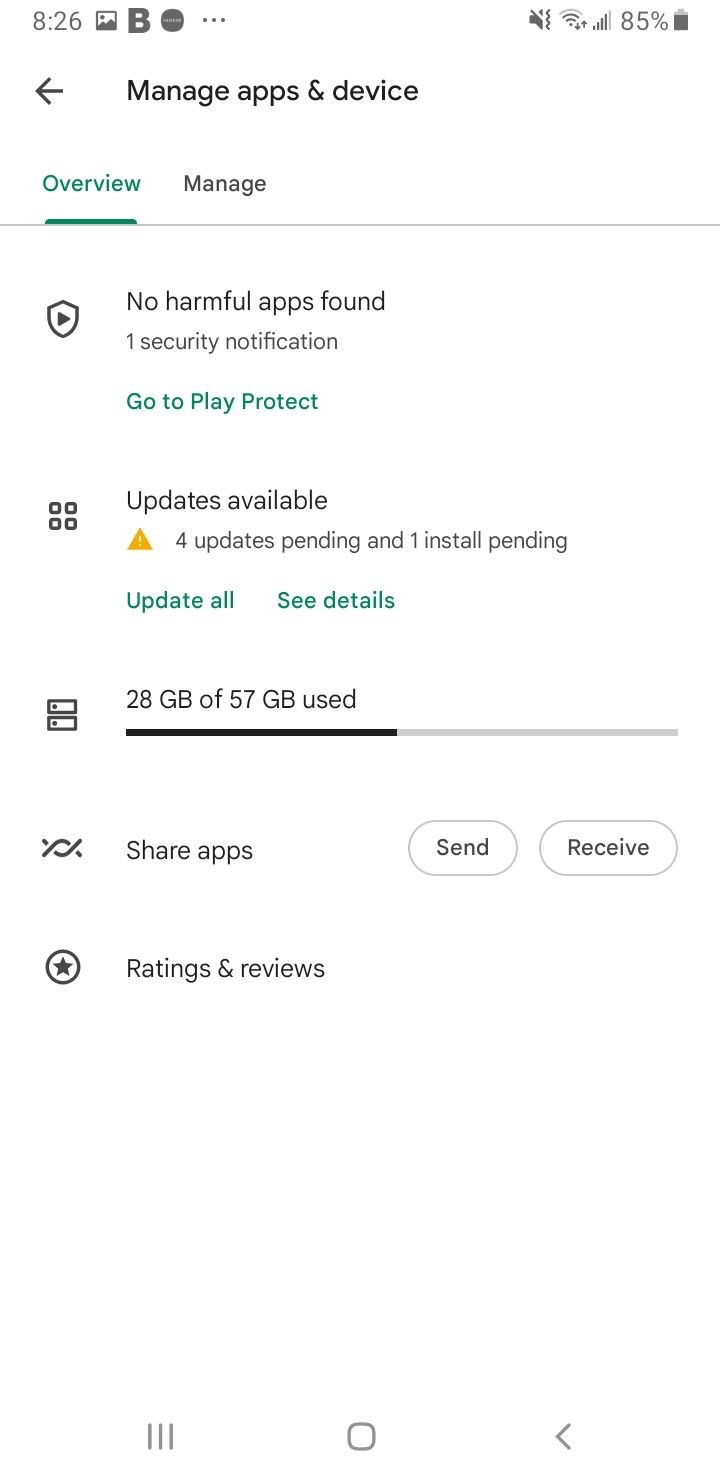
For Gboard, open the Play Store, tap your profile picture, select Manage apps & device, then Updates available, and update Gboard if listed.
Reset Keyboard Settings to Default
Resetting returns the keyboard to its factory configuration without touching your other apps or files. It clears bad settings that survive a simple cache wipe.
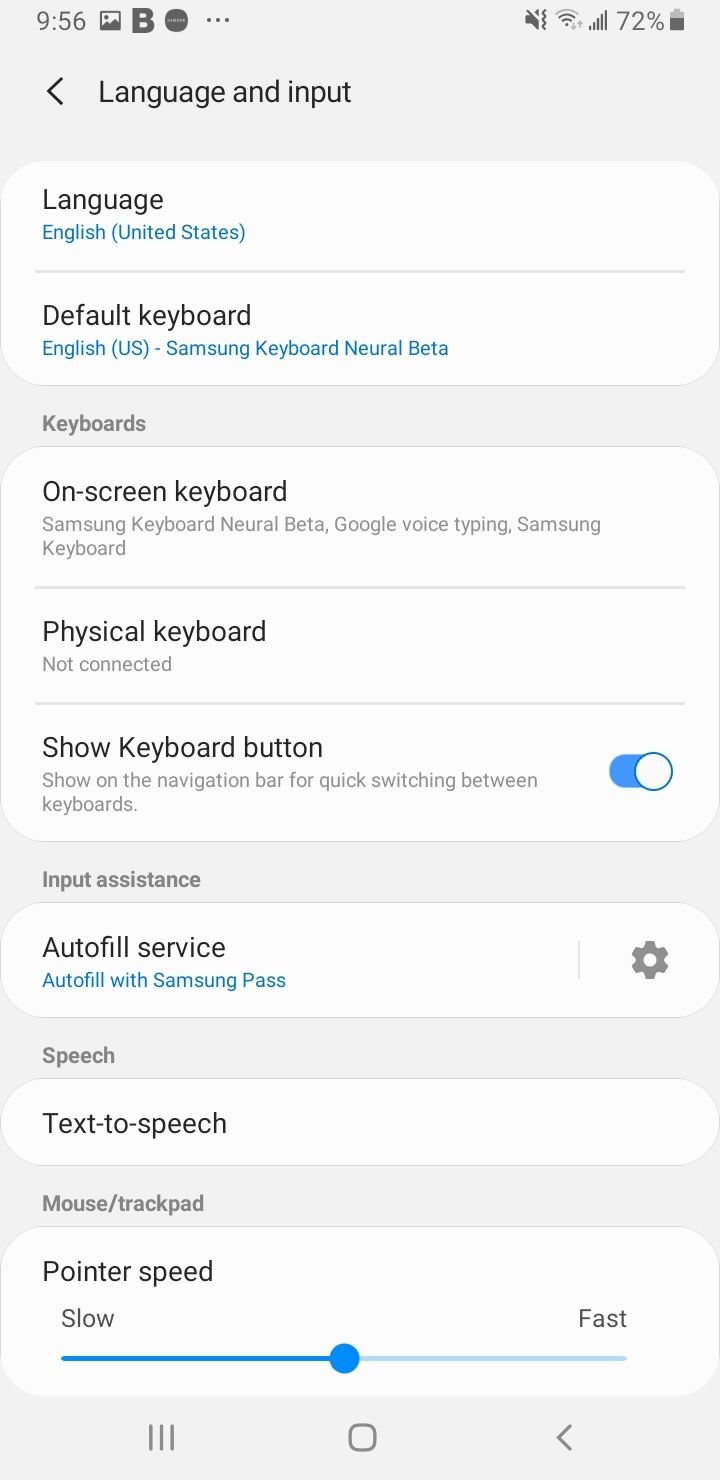
For Samsung Keyboard, go to Settings > General management > Keyboard list and default, tap Default keyboard, and confirm Samsung Keyboard is selected.
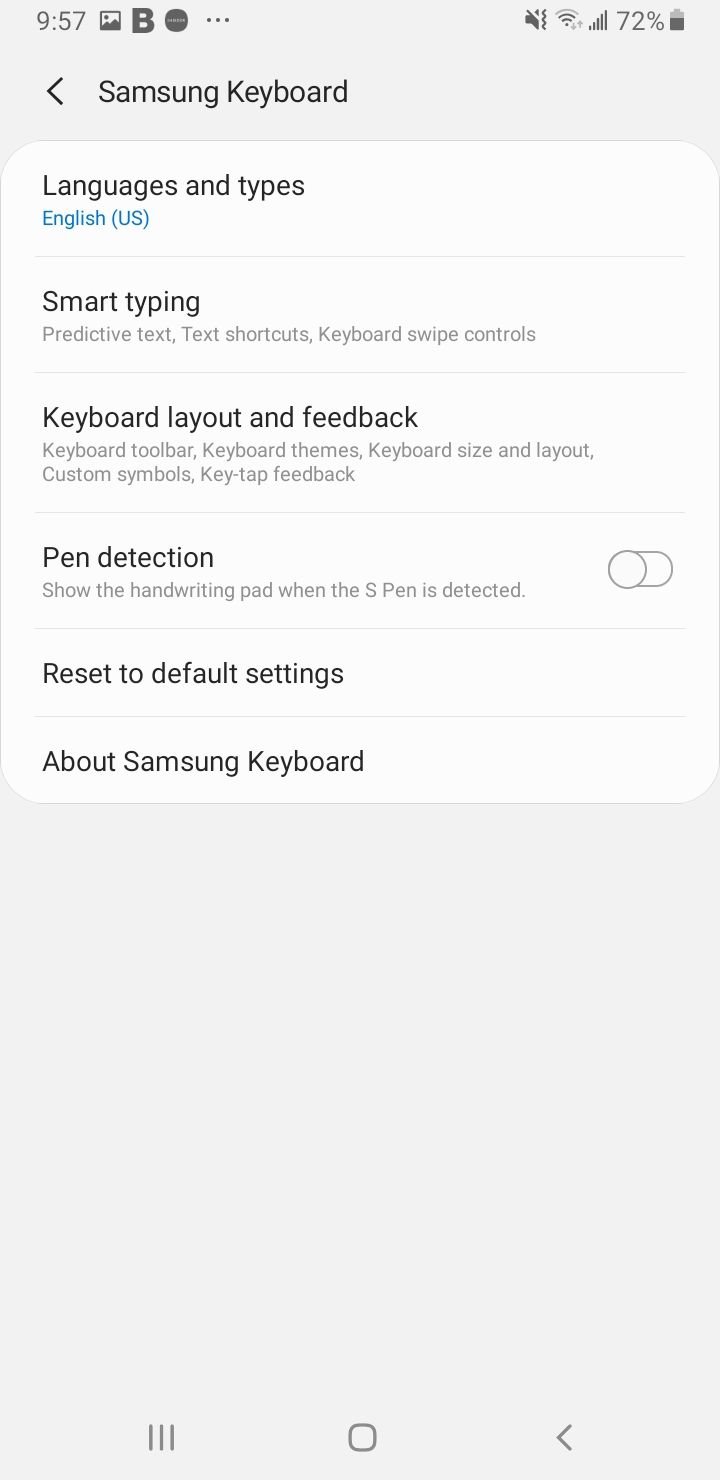
Open the Samsung Keyboard settings, scroll to the bottom, and tap Reset to default settings. Choose Reset keyboard settings to clear your layout and preferences.
If saved words are corrupting input, return to the same screen and tap Erase personalized predictions to wipe learned vocabulary. Test the keyboard after each reset.
Switch or Add a Default Keyboard
If one keyboard is broken, switching to another lets you keep typing while you troubleshoot. Samsung phones include both Samsung Keyboard and support for Gboard and other apps from the store.
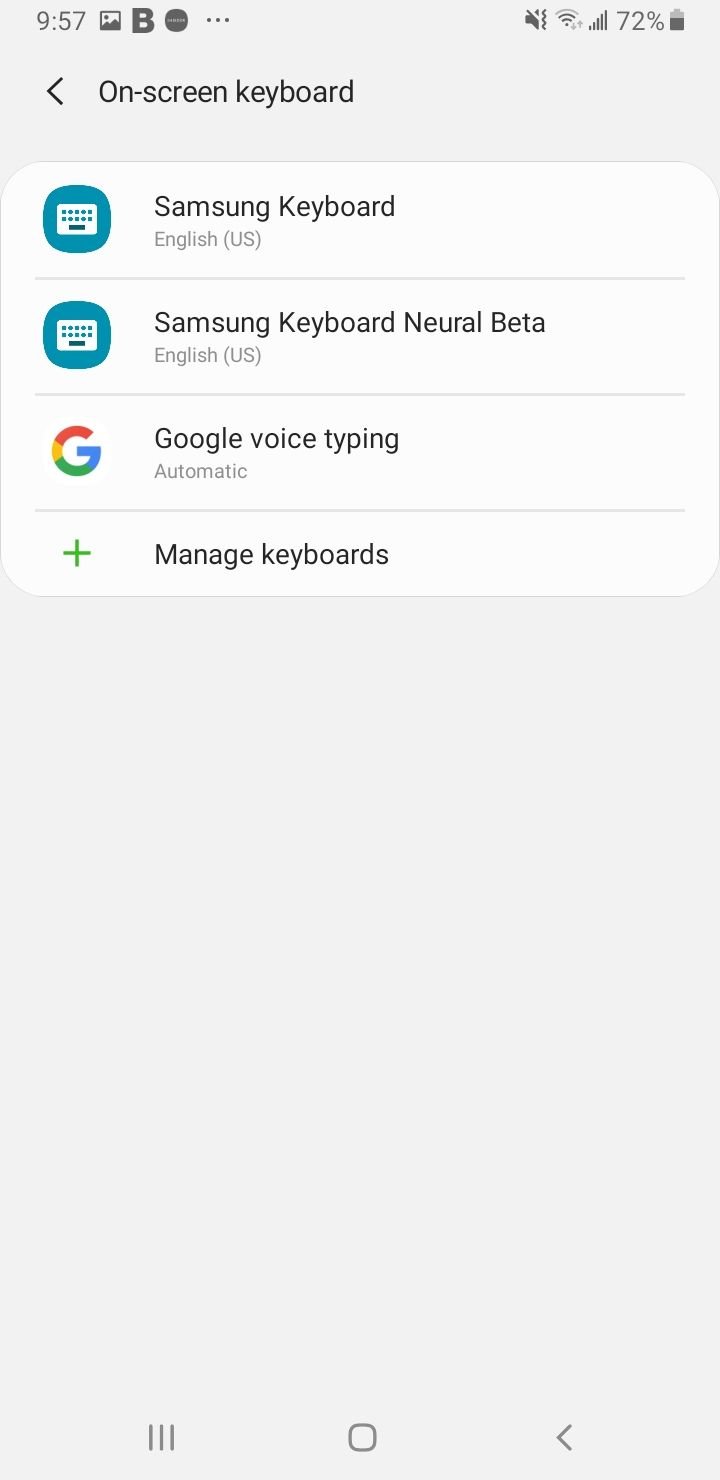
On Samsung, go to Settings > General management > Keyboard list and default, tap Default keyboard, and pick a different keyboard. On other Android phones, go to Settings > System > Languages & input > On-screen keyboard and turn on the keyboard you want.
You can also switch on the fly by touching and holding the globe icon in the corner of the keyboard, then choosing the app you want. If the globe icon is missing, you only have one keyboard enabled, so enable a second one first.
Install a Backup Keyboard
Keeping a second keyboard installed gives you an instant fallback the next time your main one fails. Gboard, Microsoft SwiftKey, and Samsung Keyboard are all free in the Play Store.
Open the Play Store, search for the keyboard you want, and tap Install. Open it once to enable it, then set it as default using the steps above.
Uninstall Recent Keyboard Updates
When a brand-new keyboard version is the problem, rolling it back to the previous version often restores stability until the next patch arrives. This works for Gboard and other Play Store keyboards.
Go to Settings > Apps > Gboard, tap the three-dot More menu in the top corner, and select Uninstall updates. The app reverts to the version it shipped with, so test typing and update again later once a fix is released.
Free Up Storage Space
A phone with almost no free space struggles to load apps, including the keyboard, and can crash them at random. Clearing a few gigabytes often stops the crashes.
Open Settings > Device care > Storage on Samsung, or Settings > Storage on other Android phones, and review what is using space. Delete unused apps, large downloads, and old media, then restart and test.
Update Device Software
System updates ship fixes for keyboard and input bugs that no amount of cache clearing can solve on its own. Keeping One UI or Android current is one of the highest-value fixes.
Go to Settings > Software update and tap Download and install, or Check for updates. On other Android phones, look under Settings > System > System update. Install any available update and reboot.
Boot Into Safe Mode
Safe mode loads the phone with only built-in apps, so it tells you whether a downloaded app is what breaks your keyboard. If typing works in safe mode, a third-party app is the cause.
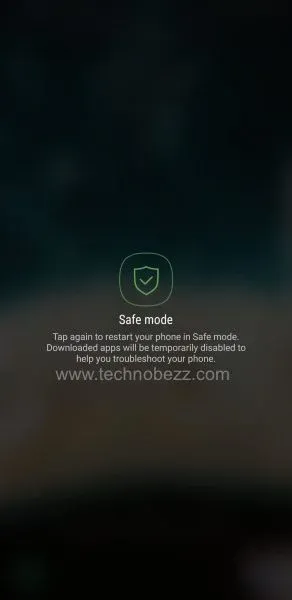
Press and hold the Power button to open the power menu, then touch and hold Power off until the Safe mode icon appears and tap it. Test the keyboard in a notes or messaging app.
If the keyboard behaves in safe mode, restart normally and uninstall recently added apps one at a time, testing after each removal, until you find the conflict.
Disable Smart Typing Predictions
On some 2026 builds the prediction engine, not the keyboard itself, can cause stutter and dropped letters. Turning predictions off is a quick way to test whether that is your problem.
Open the Samsung Keyboard settings and turn off Predictive text or Suggest text corrections. For Gboard, open its settings and turn off the suggestion options under Text correction. Type for a day or two and see if the lag clears.
Reset All Settings
Resetting settings returns system options to default without deleting your photos, apps, or files. It clears deeper configuration conflicts that affect input across the whole phone.
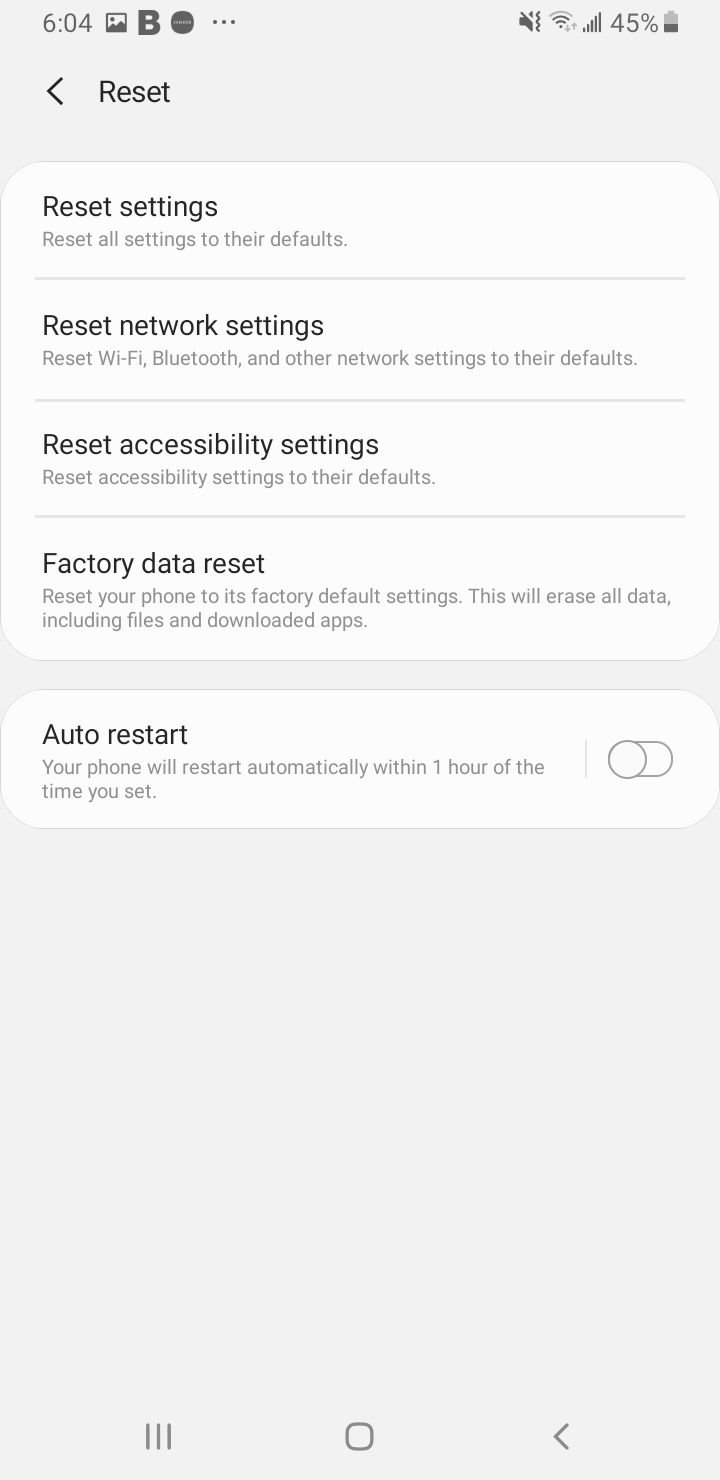
Go to Settings > General management > Reset, tap Reset settings, then confirm. As a last resort only, the same menu offers Factory data reset, which erases everything, so back up your phone first.
Frequently Asked Questions
Why did my Samsung keyboard suddenly stop working?
The most common causes are a corrupted keyboard cache, a buggy recent update, or a third-party app conflict. Force stopping the keyboard, clearing its cache, and updating it through the Galaxy Store fixes the large majority of sudden failures.
How do I reset my Samsung keyboard to default?
Open the Samsung Keyboard settings, scroll to the bottom, and tap Reset to default settings, then Reset keyboard settings. This clears your layout and preferences without affecting other apps. To remove learned words too, tap Erase personalized predictions.
Why does my keyboard keep disappearing or not showing up?
This usually points to low memory or a stalled keyboard process. Restart the phone, run Settings > Device care > Optimize now, and free up storage. If it persists, clear the keyboard cache and confirm a keyboard is set as default under Keyboard list and default.
Gboard keeps stopping, how do I fix it?
Clear Gboard's cache under Settings > Apps > Gboard > Storage and cache, then update it in the Play Store. If a recent version is to blame, tap the three-dot menu in the app's info page and choose Uninstall updates to roll back.
How do I switch keyboards if my main one is broken?
Touch and hold the globe icon on the keyboard and pick another app, or go to Settings > General management > Keyboard list and default and change the default keyboard. Make sure a second keyboard such as Gboard is installed and enabled first.
Will fixing my keyboard delete my saved words or messages?
Clearing the cache and restarting keep your data. Clearing data, resetting keyboard settings, or erasing personalized predictions remove learned words and custom settings only. Your messages, photos, and apps are untouched unless you perform a factory data reset.
First published October 14, 2025. Last updated June 4, 2026.