When your Android GPS stops working, navigation stalls, ride-share apps lose you, and location-based features quietly break. The good news is that most GPS problems are software related and clear up in a minute or two. Hardware faults are rare, and there is a quick test below to rule them out.
This guide walks through 15 fixes in the order that solves the most cases fastest. Work down the list and stop as soon as your location locks on again.
Figure Out What Kind of GPS Problem You Have
A 30 second triage saves you a lot of wasted steps. Start by asking whether the problem affects one app or every app, and whether you are getting no location at all or just a wrong one.
If only one app is broken while Google Maps works fine, the issue is that app or its permissions, so jump to Fix 3, Fix 9, and Fix 10. If every app fails, the problem is system wide and you should start at the top with the quick toggles.
If you get a location but it is inaccurate or lagging, your hardware is fine and you need the accuracy fixes, so focus on Fix 5, Fix 6, and Fix 11. To confirm whether the GPS chip itself is working, run the satellite test in Fix 14 before you try anything drastic.
Quick Reference for the Fastest Fix
Use this table to jump straight to the fix that matches your symptom. The fastest options are listed first so you can rule them out in seconds.
| Symptom | Fastest fix to try |
|---|---|
| No location in any app | Fix 1 toggle Location, then Fix 2 restart |
| Location is off by a block or two | Fix 6 Improve Location Accuracy, Fix 11 calibrate compass |
| Works indoors but fails outdoors, or the reverse | Fix 12 check obstructions, Fix 6 accuracy sources |
| Only one app is affected | Fix 3 permissions, Fix 9 clear that app cache, Fix 10 battery optimization |
| GPS drops after a recent update | Fix 7 update apps, Fix 13 wipe cache partition |
| Slow to get a first fix outdoors | Fix 8 update date and time, Fix 5 location mode |
Fix 1 Toggle Your Location Off and On
The single fastest fix is turning Location off and back on. Flipping the switch resets the GPS hardware and restarts the process of acquiring a satellite lock, which often clears a temporary glitch.
- 1.Swipe down from the top of your screen to open Quick Settings
- 2.Tap the Location tile to turn it off
- 3.Wait about 30 seconds, then tap it again to turn it back on
Give your phone a moment outdoors to reacquire a fix before you decide it did not work.
Fix 2 Restart Your Android Device
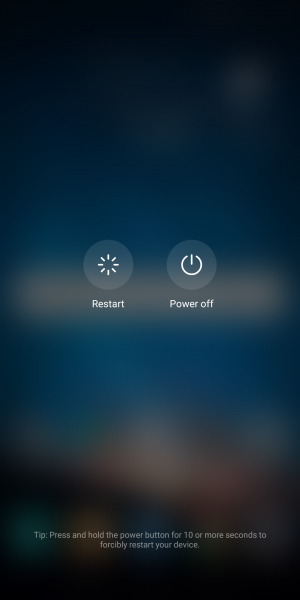
A restart clears temporary software conflicts and reinitializes the radios and sensors GPS relies on. It is one of the most reliable fixes for location that suddenly stopped working.
- 1.Press and hold the Power button, or the Power and Volume Up buttons together on many newer phones
- 2.Tap Restart
- 3.Wait for the device to fully reboot, then test your location again
Fix 3 Check Location Settings and App Permissions
GPS will not work if location is switched off at the system level or if the app you are using lacks permission. Confirm both before going further.
First make sure the master switch is on. Go to Settings > Location > Use location and turn it on.
Next check the app itself. Go to Settings > Apps, choose the app, tap Permissions, then Location, and set it to Allow only while using the app or Allow all the time. Make sure Use precise location is enabled, because the approximate setting deliberately blurs your position.
Fix 4 Turn Off Power Saving Mode
Battery saver and power saving modes often throttle or pause location services to extend battery life. That can make GPS feel slow, inaccurate, or completely dead.
- 1.Go to Settings > Battery
- 2.Turn off Power saving or Battery saver mode
- 3.On Samsung devices, switch the battery profile to Optimized or High performance
Try your navigation app again once the mode is off.
Fix 5 Set the Right Location Mode
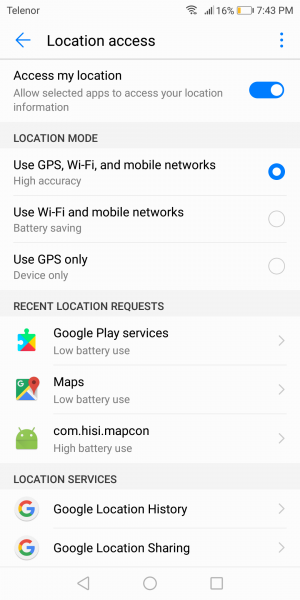
Android uses different location modes that trade accuracy for battery. For navigation you want the mode that combines GPS with Wi-Fi and mobile networks.
On Android 9 and newer, location automatically uses all available sources when Location is on, and you control the extras through Improve Location Accuracy in Fix 6. On Android 8.1 and older, go to Settings > Security and Location > Location > Mode and choose High accuracy.
High accuracy uses GPS, Wi-Fi, and cellular networks together so your phone can pinpoint your position even when satellites alone are weak.
Fix 6 Turn On Improve Location Accuracy
Improve Location Accuracy lets your phone use Wi-Fi access points, cell towers, and sensors alongside GPS satellites. Google notes this helps your device find you faster and more accurately, especially indoors or near large buildings where satellites are obscured.
On Android 12 and newer, go to Settings > Location > Location Services > Location Accuracy and turn on Improve Location Accuracy. On Android 11 and older, go to Settings > Location > Advanced > Location Accuracy instead.
While you are there, turn on Wi-Fi scanning and Bluetooth scanning under Location Services. These let your phone use nearby networks and devices to refine its position even when Wi-Fi and Bluetooth are otherwise off.
Fix 7 Update Your Apps and System Software
Outdated navigation apps and old system software are a common cause of GPS bugs, and updates frequently ship the fix. This matters most if your location broke right after an update.
- 1.Open the Play Store and update Google Maps and any other navigation apps
- 2.Update Google Play Services if an update is offered
- 3.Check for a system update under Settings > Software update or Settings > System > System update
Install whatever is available, then restart and test again.
Fix 8 Set Date Time and Network to Automatic
An incorrect clock can stop your phone from acquiring a satellite fix, because GPS depends on precise timing. Letting your network set the time avoids that mismatch.
- 1.Go to Settings > System > Date and time
- 2.Turn on Set time automatically and Set time zone automatically
If your phone struggles to get a first fix outdoors, this is an easy thing to rule out.
Fix 9 Clear the Navigation App Cache
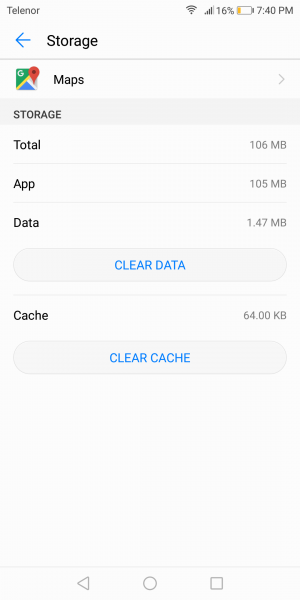
Corrupted cache files inside a map app can interfere with location even when the rest of the system is healthy. Clearing the cache leaves your account and saved places intact.
- 1.Go to Settings > Apps and select Google Maps or your navigation app
- 2.Tap Storage, then Clear cache
- 3.Open the app and test again
Only use Clear data if clearing the cache does not help, since that resets the app preferences and sign in.
Fix 10 Disable Battery Optimization for the App
Aggressive battery management can put a navigation app to sleep in the background, which kills live tracking. Exempting the app keeps its location updates running.
- 1.Go to Settings > Apps and select the affected app
- 2.Tap Battery, then choose Unrestricted or turn off battery optimization for that app
- 3.On Samsung devices, also remove the app from any Sleeping apps or Deep sleeping apps list under Settings > Battery > Background usage limits
This is the usual culprit when tracking works while the app is open but stops the moment the screen sleeps.
Fix 11 Calibrate the Compass in Google Maps
If your location is correct but the direction beam is wide or points the wrong way, your compass needs calibrating. Maps shows a light blue cone around the blue dot when it is unsure of your heading.
- 1.Open Google Maps and tap the blue dot
- 2.Tap Calibrate, or move your phone in a figure 8 motion a few times
- 3.Repeat until the beam narrows and points the right way
For walking directions, Live View can also recalibrate by pointing the camera at buildings and signs across the street.
Fix 12 Check for Physical Obstructions
GPS satellites need a clear view of the sky, so buildings, dense tree cover, tunnels, and underground spaces all weaken the signal. Even a thick case or how you hold the phone can sit over the antenna.
- Step outside into an open area with a clear view of the sky
- Remove heavy cases or metal accessories that may block the antenna
- Avoid relying on GPS in basements, parking garages, or tunnels
If location snaps back outdoors, your hardware is fine and the earlier problem was environmental.
Fix 13 Wipe the Cache Partition
The system cache partition stores temporary files that can become corrupted, especially after an update, and that can break location for every app. Wiping it clears those files without touching your personal data.
- 1.Turn the device off
- 2.Hold the correct recovery key combination for your phone, often Power and Volume Up together, until the recovery menu appears
- 3.Use the volume keys to highlight Wipe cache partition and select it with the Power key
- 4.Choose Reboot system now
Recovery key combinations vary by manufacturer, so check your model if the standard combination does not work.
Fix 14 Test Whether Your GPS Hardware Works
Before considering a factory reset, confirm the GPS chip can see satellites at all. A free GPS test app shows you live satellite data so you know whether you are dealing with hardware or software.
- 1.Install a satellite test app such as GPS Essentials from the Play Store
- 2.Go outside, open the app, and view the satellites screen
- 3.If the phone locks onto several satellites, your hardware is fine and the issue is software, so revisit the earlier fixes
- 4.If it cannot find any satellites outdoors after a few minutes, you likely have a hardware fault
Some GPS status apps can also reset stale assistance data, which can shorten the time to your first fix.
Fix 15 Reset Network Settings or Factory Reset
If nothing above works, a settings reset clears deeper configuration problems. Start with the lighter network reset before the full wipe.
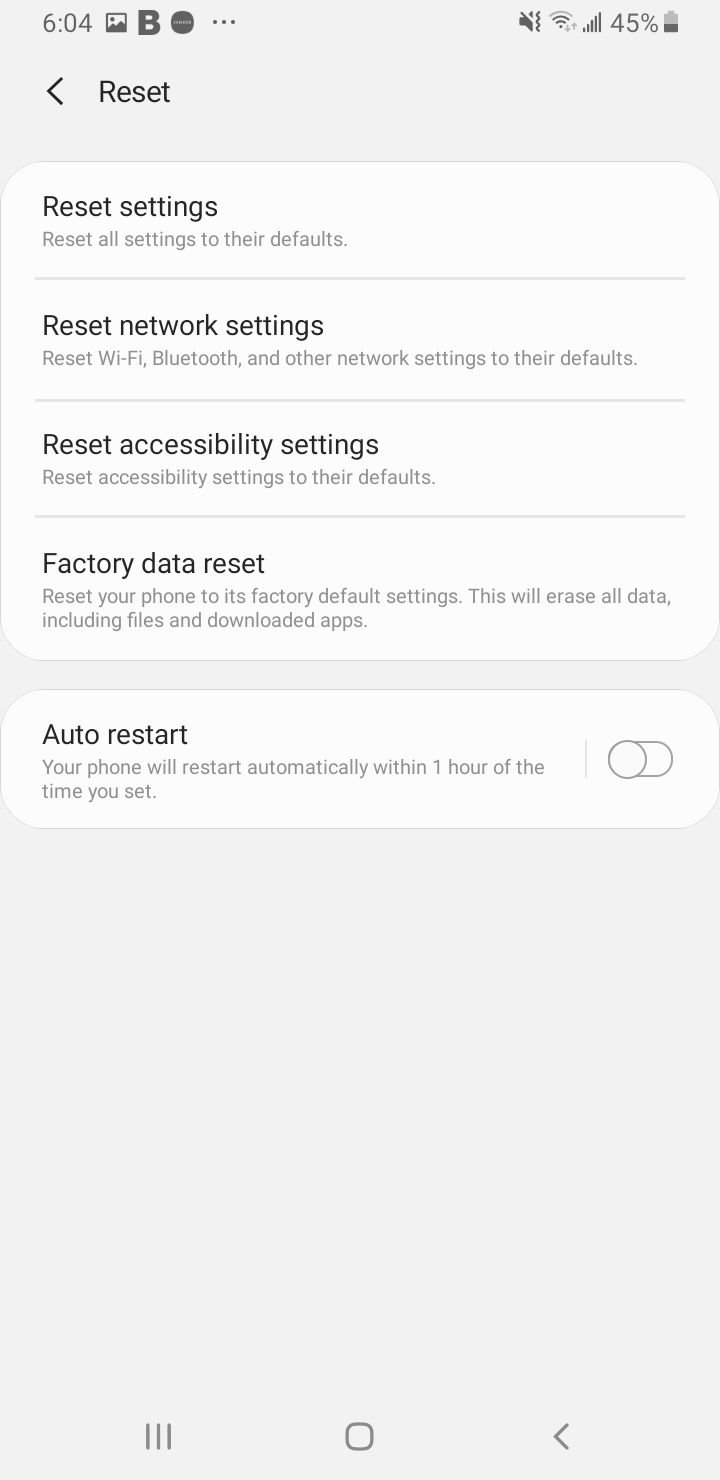
To reset network settings, go to Settings > System > Reset options > Reset Wi-Fi, mobile and Bluetooth. This clears saved Wi-Fi networks and paired devices but keeps your files and apps.
A factory reset is the last resort and erases everything, so back up first. Go to Settings > System > Reset options > Erase all data, confirm, and let it finish. If GPS still fails to see satellites after a reset, the hardware needs professional repair.
Notes for Samsung Pixel and Xiaomi Owners
The menu wording shifts slightly between brands, but the settings are the same underneath. Use these callouts to find them faster on your phone.
On Samsung Galaxy with One UI, go to Settings > Location > Location services for Google Location Accuracy plus Wi-Fi and Bluetooth scanning, and check the Sleeping apps list under Battery if tracking dies in the background. On Pixel and stock Android, the path is Settings > Location > Location Services > Location Accuracy.
On Xiaomi devices running HyperOS or MIUI, find the master switch under Settings > Location, and review the separate battery saver and autostart controls under Settings > Apps, since Xiaomi tends to restrict background apps aggressively.
Frequently Asked Questions
Why is my GPS inaccurate on Android?
Inaccurate location usually means your phone is relying on GPS alone without help. Turn on Improve Location Accuracy along with Wi-Fi and Bluetooth scanning so your phone can combine satellites with nearby networks, and calibrate the compass with a figure 8 motion in Google Maps.
Why does GPS work indoors but not outdoors, or the reverse?
GPS satellites need a clear view of the sky, so a strong outdoor fix that fails indoors is normal physics. If it works indoors but not outdoors, you are likely leaning on Wi-Fi positioning, so turn on Improve Location Accuracy so satellites and networks work together everywhere.
Does a phone case block GPS?
Thick cases, metal accessories, and wallet folios can sit over the antenna and weaken the signal. Remove the case and test in an open area, and if the fix returns, switch to a thinner case.
How do I reset GPS on Android?
The quickest reset is toggling Location off and on in Quick Settings, which restarts the hardware fix process. If that fails, restart the phone, and for deeper resets clear the navigation app cache or use a GPS status app to refresh stale satellite assistance data.
Why is my location lagging in Google Maps?
Lag often comes from battery saver throttling location or from the app being put to sleep in the background. Turn off Power saving, set the app to Unrestricted under Battery, and make sure Improve Location Accuracy is on for faster updates.
How long should it take to get a GPS lock?
Outdoors with a clear sky, a first fix usually takes a few seconds to a minute, and faster on later attempts. If it consistently takes several minutes or never locks, check the date and time are automatic and run the satellite test in Fix 14.
First published October 14, 2025. Last updated June 4, 2026.