Pixelated video looks blocky because the picture is being lowered somewhere along the chain: the player, the app, the connection, the display, the camera, the export, or the sharing service. Start with the place where you see the problem, then move outward.
A clean setting change can fix playback that is being throttled right now. A clip that was already recorded, exported, backed up, or sent at low quality cannot regain detail that was never saved, but these fixes stop the next version from getting crushed.
Raise the quality in the video player
For YouTube, open the video player, choose Settings, then choose Quality. Pick the highest resolution shown for that video, such as 1080p.
On the YouTube mobile app, open Settings in the player, tap Quality, then choose Higher picture quality or Advanced. Select the highest resolution shown.
If higher options are missing, switch to the app-level quality preference next, then check bandwidth if the picture still drops back to a blocky version.
Set streaming apps to higher playback quality
Use this when many videos look blocky in the same streaming app. The setting sits on the app or profile, so one change improves future playback on that profile.
For YouTube on mobile, tap your profile picture, open Settings, then choose Video quality preferences. Set both mobile networks and Wi-Fi to Higher picture quality, or choose Advanced where the app shows it.
For Netflix, open a web browser and go to Account. Choose Profiles, select your profile, open Playback settings, then set Data usage per screen to High or Auto and save.
Netflix also caps quality by plan, title, device, browser, and bandwidth. For browser playback, use a Netflix-supported browser and device combination for the resolution you want.
Check the connection before changing everything
When streaming video keeps snapping into a blocky picture, test the connection before you start changing app after app.
- 1.On a Netflix TV app, open Get Help, then choose Check your Network. Use Settings if Get Help is missing.
- 2.On a computer or phone, test the connection at fast.com.
- 3.Restart the device you are watching on.
- 4.Turn off the modem and router, unplug them for 30 seconds, plug them back in, then wait 1 minute.
- 5.Move the router and viewing device closer together, place the router in an open elevated spot, and keep it away from interference.
Fix display settings on a Windows PC
A video can look pixelated even when the stream is clean if Windows is outputting the wrong display resolution. In Windows 11, open Start, then Settings, System, and Display. Select your display and choose the Display resolution option marked Recommended under Scale & layout.
If you use more than one monitor, press Windows key + P and choose Extend instead of Duplicate. Duplicate mode forces a lower common resolution on mismatched displays.
Next, open Start, Settings, Windows Update, Advanced options, then Optional updates. Select available driver updates, choose Download and install, and restart after installation.
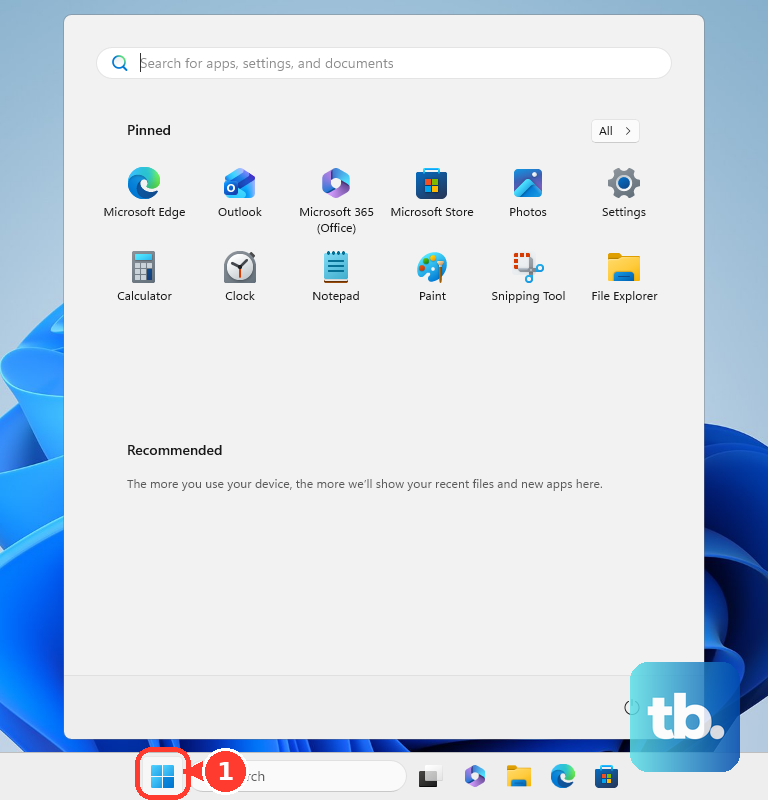
If video still looks rough in apps that use Windows video playback, open Start, Settings, Apps, then Video playback. Turn off the lower-resolution bandwidth-saving option and enable video processing or enhancement when your PC exposes that setting. If this fails, treat the problem as app-specific and adjust the streaming or calling app next.
Improve video calls that look pixelated
The most common cause is the meeting app sending or receiving low-resolution video to save bandwidth or follow account limits.
In Google Meet on a computer, open meet.google.com, go to Settings, then Video. Choose your camera, set Send resolution and Receive resolution to High Definition (720p) or Full High Definition (1080p) where those choices appear, then select Done.
In Chrome, open the menu, go to Settings, then System. Turn on Use graphic acceleration when available and restart Chrome.
In Zoom Workplace on desktop, click your profile picture, open Settings, then Video & effects. Under Camera, turn on HD video. The toggle alone is not enough. Sending 720p requires a Pro, Business, Education, or Enterprise account, and 1080p requires an eligible plan plus enablement by Zoom Support, an i7 quad-core CPU or better, and virtual backgrounds turned off for outgoing video.
Remove visual processing that makes the image look soft. In Zoom, open Settings, then Video & effects. On the Virtual backgrounds tab choose None, remove filters from the Video filters tab, and turn off or lower Touch up my appearance.
For work or school Zoom accounts, ask your organization to enable HD video when the control is missing or locked.
Record future videos in higher quality
Use this when your own phone videos look pixelated after recording. Capture settings improve future clips; they do not add real detail to a clip already recorded at low resolution.
On iPhone, open the Camera app, switch to Video mode, then tap the resolution and frame-rate values on the screen. Choose a higher supported format or frame rate.
You can also open Settings, then Camera, then Record Video. Select a higher supported format and frame rate before recording.
On a Google Pixel, open Camera, switch to Video mode, and tap Video Settings in the bottom-left corner. Under Resolution, turn on 4K, and under Frames/sec, turn on 60fps on Pixel models that show those controls.
On a Samsung Galaxy phone, open Camera and choose Video or Pro Video. Tap the resolution icon, select the video resolution you need, then choose Frame rate where the phone offers it.
Export edits at a proper resolution
Open the project in iMovie before sharing it.
On iPhone or iPad, go to the Projects view, select the movie or trailer, tap Share, then Save Video. Choose 4K on supported devices and projects.
For 60 fps exports in iMovie on iPhone or iPad, open the Settings app, choose iMovie, and turn on Enable 60 fps export. Return to iMovie, open the project, tap Share, choose Save Video, and select HD - 1080p60.
On a Mac, open the iMovie project and choose Share, then File. Use the Resolution pop-up to choose 4K or 1080p 60, then continue and save the file.
In Microsoft Clipchamp, open the editor and choose Export. Select 1080p, the highest resolution free accounts can export, wait for processing, then save the file to your computer or a supported integration. 4K export requires a Microsoft 365 Personal or Family subscription, Clipchamp Premium, or a work or school Standard or Premium plan.
Use the official Clipchamp page or Microsoft Store for Clipchamp access.
Stop backups and messages from shrinking clips
The most common cause is compression during backup or sharing, especially when a service is set to save storage or send smaller files.
In Google Photos on Android, tap your profile picture or initial, open Google Photos settings, then Backup. Choose Photos & videos quality, then select Original quality. Original quality uses your account storage; Storage saver resizes videos above 1080p to 1080p, and Express resizes videos above 480p to 480p.
For iCloud Photos on iPhone or iPad, open Photos, go to Library, tap Select, choose the videos, tap Share, then Export Unmodified Originals. Choose a Files location and save them.
On iCloud.com, open Photos, select the videos, and use the download button or More, then More Download Options. Choose Unmodified Originals or Highest Resolution, then download.
When sending through WhatsApp, open the chat, attach or capture the video, tap HD Media, choose HD quality, and send. In Google Messages, tap the HD or HD+ button while attaching media and choose the full-resolution option shown.
For Apple device transfers, open or select the video in Photos, tap Share, choose Options, turn on All Photos Data, tap Done, then use AirDrop. This keeps original data with ProRes and Cinematic clips.
Use supported upscaling for limited sources
This fixes supported low-resolution playback on Windows PCs with GeForce RTX GPUs; it does not replace a clean original file.
Install or update NVIDIA App and the latest GeForce driver from NVIDIA.
Enable RTX Video Super Resolution in NVIDIA video settings or the NVIDIA control panel.
Use an up-to-date version of Chrome, Edge, Firefox, or VLC for supported playback.
In Microsoft Edge, open the three-dot menu, go to Settings, then System and Performance, then System. Turn Enhance videos off before using NVIDIA RTX Video Super Resolution.
NVIDIA RTX Video Super Resolution supports roughly 360p to 1440p input video. Some DRM content and YouTube Shorts are not supported.
Frequently Asked Questions
Can pixelated video be fully repaired?
No. If the detail was lost during recording, export, backup, or compression, playback settings can improve how the clip is shown, but they cannot recover detail that was never saved.
Why does YouTube only show low-quality options?
Higher-quality versions can still be processing after an upload. Open the video’s Quality menu later and check again for HD, 4K, or high-frame-rate options.
Why does Netflix look pixelated on a fast connection?
Netflix quality also depends on your plan, title, device, browser, and playback settings. Set the profile playback quality to High or Auto and use a supported browser or device for the resolution you want.
Why do videos look fine on my phone but bad after sending them?
Messaging and backup services compress video when they are set for smaller files or storage savings. Use HD media options in WhatsApp or Google Messages, Original quality in Google Photos, or Export Unmodified Originals and AirDrop for Apple videos.











