Your notifications are on, but alerts still do not show, make a sound, appear on the lock screen, or reach the device in your hand. The fix is usually a second switch: Focus, Do Not Disturb, battery saving, delivery style, browser permission, or the app's own alert controls. Start with the fastest checks, then move through the device-specific settings that block notifications on iPhone, Android, Samsung Galaxy, Windows, Mac, browsers, Outlook, Teams, watches, and synced devices.
Start with the app notification switch
Open the notification permission for the exact app that is missing alerts, because every platform keeps an app-level switch behind the main notification menu.
On iPhone, open Settings, go to Apps, choose the affected app, tap Notifications, and turn Allow Notifications on. If the app does not show Notifications, Apple says the app might not be able to send notifications.
On Android, open Settings, go to Notifications, tap App notifications, choose the app, and turn its notifications on. When notification categories appear, open them and turn on the exact alert types you want.
On Samsung Galaxy, open Settings, tap Apps, choose the affected app, open Notifications, and turn Allow notifications on. For sound or vibration, choose Allow sound and vibration and check the categories the app offers.
If notifications are still missing after the app switch is on, check whether alerts are hidden, silenced, delayed, or being sent to another screen.
Make alerts visible and audible
On iPhone, open Settings and tap Notifications.
Select the app below Notification Style.
Keep Allow Notifications on.
Turn on Lock Screen, Notification Center, and Banners for the places where you want alerts to appear.
Turn on Sounds when you expect an audible alert.
Use Immediate Delivery instead of Scheduled Summary. To review summaries, go to Settings, Notifications, and Scheduled Summary.
Missing choices belong to the app's design, so focus on the options that appear for that app.
Turn off Do Not Disturb and Focus modes
The most common cause is a quiet mode that stays active while the app's notification permission is already on.
On iPhone or iPad, open Control Center, tap the active Focus setting such as Do Not Disturb or Work, then tap it again to turn it off. You can also ask Siri to turn Do Not Disturb off.
To keep a Focus on and still allow key alerts, open Settings, tap Focus, choose the Focus, and open People or Apps. Select Allow Notifications From, add the people or apps you need, then tap Done. Driving Focus does not allow app notifications.
On Pixel, swipe down from the top, open Modes, choose Do Not Disturb, and tap Done. To adjust a mode instead, open Settings, tap Modes, choose the active mode, and edit Notification filters.
On Windows 11, open notification center and select the bell icon with zZ to disable Do not disturb. To stop automatic quiet periods, go to Start, Settings, System, Notifications, expand Turn on do not disturb automatically, and adjust the conditions.
Fix battery and data settings that delay alerts
This method fits notifications that arrive late, appear only after you open the app, or stop while your phone is saving power. It also fits Samsung apps that need background data to deliver alerts.
On Pixel and many Android phones, open Settings, go to Battery, and check Battery Saver. Google states that Battery Saver and Adaptive Battery can stop or delay alerts, so set important apps to unrestricted or not optimized when that option appears.
On Samsung Galaxy, swipe down from the top right to open the Quick settings panel. If Power saving is illuminated, tap it off.
Remove the affected Samsung app from sleep lists by opening Settings, then Device care or Battery and device care, then Battery, then Background usage limits. Open Sleeping apps or Deep sleeping apps, touch and hold the app, and tap Remove.
Turn off Samsung Data Saver from Settings, Connections, Data usage, Data saver, and Off.
Check Windows and Mac notification settings
On Windows 11, open Start and go to Settings.
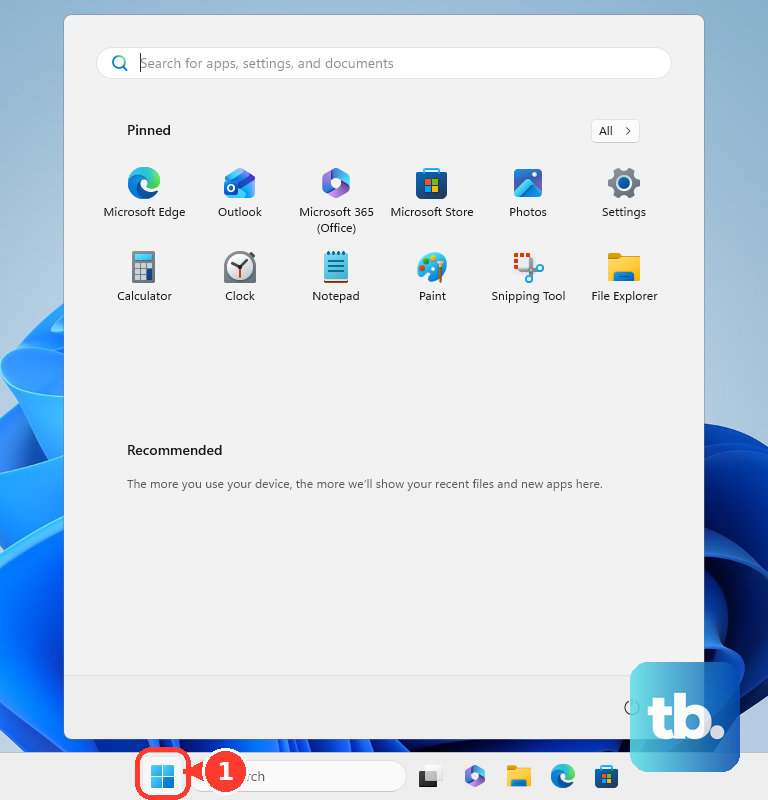
Choose System, then open Notifications.
Turn Notifications on.
Select the app under Notifications from apps and other senders.
Turn that app's notifications on, then enable Show notification banners, Show notifications in notification center, and Play a sound.
Stop an active Focus session from Start, Settings, System, Focus, and Stop focus session. For future sessions, clear Turn on do not disturb when you want Focus without silent notifications.
On Mac, open the Apple menu, choose System Settings, open Notifications, select the app or website under Application Notifications, and turn Allow notifications on.
On both platforms, banners and sounds have their own switches, so confirm those controls before resetting the app.
When browser notifications are the problem
Website notifications have two gates: the browser must allow the site, and the operating system must allow the browser or website to show alerts.
In Chrome on desktop, open More, go to Settings, choose Privacy and security, open Site Settings, then Notifications, and choose the default behavior you want. For one site, open the site, choose View site information, and set Notifications to On or Allow.
Restore Chrome permissions removed by Safety Check from More, Settings, Privacy and security, Safety Check, and Permissions removed for n sites. Re-grant notification permission for sites you trust.
In Edge, open Settings and more, go to Settings, choose Privacy, search, and services, open Site permissions, then All sites, select the website, and set Notifications to Allow.
In Firefox desktop, open Settings, go to Privacy & Security, find Permissions, choose Notifications, open Settings..., set the website status to Allow, and choose Save Changes. Web Push does not work in private browsing contexts.
If browser alerts still fail, check the Windows or Mac notification settings for that browser or website.
Outlook and Teams have their own controls
Use these checks when other notifications work, but email, calendar, chat, or meeting alerts stay quiet. Outlook and Teams each keep notification settings inside the app in addition to the operating system controls.
In new Outlook for Windows, open View, choose View Settings, go to General, then Notifications. Under Notify me about, turn on the alerts you need for Mail, Calendar, or Documents.
If Outlook for Windows still stays quiet, make sure Teams is not set to Do not disturb. Then return to Windows Settings, System, and Notifications, confirm Notifications are on, confirm Do not disturb is off, and turn Outlook on in the app sender list.
In Outlook mobile, open the left navigation menu, tap Settings, then Notifications. Choose Mail or Calendar, set Mail to All, Focused, or None, and review Do Not Disturb or Quiet Time schedules.
For Teams mobile, tap your profile picture and open Notifications. If notifications are off, tap Open settings, then in the device Settings app open Notifications, choose Teams, and turn Allow notifications on.
Synced notifications and watches
Use these checks when alerts work on one device but not the one you are holding.
- 1.For Apple Watch, remember that Apple sends notifications to either Apple Watch or iPhone, not both. In the Apple Watch app on iPhone, open My Watch, tap Notifications, choose the app, and use Mirror my iPhone or Custom with Allow Notifications.
- 2.On Apple Watch, press the side button to open Control Center, then check Do Not Disturb, Silent Mode, Theater Mode, and Focus. If the watch is locked or disconnected, notifications are sent to iPhone instead.
- 3.For iPhone notifications mirrored to Mac, set up and connect iPhone Mirroring with that Mac first, because Apple documents that the Mac control appears only after iPhone Mirroring has successfully connected to your iPhone. Then on Mac open the Apple menu, System Settings, Notifications, click Allow notifications from iPhone, and turn it on. On iPhone, open Settings, Notifications, choose the app, and turn Show on Mac on.
- 4.For Phone Link with Android, on Android search Notification access in Settings, choose Link to Windows, toggle it off and on, then tap Allow. On the PC, open Phone Link, go to Notifications, and wait for it to refresh.
- 5.For Phone Link with iPhone, turn on Share System Notifications in the iPhone Bluetooth settings, keep Bluetooth enabled on both devices, keep the phone in Bluetooth range, turn PC battery saver off, and turn off the quiet mode that silences alerts. On Windows 11 that control is Do not disturb, from notification center or Settings, System, Notifications; on Windows 10, and in Microsoft’s current Phone Link troubleshooting page, the same control is still called Focus assist (formerly Quiet hours).
Reset the app only after settings are right
When one app stays broken after notification, Focus, battery, and sound settings are correct, update it first. On iPhone or iPad, open the App Store, tap your account button or photo, open App Updates, then choose Update next to the app or Update All.
On Samsung Galaxy, update apps from the store where they were installed, then check system updates from Settings, Software update, and Download and install or Check for updates. For a stubborn Samsung app, open Settings, Apps, choose the app, tap Storage, and use Clear Cache.
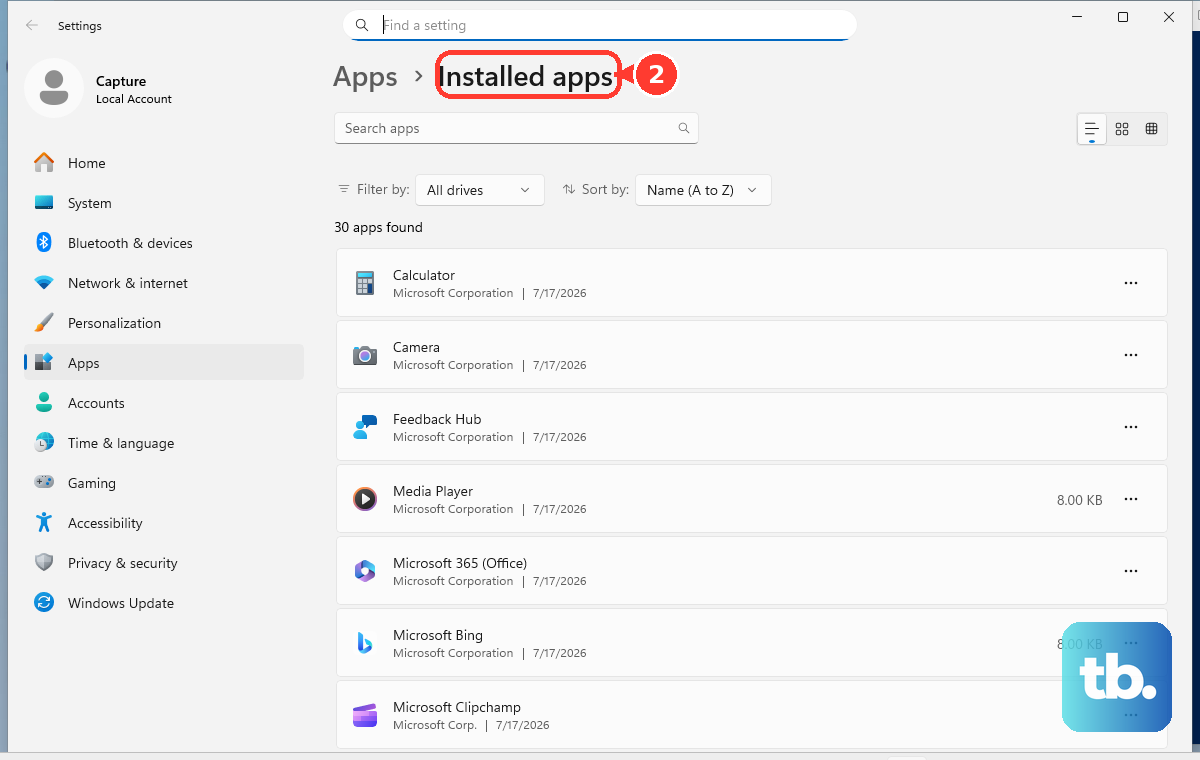
On Windows 11, repair a supported app from Start, Settings, Apps, Installed apps, More, Advanced options, and Repair. If repair is unavailable or does not work, use Reset; as a last resort, use Uninstall from Installed apps.
For work or school devices, notification controls can be managed and may stay disabled or revert after you change them. Ask your organization to review the notification policy for the app, browser, or device instead of repeatedly changing settings that are locked by management.
Frequently Asked Questions
Why are my notifications on but not making sound?
The app can be allowed to send notifications while sounds are disabled. Check the app's notification details and turn on Sounds, Play a sound, or Allow sound and vibration, depending on your device.
Why do notifications only appear when I open the app?
Battery Saver, Adaptive Battery, sleeping apps, Deep sleeping apps, and Data Saver can delay background alerts. Check battery and background usage settings for the affected app.
Can Do Not Disturb block notifications even when app notifications are on?
Yes. Do Not Disturb, Focus, Modes, Windows Focus sessions, and similar quiet settings can silence alerts while the app permission remains enabled.
Why do alerts show on my watch or computer instead of my phone?
Synced devices can redirect notifications. Apple Watch notifications go to either the watch or iPhone, not both, and Mac or Phone Link mirroring has its own notification controls.











