NordVPN not working covers connection failures, blocked pages after connecting, app crashes, and Nord Account login loops. Start with the fastest connection fixes, then use the steps for the device or browser you are using. These fixes follow current NordVPN support paths and skip L2TP/IPsec and PPTP, which NordVPN stopped supporting on December 1, 2018.
1. Switch to another server
- 1.Open the NordVPN app.
- 2.Stop the current connection attempt.
- 3.Skip Secure my connection or Secure your connection for now.
- 4.Choose a specific country or server location from the server list.
- 5.Test several countries before changing deeper settings.
If one server is the problem, choosing another location gets you connected without touching app settings.
2. Update or reinstall NordVPN
Go to https://nordvpn.com/download/.
Choose your platform under Available on or click Download Apps.
Install the NordVPN app.
Open the app, log in, and click Secure my connection.
On Windows, open NordVPN, click the cogwheel icon in the bottom left, and click Update if an update banner appears.
On macOS, open NordVPN, click the profile or person icon, click Settings, and click Update now if an update banner appears.
If your Mac version came from the App Store, check updates in the App Store.
3. Change the VPN protocol
On Windows, open NordVPN, click the profile icon, click Settings, click Connection, and choose Auto (Recommended).
On macOS, open NordVPN, click the profile or person icon, click Settings, click General, and test each available protocol.
On Android, open NordVPN, tap the profile icon, tap Settings, tap Location and protocol, and test each available protocol.
On iPhone or iPad, open NordVPN, tap the profile icon, tap the Settings icon, tap Protocol under VPN Connection, and test each available protocol.
On Android TV, open NordVPN, select the cogwheel icon, open App settings, select Protocol, and test each available protocol.
On Linux, open NordVPN, click Settings, click VPN connection, and test each available protocol.
Use this when NordVPN opens normally but gets stuck during the connection step.
4. Fix websites that stop loading with NordVPN on
This fixes sites and apps that fail after the VPN connects.
Pause the VPN and test the same site or app again.
Run the NordVPN DNS leak test.
If the result does not show Connected to NordVPN, turn off Custom DNS in NordVPN and disable any custom DNS on your router.
On Windows and the macOS website build, click the shield icon, click Advanced settings, and turn off protection features one by one.
On iOS or Android, tap the shield icon and tap Turn off protection.
On the macOS App Store build and browser extensions, click the shield icon and click Turn off.
Clear your browser cache, open the page in Incognito or Private mode, then test another browser.
5. Clear Nord Account login loops
Close every open Nord Account tab.
Start login again from inside the NordVPN app.
Check the email address and password.
Use Google or Apple ID sign-in if that is how the account was created.
For Nord Account in a browser, click the site information button to the left of the URL, open Site settings, and disable pop-up blocking.
Enable cookies, enable automatic time syncing, change the default browser, and pause ad blockers or security software during the login attempt.
To reset the password, go to the Nord Account login page, click Forgot your password?, enter your email, click Send, open the reset email, click Reset Password, enter a new password, and click Create password.
For lost multi-factor authentication access, click See other options, click Enter one of your backup codes, and enter a backup code.
After signing in with a backup code, click your email address, click Account settings, go to Multi-factor authentication (MFA), click Disable next to Authenticator app, and click Yes, disable MFA.
If no MFA backup codes remain, submit NordVPN's MFA reset request with the account email, amount paid, payment method, payment date, and description.
6. Repair Windows and Mac crashes
This fixes NordVPN when the desktop app will not open, closes by itself, or keeps damaged local settings.
On Windows, press Windows + S, enter Diagnostics, open NordVPN Diagnostics, click Yes, and click Reset app.
To reset Windows network settings through NordVPN, open NordVPN, click the Question mark button, click Run diagnostics, select the checkmark boxes, press Continue, click Reset network, wait for completion, and restart the computer.
On Windows, install or repair the latest Microsoft C++ Redistributable for ARM-based or 64-bit systems, then restart.
Install .NET 8.0.18 Runtime for Arm64 or x64, then restart again.
Press Windows + S, type Command Prompt, right-click Command Prompt, select Run as administrator, and run sfc /scannow.
On Windows 11, click Start, click Settings, click Windows update, click Check for Windows updates, choose Download & install when updates appear, and restart.
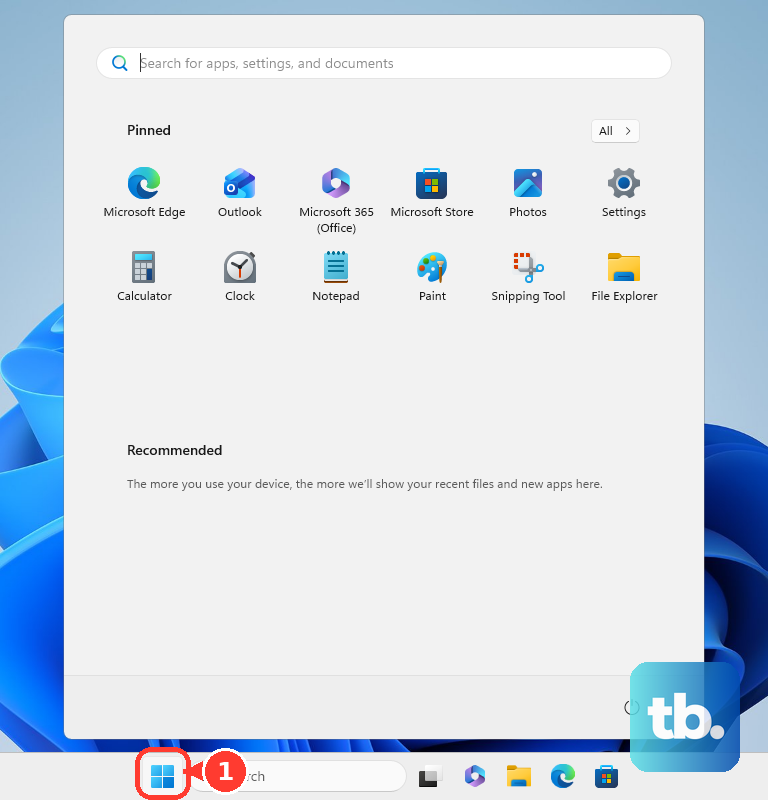
On Windows 10, use Settings, Update & Security, and Windows Update.
On macOS, open Finder, click Applications, right-click NordVPN, and select Move to Bin.
Clear the leftover app files, or the damaged settings come straight back after reinstalling. Right-click Finder in the dock, click Go to Folder..., and on the website build delete the com.nordvpn.macos folder from ~/Library/Application Support and again from ~/Library/Caches.
On the App Store build, use Go to Folder... to delete W5W395V82Y.group.com.nordvpn from ~/Library/Group Containers and the NordVPN folder from ~/Library/Containers.
Restart the Mac, then reinstall NordVPN from the version provided on NordVPN's website.
7. Reset mobile and TV connections
On iPhone or iPad, swipe up from the bottom middle of the screen, swipe up on NordVPN to close it, reopen NordVPN, and connect again.
On iOS, open NordVPN, tap the profile icon, open Settings with the upper-right icon, tap Reset VPN Profile, tap Continue, and tap Got it.
On iOS, open Settings, tap General, tap Transfer or Reset iPhone, tap Reset, tap Reset Network Settings, enter your passcode, and restart.
On Android, open Settings, tap Reset Wi-Fi, mobile & Bluetooth or Reset network settings, tap Reset settings, and restart.
On Android, go to phone settings, tap Apps, tap NordVPN, tap Force Stop, and reopen NordVPN.
On Android TV, open Settings, select Network and Internet, make sure Wi-Fi is on, select Wi-Fi, choose Forget Network, restart, and reconnect.
On Android TV, open Settings, select Applications, select Manage Installed Applications, choose NordVPN, select Uninstall, restart the Android box, then download NordVPN from Google Store or Amazon Store for Fire TV.
On Apple TV, stop the VPN connection attempt, close NordVPN, relaunch it, and connect again.
On Apple TV, open Settings, go to System, go to Software updates, select Update software, then select Download and Install when an update appears.
8. Use current manual or router setup
Older NordVPN tutorials that rely on L2TP/IPsec or PPTP do not work because NordVPN stopped supporting those connections on December 1, 2018. For manual or router setup, use Nord Account > NordVPN > Manual setup / Advanced Settings > Set up NordVPN manually to get service credentials and OpenVPN configuration files. Router setup also needs OpenVPN client support or compatible firmware from NordVPN's router guidance.
9. Handle extensions and restricted networks
This fixes NordVPN browser extension conflicts and filtered Wi-Fi connection failures.
Disconnect or close either the NordVPN desktop app or the NordVPN browser extension, then retry the one you want to use.
For the extension, click the jigsaw piece icon, click the NordVPN icon, click the cogwheel icon, click General, and click Backup your settings.
Return to Extensions, click the three dots next to NordVPN, select Remove from browser, click Remove, and restart the browser.
Install NordVPN again from the browser extension marketplace, log in, open Settings and General, click Restore your settings, and select the backup file.
If one website fails only while the VPN is connected, report the issue and use the browser extension website split tunneling feature to exclude that website until NordVPN can unblock it.
On restrictive office, campus, airport, cafe, hotel, or conference Wi-Fi, choose NordWhisper in NordVPN protocol settings.
Do not use NordWhisper with Meshnet, Dedicated IP, or Onion Over VPN servers.
Frequently Asked Questions
Why does NordVPN connect but websites still will not load?
Custom DNS, browser cache, or NordVPN protection filters can block sites after connection. Pause the VPN to compare, run the NordVPN DNS leak test, turn off Custom DNS when the test does not show Connected to NordVPN, and disable protection features one by one.
Should I use the NordVPN app or the browser extension?
Use one at a time. NordVPN's extension troubleshooting says to make sure you are not using the NordVPN desktop app and the NordVPN extension at the same time, so close one before testing the other.
What should I do when NordVPN keeps asking me to log in?
Close all Nord Account tabs, start login again from the NordVPN app, enable cookies and pop-ups for Nord Account, turn on automatic time syncing, and pause ad blockers or security software during the login attempt.
Can old L2TP or PPTP NordVPN setup instructions still fix it?
No. NordVPN says L2TP/IPsec and PPTP support ended on December 1, 2018. Use the current NordVPN app, OpenVPN manual setup, or a supported router OpenVPN setup instead.











