Microsoft Store updates are stuck, keep failing, or leave one app behind while everything else updates. Start with a fresh update check, then work through the cache, download settings, and app repairs below. These fixes cover both Microsoft Store itself and the apps you download through it.
Restart the Store and check for updates
A fresh update check finds available app updates and picks up an available update to Microsoft Store itself.
Close Microsoft Store using Close (X).
Open Microsoft Store from Start.
Open the Store’s updates or downloads page. Its location varies with the Store app version.
Select Check for Updates.
If only one app fails, close that app using Close (X).
Reopen the affected app.
Retry its update in Microsoft Store.
Enable automatic app updates
Apps should not need a manual update check every time. Microsoft Store supports automatic updates, though the controls differ between versions.
In Store versions with the update toggle, open Profile, your account photo.
Select Store Settings.
Set App updates to On. Newer Store versions update apps automatically and offer an option to pause updates.
For an account or authorization error, sign in to Microsoft Store with the Microsoft account that originally acquired the app.
Retry the update.
If a single app still needs updating, open its product page in Microsoft Store.
Select Update when offered. Some publishers handle updates inside their apps; those apps use the publisher’s own update instructions.
If updates still will not download, clear the Store cache next.
Clear the Store cache
Press Windows key + R to open Run.
Enter wsreset.exe.
Select OK.
Wait for the blank command window to close. Microsoft Store opens automatically when the process finishes.
Retry the failed update in Microsoft Store.
Let the blank window finish on its own before trying the Store again.
Check for download blockers
Check your connection, download restrictions, clock, and storage before moving to app repairs.
If the PC has no internet access, open Settings > Network & internet.
Enable Wi-Fi.
Turn off Airplane mode.
For a failed Wi-Fi connection, disconnect the modem and router from power for at least 30 seconds.
Reconnect the modem before the router.
On Windows 11, open Settings > Network & internet > Wi-Fi or Ethernet.
Select the connected network.
Turn Metered connection off if your data plan allows it. Metered connections restrict some downloads.
Open Settings > Time & language > Date & time.
Turn on Set time automatically.
Enable Set time zone automatically, or turn it off and choose the correct Time zone.
If storage is low on Windows 11, open Settings > System > Storage > Cleanup recommendations.
Review the suggestions.
Select only unwanted items.
Choose Clean up.
Retry the download.
Finish pending Windows updates
An outstanding restart after a Windows update is one reason Store installations fail.
Save your work.
Select Start > Power > Restart.
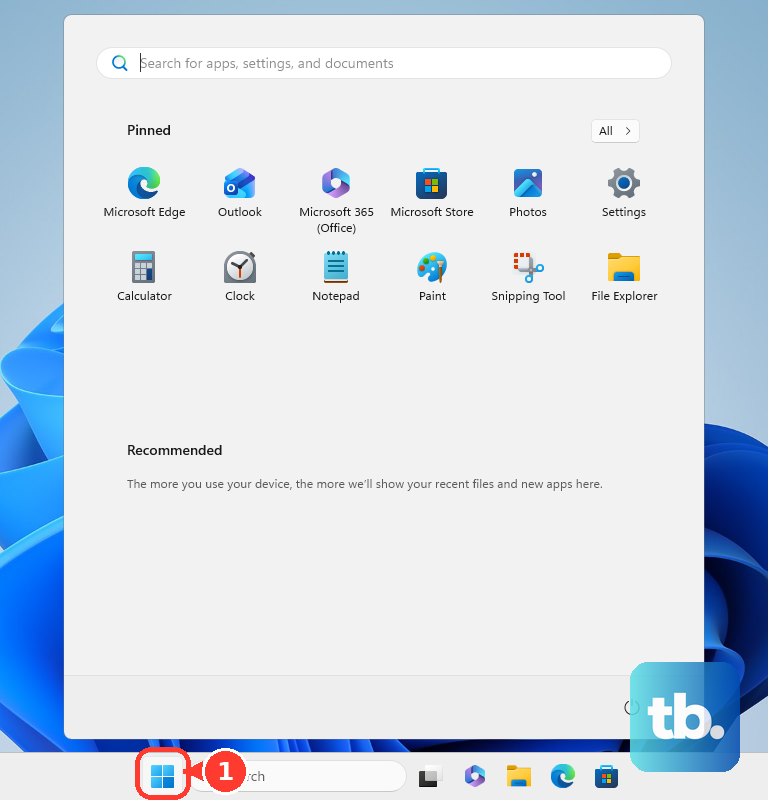
Once Windows starts again, retry the update in Microsoft Store.
If it still fails, open Start > Settings > Windows Update on Windows 11.
Select Check for updates.
Choose Install now if offered.
Complete any requested restart.
Retry the update in Microsoft Store. Windows Update addresses Windows prerequisites and operating system issues. Store apps still need the Store’s own update check.
On Windows 10, check through Settings > Update & Security > Windows Update > Check for updates. Ordinary Windows 10 support ended October 14, 2025, so update availability depends on your servicing entitlement.
Repair the Store or the affected app
Try Repair first, then Reset if repair is unavailable or unsuccessful.
- 1.On Windows 11, open Start > Settings > Apps > Installed apps. On Windows 10, open Settings > Apps > Apps & features.
- 2.Find Microsoft Store or the affected app. On Windows 11, select its More (three dots) menu, then Advanced options. On Windows 10, select the app, then Advanced options. Microsoft Store’s location varies on newer Windows 11 builds. If Microsoft Store is absent from this list on Windows 11, open Settings > System > System components, find it there, and select its More (three dots) menu, then Advanced options. If it appears in neither list, use the support option in the next section.
- 3.Select Repair if available. Once it finishes, retry the update.
- 4.If repair is unavailable or unsuccessful, return to Advanced options and select Reset. Read the confirmation before proceeding. This resets the app more extensively than clearing the Store cache.
Reinstall an app that still refuses to update
If just one removable app refuses to update, reinstall that app. Use the Microsoft account that owns it. Reinstallation requires the app to remain available and compatible with your device.
Preserve any app data you need before removing the app.
Right-click the affected app in Start.
Select Uninstall.
Open Microsoft Store > Library.
Find the app.
Select Install.
Keep Microsoft Store itself installed. Microsoft does not support removing and reinstalling the Store as a troubleshooting fix.
If reinstallation fails, or every app still refuses to update, open Microsoft’s Store troubleshooting page.
Under Need more help?, select the Contact Microsoft Support link.
Enter the problem, including the error code and whether one app or every app fails.
Select Get Help.
If the suggested help does not resolve it, select Contact Support for the assisted-support options available to your account and product.
Frequently Asked Questions
Why is the Windows Store Apps troubleshooter missing?
Microsoft lists the Windows Store Apps troubleshooter for removal as part of its legacy troubleshooter retirement. It is no longer a current Windows 11 fix. Older installations retain some legacy troubleshooters.
Should I change my region to fix Store updates?
Change it only to correct a genuine region mismatch, such as after a long-term move. On Windows 11, open Settings > Time & Language > Language & Region > Country or region and select your actual region. Region switching is not a general update fix.
Why can’t I reinstall an app I already own?
Ownership does not override device incompatibility, regional availability, or an app’s removal from the Store. Microsoft also limits content downloads to ten devices per account. If you have reached that limit, sign in at https://account.microsoft.com/devices/content, select Unlink for a device you no longer use, review it, then select Unlink again.
Can a work or school computer block Store updates?
Yes. Organization policies and filtered network access restrict Store updates. Ask IT to review automatic-update policy and access to Microsoft’s required download endpoints. Blocking the Store interface alone does not normally stop background app updates.











