Microsoft Store won't initialize, and you can't get past the error to open it. Start with a fresh launch and a cache reset, then work through the Store's repair options and Windows checks below. Open the Store after each method and stop when it works.
Start with a fresh launch and clear the cache
A fresh launch addresses an opening failure; a cache reset clears the Store's cached data.
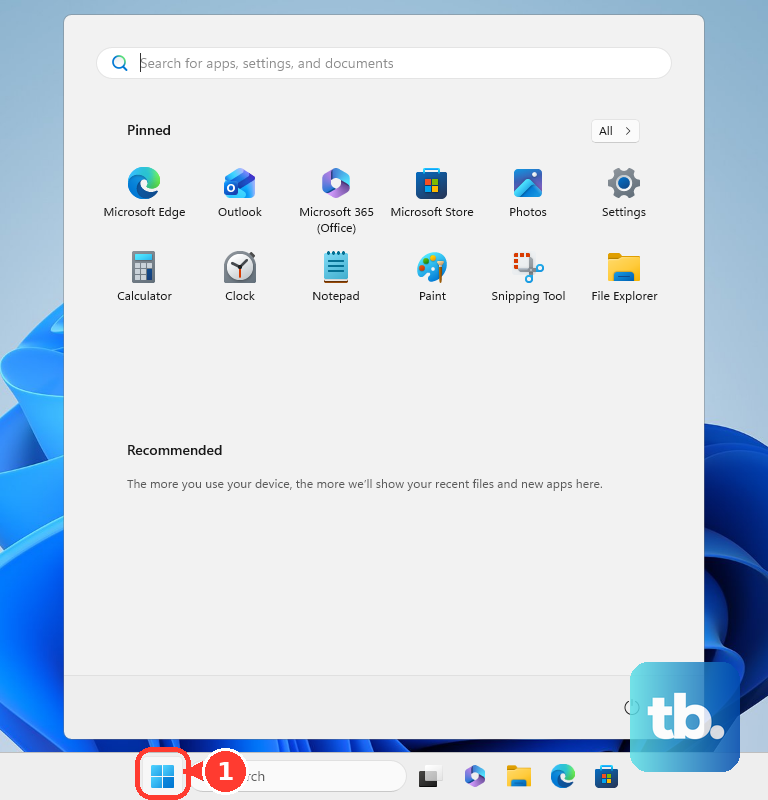
Select the Store window's Close (X) button. Search for Microsoft Store in Start. Select Microsoft Store to open it again.
If the error returns, save your work. Then select Start > Power > Restart.
Open Microsoft Store after Windows restarts. If it still fails, press Windows key + R to open Run. Enter wsreset.exe.
Select OK. Wait for the blank command window to close and Microsoft Store to open automatically.
Bring Windows up to date
On Windows 11, select Start > Settings > Windows Update > Check for updates. On Windows 10, use Start > Settings > Update & Security > Windows Update > Check for updates.
Install the available updates. Windows 10's ordinary support ended on October 14, 2025, so update availability depends on your PC's support and servicing eligibility.
Complete any requested restart. Open Microsoft Store again to check whether the initialization error has cleared.
Restore connectivity and correct basic settings
When your PC's internet access is also failing, address the connection problem first. Turn on Wi-Fi if it is off. Turn off Airplane mode if it is enabled. Enable your computer's physical Wi-Fi switch if your model has one.
For continuing connection trouble on Windows 11, select Run the troubleshooter in Get Help on Microsoft's Wi-Fi support page. Test Microsoft Store once connectivity is restored.
If an unintended manual proxy is causing the connection problem, open Settings > Network & Internet > Proxy. Turn off the unintended manual proxy configuration. For a required organizational proxy, have your administrator review the setting.
Next, check the clock under Start > Settings > Time & language > Date & time. Microsoft recommends checking time settings when the Store will not open.
Turn on Set time automatically. If the time zone is wrong and automatic selection is enabled, turn off Set time zone automatically. Select the correct zone from the Time zone dropdown.
Check your country under Start > Settings > Time & Language > Language & Region > Country or region on Windows 11. On Windows 10, use Start > Settings > Time & Language > Region > Country or region. Select your actual country or region if the setting is wrong. Switching to an arbitrary country is not a universal initialization fix.
Repair the Store before resetting its data
Start with Repair. The separate Reset option clears the Store's local data and preferences; sign in again if prompted afterward.
On Windows 11, locate Microsoft Store under Settings > System > System components. If it appears under apps instead, use Settings > Apps > Installed apps.
Open the Store's … menu. Select Advanced options. On Windows 10, go directly to Settings > Apps > Apps & features > Microsoft Store > Advanced options.
Select Repair if it is available. If the button is absent, continue to Reset below. Open Microsoft Store after the repair finishes.
If the error persists, return to the Store's Advanced options page. Select Reset. Select Reset again to confirm. Open Microsoft Store once the reset completes.
If repair and reset fail, try the Windows system-file repair below. Do not uninstall the Store with Remove-AppxPackage: Microsoft does not support removing and reinstalling it that way.
Check Windows system files
After updating Windows and restarting, run these repairs for Windows corruption; the Store error alone does not prove corruption is the cause.
- 1.Search for Command Prompt in Start.
- 2.Select Run as administrator, then select Yes at the prompt.
- 3.Enter
DISM.exe /Online /Cleanup-image /Restorehealthand press Enter. - 4.After DISM completes successfully, enter
sfc /scannowand press Enter. Wait for the scan to finish. - 5.Open Microsoft Store and test it again.
Test another account before repairing Windows
Use a separate Windows account to check whether the failure is tied to your existing profile.
On Windows 11, open Settings > Accounts > Other users > Add account. Select I don't have this person's sign-in information. Select Add a user without a Microsoft account. Complete the account setup.
Sign in to the new account. Open Microsoft Store. If it works there, the failure is specific to your original account; that result alone does not prove profile corruption.
Before migrating files from a corrupt profile, follow Microsoft's profile-recovery instructions.
If the Store fails across accounts, Windows 11 offers a repair that reinstalls the current Windows version while retaining apps and files. It requires Windows 11 22H2 or later with the February 2024 optional update or later. Availability also depends on device management and update policies.
Open Start > Settings > System > Recovery. Under Fix problems using Windows Update, select Reinstall now. Select OK to begin. Keep the PC powered and connected to the internet during installation.
Restart after installation finishes. If the repair fails or the option is missing, follow Contact Microsoft Support from Microsoft's Store launch-support page.
Enter the initialization error. Select Get Help. If the suggested help does not resolve the failure, select Contact Support. Available assistance depends on your account, region, and support eligibility.
Frequently Asked Questions
Does Keep my files preserve my apps during a Windows reset?
No. Keep my files removes apps and settings while retaining personal files. Back up your files and retain your BitLocker recovery key before resetting Windows.
How do I update Microsoft Store once it opens again?
On Microsoft's app-update support page, select Open Microsoft Store. In the Store, select Check for Updates. If your Store doesn't show that control, Microsoft's app-troubleshooting page documents Library > Get updates on Windows 11 and See more > Downloads and updates > Get updates on Windows 10. The Store's update interface must load for this method to work.
What if Microsoft Store was completely removed?
Microsoft identifies Windows reset or reinstallation as the supported recovery route after complete Store removal. Registration commands cannot restore completely removed package files.
What should I do if my work or school PC blocks Microsoft Store?
Ask your administrator to review Computer Configuration > Administrative Templates > Windows Components > Store > Turn off the Store application. The administrator must change or withdraw an enabled blocking policy. They should also check firewall and proxy rules against Microsoft's required Store and Windows Update endpoints.











