An HTTP 500 Internal Server Error means the website's server could not fulfill the request. You may be looking at a server problem, but a few quick checks can rule out stale browser data, extensions, or routing settings before you report it.
Start with the fastest visitor fixes, then move to the owner-side steps if the broken site is yours.
Confirm the server error
Read the message on the page first. When it says 500 Internal Server Error, treat it as a generic server-side failure, not a normal problem with your phone, laptop, or Wi-Fi.
Try the page again once or twice. If every reload returns the same message, the server is telling your browser that it could not complete the request.
If the error stays, reload the page while bypassing cached content next.
Reload without stale content
Use this when the page failed once, especially after you submitted a form, opened a checkout page, or refreshed a page that had been sitting open. A normal reload is the fastest low-risk test.
In Chrome, press F5 or Ctrl+r to reload the current page.
In Microsoft Edge, press Ctrl+R to reload the current page.
Then bypass cached content. In Chrome, press Shift+F5 or Ctrl+Shift+r.
In Edge, press Ctrl+Shift+R.
Try a private window
Saved cookies and browsing-session data are the most common browser-side items to rule out after a reload fails.
In Chrome on a computer, open Chrome, choose More, then select New Incognito window. You can also press Ctrl+Shift+n on Windows, Linux, or ChromeOS, or Command+Shift+n on Mac.
In Edge, open Settings and more and choose New InPrivate window.
In Firefox, open the menu button and select New private window.
In Safari on Mac, choose File, then New Private Window. On iPhone, open Safari, tap the More button, then open a New Private Tab.
Clear browser cookies and cache
In Chrome on a computer, open More.
Choose Delete browsing data.
Pick a Time range.
Select Cookies and other site data, select cached items for a fuller reset, then choose Delete data.
In Microsoft Edge, open Settings and more, then Settings, then Privacy, search, and services.
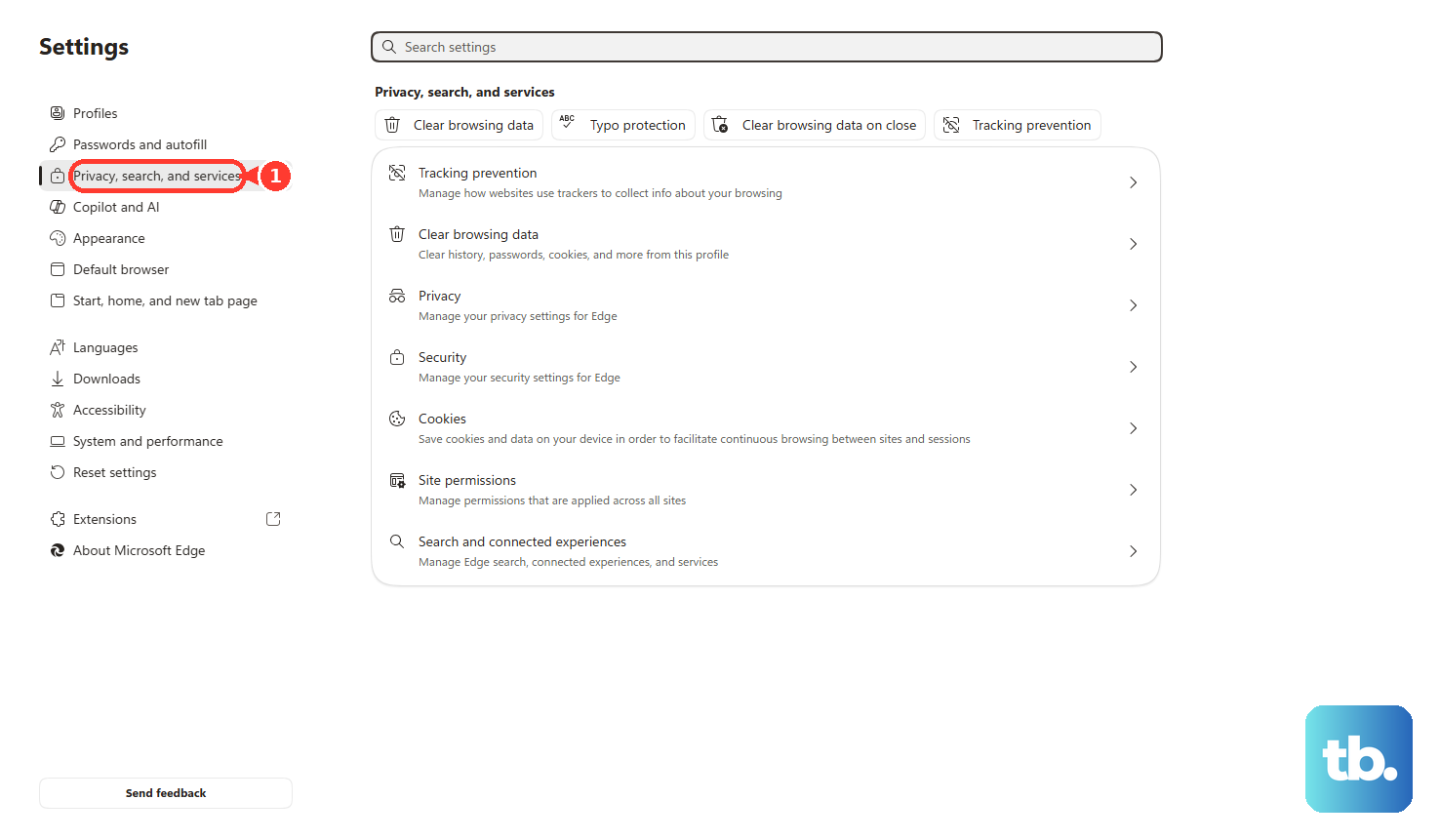
Under Clear browsing data, choose Choose what to clear next to Clear browsing data now.
Choose the Time range, select Cookies and other site data, then click Clear now.
In Firefox, open the menu button, choose Settings, then Privacy & Security.
Under Cookies and Site Data, choose Clear Data or Clear browsing data.
Set When to Everything or a shorter period, select Cookies and site data and Temporary cached files and pages, then click Clear.
For Safari on Mac, open Safari, choose Safari, then Settings, then Privacy, then Manage Website Data.
Select the affected website and click Remove, or click Remove All.
For one-site cleanup in Firefox, open the affected site, click the padlock or shield icon beside the address bar, then choose Clear Cookies and Site Data or Clear cookies and site data.
Clear mobile browser data
On Android, open the Chrome app, tap More, choose Delete browsing data, select a duration, then tap Delete data. To choose specific data types, tap More options, select what to remove, then tap Delete data.
On iPhone or iPad in Chrome, tap More, choose Delete Browsing Data, set the Time Range, open Browsing Data, select the data types, tap Confirm, then tap Delete Browsing Data.
For Safari on iPhone, open Settings, go to Apps, then Safari, then Advanced, then Website Data, then choose Remove All Website Data and Remove Now.
Turn off webpage-changing extensions
Ad blockers, script blockers, privacy tools, VPN or proxy extensions, and security extensions are the add-ons most likely to alter requests before they reach a website.
In Chrome, open More, choose Extensions, then Manage extensions, and switch extensions off. To remove one, choose Remove, then confirm with Remove.
In Edge, open Extensions, choose Manage extensions, and turn extensions off. To uninstall one, open Extensions, choose More actions next to the extension, then Remove from Microsoft Edge and Remove.
In Firefox, open the menu button, choose Add-ons and themes or Extensions and themes, then open Extensions and switch the blue toggle off. To remove one, use the ellipsis or 3-dot icon and choose Remove.
In Safari on Mac, open Safari, choose Settings, then Extensions, and deselect the extension checkbox. To uninstall one, select the extension and choose Uninstall.
On iPhone, open Safari, tap the Page Menu button on the left side of the search field, choose Manage Extensions, then turn extensions on or off.
Check VPN and proxy settings
A VPN, proxy, profile, firewall, or filter is the place to check when the site works on another connection but returns HTTP 500 on yours.
On Windows, open Settings, go to Network & internet, then Proxy.
Under Manual proxy setup, open Use a proxy server, choose Set up or Edit, turn off Use a proxy server, then choose Save.
On iPhone or iPad, open the Settings app, swipe down to search, and search for VPN, profile, firewall, or filter.
On Mac, open the Apple menu, choose System Settings, and use the search field for VPN, profile, firewall, or filter.
To remove a Mac VPN configuration, open the Apple menu, choose System Settings, then VPN, click the Info button next to the VPN service, choose Remove Configuration, and confirm.
On a supported Pixel with VPN by Google, open Settings, go to Network & internet, then VPN, then VPN by Google, and turn off Use VPN.
Clear the app cache on Android
An HTTP 500 inside an app or embedded browser can still come from the service's server, but clearing the app cache can remove stale local data on Android.
Open Settings, then Apps or Applications, and select the affected app.
Open Storage, then choose Clear cache.
If the same error returns inside the app after that, contact the app or website owner with the failed URL, the time, your timezone, and the exact error text.
Report the right details
Send a useful report when the same page keeps returning HTTP 500:
- 1.Copy the exact failed URL.
- 2.Write down the exact 5XX error code or message shown on the page.
- 3.Record the time and timezone when the error happened.
- 4.Use the website's support or contact channel to send those details.
- 5.If the page mentions cloudflare or cloudflare-nginx, include that wording too.
Fix WordPress or cPanel errors
This fixes common owner-side causes when the broken site is yours.
In cPanel, open Metrics, then Errors, and review the most recent entries.
For a WordPress site, open the site root through FTP, SFTP, or your hosting file manager, rename .htaccess to .htaccess_old, then reload the site.
If the site loads, open WordPress Admin, go to Settings, then Permalinks, and save or reset permalinks so WordPress creates a new .htaccess file.
If WordPress Admin is reachable, open Plugins, then Installed Plugins, and deactivate one active plugin at a time.
Reload the site after each plugin change.
If WordPress Admin is not reachable, use FTP, SFTP, or your hosting file manager to open wp-content/plugins and rename the plugins folder.
Restore and reactivate plugins one at a time to find the failing plugin.
To test the active theme, open WordPress Admin, go to Appearance, then Themes, and activate a default WordPress theme.
If WordPress Admin is not reachable, use FTP, SFTP, or your hosting file manager to open wp-content/themes and rename the active theme folder so WordPress falls back to another installed default theme.
In cPanel, open Software, then MultiPHP Manager, select the affected domain, choose a PHP version from PHP Version, then click Apply.
Use the version your host or site software recommends.
If cPanel logs still show 500 Internal Server Error after these checks, contact your hosting provider or system administrator with the URL, timestamp, timezone, and the relevant Errors entries.
Frequently Asked Questions
Is HTTP 500 my fault?
Usually no. HTTP 500 means the server could not fulfill the request. Your browser data, extensions, VPN, or proxy can sometimes surface the problem, but a persistent 500 usually needs the site owner or host.
Should I keep refreshing a checkout or payment page?
Refresh once or twice, then stop if the 500 keeps returning. Contact the site with the URL, time, timezone, and exact error text so they can check the failed request.
Why does the site work in a private window?
A private window starts without your regular session's saved cookies and browsing history. If the page works there, clear the site's cookies and cache in your normal browser.
What should I send to support for an HTTP 500?
Send the exact URL, the exact 5XX message, the time it happened, your timezone, and any Cloudflare wording such as cloudflare, cloudflare-nginx, or a Ray ID.
Should I use Internet Explorer fixes for HTTP 500?
No. For current browsing, use Microsoft Edge. Internet Explorer mode in Edge is for compatibility sites, not general HTTP 500 troubleshooting.











