You open a page and get HTTP 400 Bad Request instead of the site you expected. That means the server rejected the browser request as malformed or invalid, which points to the URL, saved site data, an extension, browser settings, or network state. Start with the quick checks, then clean only the browser data that can cause the bad request.
1. Fix the address first
Rule out the address before changing browser settings, especially when the link came from a copied message, email, bookmark, or redirect.
Select the address bar and check the web address for typos, pasted symbols, missing characters, or an unusually long URL.
Select Reload this page.
If the address came from a copied link, open the website's home page and navigate to the page again instead of reusing the long URL.
HTTP 400 means the server rejected the request as malformed or invalid, so a bad address is the cleanest problem to rule out.
2. Test the page privately
In Chrome, select More, then New Incognito window.
In Microsoft Edge, select Settings and more, then New InPrivate window.
In Firefox, open the menu button and select New private window, or right-click the link and select Open Link in New Private Window.
In Safari on Mac, select File, then New Private Window.
A private window skips your existing cookies and session state. If the page opens there, the next fix is to remove saved data for that site.
3. Remove data for the broken site
Use site-specific cleanup when only one website shows the HTTP 400 error; it targets the bad cookie or stored site data without signing you out everywhere.
Chrome desktop: Select More, Settings, Privacy and security, Third-party cookies, and See all site data and permissions.
After that, search for the website name, select Delete, then select Delete again.
Firefox desktop: Open the menu button, then select Settings, Privacy & Security, Cookies and Site Data or Browsing data, and Manage Data....
Search for the site, select it, choose Remove Selected, then select Save Changes.
Safari on Mac: Select Safari, Settings, Privacy, and Manage Website Data.
Select the website, then choose Remove.
Microsoft Edge desktop: Select Settings and more, Settings, Privacy, search, and services, Cookies, and See all cookies and site data.
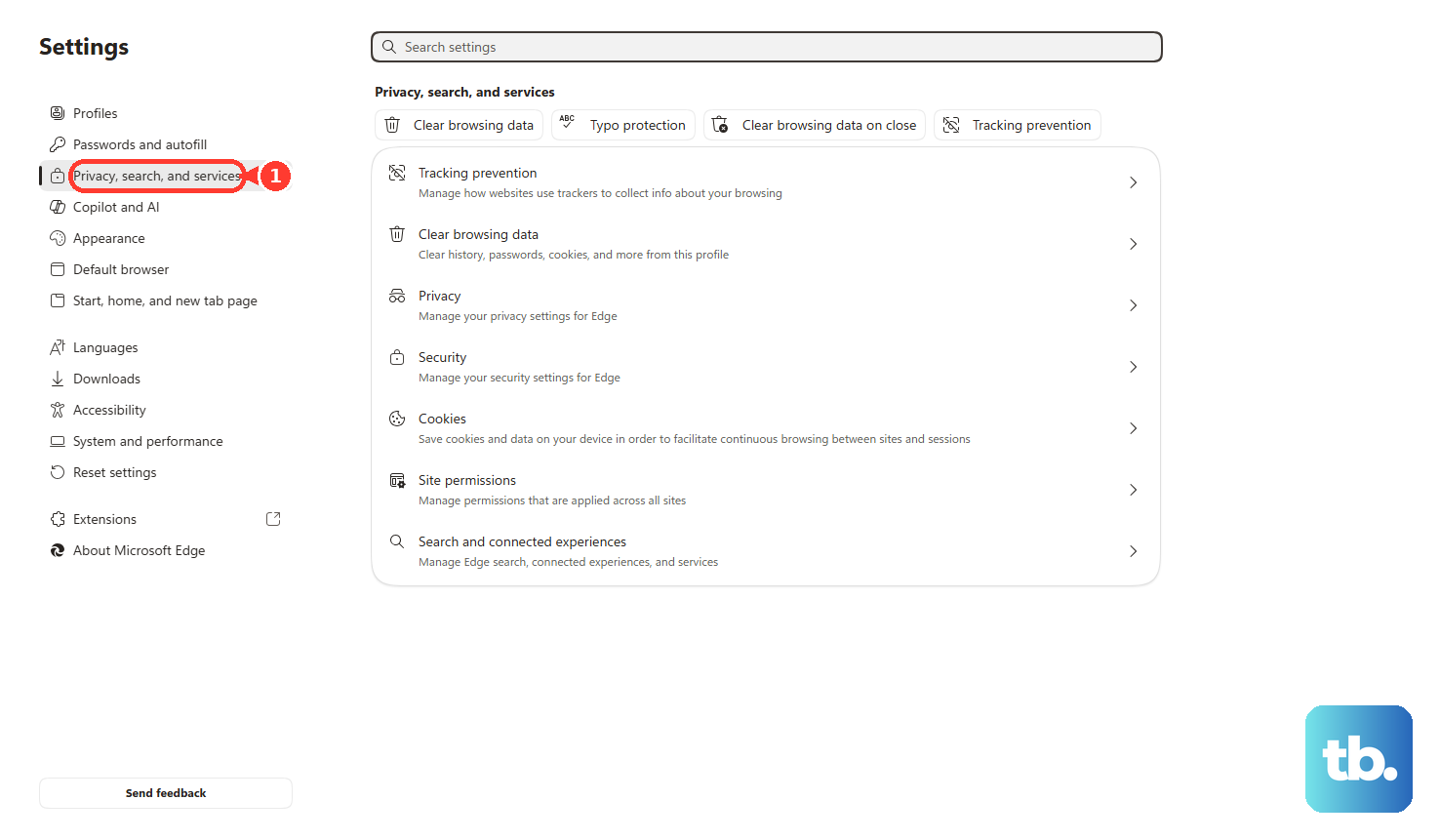
Search for the website, select the down arrow beside it, then choose Delete.
4. Clear browser data more broadly
Chrome desktop: Select More and Delete browsing data.
Choose a Time range, then select Cookies and other site data and Cached images and files.
Finish by selecting Delete data.
Chrome Android: Select More and Delete browsing data.
Choose the duration, then select Delete data.
Microsoft Edge desktop: Select Settings and more, Settings, Privacy, search, and services, Clear browsing data, and Choose what to clear.
Choose a Time range, select Cookies and other site data and Cached images and files, then select Clear now.
Microsoft Edge mobile: Open the menu, then select Settings, Privacy, and Clear browsing data.
Select the data types, then choose Clear.
Firefox desktop: Open the menu button, then select Settings, Privacy & Security, Cookies and Site Data or Browsing data, and Clear Data... or Clear browsing data.
Select Cookies and site data and Temporary cached files and pages, shown as Cached Web Content in older Firefox releases.
Choose Clear.
iPhone or iPad Safari: Open Settings, Apps, Safari, and Clear History and Website Data.
Select Clear History.
To keep history, use Settings, Apps, Safari, Advanced, Website Data, Remove All Website Data, and Remove Now.
Move to full cookies and cache cleanup when site-only removal does not fix the page, or when the error appears across several pages.
On Android, clear the browser app cache when browser-level cleanup leaves corrupted cached app data behind.
Open Settings, Apps or Applications, select the browser app, choose Storage, then select Clear cache.
5. Turn off extensions that alter requests
Ad blockers, privacy tools, VPN or proxy extensions, cookie managers, and header-modifying extensions can change what the browser sends to a website.
In Chrome, select More, Extensions, and Manage extensions, then turn off the extension toggle.
For removal, select Remove, then Remove again.
In Microsoft Edge, select the Extensions button beside the address bar, open Manage extensions, then turn off the toggle.
To uninstall it, select Remove.
In Firefox, open the menu button, then select Add-ons and themes or Extensions and themes, and Extensions.
Click the blue toggle to disable an extension.
When removal is needed, click the three-dot icon and select Remove.
In Safari on Mac, select Safari, Settings, and Extensions, then deselect the extension checkbox.
For removal on Safari, select the extension and choose Uninstall, or delete the app that contains the extension.
Reload the page after disabling extensions, then remove the extension that breaks the site.
Skip old Safari instructions for .safariextz extensions.
Apple says those legacy extensions do not load and no longer appear in Safari settings.
6. Update and restart the browser
Chrome desktop: Select More, Help, and About Google Chrome, then select Relaunch when Chrome offers it.
On Android, updates come from the Play Store: open the Play Store app, tap the profile icon, select Manage apps & device, find Chrome under Updates available, then select Update.
The in-browser More, Settings, About Chrome path only shows version information.
On iPhone and iPad, open the App Store profile icon, find Available Updates, then select Chrome and Update.
Safari: Update Safari through operating system updates.
On Mac, update macOS with Software Update.
On iPhone, update iOS.
On iPad, update iPadOS.
Reinstalling or switching: Use the official download pages for Chrome, Firefox, or Microsoft Edge.
For Safari, use Apple operating system updates instead of third-party download sites.
7. Reset settings for stubborn errors
Chrome desktop: Select More, Settings, Reset settings, Restore settings to their original defaults, and Reset settings.
Chrome keeps saved bookmarks and passwords, and resets content settings, cookies and site data, extensions, themes, startup, home, and new tab settings.
Firefox desktop: Open the menu button, then select Help, More Troubleshooting Information, Refresh Firefox, and Refresh Firefox.
Mozilla advises using Troubleshoot Mode before Refresh Firefox.
Refresh Firefox removes add-ons and customizations while preserving major profile data such as bookmarks and passwords.
Microsoft Edge desktop: Select Settings and more, Settings, Reset settings, Restore settings to their default values, and Reset.
A reset belongs after URL checks, private browsing, site data cleanup, extension checks, and browser updates. It removes deeper profile problems while keeping major saved data where the browser supports that.
Use the current Chrome labels above. Older Chrome paths such as More tools, Clear browsing data, Settings, Advanced, and Reset are outdated.
8. Repair the network when several sites fail
When HTTP 400 appears on many sites, stop treating it as a one-site cookie problem and refresh the connection.
- 1.Unplug the router power.
- 2.Unplug the modem power.
- 3.Wait at least 30 seconds.
- 4.Plug the modem back in and wait for the lights to stabilize.
- 5.Plug the router back in, wait, reconnect, and retry the site.
On public Wi-Fi, sign in to the portal page when prompted.
On Windows 11, open Search, type Command prompt, select Run as administrator, choose Yes, then run these commands in order: netsh winsock reset, netsh int ip reset, ipconfig /release, ipconfig /renew, and ipconfig /flushdns.
On Mac, select Apple menu, System Settings, and Network.
Select the network service, choose Details, select DNS, use the Add button under DNS Servers, enter the DNS server, then choose OK.
9. Escalate managed device problems
On a work or school computer, phone, or browser profile, organization policies can control extensions and browser data cleanup, which can make HTTP 400 return after you clear data yourself.
Ask the device admin to check managed extensions and clear-browsing-data rules for Chrome, Microsoft Edge, or Safari.
Edge admins can also use automatic clearing on exit, and Chrome Enterprise and Edge policies can force selected browsing data to clear when the browser closes.
Frequently Asked Questions
Can HTTP 400 be caused by a bad bookmark?
Yes. A bookmark can preserve an overlong or malformed address. Open the site's home page, navigate to the page normally, then replace the old bookmark after the page loads.
Why does the site work in Incognito but not in my normal browser window?
That points to saved cookies, session state, cached data, or an extension in the normal profile. Remove site data for that website first, then test extensions if the error returns.
Should I clear all cookies for an HTTP 400 error?
Clear data for the affected website first when only one site fails. Clear all cookies and cached files when the error survives site-specific cleanup or affects several pages.
Is chrome://net-internals a current fix for HTTP 400?
No. Current consumer troubleshooting focuses on the URL, private browsing, deleting browsing data, updating the browser, and network checks. Use those supported paths instead.











