Your Android phone won't connect to Wi-Fi, and you're stuck watching a spinning icon or a stubborn "Saved" label that never turns into a real connection. This is one of the most common Android problems, and it's almost always fixable without a trip to a repair shop. Whether you're on a Galaxy, a Pixel, or any phone running Android 14, 15, or 16, the 14 fixes below work across the board.
Start at the top with the quick toggles, since those clear most cases in seconds. If the problem is more stubborn, keep moving down the list toward the network reset and the newer culprits like Private DNS and randomized MAC address. Use the table first to jump straight to the fix that matches your exact symptom.
Match Your Symptom to the Fix
Android Wi-Fi failures usually fall into four buckets. Find the one that sounds like yours and start with the fixes listed next to it before working through the rest.
| Symptom | Most likely cause | Start with fix |
|---|---|---|
| Connected but no internet | Captive portal, Private DNS, or DNS conflict | 5, 9, 10 |
| Won't authenticate or wrong password loop | Stale saved credentials | 2, 3 |
| Saved but won't connect | Corrupted profile or MAC filtering | 3, 11, 12 |
| Connects then keeps dropping | Power saving or auto network switch | 6, 7, 13 |
Toggle Wi-Fi and Restart Your Phone
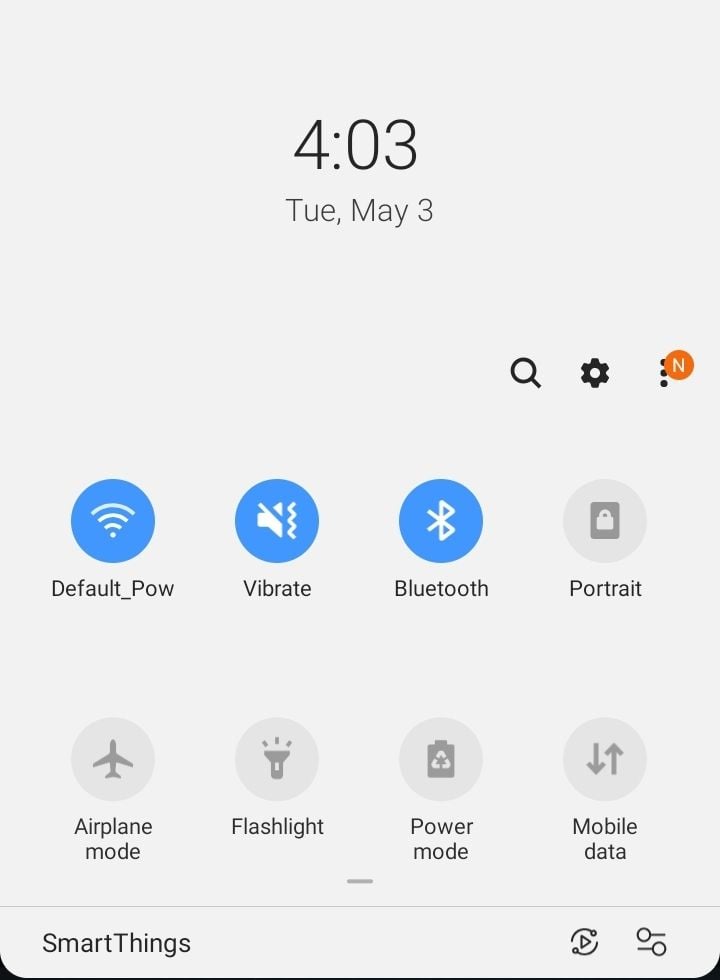
Before anything else, try the two-second fix. Pull down your notification shade, tap the Wi-Fi icon to turn it off, wait about five seconds, then tap it back on. This forces your phone to re-scan and reconnect, and it solves the problem more often than you would expect.
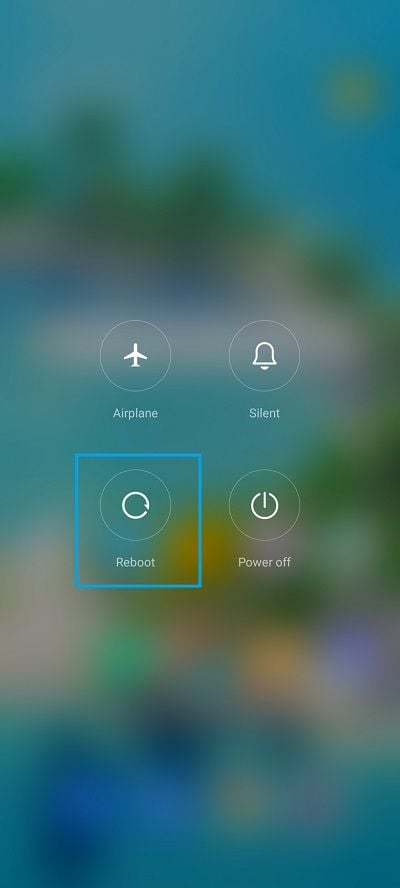
If that didn't do it, restart your phone. Hold the power button, or press power and volume up together on newer Pixel and Galaxy models, then tap Restart and give it a minute. A reboot clears the temporary software glitches that love to break wireless connections.
Turn Airplane Mode On and Off
This one is a classic for a reason. Flipping airplane mode on kills all your wireless radios at once, and turning it back off forces everything to reconnect fresh. Open the quick settings panel, tap the airplane icon, wait about 15 seconds, then tap it off again.
On stock Android you can also reach it under Settings > Network & internet > Airplane mode. Once Wi-Fi comes back, give it a few seconds to grab an address before you decide whether it worked.
Forget the Network and Reconnect
Sometimes your phone is holding onto an old or corrupted profile for your network. On a Pixel or stock Android, go to Settings > Network & internet > Internet, tap your network name (or open Saved networks), then tap Forget. On a Samsung Galaxy, go to Settings > Connections > Wi-Fi, tap the gear icon next to the network, then tap Forget.
Now reconnect by selecting the network again and typing the password. This also forces a fresh DHCP request, which fixes a surprising number of "connected but no internet" and "saved but won't connect" cases.
It is especially useful if you recently changed your Wi-Fi password or replaced your router, since your phone may still be trying the old credentials and failing every single time.
Double Check the Network Name and Password
It sounds obvious, but confirm you are joining the right network. If a neighbor's network has a similar name, your phone may keep trying to join theirs instead. Wi-Fi passwords are also case sensitive, so a stray capital letter will block you every time.
When you re-enter the password, tap the eye icon next to the password field to reveal what you typed before you hit Connect. That one tap catches most typos that you would otherwise never notice.
Sign In to the Captive Portal
Public networks at hotels, airports, cafes, and campuses often need you to accept terms or log in on a sign-in page before they pass any traffic. When that page never appears, Android shows you as connected with no internet. Open your browser and try to load any plain website, which usually forces the sign-in page to pop up.
If nothing loads, go back to your Wi-Fi settings, forget the network, then reconnect and watch for the sign-in notification. Tapping that notification reopens the portal so you can finish logging in and unlock the connection.
Turn Off Power Saving Mode
Battery saver is great for stretching your charge, but it can throttle or suspend Wi-Fi in the background, which shows up as a connection that keeps dropping. On most phones you can toggle it from the quick settings panel, or go to Settings > Battery to switch it off.
Once power saving is off, give the connection a moment to stabilize. If your Wi-Fi only drops when the screen is off or the battery is low, this is very likely your culprit.
Disable Auto Switch to Mobile Data
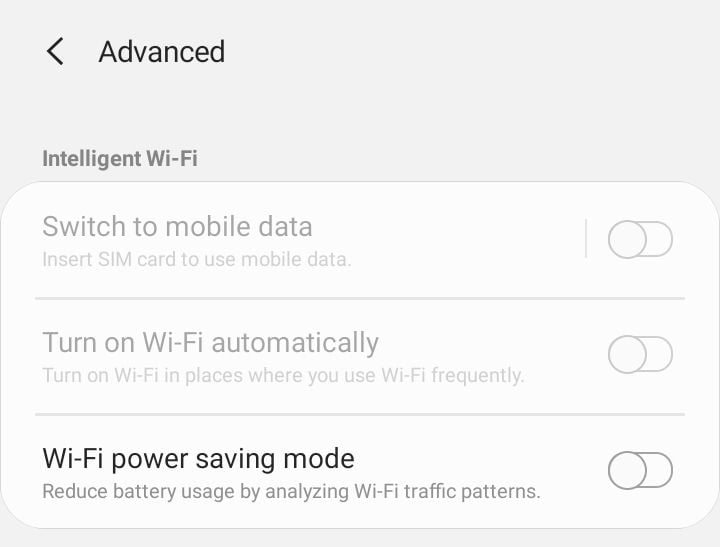
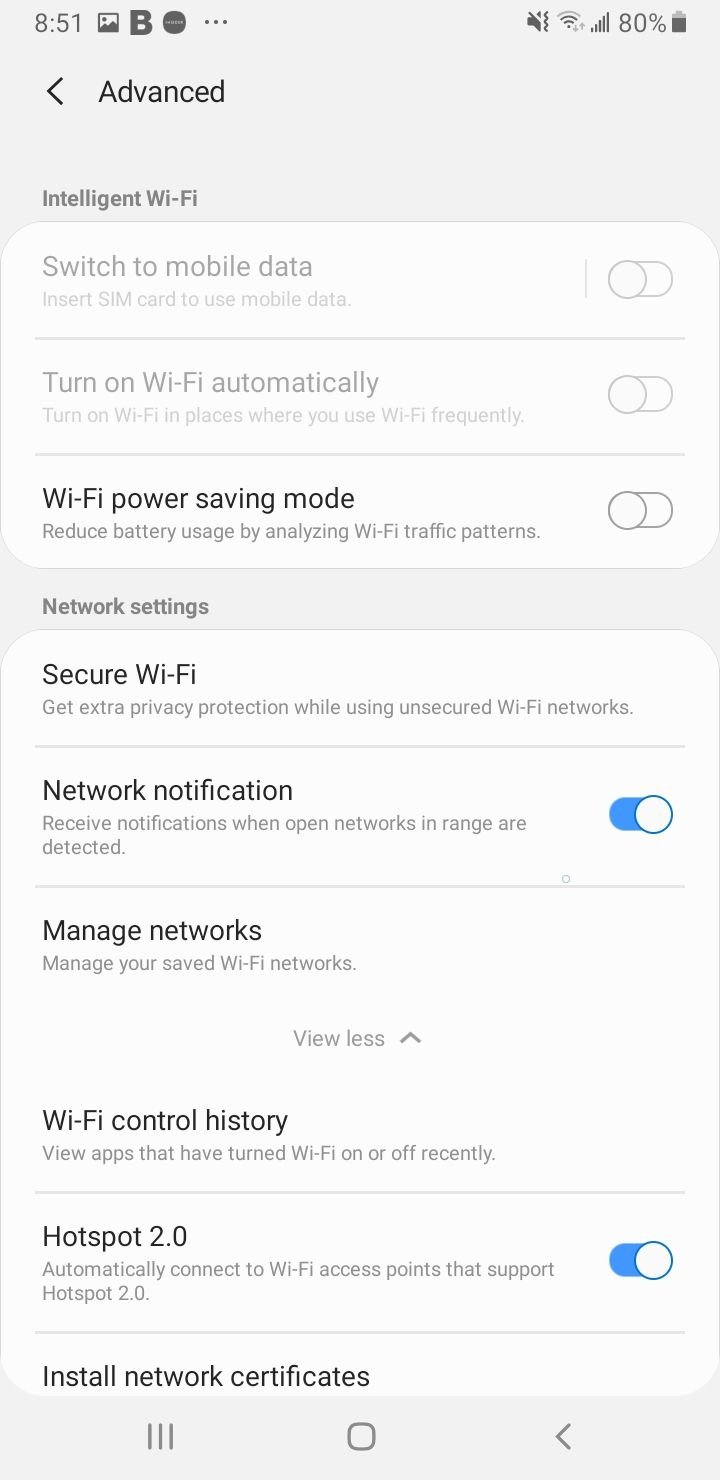
Android can automatically jump you to mobile data when it decides your Wi-Fi signal is weak, which sometimes stops the phone from settling onto Wi-Fi at all. On a Samsung Galaxy, go to Settings > Connections > Wi-Fi, tap the three-dot menu, open Intelligent Wi-Fi, and turn off Switch to mobile data.
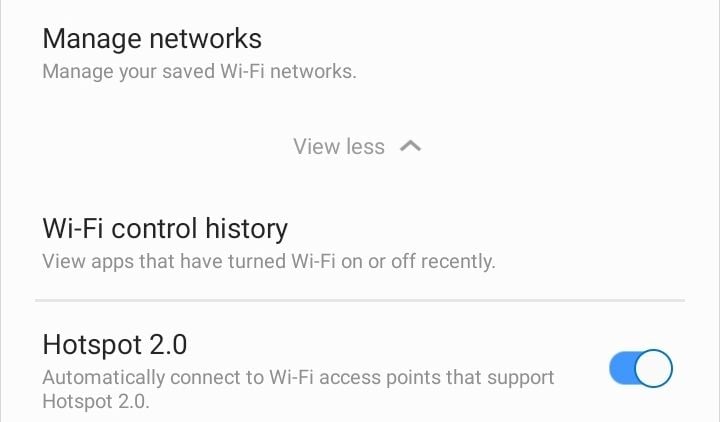
The exact wording varies by phone, so look for an option named Switch to mobile data, Adaptive Wi-Fi, or Smart network switch in your Wi-Fi advanced or intelligent settings. Turning it off keeps your phone committed to the Wi-Fi network while you sort out the connection.
Set the Date and Time Automatically
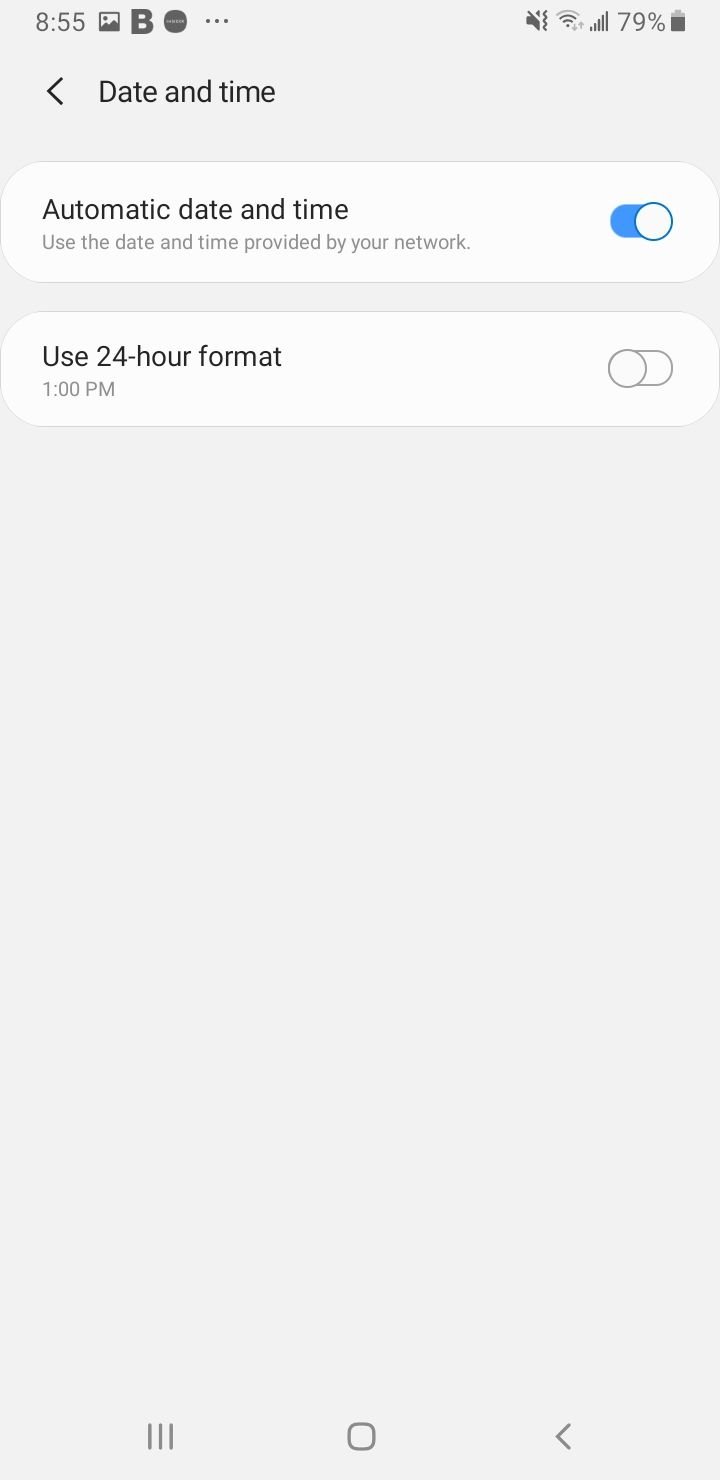
This one catches people off guard. If your phone's clock is wrong, Wi-Fi authentication can fail because security certificates will not validate against an incorrect date. On a Pixel or stock Android, go to Settings > System > Date & time and turn on Set time automatically.
On a Samsung Galaxy, the path is Settings > General management > Date and time, then enable Automatic date and time. Make sure the time zone is correct too, since a wrong zone can still throw off certificate checks.
Turn Off Bluetooth Temporarily
Bluetooth and 2.4GHz Wi-Fi share the same radio band, and on some devices they can interfere with each other. Turn off Bluetooth from your quick settings and try connecting to Wi-Fi again.
If Wi-Fi connects cleanly with Bluetooth off, you have found a hardware quirk on your device. You can usually turn Bluetooth back on once Wi-Fi is established, and the two will coexist fine after the connection is stable.
Try the Other Wi-Fi Band
Most modern routers broadcast on both 2.4GHz and 5GHz, and sometimes a phone struggles with one band while the other works perfectly. The 2.4GHz band reaches farther and passes through walls more easily, while 5GHz is faster but shorter range.
If your router lists the two bands as separate network names, try connecting to the other one. If both bands share a single name, move closer to the router to test the stronger 2.4GHz signal, or log into your router to split the bands so you can pick one directly.
Check Private DNS
Android's Private DNS feature encrypts your DNS lookups, but a misconfigured custom server, or a network that blocks encrypted DNS, can leave you connected with no internet. On a Pixel or stock Android, go to Settings > Network & internet > Private DNS to see your setting. On a Samsung Galaxy, the path is Settings > Connections > More connection settings > Private DNS.
If it is set to a Private DNS provider hostname, switch it to Automatic and test again. Automatic still encrypts when it can but falls back gracefully, which clears most captive portal and enterprise network conflicts. You can switch back to your preferred provider once the connection works.
Adjust the MAC Address and IP Settings
Since Android 10, your phone uses a randomized MAC address per network by default for privacy. That is fine on most networks, but it can break access on routers that use MAC filtering or that recognize devices by their hardware address.
Open the network's details by tapping the gear icon next to it, then look for the privacy or MAC address option and switch it from a randomized MAC to Use device MAC. While you are there, expand the advanced or IP settings and confirm IP settings is on DHCP unless you intentionally set a static address. Setting DNS 1 to 8.8.8.8 and DNS 2 to 8.8.4.4 under a static configuration can also fix lookups when a network's own DNS is failing.
Reset Your Network Settings
If individual tweaks have not worked, reset all of your network settings at once. On a Pixel or stock Android, go to Settings > System > Reset options > Reset Wi-Fi, mobile & Bluetooth, then confirm. Some recent Pixel models split this into separate Wi-Fi and mobile resets, so run whichever applies.
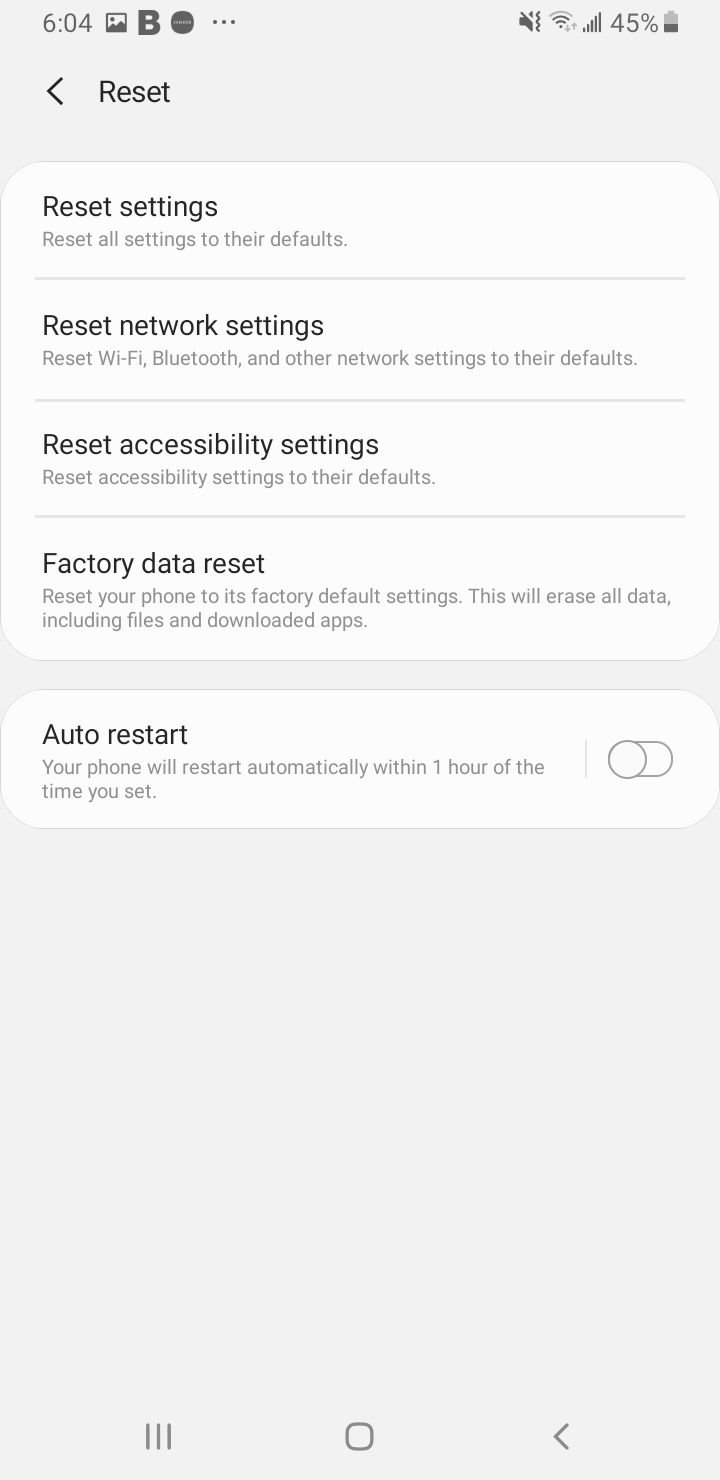
On a Samsung Galaxy, the path is Settings > General management > Reset > Reset network settings. This wipes every saved Wi-Fi network, Bluetooth pairing, and mobile data preference, but it leaves your photos, apps, and messages untouched. You will need to rejoin your networks and re-pair Bluetooth devices afterward.
Update Your Android Software
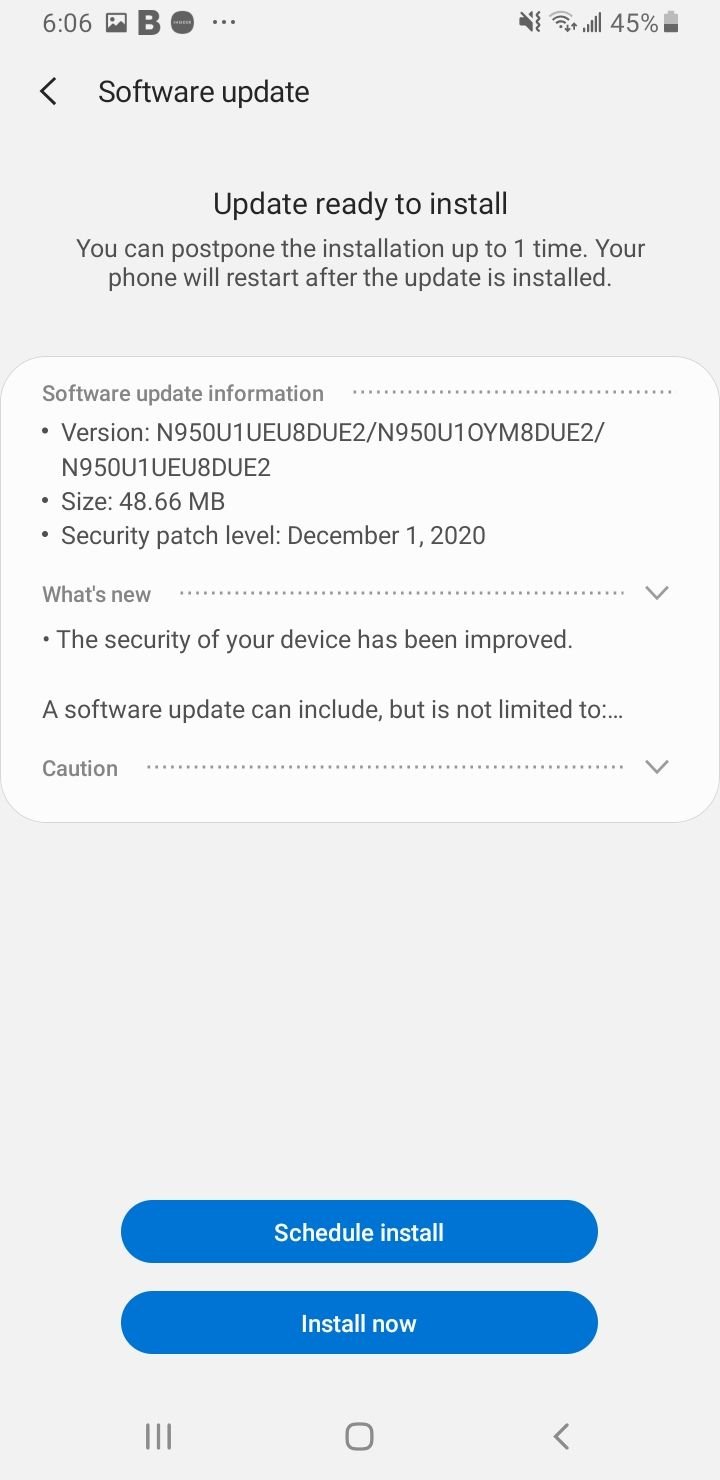
An outdated system version can cause stubborn connectivity bugs, and both Google and Samsung have shipped patches that specifically target Wi-Fi stability. On a Pixel or stock Android, go to Settings > System > Software updates > System update and check for an update.
On a Samsung Galaxy, go to Settings > Software update > Download and install. Install anything available, then restart and reconnect. If your Wi-Fi trouble started right after a major update such as One UI 7, a follow-up patch is often the fix.
Restart Your Router and Test in Safe Mode
The problem might not be your phone at all. Unplug your router from power, wait a full 60 seconds, then plug it back in and let it fully restart. If other devices in your home are also struggling, the router was almost certainly the issue.
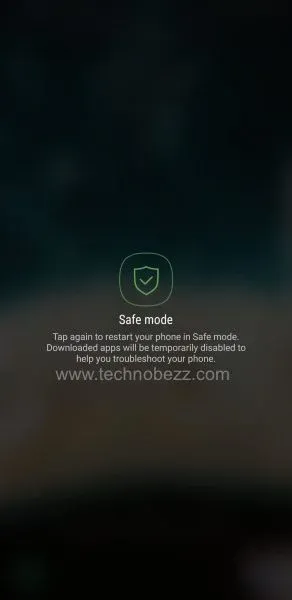
If only your phone is affected, boot into safe mode to rule out a misbehaving app such as a VPN, ad blocker, or security tool. Press and hold the power button, then touch and hold Power off until the safe mode prompt appears. If Wi-Fi works in safe mode, uninstall recently added apps one at a time until you find the offender. As an absolute last resort, back up your data and run a factory reset from Settings > System > Reset options > Erase all data, and if Wi-Fi still fails afterward you may be facing a hardware fault.
Frequently Asked Questions
Why does my Android say connected but no internet?
This almost always means the link to your router is fine but traffic cannot pass beyond it. The usual causes are a captive portal sign-in you have not completed, a Private DNS conflict, or a router or ISP hiccup. Open a browser to trigger the sign-in page, set Private DNS to Automatic, and restart your router to clear it.
How do I reset network settings on Android?
On a Pixel or stock Android, go to Settings > System > Reset options > Reset Wi-Fi, mobile & Bluetooth. On a Samsung Galaxy, go to Settings > General management > Reset > Reset network settings. It clears saved networks, Bluetooth pairings, and mobile preferences without deleting your personal files.
Does forgetting a network delete the password?
Yes, forgetting a network removes its saved password and profile from your phone, but it does not change the password on the router itself. You will simply need to re-enter the same password the next time you connect to that network.
Why does my Samsung Galaxy keep disconnecting from Wi-Fi?
Frequent drops on a Galaxy usually trace back to power saving mode throttling the connection or the Switch to mobile data feature pushing you off weak Wi-Fi. Turn off battery saver and disable Switch to mobile data under Settings > Connections > Wi-Fi > Intelligent Wi-Fi, then test again.
Why does my phone say Saved but won't connect to Wi-Fi?
A Saved label that never connects points to a stale profile or a router that is blocking your phone's randomized MAC address. Forget the network and rejoin it, and if that fails, switch the network to Use device MAC in its details screen.
Can a phone case block a Wi-Fi signal?
A thin plastic or silicone case will not affect Wi-Fi, but a metal case or a thick, heavily reinforced one can weaken the signal. If your connection improves when you remove the case, that is your answer.
First published October 14, 2025. Last updated June 4, 2026.