Invalid Google Authenticator codes usually come from the wrong entry, an expired code, or a phone clock that is out of sync. Current Google Authenticator versions use your phone's operating-system time, so the fix starts with the code itself and then moves to Android or iPhone time settings.
If the app is missing codes or you are already locked out, there are still clean ways back in. Use the steps below in order, starting with the fastest checks.
Use the correct fresh code
The most common cause is entering a code from the wrong Authenticator entry or a code that is about to expire.
Open Google Authenticator.
Find the entry for the exact app or service and the exact account you are signing in to.
If you have several similar entries, match the username before entering the number.
Enter the code before it expires.
When the timer is nearly finished, wait for the next code and enter the new one.
Fix Android time settings
Current Google Authenticator uses Android's operating-system time. Fix the clock in Android, not inside Authenticator.
Open Clock, tap More, open Settings, then choose Change date and time. Turn on Automatic date and time.
Stay in Change date and time. Under Time zone, turn on Automatic time zone. Google notes that only some devices let you set the time zone automatically. If yours does not offer it, tap Change date and time > Time zone, turn off Set automatically if that switch is present, then tap Time zone and pick your zone by hand.
Do not use Google Authenticator > More > Settings > Time correction for codes > Sync now as a current fix. Google Authenticator v7.0+ no longer includes that sync tool, and reinstalling the app is not a supported fix for invalid codes.
Check iPhone and iPad time
This fixes codes that fail because your iPhone or iPad is using the wrong time or time zone.
Open Settings.
Tap General.
Tap Date & Time.
Turn on Set Time Automatically.
Go to Settings > Privacy & Security > Location Services > System Services.
Turn on Setting Time Zone.
Update Google Authenticator
Use the current app before rebuilding your setup.
- 1.On Android, open the official Google Authenticator page in Google Play.
- 2.Tap Install or Update; if the button says Open, launch the app.
- 3.On iPhone or iPad, open the official Google Authenticator page in the App Store.
- 4.Tap Get or Update; if the button says Open, launch the app.
- 5.Enter a fresh Authenticator code after the app opens.
Find missing codes after account switching
Codes disappear after sign-out, a new phone, or Google Account switching when they are synced under another Google Account or stored only on the device.
Open Google Authenticator, tap the profile icon at the top right, and confirm that you are signed in to the right Google Account.
To switch accounts, tap your profile picture or initials, tap Add another account, select the account or sign in, then tap Allow when asked to save codes to that Google Account.
Use the search bar in Google Authenticator and enter text that matches the username for the code.
If the code is still missing, it was most likely stored only on the old device, so transfer local-only codes from there. Do not tap Use Authenticator without an account as a way to hunt for hidden codes. Google says that control, reached from your profile picture at the top right, removes codes from all of your Google Accounts and stores them on the device, so they stop being available on your other devices. Choose it only when you deliberately want device-only storage. The Use without an account option offered when you first open the app is that same choice made up front on a fresh install.
Move local codes from an old device
Choose manual transfer when your codes were saved only on the old device, you still have access to it, and the old device has the latest Google Authenticator app.
- 1.On the new device, install Google Authenticator, open it, tap Get Started, then sign in to your Google Account.
- 2.On the old device, open Google Authenticator > Menu > Transfer accounts > Export accounts.
- 3.Unlock the old device, select the accounts, and tap Next.
- 4.On the new device, tap Scan QR code, or open Menu > Transfer accounts > Import accounts.
- 5.Scan the QR code created on the old device.
Replace a stale Authenticator entry
Use this when time settings are correct and the same entry still fails, or when a site was relinked and the old code remains in Authenticator. Keep the old entry until you have another working sign-in method or a newly added replacement.
For a Google Account, open your Google Account 2-Step Verification settings and choose Set up authenticator, then follow the on-screen steps. On some Android devices, the setup flow starts with Get Started.
Google says Authenticator can take up to 7 days to show as an available sign-in option after setup.
For another app or website, sign in with another available method, remove the old Authenticator setup in that service's security settings, and relink Google Authenticator there.
After the replacement code works, remove the stale entry in Google Authenticator by swiping right on the code and confirming deletion. If this method fails, use a backup code, passkey, security key, phone prompt, text message, voice call, trusted device, or account recovery.
Sign in another way
Use a second step that was already added to the Google Account.
At Google sign-in, select Try another way and choose an available option.
To use backup codes, choose Enter one of your 8-digit backup codes and enter an unused backup code.
To use text message or voice-call verification, receive the 6-digit code and enter it on the sign-in screen. If you requested multiple codes, use only the newest code.
Use a private trusted device where you previously chose Don't ask again on this computer or Don't ask again on this device, then update your 2-Step Verification settings.
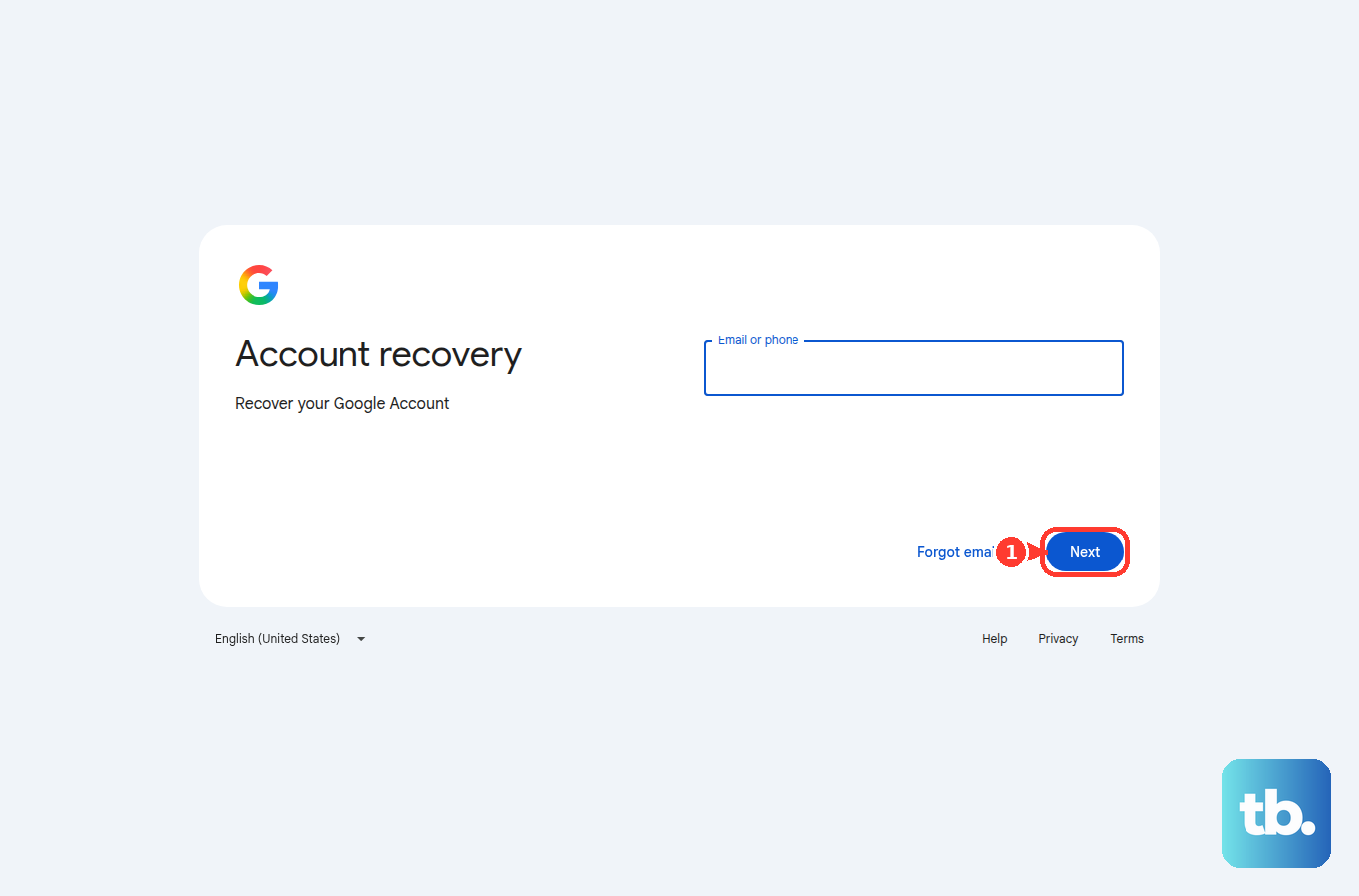
Do not give your password or verification codes to any service claiming account recovery help. If nothing works, go to accounts.google.com/signin/recovery, enter Email or phone, select Next, and answer as many questions as possible from a familiar device, browser, and location.
Ask an admin for managed accounts
The most common cause on a work or school account is that your organization controls the account's 2-Step Verification settings.
Contact your administrator and say your Google Authenticator code is not working.
An administrator with the appropriate User management privilege can open Google Admin console > Menu > Directory > Users, choose your username, open Security > 2-step verification, then select Get Backup Verification Codes and give you one code. Google says the 2-step verification controls are only reachable when 2-Step Verification is enforced for the organization or you turned it on for your own account, and that an admin without the right privilege will not see every control the steps need.
For a temporary risk-based sign-in challenge, an administrator with the appropriate User management privilege can open Google Admin console > Menu > Directory > Users, choose your account row, open Security > Login challenge, then select Turn Off For 10 Minutes. Google says it might take several minutes for the change to take effect, so wait before trying to sign in again.
Frequently Asked Questions
Why are my Google Authenticator codes suddenly invalid?
The usual causes are the wrong account entry, a code that expired before you entered it, or a phone clock or time zone that is not set automatically.
Can I still use Sync now in Google Authenticator?
No. Google Authenticator v7.0+ no longer includes Time correction for codes > Sync now. Set automatic date, time, and time zone on the phone instead.
Can I make backup codes after I am locked out?
Backup codes are managed while you are signed in under 2-Step Verification. If you are already locked out, use another available second step or Google Account recovery.
What should I do if my phone was lost or stolen?
Remote-erase the device. If Authenticator codes were synced, remove the device from your Google Account; if not, visit each site that used Authenticator, remove the old code setup, and relink your new device.











