The “Epic Games Launcher Setup Wizard ended prematurely” message means setup stopped before the launcher finished installing. Start with Epic’s recommended Microsoft Store installation, then use the fixes below for your installer and Windows symptoms. Check whether your downloaded file ends in .msi or .exe before entering a command, because the two packages need different instructions.
Install Epic through Microsoft Store first
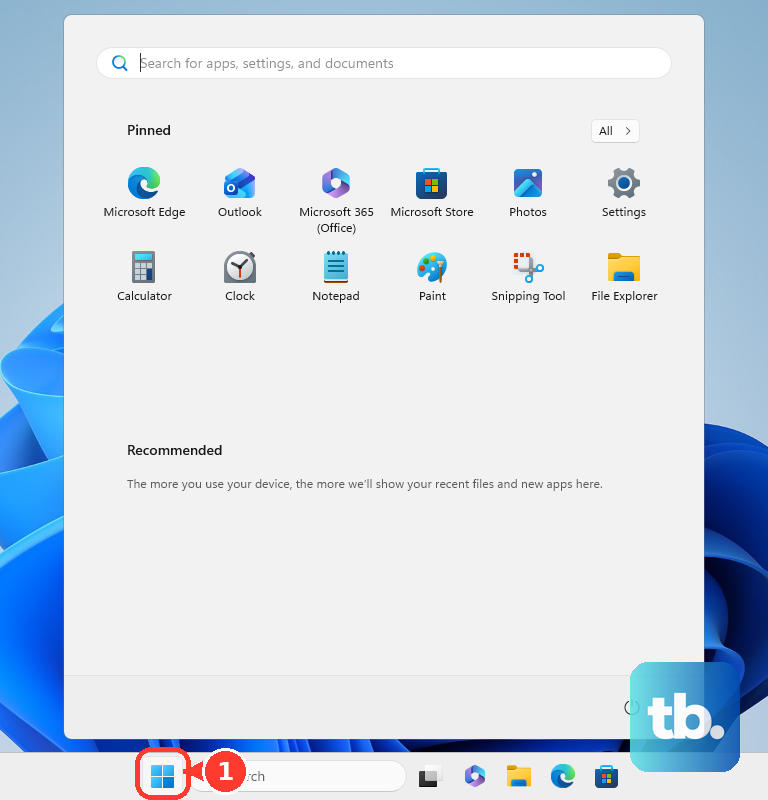
This is Epic’s first recommended fix for the premature-ending setup error. Press the Windows key, then search for Microsoft Store and open Microsoft Store. Search for Epic Games Store and select Install.
Restart Windows and download a fresh installer
Select Start > Power > Restart.
Once Windows restarts, run the installer again. If setup still stops, open Epic’s official launcher download page. Select Install at the top to download a fresh installer, then run the new file.
Approve the official Epic installer when Windows asks Do you want to allow this app to make changes to your device. If this attempt fails, use the administrator command below for an .msi file. For an .exe file, continue to the installation-folder checks.
Run an MSI installer with administrator access
Epic recommends this administrator command for .msi packages; it does not install an .exe package.
- 1.Press Windows + E and locate the downloaded .msi file.
- 2.Hold Shift, right-click the file, and select Copy as path. Keep the file at that location.
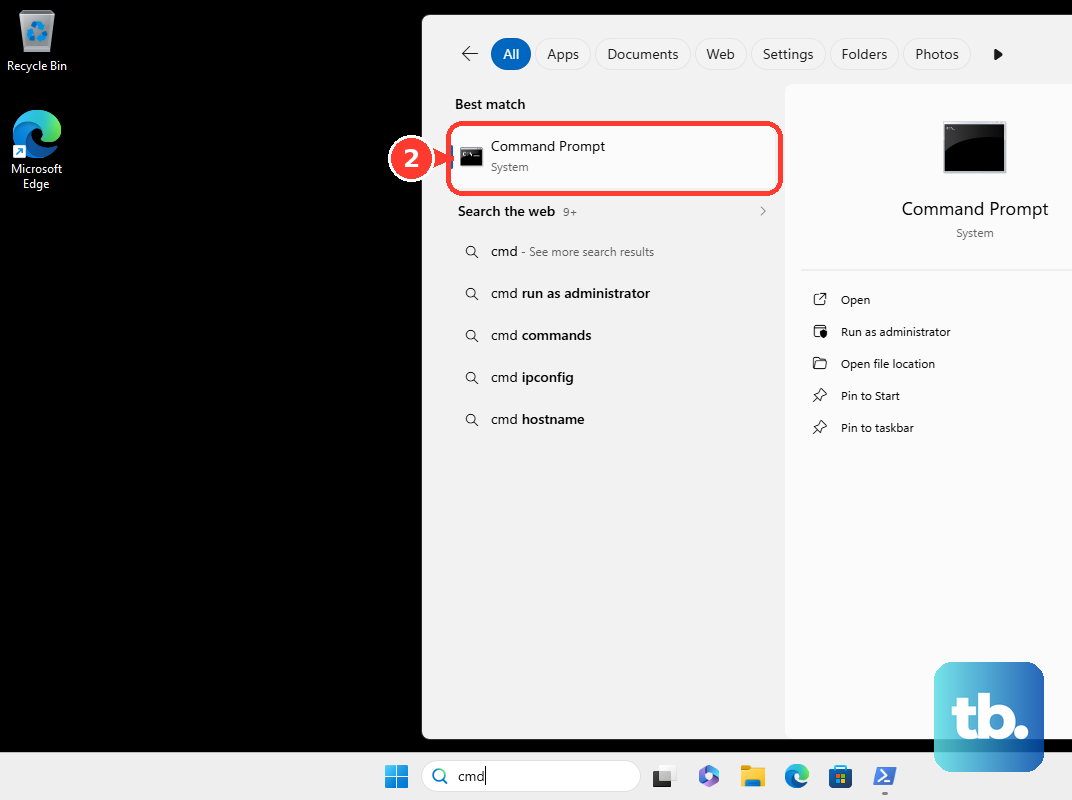
- 3.Search Windows for CMD, right-click Command Prompt, and select Run as administrator.
- 4.Enter
msiexec /ifollowed by a space and the copied, quoted path. For example, usemsiexec /i "C:\Users\YourName\Downloads\EpicInstaller.msi", substituting your actual filename and location. - 5.Press Enter to start installation.
Check access to the installation folder
These checks address a destination your account cannot read or write to. Right-click the intended installation folder and open Properties > Security. Select your username under Group or user names.
Check that Allow is selected for both Read and Write. If either permission is missing, ask the folder’s administrator to correct access, or choose an accessible destination using the EXE procedure below. For Epic’s current .exe installer, right-click the downloaded file. On Windows 10, hold Shift while right-clicking.
Select Copy as path, then search Windows for cmd. Open Command Prompt. Enter the quoted installer path followed by a space and /installdir. For example, use "C:\Users\username\Desktop\EpicInstaller.exe" /installdir, substituting your file’s path.
Press Enter, then select the custom installation location when the installer opens. The /installdir procedure applies to Epic’s EXE installer; Epic does not document it for MSI files.
Make room on the destination drive
Open File Explorer > This PC. Check free space under Devices and drives. Epic’s launcher system requirements list 3GB of storage, so keep at least that much free on the destination drive.

On Windows 11, open Start > Settings > System > Storage > Cleanup recommendations. Review Temporary files and the other categories for unwanted items. Select those items and choose Clean up.
On Windows 10, search for and open Disk Cleanup. Select the affected drive and choose OK. Review and select the unwanted file categories.
Choose OK > Delete files. Retry installation after cleanup finishes.
Test security software and background conflicts
Use these tests when security software blocks the installer or background applications interfere with setup. Epic identifies 360 Total Security as a confirmed antivirus example.
Temporarily pause protection using your third-party antivirus app’s protection controls. The exact labels depend on the product. Run the official Epic installer again, then re-enable antivirus protection after the attempt.
If Microsoft Defender scanning is the identified blocker, open Windows Security > Virus & threat protection > Manage settings > Add or remove exclusions. Select Add an exclusion > File and choose the trusted official installer. Retry installation, then select the exclusion you added. Choose Remove after the attempt.
For a broader background-software conflict, sign in to Windows as an administrator. Search for msconfig and open System Configuration. Under Services, select Hide all Microsoft services. Record which remaining services are enabled so you can restore them afterward.
Select Disable all, then select Apply. Under Startup, select Open Task Manager. Record the enabled startup items. Windows 11 calls this tab Startup apps.
Disable those startup items and close Task Manager. Select OK in System Configuration, then restart Windows. Retry the Epic installation.
If Windows now reports that Windows Installer could not be accessed, search for Computer Management and open Computer Management. Expand Services and Applications > Services. Right-click Windows Installer and select Start. Retry installation.
After testing, restore Normal Startup in System Configuration. Re-enable the services you disabled, then re-enable the startup items you disabled.
Repair a launcher that is already installed
This addresses a damaged existing installation or previous-installation records that block setup. Download the current installer using Install on Epic’s official download page. Run the installer.
Select Repair when offered. This option requires an existing installation; Epic also identifies updating an earlier version as a possible outcome when Repair is absent.
On Windows 10, open Microsoft’s installation and removal troubleshooting page if broken previous-installation records prevent setup. Open the Windows 10 instructions, then select Download troubleshooter. Select Run or Open when prompted.
Follow the tool’s installation or removal troubleshooting prompts, then retry the Epic installation. If the tool requests an MSI product code for an unlisted application, ask the device administrator for assistance.
On Windows 11, follow the installation troubleshooting recommendation if Windows displays one after installation or removal fails. Microsoft provides no universal manual launch path for that recommendation.
Reset Microsoft Store when it will not open
A cache problem is one cause to address when Microsoft Store will not open. Press Windows + R, enter wsreset.exe, and select OK. Wait for the temporary Command Prompt window to close and Microsoft Store to open.
Sign in to your Microsoft account in Microsoft Store. On Windows 11, select Library > Get updates. On Windows 10, use See more > Downloads and updates > Get updates in the Store layout with those controls. Search for Epic Games Store and select Install to retry installation.
Send Epic support an installation log
If the matching fixes still fail, gather an installation log for your .msi package. Place the installer in C:\, keeping its exact filename.
Press Windows + R. Enter msiexec /i "C:\actual-installer-name.msi" /L*V "C:\EpicGamesInstallerLog.txt", replacing actual-installer-name.msi with your file’s name. Press Ctrl + Shift + Enter to run it as administrator.
Reproduce the installation failure. Attach C:\EpicGamesInstallerLog.txt to your Epic support ticket. This logging command does not apply directly to an .exe installer.
On a work, school, or family-managed PC, ask the device administrator to authorize installation if your account cannot approve the Windows permission prompt. Have the administrator review installation restrictions when device policy blocks setup.
Frequently Asked Questions
Does allowing apps from anywhere switch Windows out of S mode?
No. Changing the app-source setting does not switch Windows out of S mode. Microsoft provides a separate Switch out of S mode page in Microsoft Store. Switching is free and permanent.
Will uninstalling the launcher remove my games?
Epic warns that its launcher uninstall-and-reinstall process removes installed games. Protect local saves before uninstalling.
Should I install old Visual C++ packages or use the prerequisite-skip switch?
For an identified Visual C++ prerequisite failure, Epic points to Microsoft’s latest supported Visual C++ downloads. Install the current v14 package matching the failing component’s architecture for components built with Visual Studio 2015 or later. Older runtimes install side by side, so add one only when the failing component specifically requires it. Microsoft lists the historical 2010–2015 packages as unsupported legacy versions. Epic’s -SkipBuildPatchPrereq switch applies to an already-installed launcher with prerequisite or self-update errors, not a fresh MSI setup wizard.
Can I install the current launcher on Windows 7 or 32-bit Windows?
The current Windows launcher requires Windows 10 64-bit or Windows 11. Epic ended launcher support and updates for Windows 7, Windows 8, and 32-bit Windows in June 2024. Use a supported 64-bit operating system for the current launcher.











