Epic Games Launcher won't open, shows a blank screen, or keeps sending you back to sign-in. Start with a full restart, then follow the fix that matches your symptom on Windows or Mac. Leave reinstallation until last, because Epic warns that it removes installed games.
Give the Launcher a fresh start
On Windows, fully close Epic before opening it again.
- 1.Open the system-tray chevron on the taskbar.
- 2.Right-click the Epic icon and select Exit.
- 3.Reopen Epic Games Launcher. Restarting also lets it detect available updates.
- 4.If it remains stuck, right-click the taskbar and open Task Manager. Under Processes, right-click Epic Games Launcher, select End Task, and reopen it.
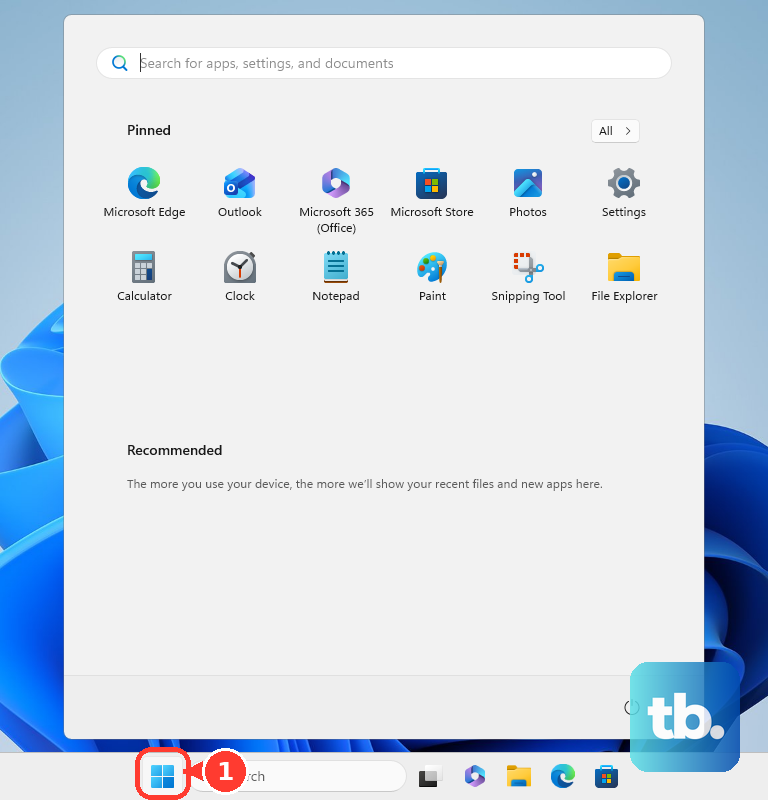
- 5.If it still won't open, select Start > Power > Restart.
Check whether Epic is down
Open Epic’s server-status website and check the services associated with your problem. If an incident affects the service you need, wait for Epic to resolve it before retrying.
If no incident explains the failure, test another internet connection. Connect your computer to the router using Ethernet, or try a mobile hotspot, which Epic recommends for a blank Launcher.
For a home connection that still fails, turn off your computer. Disconnect power from the modem and router for at least one minute. Reconnect their power and wait for the lights to return. Then start your computer.
Test a web page. If changing connections or restarting your network doesn't help, clear the Launcher’s web cache using the Windows or Mac steps below.
Clear the Windows web cache
This targets blank screens, display errors, and damaged cached sessions. Right-click the Launcher’s system-tray icon and select Exit. Press Windows+R. Enter %localappdata% and press Enter.
Open EpicGamesLauncher > Saved. Delete only the folders named webcache, webcache_4147, and webcache_4430 that are present. Reopen the Launcher to check whether it loads correctly.
Remove the Mac web cache
A damaged web cache is a cause of Launcher loading and display problems on Mac. Quit the Launcher with Command-Q. If it is unresponsive, press Option-Command-Esc. Select Epic Games Launcher in the force-quit window.
Click Force Quit. In Finder, select Go > Go to Folder.... Enter ~/Library/Caches/com.epicgames.EpicGamesLauncher to open the cache location. Move the webcache folder to Trash.
Check Trash for anything you still need before emptying it. Control-click Trash and select Empty Trash. Open the Launcher again. If it remains unresponsive, select Apple menu > Restart.
Update the Launcher or repair its installation
Use the built-in update control when Epic opens, or its official installer when it doesn't.
- 1.If the Launcher opens, select the Settings icon beside your profile in the top-right corner, then open Settings.
- 2.Select RESTART AND UPDATE when displayed. On Windows, complete the User Account Control prompt if required.
- 3.If you cannot reach Settings, open Epic’s official download page on the affected PC or Mac and download the installer offered for your device.
- 4.Run the downloaded installer. On Windows, select Repair when offered. Epic says that when this option is absent, the installer is updating an older installed version.
Adjust Windows display scaling
Windows display scaling is a cause of blank or incorrectly displayed Launcher windows. For those symptoms, right-click the Launcher shortcut and open Properties > Compatibility > Change high DPI settings. Check Override high DPI scaling behavior, leaving Application selected.
If the Launcher shows a mobile-style interface, right-click your desktop and select Display settings. Set the display scale to 100% in the scale and layout controls. Restart the Launcher to test the change.
For graphics-related crashes or rendering failures that continue, open DxDiag. Identify your GPU under Display > Device > Name.
Download the matching driver for your GPU and operating system from NVIDIA, AMD, or Intel. For NVIDIA’s Manual Driver Search, Epic specifies Game Ready Driver. Install the downloaded graphics driver.
Break a browser sign-in loop
Use these steps when Epic authentication repeats in your browser or fails while you use a VPN. They address browser sign-in, not a desktop Launcher that won't start.
Open the Epic login page in a private or Incognito browser window. Retry signing in. If the loop continues, try signing in through a different browser.
To clear Chrome’s sign-in data, open More > Delete browsing data. Set the time range to All time. Select Cookies and other site data and Cached images and files. Click Delete data.
Retry Epic sign-in. If you use a VPN or proxy service, disconnect it through that application’s disconnect control. Test sign-in again.
Reinstall the Launcher as a last resort
Epic warns that reinstalling the Launcher removes installed games. On Windows, exit the Launcher before running the system-file repair commands below.
Open Command Prompt using Run as administrator and run DISM.exe /Online /Cleanup-image /Restorehealth. After it finishes, run sfc /scannow. Restart your computer.
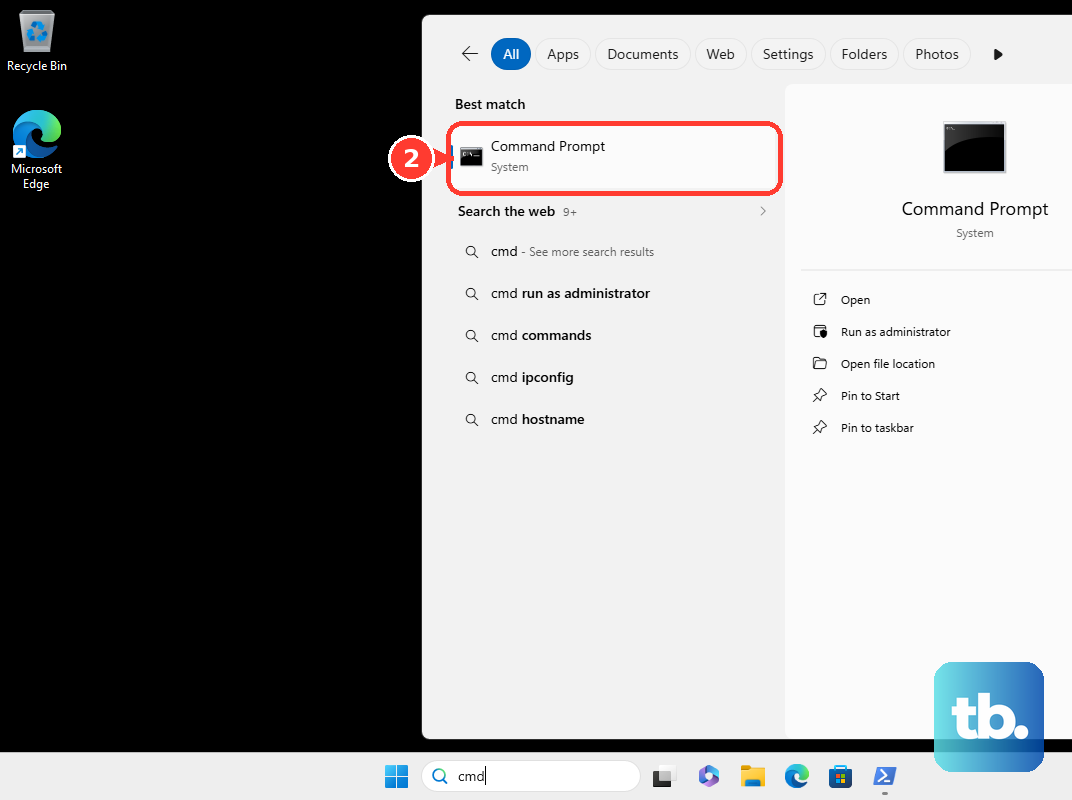
Search for Add or Remove Programs, select Epic Games Launcher, and choose Uninstall. Install a fresh copy from Epic’s official download page.
On Mac, quit the Launcher and check Activity Monitor for remaining Launcher processes before moving the app from Applications to Trash. Remove only remaining Launcher-specific items from ~/Library/Application Support, ~/Library/Caches, ~/Library/Preferences, ~/Library/Logs, and ~/Library/Cookies. Install a fresh copy from Epic’s official download page.
Get help with a failure that persists
Open Epic Support Assistant and describe the exact error and the fixes you've tried. Follow its troubleshooting prompts.
For a Windows Launcher that won't open, press Windows+R to retrieve its existing logs. Enter %localappdata%\EpicGamesLauncher\Saved\Logs\ and select OK.
If the Windows Launcher opens, select the account icon and open Settings. Select Enable Debug Logging > Enable Now. Reproduce the problem. Return to Settings > Show Logs.
Attach the latest Launcher log to your support ticket. Clear Enable Debug Logging afterward. If the assistant’s troubleshooting doesn't resolve the problem, use it to open an email or live-chat ticket with your error, attempted fixes, and requested logs.
Frequently Asked Questions
Why is my game Library missing?
Open the Settings icon beside your profile, select Settings, and clear Hide Game Library. If individual games are missing, open Library > Filters, uncheck Installed, select Reset, and click Refresh beside the Library heading. Sign in with the account used to purchase or claim the games.
Which operating systems does Epic Games Launcher support?
Epic publishes two different current figures. Its dedicated Launcher requirements page lists Windows 10 64-bit, Windows 11, or macOS 13.5 and later, with macOS beta releases excluded, plus an Intel Core i3 or AMD FX processor, 4 GB RAM, 3 GB storage, and supported graphics hardware. Epic’s Store download page still lists a lower PC/Mac minimum spec for the same desktop app: Windows 10 64-bit, Windows 11, or macOS 10.13 and later, an Intel Core 2 Duo or AMD Athlon 2x2 processor, 2 GB RAM, and 1.5 GB storage. Plan around the higher Launcher-specific figures, because those are the ones behind the minimum Operating System (OS) requirements are not met message Epic documents for unsupported systems; treat the download-page numbers as the store-wide floor rather than a guarantee that the current Launcher will run.
What if the Launcher opens but a game will not start?
Open Library, select the game’s three-dot menu, then choose Manage > Verify. Wait for validation and repair to finish. This repairs the game’s files.
Can I play my Epic games during an internet outage?
Yes, for eligible single-player games already installed on your device. The Launcher enters Offline Mode automatically when started without internet access or when connectivity is lost. Online features remain subject to connection requirements.











