GlobalProtect won't connect, and the message says it cannot reach its own service. Start with the local background service, PanGPS, before changing your password or VPN portal. The Windows and Mac fixes below take you from a quick restart to reinstalling the approved app.
Restart your computer first
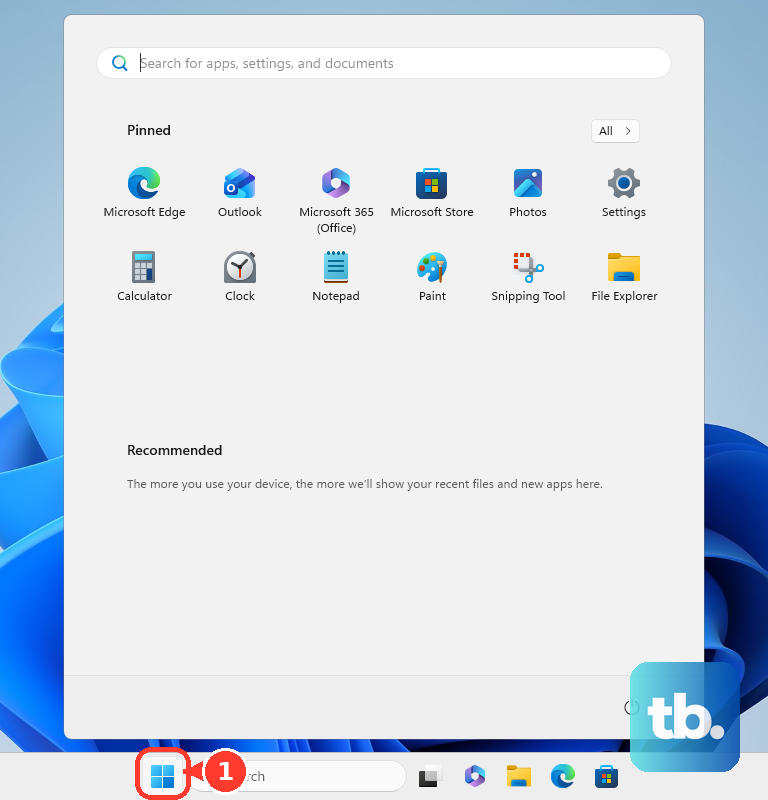
Save your work. On Windows, select Start > Power > Restart to restart the computer and GlobalProtect.
On a Mac, choose Apple menu > Restart to restart the computer and its background processes. After signing in, open GlobalProtect. Retry your connection. Tip: If the message returns, check background permission on Mac or restart the Windows service below.
If you're on a Mac, restore background permission
A disabled Palo Alto Networks background entry causes this exact error on affected Macs. Check it before reinstalling anything.
On macOS Ventura or Sonoma, open Apple menu > System Settings > General > Login Items. Under Allow in the Background, enable Palo Alto Networks.
On macOS Sequoia, open Apple menu > System Settings > General > Login Items & Extensions. Enable the Palo Alto Networks background entry if it is disabled.
On macOS Tahoe, open Apple menu > System Settings > General > Login Items & Extensions. Under App Background Activity, enable the Palo Alto Networks entry if it is present and disabled. This is Tahoe's equivalent background-permission control; separate service-start bugs require the app fixes covered below. Reopen GlobalProtect and retry your connection.
Start or restart the Windows service
Check PanGPS directly in Windows Services:
- 1.Press Windows+R to open Run.
- 2.Enter
services.mscand select OK. - 3.Find and select PanGPS. If it is missing, move to the approved reinstall below to repair the installation.
- 4.Choose Start if the service is stopped, or Restart if it is running. If Windows blocks the action, ask your help desk to perform it with administrator permissions.
- 5.Open GlobalProtect and retry your connection.
A compatible app update can fix recurring failures
If the error began after an operating-system or GlobalProtect update, check the app build next. Your organization controls which updates the app offers.
Open GlobalProtect > hamburger menu > Settings > About > Check for Updates. Install the offered, organization-approved update. If the service error prevents updating or no suitable update appears, obtain the installer from your organization portal or IT.
For macOS Tahoe, compatibility starts at 6.2.8-h4 or 6.3.3-h3 in those branches. Compatibility alone does not cover every service-start bug: 6.2.8-h9 includes fixes for failures following Tahoe 26.3 and 26.3.1 upgrades. Version 6.3.3-h9 fixes a startup failure after 26.3.1 and the exact service error on 6.3.3-h6 when pre-logon is disabled.
Ask IT for an approved release containing the relevant fix. These are fixed builds, not a list of the newest releases. If a compatible update does not restore the service, try uninstalling and reinstalling the approved GlobalProtect package.
Reinstall when the service is missing or still fails
A missing PanGPS service or an incomplete installation calls for a reinstall. Uninstalling requires administrator privileges, so get the replacement installer first.
Obtain the approved package from your organization's GlobalProtect portal or IT. There is no universal public GlobalProtect app download link.
For a Windows computer with an ARM processor, request the ARM64 installer. An incorrectly installed x86/x64 client causes this service error on affected ARM devices, including ARM-based Surface models.
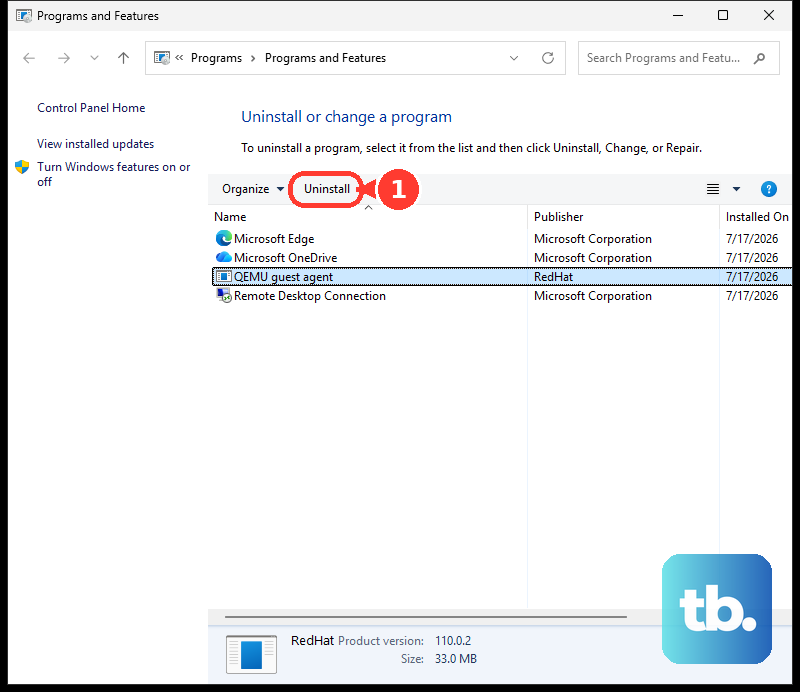
To remove the Windows app, open Control Panel > Programs > Programs and Features. Select GlobalProtect. Choose Uninstall. Confirm with Yes.
To download the Windows replacement, enter your Name and Password on your organization portal. Select LOG IN. If an applications page appears, select GlobalProtect Agent. Download the Windows package matching your computer.
Open the downloaded GlobalProtect Setup Wizard. Select Next. Keep the default installation folder. Complete the remaining Next prompts, then select Close.
To remove the Mac app, open GlobalProtect Installer. Select Continue. At Destination Select, select Continue. At Installation Type, select Uninstall GlobalProtect.
Select Continue. Select Install. Enter your User Name and Password. Select Install Software.
If prompted to remove system extensions, authenticate. Confirm the removal with OK.
To download the Mac replacement, sign in to your organization portal. If an applications page appears, select GlobalProtect Agent. Select Download Mac 32/64 bit GlobalProtect agent. Open the downloaded GlobalProtect Installer.
Select Continue. At Destination Select, choose the installation folder and select Continue. At Installation Type, select the GlobalProtect installation package check box. If IT has configured split tunneling or enforced GlobalProtect connections, also select GlobalProtect System extensions.
Select Continue. Select Install. Authenticate when prompted. Select Install Software.
Finish with Close. After installation on either platform, open GlobalProtect. Retry your connection.
When a work or school device needs IT help
If permissions block a fix or reinstalling doesn't help, open GlobalProtect > hamburger menu > Settings > Troubleshooting > Collect Logs. Send the archive to your help desk with your operating-system version and when the error began.
If the interface cannot collect logs, retrieve PanGPS.log from C:\Program Files\Palo Alto Networks\GlobalProtect on Windows. On Mac, retrieve logs from /Library/Logs/PaloAltoNetworks/GlobalProtect/ and ~/Library/Logs/PaloAltoNetworks/GlobalProtect/.
Ask IT to check whether security software blocks GlobalProtect processes or their local communication. Mention a recent Windows 10-to-11 upgrade: a driver-copy conflict that prevents pangpd.sys from installing requires investigation of the conflicting application, beyond an ordinary reinstall.
On affected Windows devices with AMD64-family processors, check PanGPS.log for SSL_CTX_new() failed: error retrieving entropy. If that entry appears, ask IT for an approved build containing fix GPC-24048, included in 6.3.3-h4 and 6.2.8-h5.
Frequently Asked Questions
Will changing my password or VPN portal fix this message?
Neither change repairs an unavailable local service. After service recovery, clear outdated credentials through GlobalProtect > hamburger menu > Settings > Sign Out, then reconnect with your current credentials. For a separate portal problem, open Settings > Connections and use the address supplied by IT.
Should I use Refresh Connection?
Use GlobalProtect > app settings menu > Refresh Connection after the local service is operational. It retries the connection and captive-portal detection, but cannot repair missing PanGPS files or an unavailable service.
Why does my organization's portal offer an older installer?
The portal supplies the package activated by your organization, which is not necessarily the newest vendor release. Ask IT for a supported, approved build compatible with your operating system and containing the fix needed for your error.
Can I fix this by turning off my firewall?
Temporary firewall testing is an administrator-guided diagnostic step. If IT directs you to test it and the connection result changes, turn the firewall back on immediately and have IT correct the blocking rule or GlobalProtect process exceptions.











