When the Windows taskbar refuses to hide, the setting is usually off, an app is demanding attention, or Windows Explorer needs a refresh. Start with the fastest Windows 11 fixes, then quiet the alerts and repair the app or system files behind the problem.
Check the auto-hide switch first
This fixes the basic setup problem: Windows 11 is not set to hide the taskbar automatically.
Right-click or press and hold an empty space on the taskbar, then select Taskbar settings. Open Taskbar behaviors and check Automatically hide the taskbar. Move your mouse to the bottom edge of the screen, or touch the bottom edge, to show the taskbar after it hides.
Clear alerts that keep it visible
Use this when the taskbar hides, then comes right back because an app wants attention. Pending notifications can pull it back onto the screen.
Select the clock or notification bell icon on the taskbar to open notification center. Press Windows key + N instead if you prefer the keyboard shortcut. Swipe from the side of the screen if you are using touch.
Select the close button on a single notification to dismiss it, or select the close button next to an app name to clear that app's notifications. Select Clear all to remove everything at once.
Stop badges and flashing buttons
Right-click an empty area of the taskbar and choose Taskbar settings. Open Taskbar behaviors, then uncheck Show badges on taskbar apps. Uncheck Show flashing on taskbar apps. If the taskbar hides normally after this, an app was keeping it visible through a badge or flashing button.
Restart Windows Explorer
This fixes a stuck taskbar shell without rebooting the whole PC.
Press Ctrl + Shift + Esc to open Task Manager. Find Windows Explorer, right-click Windows Explorer, then select Restart.
If Windows Explorer is not listed, open File and choose Run new task. Type explorer.exe and press Enter.
Quiet the app causing repeat interruptions
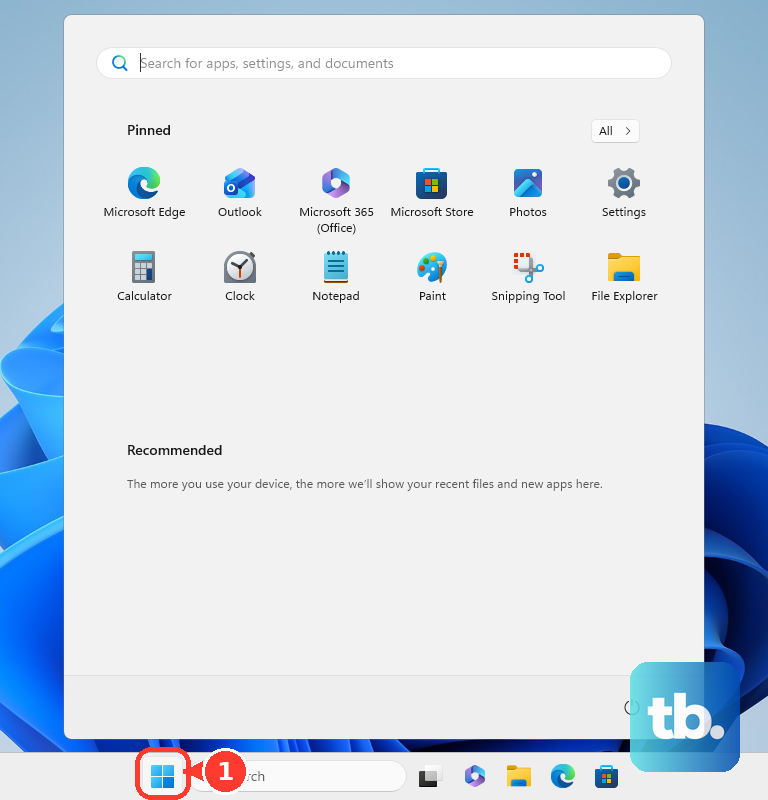
When one app keeps waking the taskbar, open Start, then Settings, then System, then Notifications. Select the app under Notifications from apps and other senders, then turn its notifications off.
For a lighter fix, turn off Show notification banners or Show notifications in notification center for that app. This leaves the app installed while reducing the alerts that can bring the taskbar back.
You can also use Do not disturb from notification center by selecting the bell icon with zZ. To configure it, go to Start, then Settings, then System, then Notifications, then Do not disturb or Set priority notifications.
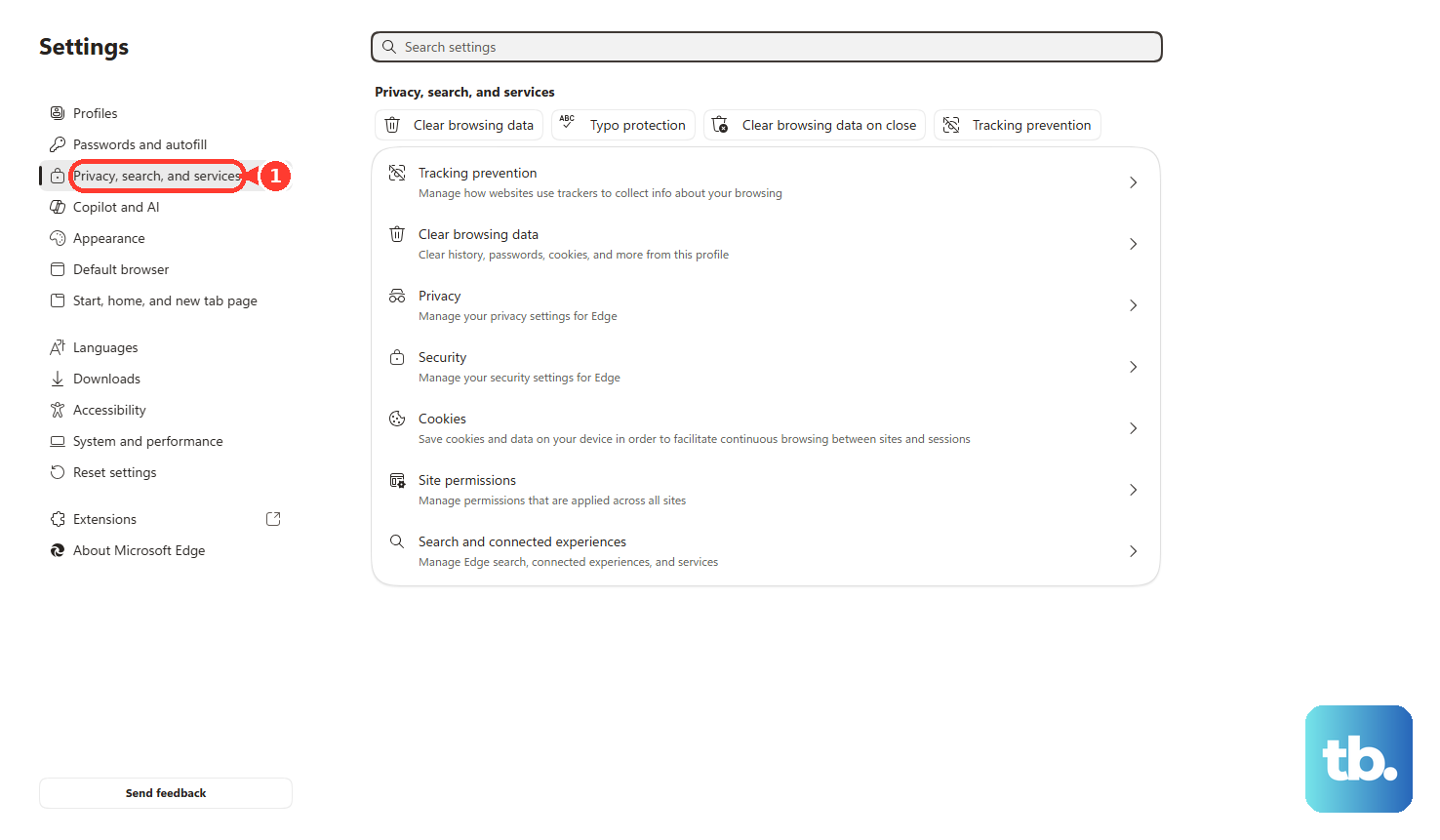
If the alerts come from a specific website in Microsoft Edge, open Settings and more, then Settings, then Privacy, search, and services, then Site permissions, then All sites. Select the website, then set Notifications to Block.
Fix Phone Link or Teams alerts
This fixes taskbar pop-ups caused by synced phone notifications or Microsoft Teams activity.
Open Phone Link and go to Settings. Open Features, then select Notifications. Customize the notification options or turn them off.
To dismiss synced notifications inside Phone Link, press X next to a notification. Select Clear All or Clear all to dismiss the synced notifications together.
In Microsoft Teams, open Settings and more and select Settings. Open Notifications and activity. Under Chats and channels and Calendar, select the dropdown next to each notification type to choose where the notification appears, or select Off to turn that type off.
Presence works differently. Select Manage notifications, then select Turn off next to any contact whose status you no longer want to track.
For app alerts, use the toggle next to the app under Apps. That section does not appear until you have added apps to Teams and received your first app notification, so skip it if you do not see it.
Update Windows and restart
The most common reason to try this later is that the setting is correct, but Windows or the taskbar process is still misbehaving.
Open Start, select Power, then choose Restart. After the restart, open Start and select Settings. Open Windows Update and select Check for Windows updates. Choose Download & install when updates are available, then restart again when Windows asks.
Repair a problem app
Open Start and select Settings. Open Apps, then select Installed apps.
Find the app that keeps triggering the taskbar and open its Advanced options. Select Repair. If the problem continues, select Reset.
Not all desktop apps support these options, so uninstall the problem app from Installed apps or from Start when Repair and Reset are not available.
Use deeper repair after the quick fixes
If the taskbar still will not auto-hide, repair Windows system files. Install the latest Windows updates first, restart, then search the taskbar for command prompt.
Right-click or press and hold Command Prompt, select Run as administrator, then choose Yes. Run DISM.exe /Online /Cleanup-image /Restorehealth, press Enter, then run sfc /scannow after DISM finishes successfully.
Press Enter, wait for Verification 100% complete, type exit, and press Enter. Older fixes that copy taskbar registry hex edits are not the supported route because Microsoft documents the taskbar auto-hide registry data as opaque binary blobs.
If this method fails, use a clean boot to isolate background services or startup apps, then re-enable items in batches until you find the conflict; on a work or school PC, ask your administrator whether taskbar settings are managed.
Frequently Asked Questions
Why does my taskbar keep coming back after it hides?
Windows is usually showing an app notification, badge, or flashing taskbar button. Clear notification center first, then turn off badges, flashing buttons, or the noisy app's notifications.
Does this work on Windows 10?
The Windows 11 auto-hide path is current. Some repair steps also apply to Windows 10, including restarting Windows Explorer, restarting the PC, installing updates, using SFC and DISM, uninstalling problem apps, and clean boot. Windows 10 support ended on October 14, 2025.
Should I edit the registry to fix taskbar auto-hide?
No. Microsoft documents the taskbar auto-hide registry data as opaque binary blobs, not as a supported consumer repair path. Use Settings, notifications, Explorer restart, updates, and system repair instead.
What if the taskbar setting is locked on my work computer?
Managed PCs can use policies such as Lock all taskbar settings or Prevent changes to Taskbar and Start Menu Settings. Contact your organization’s administrator if the setting is unavailable or keeps reverting.











