

To fax from a computer without a fax machine or a phone line, use an online fax service: upload the PDF on its website or app and type the fax number, or email the PDF to the fax address the service gives you. If you have a printer with fax on a landline, print the document to the printer's fax instead. Windows Fax and Scan can send faxes too, but at home only through a fax modem connected to a phone line.
Two things catch people out. Windows 11 no longer comes with Windows Fax and Scan installed, and Microsoft says it is not available at all on Arm-based PCs. A Mac can still fax, but Apple's steps go through a printer with fax, because Apple says macOS itself can no longer send faxes through a legacy fax modem.
On Windows 11, version 25H2, we checked what a PC shows before anything is added, where Settings now offers Windows Fax and Scan, and what Word does when you search it for fax. We also set up an email-to-fax message in Gmail with a made-up number.
The short version
- No phone line: use an online fax service, or email the PDF to the fax address your service gives you.
- Printer with fax: press Ctrl + P on Windows or choose File > Print on a Mac, then pick the printer's fax.
- Windows Fax and Scan: add it in Settings > System > Optional features. At home it needs a fax modem and a landline, and Arm-based PCs cannot add it.
- Mac: macOS can no longer fax through a fax modem on its own, so fax through a printer with fax or an online service.
- By email: in a personal Gmail account, keep attachments under 25 MB in total, or Gmail sends a Drive link instead of the file.
Which way to fax from your computer
| What you have | What you need | How you send | Phone line |
|---|---|---|---|
| Any computer with internet | An online fax service account | Upload the PDF on the service's site or app, type the fax number and send | Not needed |
| Gmail, Outlook or another email program | An email-to-fax address from a fax service | Email the PDF to the number at the service's address | Not needed |
| A printer with fax, on Windows or a Mac | The printer on a landline, with its full software | Ctrl + P on Windows or File > Print on a Mac, then the printer's fax | Needed |
| A Windows PC that is not Arm-based | Windows Fax and Scan, a fax modem and a landline | Set up a fax account in Windows Fax and Scan, then send through the modem | Needed |
| An Arm-based Windows PC or a Mac, with no printer with fax | An online or email fax service | As in the first two rows | Not needed |
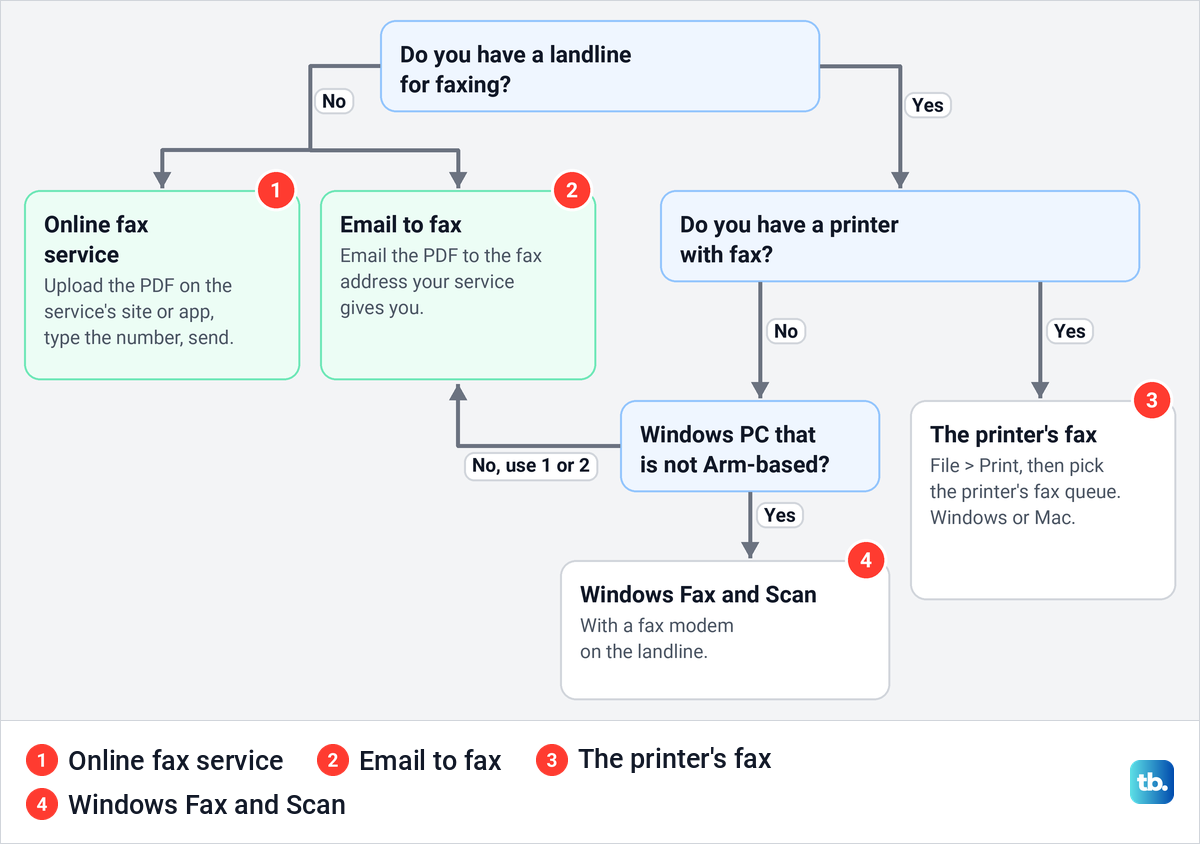
No landline means an online service or email, which work from any computer. If you already own a printer with fax on a phone line, that route needs no new account, and the chart below picks a route in three questions.
Get the document and the fax number ready
Start with the document as a PDF. It keeps the layout you see on screen, and you can upload it, attach it to an email or print it. In Word, File > Export > Create PDF/XPS Document does the job, and our guide shows how to save a Word document as a PDF.
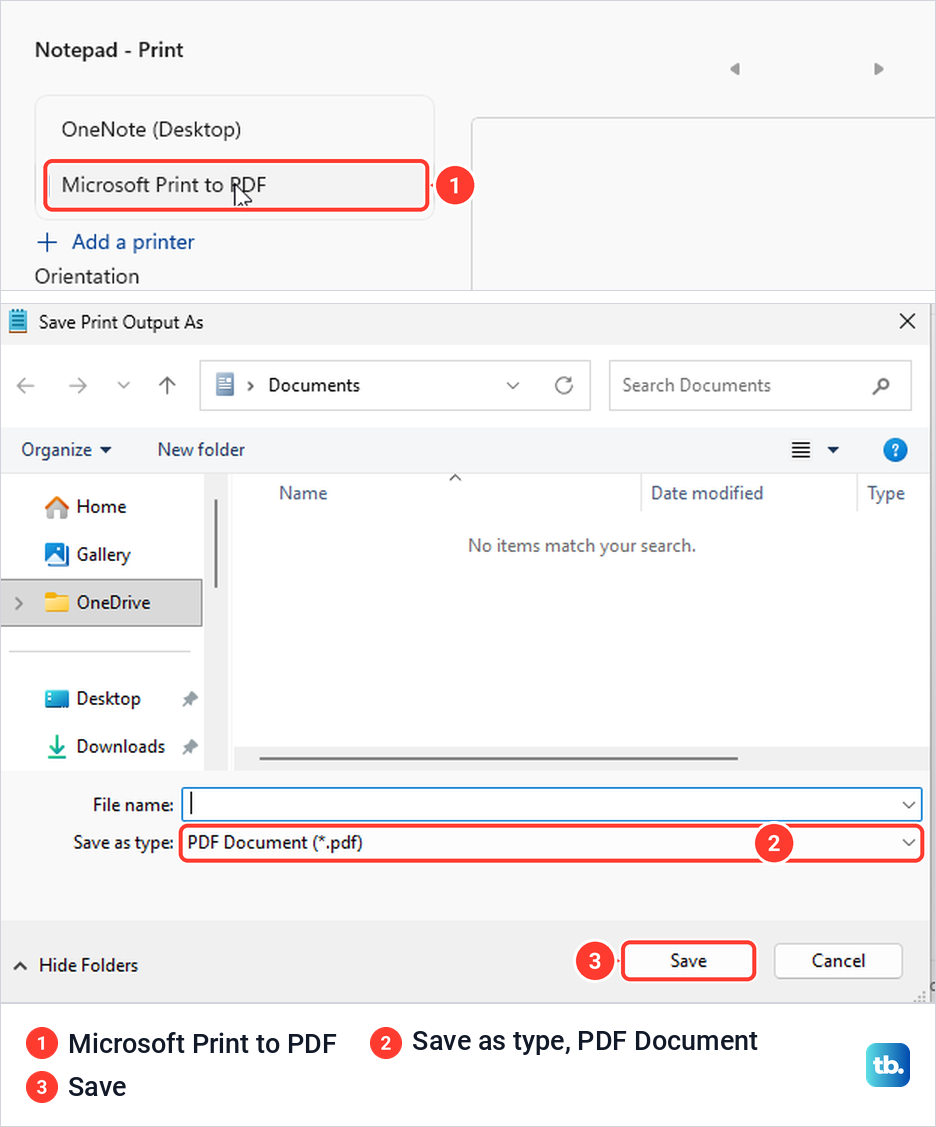
Any app that prints can make a PDF as well. Press Ctrl + P, choose Microsoft Print to PDF as the printer and select Print. In Notepad on our PC, that opened Save Print Output As with the file type already set to PDF Document, so name the file and select Save.
Our guide shows how to make a PDF on any device, phones included. If the form and its attachments are separate files, combine the PDF files into one so they arrive together as one fax.
For a paper form, scan the paper pages with your phone or a scanner first. If the office only needs your signature, you can sign the form with an e-signature service and fax the signed PDF instead of printing it.
Then write the fax number down in full, with the area code, and with the country code if it is abroad. From an office phone system, also find out the code for an outside line, which Apple's fax dialog takes in a Dialing Prefix field.
Send a fax with an online fax service
An online fax service sends the fax for you over the internet. Microsoft describes these services as a way to send faxes from a computer with no fax machine, no extra software and no dedicated phone line. It also notes that many companies offer them on a subscription basis or by charging for each fax.
You create the fax on your computer and hand it to the service, from its website or app, by email, or from an app such as Word. The service then sends it over an ordinary phone line to the fax machine at the other end. Microsoft adds that faxes can arrive while your computer is off, unlike with a fax modem.
Before you sign up, check four things on the service's own pages. Does it send to the country you need? Does it accept your file type and page count? Does it confirm delivery, and will you also need a fax number of your own to receive replies?
Once you have an account, the steps are the ones in the table above. Sign in on the service's website or app, type the fax number with its country code, attach the PDF and send. If the service gives you a record of the fax, keep it until you know the fax arrived.
Send a fax by email from Gmail or Outlook
Email to fax works through the same kind of service. The service gives you an address made of the fax number and its own domain, in a format you should copy exactly from its help page, and you email the PDF to that address as an attachment. In Microsoft's description, a fax server or gateway then turns the email into a fax and sends it over a phone line to the fax machine.
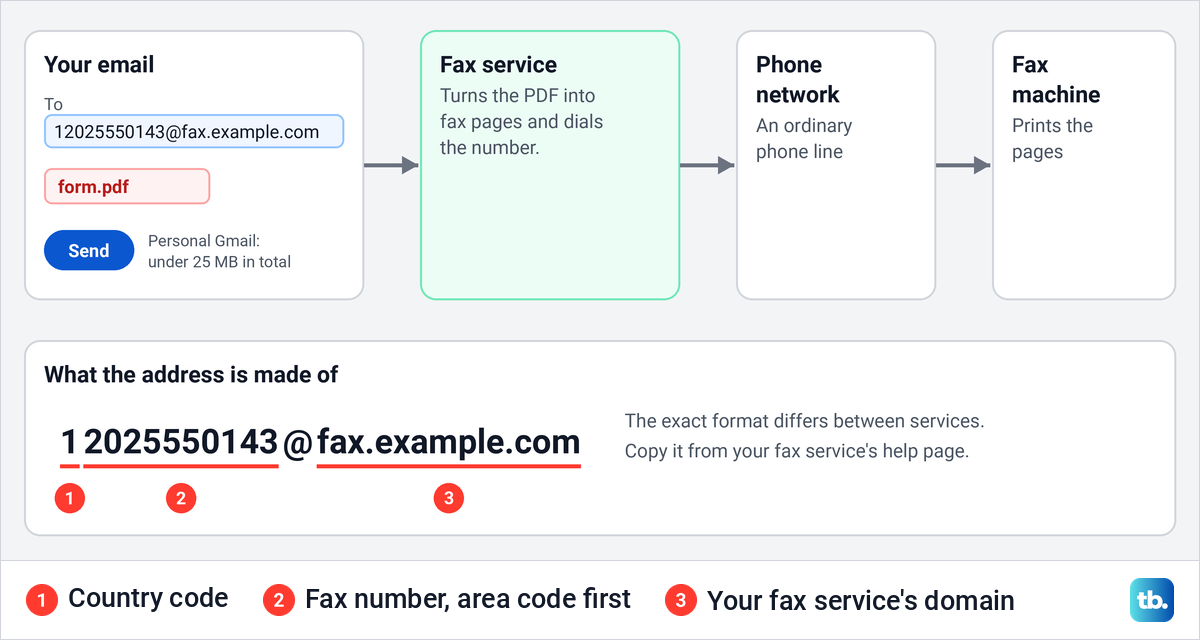
In Gmail on a computer, select Compose, type the fax address in To and add a subject. Then select the paperclip at the bottom, which Google calls Attach, choose the PDF and select Send. When we set up that message with a made-up number at the reserved example domain, Gmail showed the PDF as a chip above the toolbar, test-fax.pdf (40K).
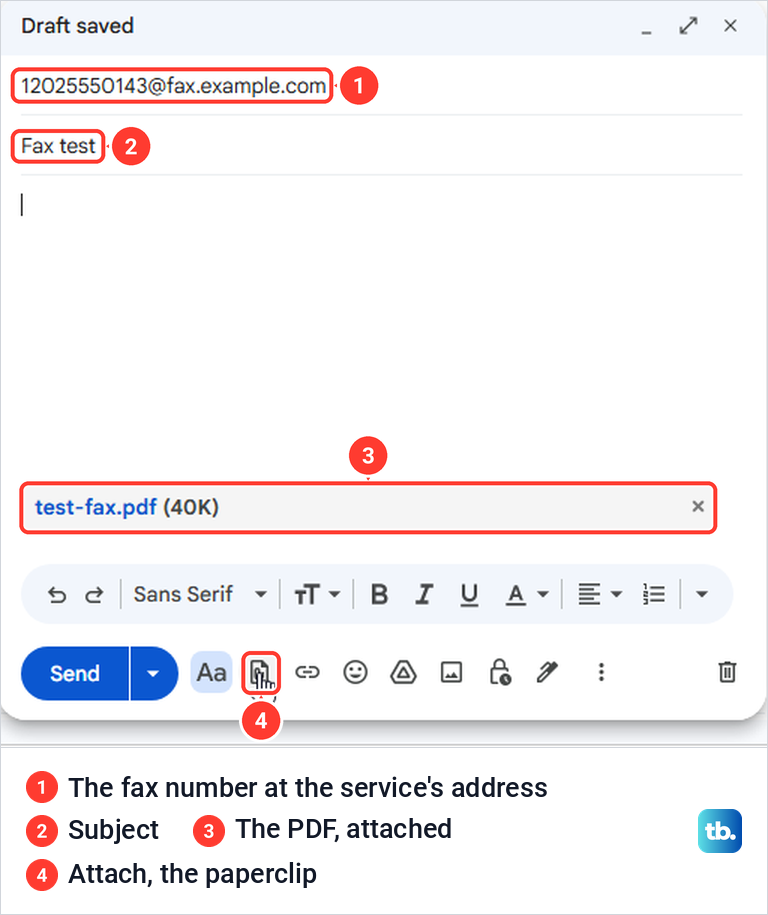
Keep the attachment small. Google says that when attachments on a personal Gmail account add up to more than 25 MB, Gmail removes the attachment and adds it as a Google Drive link instead. A fax service needs the attached file, so send a large document in parts.
Outlook or any other mail program works the same way, because the mail program only delivers the email and the service does the faxing. In the Gmail app on a phone, Google's steps are Compose at the bottom right, then Attach at the top right.
Check whether your PC has Windows Fax and Scan
Microsoft says that after Windows 11, version 22H2, Windows Fax and Scan is not preinstalled. Many instructions still tell you to open it from Start, so check first. On our PC running Windows 11, version 25H2, typing fax into Start search found no app at all, only web suggestions and the Printers & scanners setting.
The printer list is a second sign. Open Settings > Bluetooth & devices > Printers & scanners and look for a fax printer. Ours listed only Microsoft Print to PDF and OneNote (Desktop).
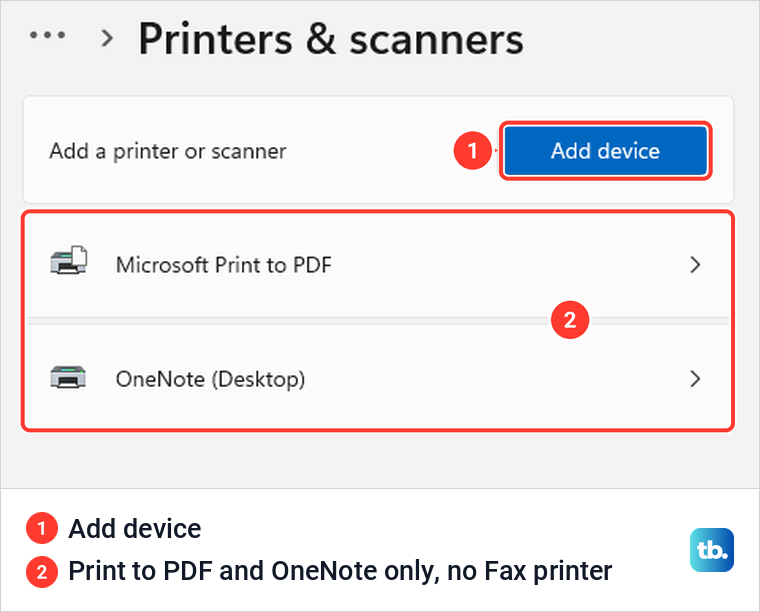
Older instructions send you to Devices and Printers in Control Panel instead. When we typed control printers into the Run box, the old shortcut to that window, Windows opened Settings > Bluetooth & devices. Printers & scanners is the place to look now.
Then check the processor, because Microsoft says Windows Fax and Scan isn't available on Windows 11 Arm-based PCs. Open Settings > System > About, expand Device specifications and read the System type line. Ours said 64-bit operating system, x64-based processor, and Settings offered the feature.
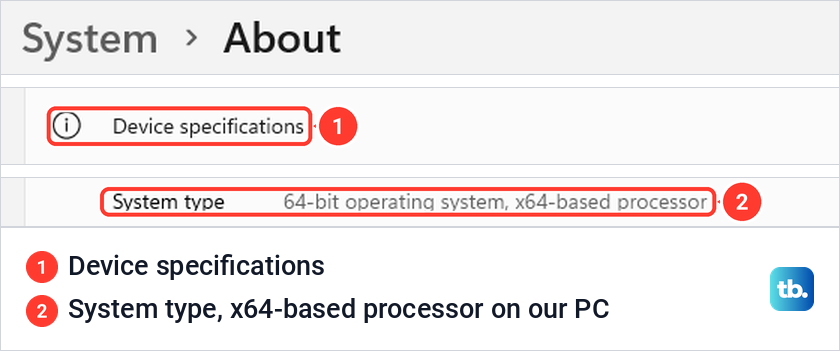
If that line names an Arm-based processor, skip Windows Fax and Scan and use an online service, email to fax or a printer with fax. Microsoft says Arm-based PCs support most printers, but whether a printer's fax software runs on one is up to the printer's maker.
Add Windows Fax and Scan in Windows 11
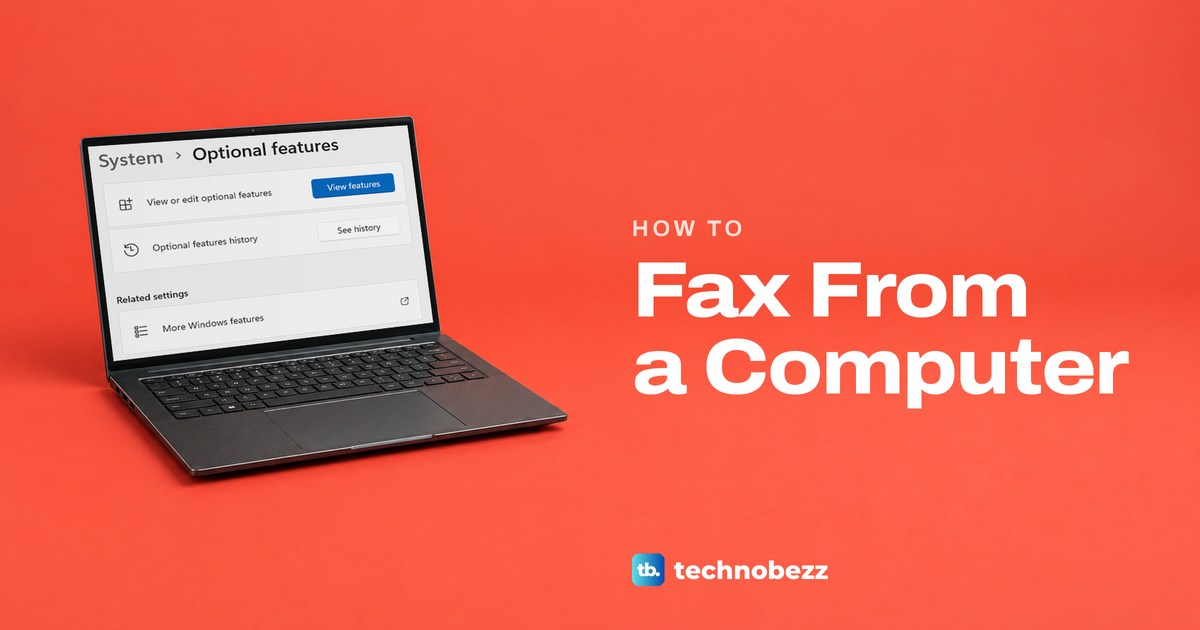
Windows Fax and Scan is now an optional feature, and Settings is where we found it. Open Settings > System > Optional features. The page on our PC had a row named View or edit optional features with a View features button, plus Optional features history and a More Windows features link.
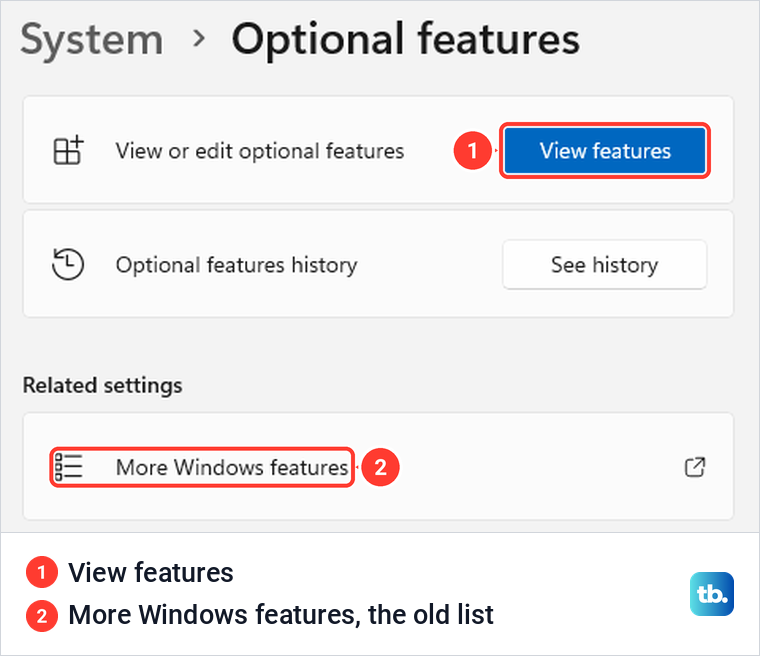
Select View features. Windows first asked us whether to allow Settings to make changes to the device, so select Yes when you see that prompt. It is Windows asking for administrator approval before it changes the PC.
The View features window opens on the features already added. Select See available features, type fax in the search box and tick Windows Fax and Scan, described as Integrated faxing and scanning application for Windows. The button at the bottom then reads Add (1), so select it.
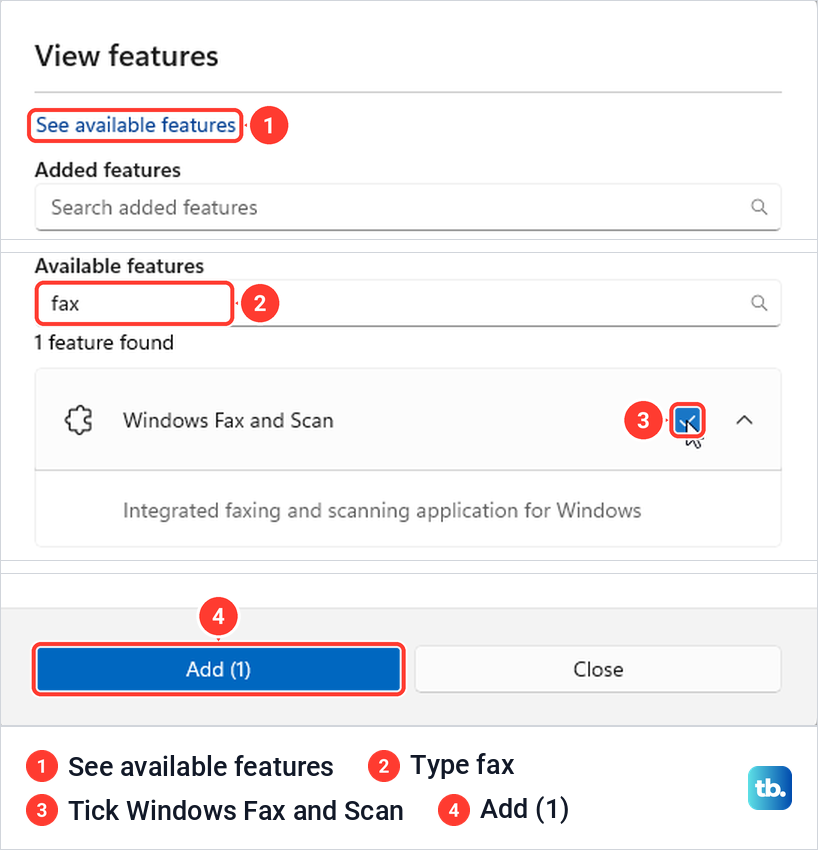
Microsoft's general steps for optional features mention an Add an optional feature row, then Next and Install buttons. None of those appeared on our PC, where ticking the feature put Add (1) at the bottom with nothing in between.
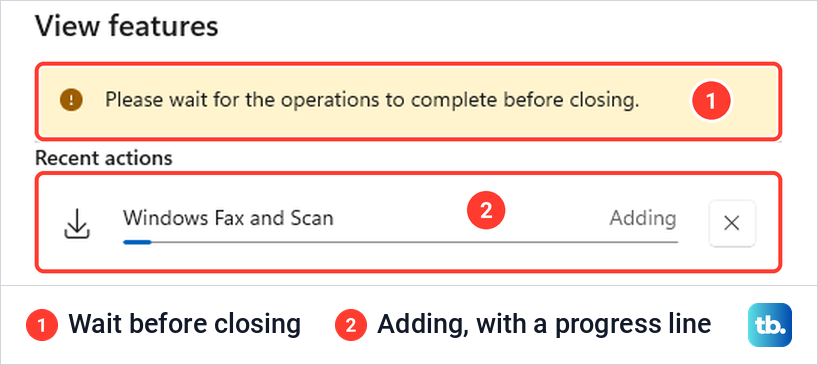
While it works, the window shows Please wait for the operations to complete before closing. The feature appears under Recent actions with the word Adding and a progress line, so keep the window open until it finishes. Afterwards, the window's Added features list is the place to check that it is there.
Do not look for it in the old Windows Features list. Microsoft's Office help still says to tick Windows Fax and Scan under Print and Document Services in Turn Windows features on or off. On Windows 11, version 25H2, that branch held only Internet Printing Client, LPD Print Service and LPR Port Monitor, even though Settings offered the feature.
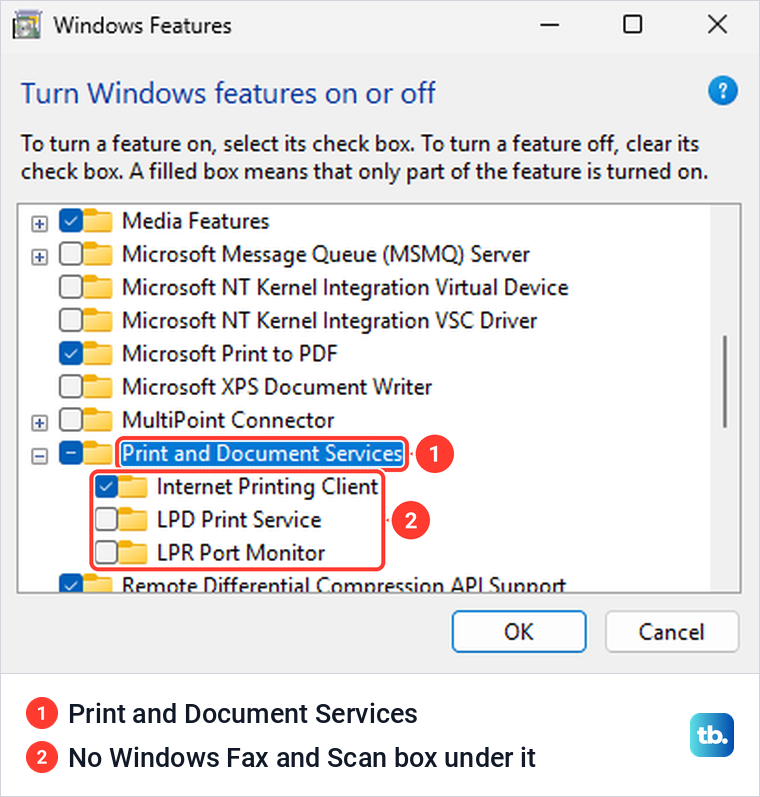
The same Office page adds that if you don't see Windows Fax and Scan in Windows Features, the feature isn't supported on your version of Windows. On our PC the box was missing while Settings still listed the feature, so check Optional features before you give up on it.
If Settings cannot add it, Microsoft's command-line tool DISM can try. Open Command Prompt as an administrator and run the line below, which combines Microsoft's Add-Capability command with the feature's capability name.
DISM /Online /Add-Capability /CapabilityName:Print.Fax.Scan~~~~0.0.1.0Microsoft's DISM documentation says that when the files are not already on the PC, DISM looks for them on Windows Update. So if the Settings entry ends with Couldn't add and DISM fails too, check for Windows updates and make sure Windows Update itself works, then try again.
The same documentation gives DISM a /Source option for a location that holds the feature's files, a shared folder on a server in Microsoft's example. Its /LimitAccess option stops DISM from checking Windows Update. If you have such a location, the line becomes the one below, with your folder in place of the placeholder.
DISM /Online /Add-Capability /CapabilityName:Print.Fax.Scan~~~~0.0.1.0 /Source:<folder with the feature files> /LimitAccessWhat Windows Fax and Scan needs to send a fax
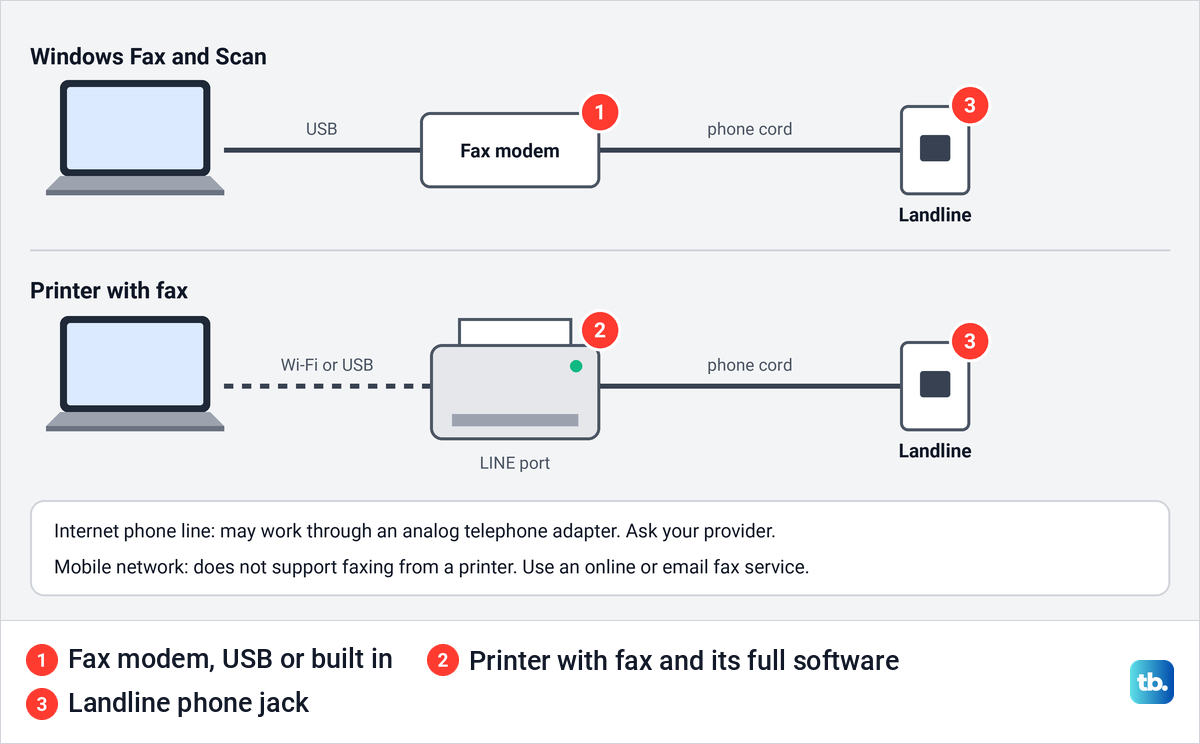
Windows Fax and Scan does not fax over the internet. Microsoft explains that a fax modem sends over a telephone line to another fax device, that the computer must be turned on and running fax software, and that this kind of faxing doesn't use the internet.
Unless your workplace runs a fax server, which Microsoft's server guide says Windows PCs can send through, you need three things: a fax modem inside or plugged into the computer, a landline for it, and a PC that stays on while faxes go out or come in. A printer with fax needs the same kind of line.
Microsoft's fax server guide, written for Windows Server 2012 but covering the same Windows Fax and Scan app, says adding a fax device needs an administrator account. Its setup steps are to open Windows Fax and Scan with Run as administrator, select Tools > Fax Accounts, then Add, and choose Connect to a fax modem on the Choose a fax modem or server page.
Windows may ask you to install the modem through the Add Hardware Wizard. You then name the fax printer, which Microsoft says is Fax Modem by default, and choose how to receive faxes, after which the new account appears in Fax Accounts. Then open Windows Fax and Scan to send your faxes, since Microsoft describes it as the place to send faxes and watch the inbox and outbox.
Fax from Word on Windows
Word for Microsoft 365 has a fax command, but not in the File menu. On our PC, File > Print, File > Share and File > Export offered no fax option.
Typing fax into Word's search box at the top of the window found it. The Actions list showed Recipient using Internet Fax Service, and selecting it opened a message saying that to use Fax Service you must first sign up with a fax service provider. The message says OK opens a web page where you can choose one.
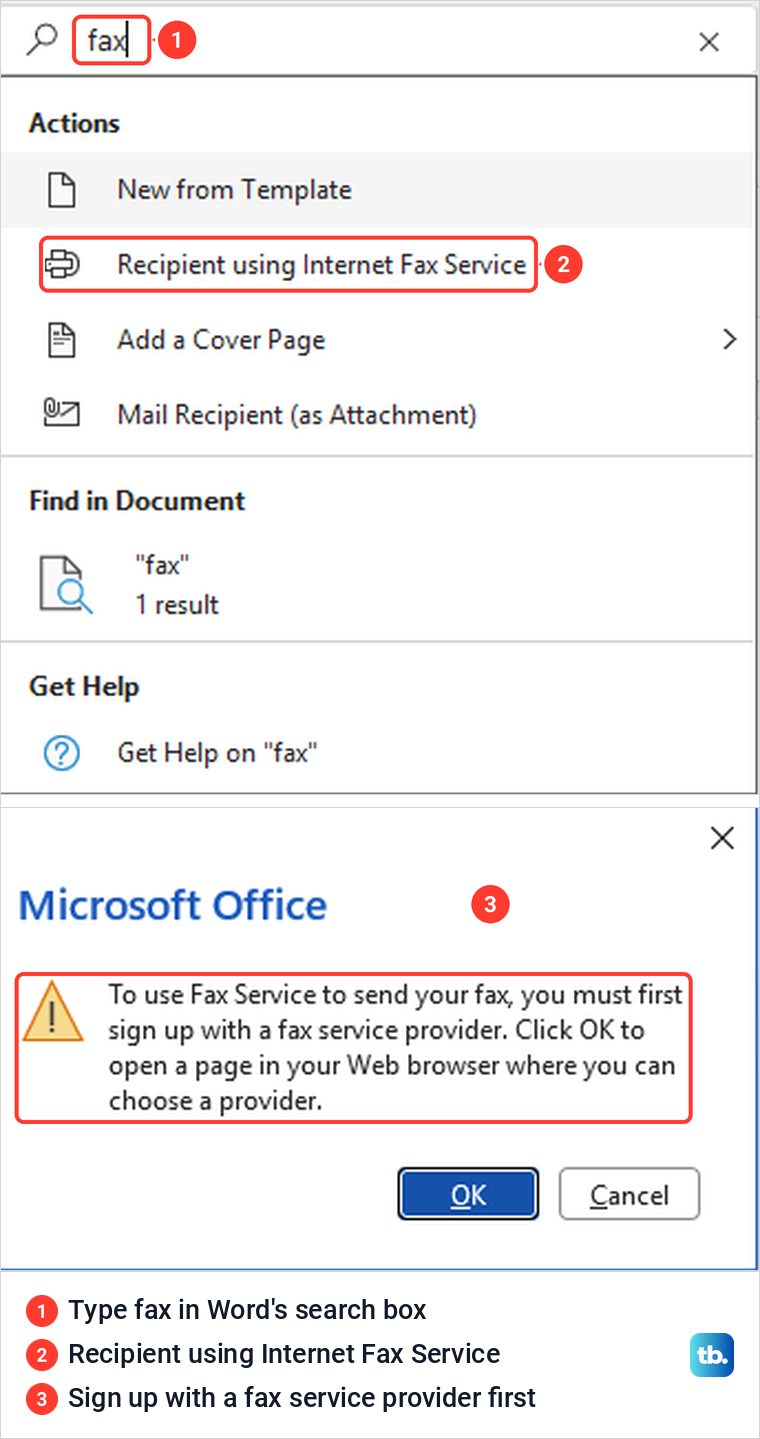
That happened with Windows Fax and Scan not installed, although Microsoft's Office help says the feature relies on it. The command points you to a fax service provider, which does the faxing. If you would rather not sign up through Word, save the document as a PDF and use one of the routes above.
Fax through a printer that has a fax line
A printer with fax needs no online account. HP says that in most cases faxing needs a traditional landline, and that before you fax from a computer the printer must be connected to the telephone line and HP's full feature driver and software must be installed.
First add the printer to Windows 11 if it is not in your printer list yet. For an HP printer, install the full HP printer software rather than a basic driver, since HP lists it as a requirement for faxing from a computer.
HP's steps on Windows are to open the document, select File > Print, choose the printer that includes Fax in its name and select Print. That opens HP's Send Fax window, where you type the fax number. HP Printer Assistant opens the same window from Print, Scan & Fax > Fax > Send a Fax.
To check the setup, HP says its printers can print a fax test report from the Fax or Setup menu on the printer. HP also runs a test line in the US: send a one-page, black and white test fax to 1-888-473-2963, and HP says the service faxes back within 5 to 7 minutes to the number in your fax header.
The printer can receive for you as well. HP says HP Digital Fax, set up from the printer software, saves incoming faxes to a folder on your computer or forwards them to your email. The HP app also has Mobile Fax, which HP says sends over the internet without a phone line, needs an HP app account and does not receive faxes.
Other printer makers have their own fax software, so follow your printer's manual for its steps. The same printer can also scan pages from the printer to your computer if you would rather send them through an online service.
Fax from a Mac
A Mac can fax, but macOS itself no longer faxes through a fax modem. Apple says that with macOS 12 or later you can no longer send faxes using legacy fax modems, and it suggests trying an internet faxing service. With a multifunction printer that supports faxing, you can still fax from the Print dialog.
Set up the printer on your Mac first. Apple's steps are to open Apple menu > System Settings > Printers & Scanners and select Add Printer, Scanner, or Fax if the printer is missing. Then choose the version of the printer software that supports faxing in the Use menu and select Add.
To send, open the document and choose File > Print. Apple's current steps say to open the Printer pop-up menu and choose your multifunction printer under Faxes, enter the number in Recipients and any outside-line code in Dialing Prefix, then select Fax. Use Cover Page adds a cover page with a subject and a message.
Apple says the top of every page carries a header with the date and time the fax was sent, a page number and the sender's fax number from Printers & Scanners settings. Some older guides still tell you to choose Fax PDF from the PDF menu, which is how Apple's macOS 12 instructions worded it.
Faxing over internet phone, DSL or a mobile line
Printer faxing assumes an ordinary landline. On an internet phone line (VoIP), HP says faxing may work depending on the provider and the line quality. It needs an analog telephone adapter, and HP recommends turning on error correction mode and setting the slowest transmission speed.
With DSL internet on the same line, HP suggests a microfilter on the phone cord that goes to the printer. Mobile networks are out, since HP says cellular networks currently do not support faxing from a printer.
Before buying an adapter, ask your phone provider whether it supports fax over IP, a standard called T.38. If it does not, an online or email fax service avoids the line question altogether.
When a fax will not go through
For email to fax, check the address character by character against your service's format. Then check the attachment, because in a personal Gmail account, attachments over 25 MB in total become a Drive link rather than an attached file. If the email never leaves your outbox, the problem is the email, not the fax, so see what to do when Gmail is not sending emails.
For Windows Fax and Scan, confirm that the PC is not Arm-based, that the feature is added and that the modem's cord goes into a working landline. Set the fax account up from an administrator account, which Microsoft's fax server guide says adding a fax device needs.
For a printer, print the fax test report described above. HP says it lists the results and instructions for any problem it finds.
How we tested this guide
We tested this on Windows 11, version 25H2, making a PDF with Microsoft Print to PDF and setting up an email-to-fax draft in Gmail on the web.
Frequently Asked Questions
Can I fax from my computer without a phone line?
Yes. An online fax service or an email-to-fax address sends the fax over the internet, and the service dials the fax machine at the other end. Windows Fax and Scan and a printer's fax both need a phone line.
Can I fax from my computer for free?
Sometimes. Windows Fax and Scan and a printer with fax need no fax service, so you pay no service fee if you already have a landline and a fax modem or a printer with fax. Microsoft describes online fax services as offered by subscription or by charging for each fax, so check a service's own pages for any free allowance before you sign up.
Does Windows 11 come with Windows Fax and Scan?
Not on current versions. Microsoft says that after Windows 11, version 22H2, it is not preinstalled, and on our PC running version 25H2 it was offered under Settings > System > Optional features instead. It is not available on Arm-based PCs.
Does Windows Fax and Scan work over the internet?
No. Microsoft explains that fax modem faxing uses a telephone line and doesn't use the internet, so on a home PC you need a fax modem and a landline. To fax over the internet, use an online or email fax service.
Can I send a fax from Gmail or Outlook?
Yes, to an email-to-fax address from a fax service. Gmail and Outlook only send the email, and the service turns the attachment into a fax.
Can a Mac send a fax?
Yes, through a multifunction printer that supports faxing. Choose File > Print, then your printer under Faxes in the Printer menu. Apple says current macOS can no longer send faxes with legacy fax modems, so without such a printer, use an online or email fax service.
Can I fax over a VoIP or mobile phone line?
HP says VoIP may work with an analog telephone adapter, error correction mode on and the slowest speed. It also says cellular networks currently do not support faxing from a printer, so on a mobile line use an online or email fax service, which needs no phone line.