You hit Send, but the email never leaves. Maybe it sits in your Outbox, maybe it vanishes without a trace, or maybe a confusing bounce-back message lands in your inbox a few hours later. Either way, the message is not reaching the person you meant to reach.
Gmail usually fails to send for a small, predictable set of reasons: a weak connection, offline mode quietly holding your mail, an oversized attachment, full Google storage, a sending limit, or a problem on the recipient's side. The good news is that most of these have quick, reliable fixes.
Work through the checks below in order. They are arranged quickest and most common first, so the earliest steps solve the majority of cases before you ever touch app settings.
Check Your Connection and Confirm the Email Actually Failed
Gmail cannot send anything without an active connection, and a slow connection can simply make sending take a while rather than fail outright. Before changing any settings, rule this out.
Confirm you are connected to Wi-Fi or mobile data, and give a slow connection a minute to catch up.
Open both Sent Mail and Drafts.
If the email is in neither place, it may have been deleted before sending and never went out, so you will need to write it again.
Wait a few hours to see whether a delivery-error (bounce) message arrives, which would tell you exactly what went wrong.
If the message is sitting in your Outbox, the connection or offline-mode fixes below will clear it.
Turn Off Gmail Offline Mode on the Web
On a desktop browser, Gmail's Offline Mode holds composed messages in the Outbox until you reconnect or switch it off. If your mail is stuck on the web, this is the most likely culprit.
- 1.In Gmail, click the gear/Settings icon in the top-right corner.
- 2.Click "See all settings".
- 3.Open the "Offline" tab.
- 4.Uncheck the "Enable offline mail" checkbox.
- 5.Click "Save Changes" and reload the page. Queued messages should send once you are back online.
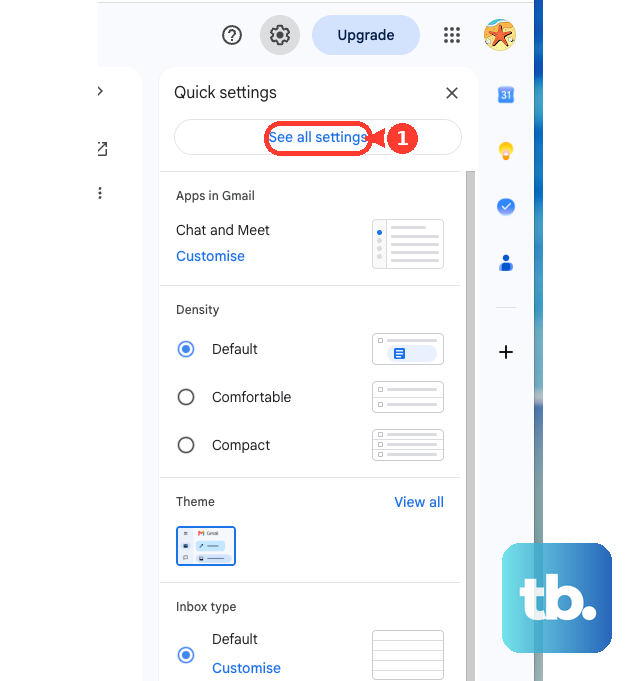
One thing worth knowing: Gmail offline only works in a regular Chrome window, never in another browser and never in a Chrome Incognito window. If you were expecting offline behavior elsewhere, that is why it did not work.
Fully Clear Gmail Offline Data in Chrome
Simply unchecking the box does not always clear the underlying offline data. Google's official off procedure is to remove that data first, then disable the setting.
In Chrome, go to More (three-dot menu) > Settings > Privacy and security > Third-party cookies.
Click "See all site data and permissions".
Then choose "Delete all data" and confirm.
Return to Gmail's offline settings and uncheck "Enable offline mail".
Nudge the Outbox on Mobile
On both Android and iPhone, queued mail often just needs a nudge to start sending once you are back online.
Open the Gmail app and tap the hamburger menu (three horizontal lines).
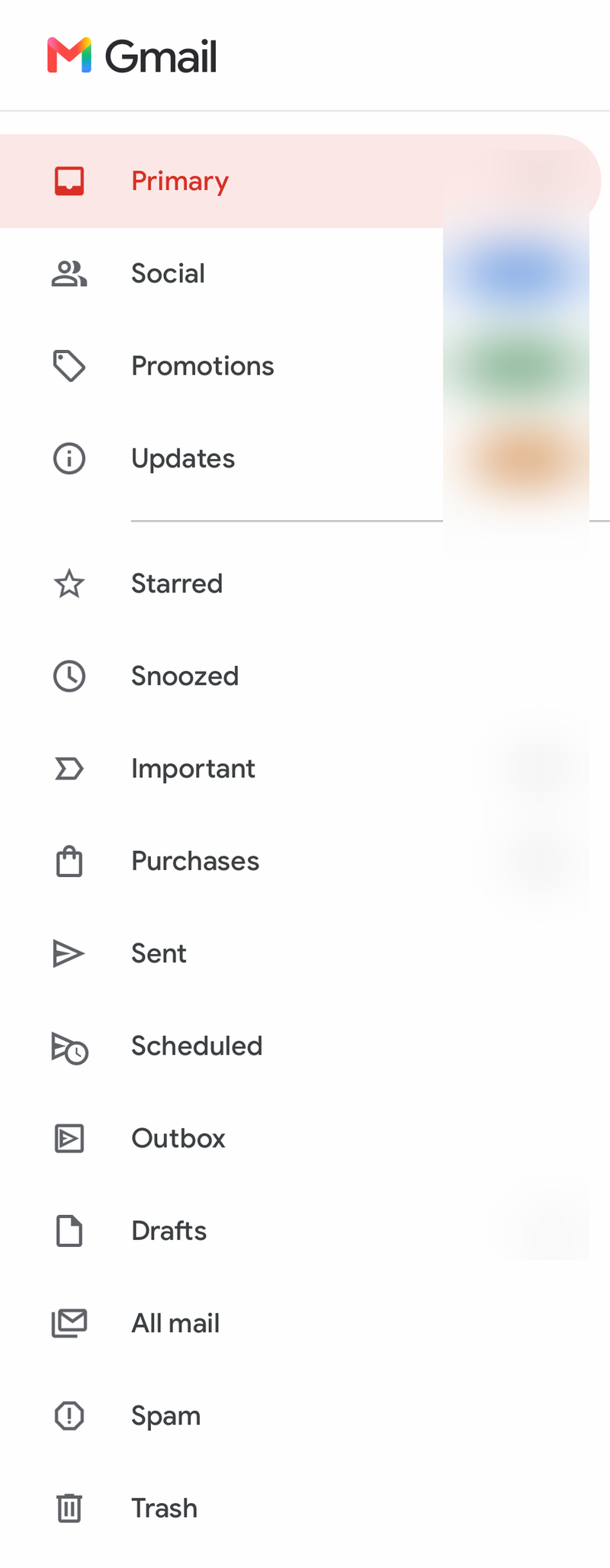
Tap "Outbox".
Refresh the view, or close and reopen the app, once you are back on a stable connection so the queued message can send.
Allow Background Data on Android
Android disables background data by default to save battery, and Data Saver can do the same. Either one can silently queue your outgoing mail in the Outbox until you grant permission.
Long-press the Gmail app icon and tap the info (i) icon, or open Settings > Apps > Gmail.
Open the app's mobile data or data usage settings.
Allow background data usage.
Allow data usage while Data Saver is on.
The exact wording and menu names vary by phone manufacturer and Android version, so the labels above may read slightly differently on your device.
Shrink Attachments Below 25 MB
Gmail caps attachments at 25 MB, and anything larger will not go through on any platform.
Check the total size of everything you attached.
If you are over the limit, remove or compress files, or send large files via Google Drive instead.
Free Up Google Storage
Your 15 GB of Google storage is shared across Gmail, Drive, and Photos. If it is full, even with Drive files or photos, Gmail will not send your message until you make room.
Delete large emails and attachments, unneeded Drive files, or photos.
Alternatively, upgrade to a larger Google One plan, then retry sending.
Clear the Gmail App Cache (Android)
A corrupted cache can cause odd sending behavior on mobile. On Android you can clear it directly.
Open Settings > Apps > Gmail > Storage, or long-press the Gmail icon > info (i) > Storage & cache.
Tap "Clear Cache".
Relaunch the app. This does not delete your account data; the cache rebuilds automatically.
If the problem persists, you can use "Clear Data", which resets the app's data.
Clear the Cache by Reinstalling (iPhone)
iOS has no in-app cache-clear option, so the equivalent is to reinstall the app.
Delete the Gmail app, then reinstall it from the App Store to clear its cache.
Update the Gmail App
An outdated app can carry bugs that interfere with sending. Keeping it current is a quick fix on either platform.
On Android, open the Google Play Store, search for "Gmail", and tap "Update" if it appears.
On iPhone, open the App Store, check for available updates, and tap "Update" next to Gmail if one is offered.
Send From Gmail Directly, Not a Third-Party Client
If you compose in Apple Mail, Outlook, or another third-party client, the failure may live there rather than in your account.
Try sending the same message from mail.google.com or the Gmail app instead.
If it goes through there, the issue is with the other client's setup.
Read and Act on the Bounce-Back Message
When Gmail rejects or returns a message, the automated email it sends back tells you precisely what to fix. Open it and read the error text, then match it below.
"The email address doesn't exist": fix typos, and remove quotation marks, trailing dots, and any spaces around the @ sign.
Flagged as spam or temporarily rejected: remove suspicious links or attachments, and use Google Groups for very large recipient lists.
"You have reached a limit for sending mail": on a personal account you exceeded 500 emails in a day or sent one message to more than 500 recipients. Wait 1 to 24 hours and try again; nothing sends it sooner.
"Temporary problem with the recipient's inbox" or a recipient server issue: retry later and double-check the address. This is often a passing problem on their side, not yours.
Recipient inbox out of storage: only the recipient can fix this by freeing up their own Google storage.
"501 5.5.4 Empty HELO/EHLO argument not allowed, closing connection": a server-configuration issue that the sending administrator or provider must resolve by setting a valid fully-qualified domain name or IP.
Frequently Asked Questions
Why is my email stuck in the Outbox instead of sending?
It is almost always waiting on a connection or a setting that holds it back: no Wi-Fi or mobile data, Gmail Offline Mode on the web, or background data disabled on Android. Reconnect, disable offline mode, or allow background data, and the queued mail sends once you are back online.
I sent an email but it isn't in Sent or Drafts. Where did it go?
If it is in neither folder, it may have been deleted before it was sent and is simply gone. There is no copy to recover, so you will need to compose and send it again.
How long does the "You have reached a limit for sending mail" error last?
It resolves on its own within 1 to 24 hours. There is no action that sends your mail sooner; you exceeded the personal limit of 500 emails per day or 500 recipients on a single message, so you simply wait and retry.
My attachment is just over 25 MB. What are my options?
Gmail will not send attachments above 25 MB. Remove or compress the files, or upload them to Google Drive and share them through the message instead.
The bounce says there is a temporary problem with the recipient's inbox. Is my account broken?
Not necessarily. A bounce can be a temporary recipient-side issue, such as a full inbox or a server problem, that clears up on its own. Verify the address is correct and try again later.
Does clearing the Gmail cache delete my emails?
No. On Android, "Clear Cache" only removes temporary files and rebuilds them automatically; your account data stays intact. On iPhone there is no cache button, so you delete and reinstall the app instead, which also leaves your account untouched.