
Factory resetting your Samsung Galaxy S25 wipes your personal data and restores default settings. It erases all your apps, photos, messages, and settings. I'd only do this if you're preparing to sell the phone, dealing with a software problem that won't go away, or just want a completely fresh start with One UI.
Back Up Everything on Your Galaxy S25
Before you touch the reset option, securing your data is the most important step. Your Galaxy S25 offers a few solid ways to do this. The easiest is often through Samsung Cloud or Google One. For Google backup, go to Settings > Accounts and backup > Back up data under Google Drive. For Samsung Cloud, tap your Samsung account name at the top of Settings, then tap Samsung Cloud > Back up data.
For a more comprehensive local backup, I'd recommend using Samsung's Smart Switch app. You can use it to back up directly to a computer or a USB flash drive. Choose the data categories you want to back up, and wait for the backup to finish before disconnecting your phone.
Double-check that your photos and videos are safely synced to Google Photos, Samsung Gallery Cloud, or another service you trust. Once you confirm your data is safe, you can proceed.
Sign Out of Samsung and Google Accounts
If you're selling or giving away the phone, you can remove your accounts before the wipe. Resetting through Settings avoids triggering Factory Reset Protection (FRP), even without manually removing your accounts. Head to Settings > Accounts and backup > Manage accounts.
Tap on your Samsung account, then select Remove account. Do the same for your primary Google account. If you reset through Recovery instead, you'll need the last Google account's username and password to unlock the phone unless you've removed that account beforehand.
Perform the Factory Reset from Settings
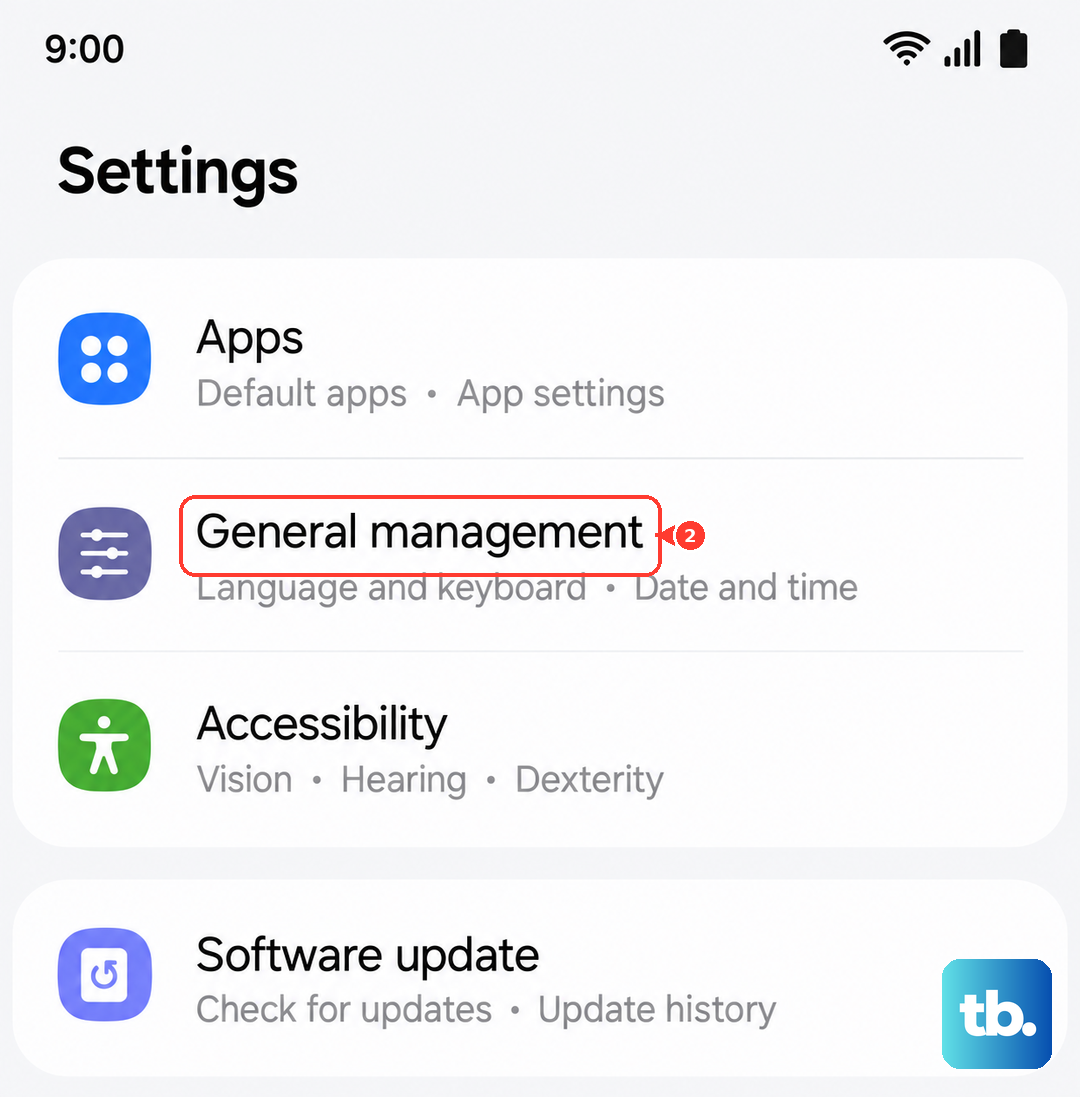
With your data backed up, you're ready for the main reset. On your S25, open Settings and go to General management > Reset > Factory data reset.
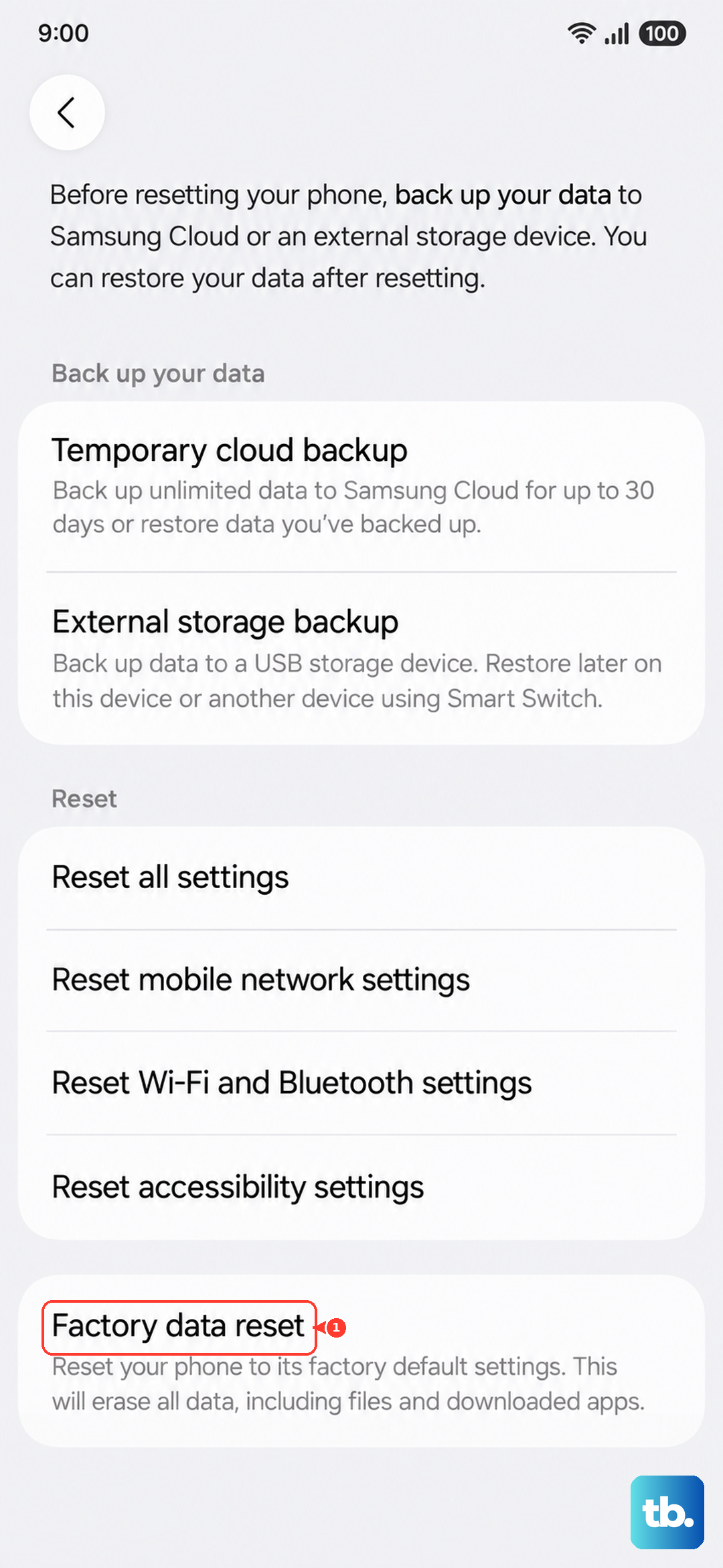
You'll see a final screen listing everything that will be deleted. Scroll to the bottom and tap Reset. You'll likely need to enter your device's PIN, pattern, or password for security confirmation. Finally, tap Delete all. If a Samsung account is still added, you'll also need its password and a network connection to complete the reset. The phone will restart and begin the erasure process, which can take several minutes.
Use Recovery Mode If the Phone Won't Boot
If your S25 is frozen, stuck in a boot loop, or the screen is unresponsive, you can reset it using the hardware buttons. If it's stuck, press and hold Volume down + the Side button for more than 7 seconds until it restarts. If it responds after restarting, press and hold those buttons for a few seconds, then tap Power off and tap Power off again. Ensure the phone is turned off before proceeding.
Once it's off, connect it to a computer with a USB cable, then press and hold Volume Up + the Side button. Release both buttons when you see the Samsung logo, and you'll enter the Android Recovery menu. Use the Volume buttons to highlight Wipe data/factory reset and press the Side button to select it.
Confirm by selecting Factory data reset. After it completes, make sure to select Reboot system now to restart the phone. You'll be greeted by the initial setup screen, where you'll need the last Google account's username and password if Google Device Protection was enabled. You may also be asked for your previous screen lock PIN or password.
Try a Network Reset First
A full factory reset is a big step. For issues like Wi-Fi dropping, Bluetooth pairing failures, or mobile data problems, a targeted reset might be all you need. Go to Settings > General management > Reset.
Choose Reset mobile network settings for mobile connectivity problems, or Reset Wi-Fi and Bluetooth settings for Wi-Fi and Bluetooth problems. Review the information and tap Reset settings, then confirm if prompted. Neither option erases your apps or personal data, but you'll need to reconnect to Wi-Fi and re-pair Bluetooth accessories after the Wi-Fi and Bluetooth reset. It's a great first troubleshooting step for connectivity woes.
Setting Up Your S25 After the Reset
When the reset finishes, your phone will boot to the "Hello" screen. Follow the prompts to select your language and connect to a Wi-Fi network. You'll be asked to sign back into your Google and Samsung accounts.
During setup, you'll get the option to restore your data. If you made a backup with Samsung Cloud or Google One, you can choose it here to reinstall your apps and bring back your settings. The phone will download and configure everything, so make sure you're on a stable connection.
When a Factory Reset Makes Sense
Consider a factory reset for persistent, unexplained issues like severe battery drain, constant app crashes, or system-wide lag that survives reboots. It also erases your personal data before you sell or trade in your S25.
For general slowness or minor glitches after a One UI update, try clearing the cache of the apps that misbehave first: go to Settings > Apps, select the app, then tap Storage > Clear cache. This leaves your personal data intact.