
Erasing everything on your OnePlus 12 is a powerful way to fix deep software problems or prepare it for a new owner. It completely wipes the phone back to its original factory state, removing all your apps, accounts, photos, and settings.
Before you do anything else, you need to secure your data. Once you start the erase process, there's no going back. I'd start by making sure your photos and videos are safely backed up to Google Photos or another cloud service.
Back Up Your OnePlus 12 to Google
Open Settings > Additional settings > Back up and reset. Tap on Back up & restore and then Back up. This will save your system settings, app data, and call history to your Google account.
For your personal files like photos and documents, use Google Photos and Google Drive. Go into each app and manually trigger a sync to be absolutely sure everything is uploaded before you proceed.
Remove Your Google and Screen Lock
This step is crucial to avoid Factory Reset Protection (FRP) locks after the reset. First, go to Settings > Passwords & accounts. Tap on your Google account and select Remove account.
Next, you need to remove your screen lock (PIN, pattern, or password). Navigate to Settings > Password & security > Device lock > Screen lock. Enter your current PIN, then select None to disable the lock. This ensures a smooth setup process after the wipe.
Perform the Factory Reset from Settings
The standard method is through your phone's settings menu. Go to Settings > Additional settings > Back up and reset. At the bottom, tap on Erase all data (factory reset).
The phone will show you a final warning listing everything that will be deleted. If you're sure, tap the red Erase all data button at the bottom. You'll be asked to enter your lock screen PIN one last time for confirmation. The phone will then reboot and begin the wiping process, which takes a few minutes.
Use Recovery Mode if the Phone is Frozen
If your OnePlus 12 is unresponsive or won't boot to the home screen, you can use the hardware buttons. First, power the phone off completely. Once it's off, press and hold the Volume Down and Power buttons together.
Hold them until you feel a vibration and the OnePlus logo appears, then release. You'll boot into recovery mode. Use the volume buttons to navigate to the Wipe data and cache option and press the power button to select it.
On the next screen, choose Format data. You'll need to type "format" to confirm this irreversible action. Once it's done, select Reboot and your phone will start up fresh.
Try a Reset Without Full Data Loss
For issues like app crashes, network problems, or general sluggishness, a full factory reset might be overkill. OxygenOS offers several targeted reset options that can solve problems without touching your personal files.
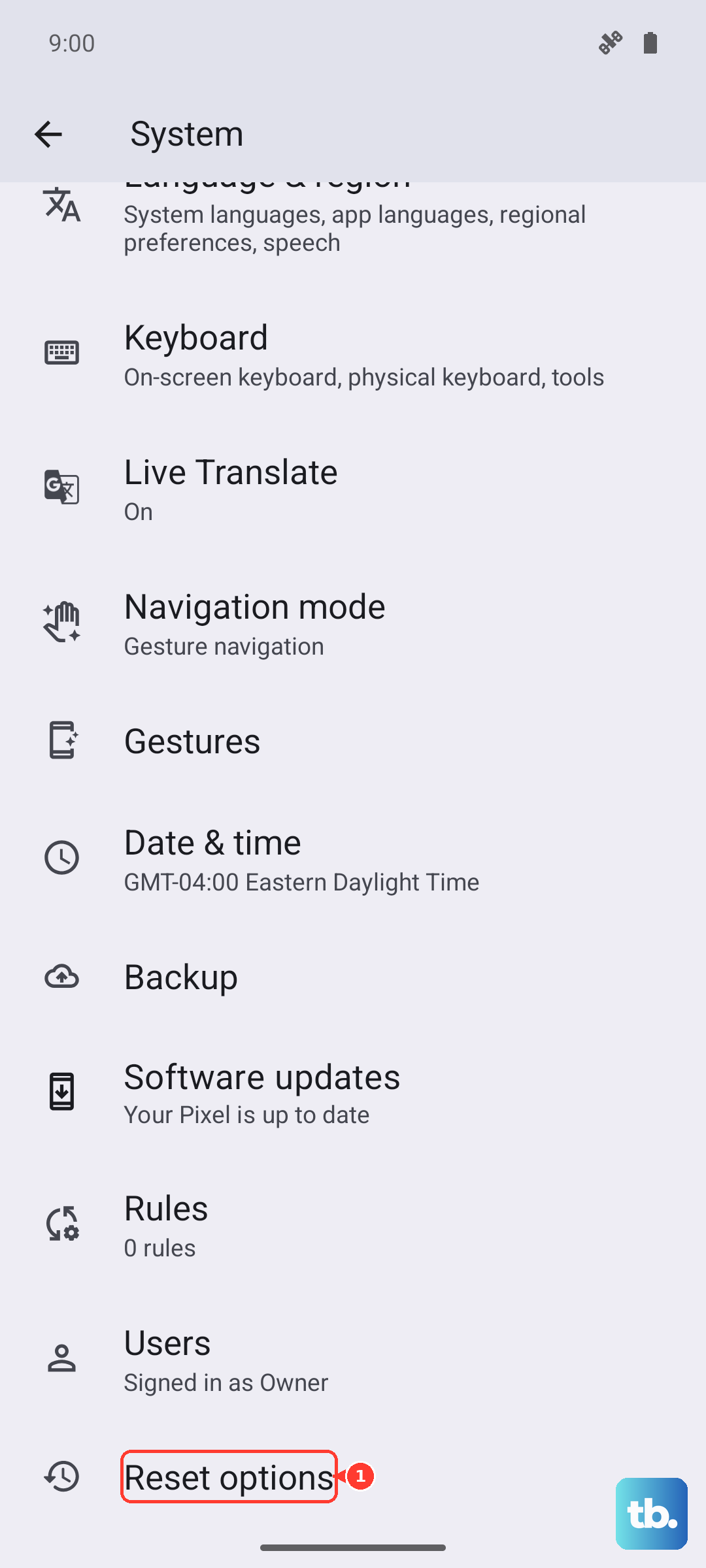
Go to Settings > Additional settings > Back up and reset. Here, you'll find Reset Wi-Fi, mobile & Bluetooth and Reset app preferences. These are great first steps for troubleshooting connectivity or misbehaving apps.
Setting Up Your Phone After the Erase
When your OnePlus 12 finishes resetting, you'll be greeted with the initial setup screen, just like when it was new. Follow the prompts to select your language and connect to Wi-Fi.
When you sign back into your Google account, you'll be given the option to restore your data from the backup you made earlier. This will reinstall your apps and bring back your saved settings, making the transition much smoother.