
Keeping your OnePlus 13 updated is the best way to ensure it runs smoothly and securely. OxygenOS 15, based on Android 15, receives regular updates that bring new features, fix bugs, and patch security vulnerabilities. I'd always recommend installing these updates as soon as they're available for your device.
Check for an Update Over Wi-Fi
Open your Settings app and scroll down to About device. Tap on it, then select Software update. Your OnePlus 13 will immediately check for any available updates. If one is found, you'll see a prompt to download and install it.
Make sure your phone is connected to a stable Wi-Fi network and has at least a 30% charge, though plugging it into the original 100W charger is a good idea for larger updates. The download size can vary from a small security patch to a full version upgrade.
Enable Automatic System Updates
You can set your OnePlus 13 to handle updates automatically. Go to Settings > About device > Software update and tap the gear icon in the top right corner. Here, you can toggle on Auto download over Wi-Fi and Auto install overnight.
With these enabled, your phone will download updates when on Wi-Fi and install them automatically between 2:00 AM and 5:00 AM, provided the phone is charging and idle. You'll still get a notification before the installation happens.
What to Do If an Update Fails or Gets Stuck
If the download won't start or the installation seems frozen, a simple force restart often clears the glitch. Press and hold the Volume Down button and the Power button together for about 10 seconds until the phone vibrates and reboots.
After restarting, go back to Settings > About device > Software update and try again. If the problem persists, try switching to a different Wi-Fi network. Some early OxygenOS builds have had occasional update bugs, which are typically resolved in subsequent patches.
Update Your Apps Through Google Play
System updates are crucial, but your apps need love too. Open the Google Play Store and tap your profile picture in the top right. Select Manage apps & device, then under the "Updates available" section, tap Update all.
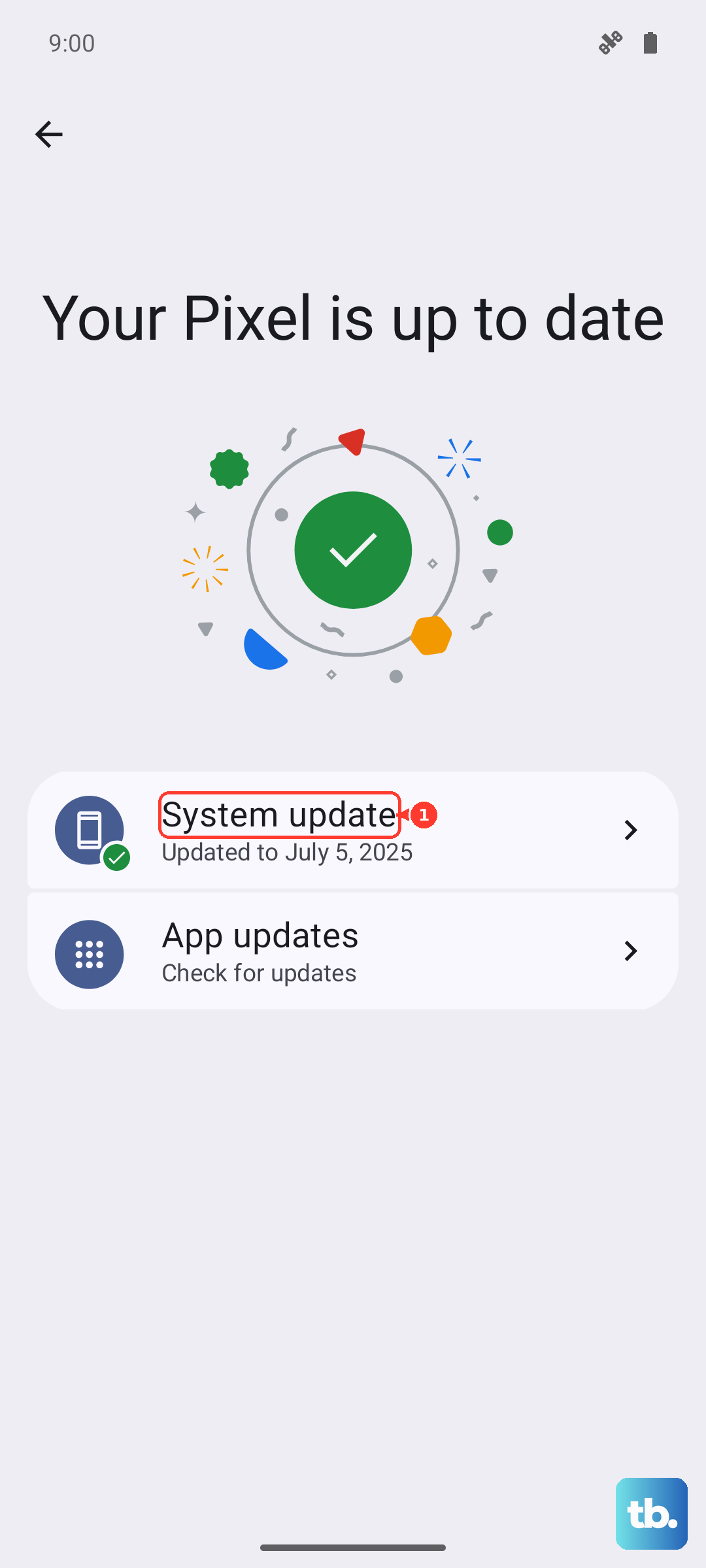
Keeping apps updated fixes performance issues and security holes. For critical apps, you can also enable auto-update by going to your Play Store profile, selecting Settings > Network preferences > Auto-update apps, and choosing "Over any network" or "Over Wi-Fi only."
Check Your Current Software Version
It's helpful to know exactly what version you're running. Go to Settings > About device and look for OxygenOS version and Android version. This screen also shows your security patch level.
This information is useful if you're troubleshooting a known issue or checking if a specific feature has rolled out to your device yet. OnePlus typically staggers its updates, so not all phones receive them on the same day.
Don't Forget Google Play System Updates
These are separate from OxygenOS updates and come directly from Google. They update core Android components for security and functionality. To check, go to Settings > Security & privacy > System & updates > Google Play system update.
Tap "Check for update" and install any that are available. These updates are important for maintaining security between the larger OS updates from OnePlus, and they help ensure app compatibility.
Why Updates Are Essential for Your OnePlus 13
Every update includes the latest security patches, which protect your personal data from new threats. They also often contain optimizations that can improve battery life and overall system stability, addressing issues like the inconsistent battery reports some early reviewers noted.
Major updates bring new features and interface improvements specific to OxygenOS. Given that the OnePlus 13 is a 2025 flagship, keeping it updated ensures you get the full, optimized experience it was designed for throughout its lifespan.