Your Lenovo is stuck on the logo or loading animation, and the sign-in screen never arrives. Start with the restart and accessory checks below, then move through Windows repair tools before considering a reset. These fixes cover Lenovo Windows PCs, with model-specific controls called out where they matter.
Check whether it is safe to restart
First, check what the computer was doing before it stopped responding. During an active Windows reset, firmware update, BIOS recovery, or memory retraining, keep power connected and let the operation finish. A long pause or blank screen alone is no reason to force a shutdown.
On supported ThinkPads, including the P1 Gen 8 and T1g Gen 8, the Esc, F1, and F4 indicator lights signal BIOS recovery or memory retraining. Allow several minutes for these processes, particularly after a BIOS update.
Outside those operations, press Ctrl+Alt+Delete to check whether the computer responds. If the menu appears, select Power > Restart.
For a genuinely frozen computer, hold the power button for 10 seconds. Wait about one minute before turning it on again. Lenovo documents this timing for the ThinkPad P1 Gen 8 and T1g Gen 8; follow your model's manual for a different reset procedure.
Disconnect accessories and drain residual power
A connected dock deserves a quick check. Lenovo documents a Yoga Book 9i freeze at the logo involving a UGREEN USB4 Dock CM500 with a USB 2.0 mouse attached.
Shut down the computer.
Disconnect external power and all peripherals, including the dock.
On IdeaPad and ThinkPad notebooks covered by Lenovo's power-drain procedure, remove the battery only if it is detachable.
Hold the power button for about one minute, following your model's manual if it specifies a different procedure.
Reinstall the detachable battery.
Reconnect power.
Start the computer with accessories disconnected. If removing the dock resolves the freeze, replace it with a compatible alternative.
If the freeze remains, an equipped ThinkPad has another reset option. Disconnect AC power before using its emergency-reset hole.
Locate the emergency-reset hole in the model manual's bottom-view diagram. This is different from the Novo recovery button.
Insert a straightened paper clip into the documented hole to interrupt battery power temporarily.
Reconnect AC power.
Turn the computer on.
If these checks do not restore startup, try Windows recovery next.
Let Startup Repair tackle Windows loading failures
Startup Repair addresses Windows startup faults that leave the system unable to start or stuck loading.
At a responsive sign-in screen, hold Shift while selecting Power > Restart to enter Windows Recovery Environment.
If you cannot reach sign-in, start the computer. Use the following interruption sequence only after ruling out an active reset, firmware update, BIOS recovery, or memory retraining.
When the Windows or manufacturer logo appears, hold the power button until the computer shuts down.
Repeat that startup interruption once more.
On the third start, let Automatic Repair load.
Select Advanced options to enter recovery.
Choose Troubleshoot > Advanced options > Startup Repair > Restart.
If asked for a BitLocker recovery key, open Microsoft's recovery-key page on another device.
Sign in to the account holding your key.
Match the recovery-key ID shown on the locked computer to the saved entry. Saved printouts and USB copies are other places to check; for a work computer, contact your IT department if it holds the key.
Enter the matching 48-digit recovery key.
Allow Startup Repair to finish.
If local recovery does not load, boot Windows installation media created on another computer and matched to your Lenovo's architecture.
Select your language and preferences.
Choose Next.
Select Repair my PC to access recovery tools.
Undo a recent update or system change
If the freeze began immediately after a Windows update, open Troubleshoot > Advanced options > Uninstall Updates in recovery.
Select Uninstall latest quality update. Some updates cannot be removed.
If removing the update does not help, or the problem followed another system change, open Troubleshoot > Advanced options > System Restore. This requires an existing restore point.
Choose a restore point from before the loading-screen problem started.
Select Scan for affected programs to review the application changes the restore will undo.
Select Next.
Select Finish to begin restoring.
Select Restart when restoration finishes.
Keep the distinction in mind: System Restore retains personal files while rolling back system, driver, and application changes covered by the selected restore point.
Use Safe Mode to isolate a recent software change
When normal startup still fails, open Troubleshoot > Advanced options > Startup Settings > Restart in recovery. After the restart, press 4 or F4 for Enable Safe Mode. Use F4 on this screen, not as a universal Lenovo startup shortcut.
If the problem followed a graphics-driver change, open Device Manager > Display adapters in Safe Mode. Right-click your graphics adapter and select Properties > Driver > Roll Back Driver > Yes. Rollback requires administrator rights.
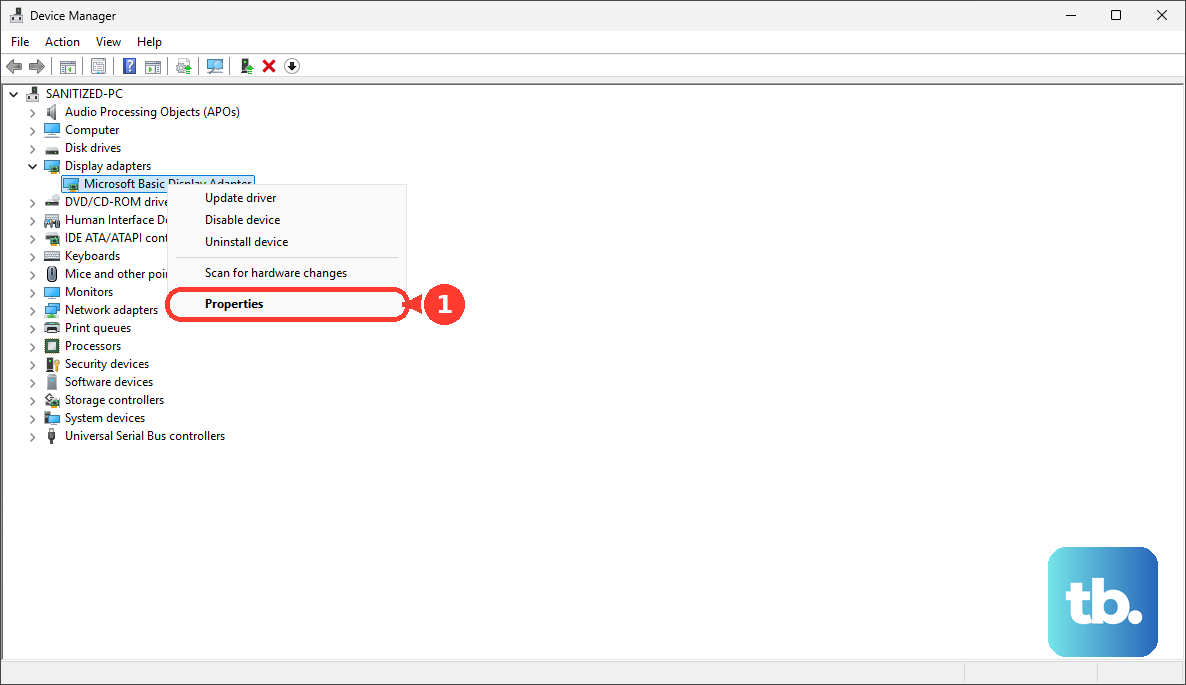
If rollback is unavailable, select Uninstall Device for the graphics adapter using an administrator account. Restart to let Windows attempt to reinstall the driver. This route applies to startup trouble following a display-driver change, including a blank or flickering screen.
For recently installed software, open Settings > Apps > Installed apps in a usable Windows 11 session. Select the app's More menu, then Uninstall. If its uninstaller does not run in Safe Mode, use System Restore instead.
Check the hardware before resetting Windows
On a ThinkPad or ThinkBook with preinstalled Lenovo UEFI Diagnostics, start or restart the computer.
Repeatedly press F10 when the Lenovo logo appears to open diagnostics.
For a supported IdeaPad, Yoga, Legion, or LOQ using the Novo route, shut down the computer. Lenovo supports this diagnostics route on consumer laptops launched since 2023 and selected earlier models; available controls vary.
Press the physical Novo button while the computer is off.
Select Lenovo UEFI Diagnostics from the Novo menu.
If your model uses a marked Super Key instead, press it at the time specified in its manual. It is commonly on F9 or Insert, and the documented timing is either while the computer is off or immediately after powering on.
Run the available memory test.
Run the available storage test.
Record any reported failures for Lenovo Support.
If a test fails or the drive is undetected, contact Lenovo Support for hardware service before attempting a Windows reset.
Use your exact model's manual to identify the diagnostics control, because Lenovo startup keys differ across product families.
Reset Windows only after less disruptive repairs fail
If diagnostics report no hardware failure and recovery tools have not restored startup, try a reset that keeps personal files.
- 1.Back up recoverable files before starting. Keep my files retains personal files but removes apps and settings.
- 2.In Windows recovery, select Troubleshoot > Reset this PC. Microsoft's reset instructions also show a System Restore step after Reset this PC. If that option appears on your screen, select it to continue to the reset options.
- 3.Choose Keep my files.
- 4.Select Cloud download or Local reinstall. Cloud download is useful when local installation files are damaged.
- 5.Review the confirmation prompts and begin the reset. Keep power connected and let it finish without forcing a shutdown during a long pause or blank screen.
When Windows starts again, address recurring freezes
If restarting works but shutting down and powering on brings the freeze back, try disabling Fast Startup. This requires a usable Windows session and a computer that exposes the setting.
Open Control Panel > Hardware and Sound > Power Options > Choose what the power buttons do > Change settings that are currently unavailable.
Clear Turn on fast startup (recommended).
Select Save changes.
Shut down the computer.
Power it on again to test startup.
Once Windows is stable, check for applicable Lenovo driver, BIOS, and SSD firmware updates through Vantage > Device > System Update > CHECK FOR UPDATES.
Install the applicable packages, following each BIOS package's power and installation requirements.
Get model-specific help for persistent Lenovo-logo freezes
If your computer still stops at the Lenovo logo or remains unbootable after software recovery, contact Lenovo Support with your model and any diagnostic failures. A Windows reset cannot repair a failed physical drive.
Back up recoverable data before hardware replacement. Replace a storage drive yourself only when Lenovo identifies it as a customer-replaceable unit for your model and supplies instructions.
If further troubleshooting does not restore startup, arrange hardware service. For eligible models that need software recovery, Lenovo's factory-recovery media is another option. Back up recoverable files before using it, because factory recovery can erase the computer.
Frequently Asked Questions
What should I try if Windows loads but the screen stays black?
Press Windows+Ctrl+Shift+B to reset the graphics driver. This applies after Windows has started; it does not repair a firmware-stage freeze at the Lenovo logo.
What does Quick machine recovery do?
It checks Windows Update for a Microsoft fix to a known widespread boot failure. On Windows 11 version 24H2 build 26100.4700 or later with the feature installed, select Troubleshoot > Advanced options > Quick machine recovery in recovery. Connect through Ethernet or supported Wi-Fi and let it search. It searches Windows Update only when cloud remediation is on. That is the default on Windows 11 Home and on Pro devices that are not domain joined or managed by an organization. On Enterprise, Education, and organization-managed Pro devices it is off by default, and Windows uses Startup Repair instead unless an administrator turns it on. On a PC that still starts, the setting is under Settings > System > Recovery > Quick machine recovery. A fix must be available from Microsoft for the affected issue.
Can I reinstall Windows without losing my apps?
Yes, through an in-place repair installation launched from working Windows. Open the installation media in File Explorer, run setup.exe, and select Change what to keep > Keep personal files and apps before proceeding. Booting directly from USB does not provide that same app-preserving repair path: its Install Windows 11 option is a clean install that deletes files, apps, and settings. From the USB, choose Repair my PC instead to reach recovery tools such as Startup Repair and System Restore, which can fix startup without a complete wipe.
Do these Windows recovery steps work on a Lenovo Chromebook?
No. Lenovo Chromebooks use ChromeOS recovery methods. For most Chromebook laptops, turn the computer off, hold Refresh, tap the power button, and release Refresh when startup begins. Check your model's hardware-reset instructions first; this reset can remove some files from Downloads.