
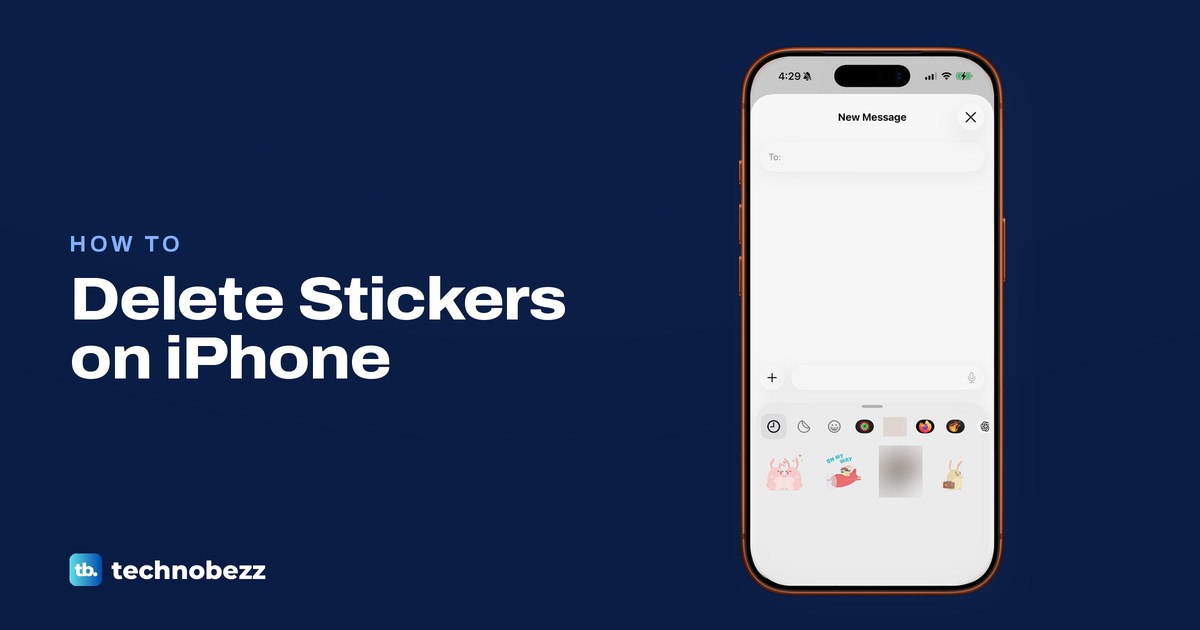
To delete a sticker you made on iPhone, open any conversation in Messages (or start a new message), tap the + button next to the text field, tap Stickers, then tap the Live Stickers button. Touch and hold the sticker and tap Delete. Apple's own documented route goes through Photos instead: open a photo, tap Edit, then Markup and the Add button, tap Add Sticker, then touch and hold the sticker and tap Remove.
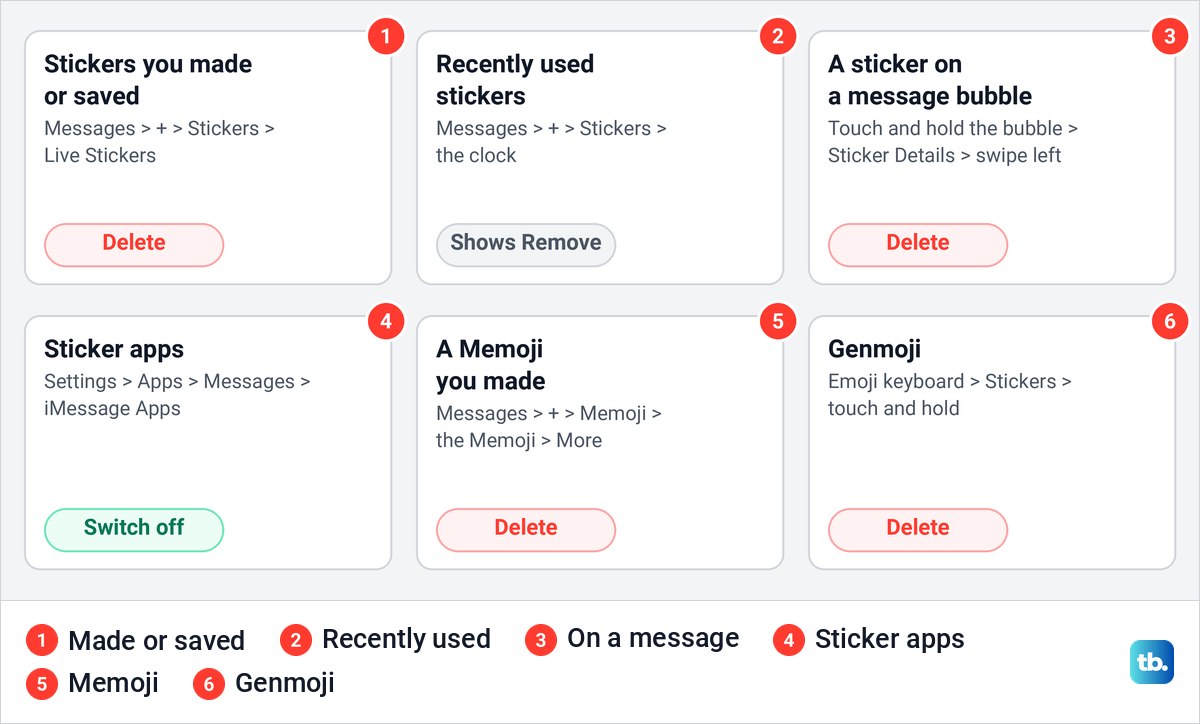
Not every sticker lives in that pack. On our iPhone 17 Pro with iOS 26.6, a sticker in the recently used section offered only Remove, sticker apps sat in their own list behind an EDIT button, and Memoji had a row of their own in the Messages + list. Each kind lives in a different place, and the table below says where and which button its menu offers.
The short version
- A sticker you made: Messages, + button, Stickers, Live Stickers, touch and hold it, then Delete.
- Apple's documented route: Photos, Edit, Markup, the + button, Add Sticker, touch and hold it, then Remove.
- Recently used: touch and hold a sticker in the clock section, where the only choice is Remove.
- A sticker app: turn it off in Settings > Apps > Messages > iMessage Apps, or delete the app.
- A Memoji you made: Messages, + button, Memoji, your Memoji, More, then Delete.
Where each kind of sticker lives
Your iPhone keeps stickers in more than one place, and each place has its own menu. Find the kind you want gone in the first column, then follow the path beside it.
| What you want gone | Where to go | What to do |
|---|---|---|
| A sticker you made or saved | Messages > + > Stickers > Live Stickers | Touch and hold it, then tap Delete |
| The same sticker, Apple's documented way | Photos > any photo > Edit > Markup > + > Add Sticker | Touch and hold it, then tap Remove |
| A sticker in recently used | Messages > + > Stickers > the clock | Touch and hold it; the menu offers only Remove |
| A sticker you put on a message | Touch and hold the message > Sticker Details | Swipe left on the sticker, then tap Delete |
| A sticker app | Settings > Apps > Messages > iMessage Apps | Turn it off, or delete the app |
| A Memoji you made | Messages > + > Memoji > your Memoji > More | Tap Delete |
| A Genmoji | Emoji keyboard > Stickers | Touch and hold it, then tap Delete |
Stickers you make and stickers you save from friends end up in one collection. Apple says that collection appears in your stickers menu on the onscreen keyboard and in the Markup tools, and that it syncs with iCloud to your iPhone, iPad, Mac and Apple Vision Pro when they are signed in to the same Apple Account. So your devices share one collection.
Delete a sticker you made in Messages
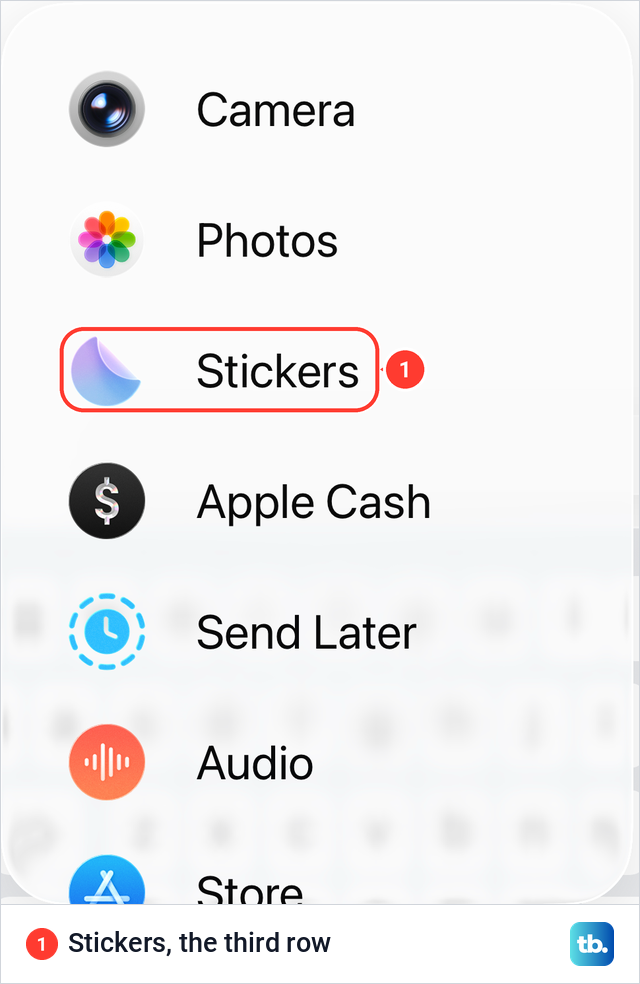
Open Messages and go to any conversation, or start a new message. Tap the + button to the left of the text field. On our iPhone 17 Pro the list started with Camera, Photos and Stickers, so tap Stickers. We opened it from a new message with no recipient, which is a safe way to look around because nothing can be sent.
Tapping Stickers opens a drawer under the text field. Its top row starts with a clock for recently used stickers, then the Live Stickers button, then Emoji, then the sticker packs that came with your apps.
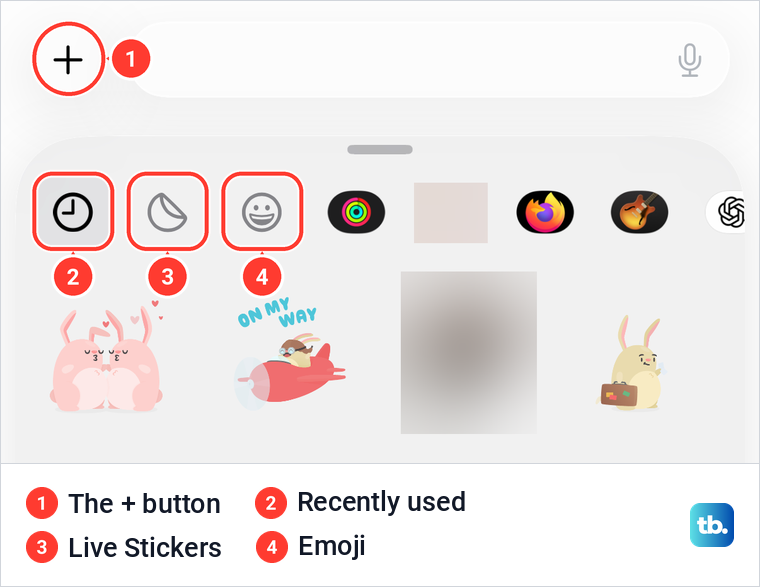
Tap the Live Stickers button, the one shaped like a peeling sticker. Apple describes this pack as the Live Stickers you or a friend made, and ours opened with a grey + tile for making a new sticker, followed by the stickers in the collection. Touch and hold the sticker you want gone for about a second.
A small menu appeared above the sticker with two choices, Add Effect and a red Delete. Tap Delete to remove the sticker. Add Effect only changes the sticker's look; Apple's iOS 26 guide names Outline, Comic and Puffy, and its iOS 27 guide adds turning the Live Photo animation on or off.
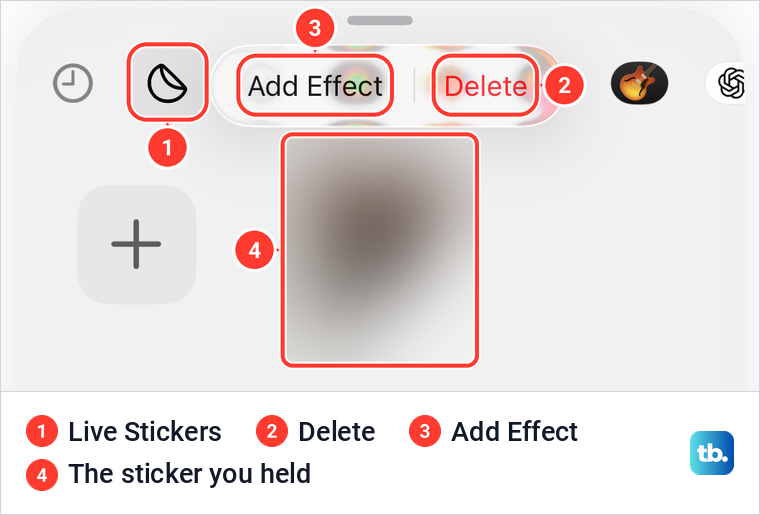
Stickers you save from a friend land in the same pack. Apple's steps for saving one are to touch and hold it in the conversation and tap Save to Stickers, so once it is in your collection you delete it exactly as above.
Remove a sticker in Photos with Markup
For stickers you make from photos, Apple documents one delete route, and it runs through the Photos app rather than Messages. Its steps are to open a photo, tap Edit, tap Markup, then tap the Add button and Add Sticker. Touch and hold the sticker you want to delete, then tap Remove.
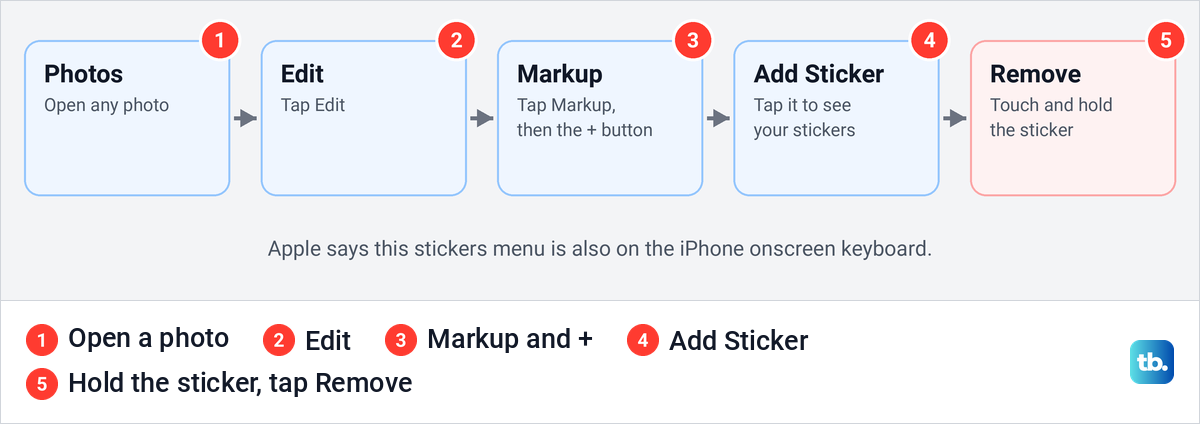
Any photo will do, because Markup only opens your sticker list here. Markup is the same toolbar you use to add text to a photo on iPhone, and Apple's guide for iOS 27 gives the same steps for removing a sticker.
Note the different label. Apple's Markup steps say Remove, while the menu in Messages on our iPhone said Delete. If you change your mind later, you can make the sticker again from the photo it came from.
The Remove button in recently used
Apple says emoji, Memoji and stickers you recently used appear in the Frequently Used section of the emoji keyboard. The Stickers drawer in Messages has the same kind of section behind its clock button, and on our iPhone it held four stickers. Apple's guides give no steps for clearing it.
Open the drawer, tap the clock, then touch and hold the sticker. Our iPhone showed a single red Remove, with no Add Effect and no Delete, a different menu from the one in the Live Stickers pack.
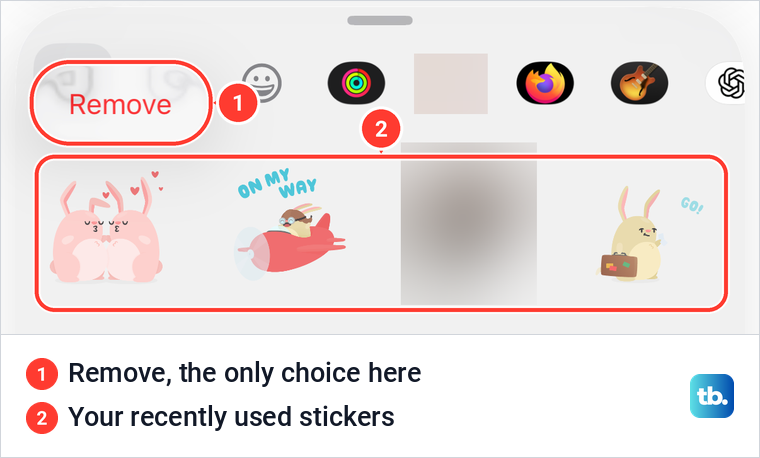
To delete a sticker you made, use Delete in the Live Stickers pack or Remove in Markup as shown above. To take an app's stickers out of Messages, Apple's route is the iMessage Apps switch described further down.
Remove a sticker you placed on a message
For a sticker you dragged onto a message bubble, Apple's steps are to touch and hold the message bubble, tap Sticker Details, swipe left on the sticker you want to delete, then tap the Delete button. Apple marks the swipe step "(on your iPhone only)", and it says your recipients see a sticker as soon as you place it, so assume the others in the chat have already seen it and may still see it.
The same sheet answers a common question. Apple says to touch and hold a sticker and tap Sticker Details to find out who sent it. A sticker used as a Tapback works differently: you can remove only Tapbacks you added. Apple's steps are to tap your Tapback on the message, then tap the same Tapback again so it is no longer highlighted.
A sticker sent as its own bubble is handled like any message. Apple's Undo Send steps are to touch and hold the message bubble and tap Undo Send within 2 minutes of sending it on iMessage, and it notes that SMS, MMS and RCS messages can't be unsent.
After that you can only delete the message from your side, which Apple says does not change what your recipients see. Deleted messages stay in Recently Deleted for up to 30 days, so you can still restore messages on iPhone if you removed the wrong one.
Remove sticker apps from Messages
Sticker apps are the icons after Emoji in the drawer's top row. At the end of that row our iPhone showed an EDIT button, and tapping it opened Manage Sticker Apps. Fitness and Memoji Stickers sat in that list next to apps such as Firefox and ChatGPT, each row with a handle for reordering, under an Edit button and above a link to get more sticker apps on the App Store.
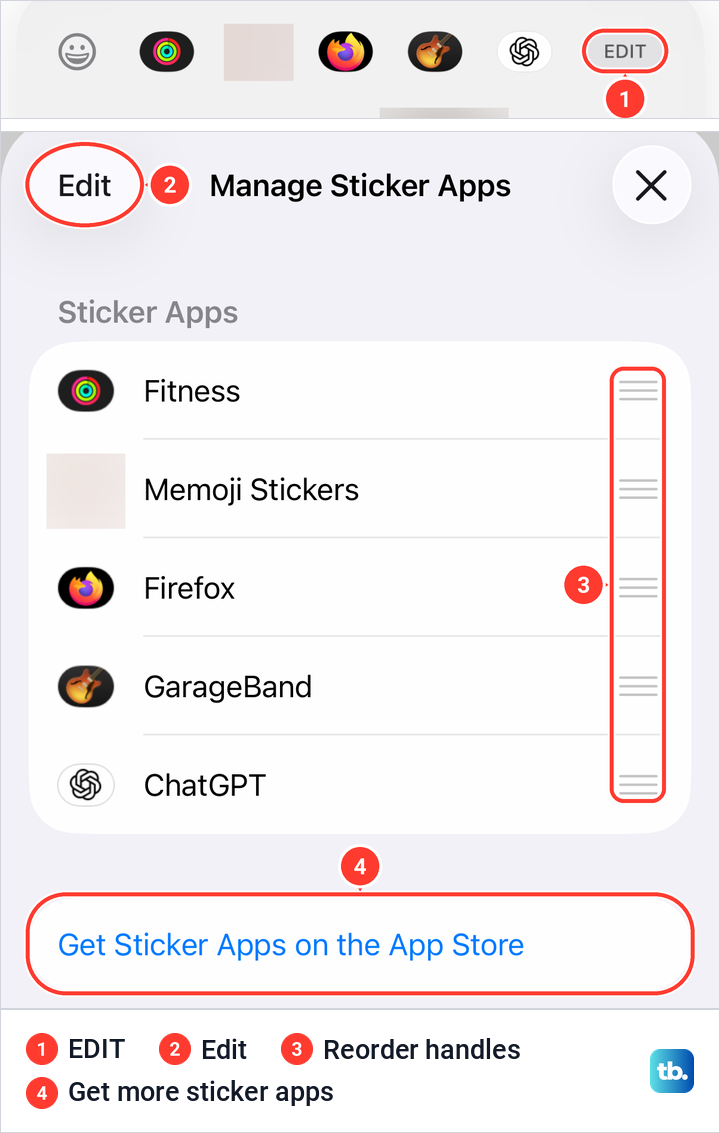
The handles change the order, which helps when the pack you use most sits off the end of the row. To take an app out of Messages altogether, Apple's instructions point to Settings rather than this sheet.
Open Settings, tap Apps, tap Messages, then tap iMessage Apps near the bottom of the page. Apple's steps end with tapping the app to turn it on or off. On our iPhone the page listed twelve apps under Included With An App, each with its own switch, and all of them were on.
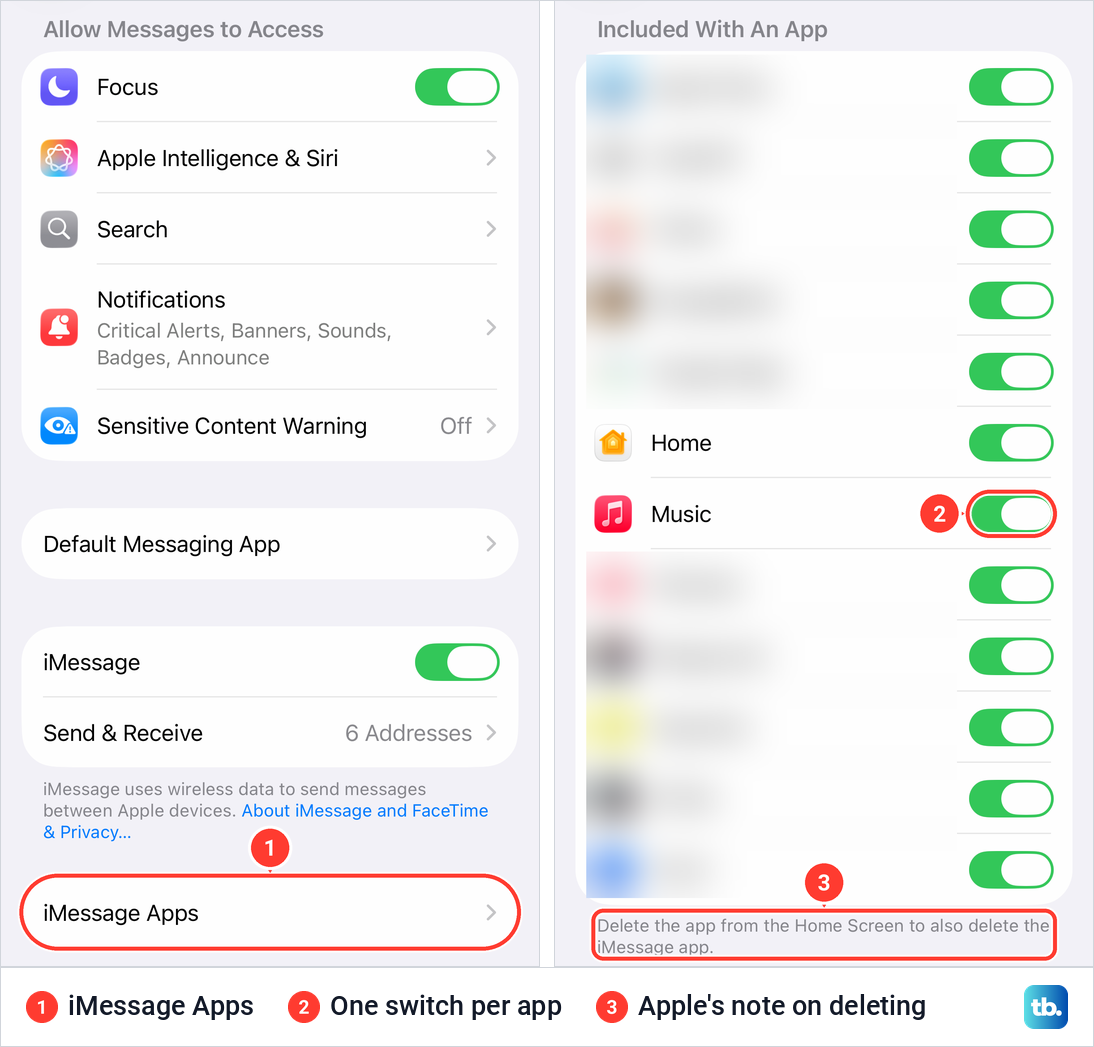
Turning a switch off is the gentle option, because the app itself stays installed and you can turn it back on later. The page's footer gave the other option in Apple's words: "Delete the app from the Home Screen to also delete the iMessage app." That removes the sticker app from your iPhone along with its iMessage app.
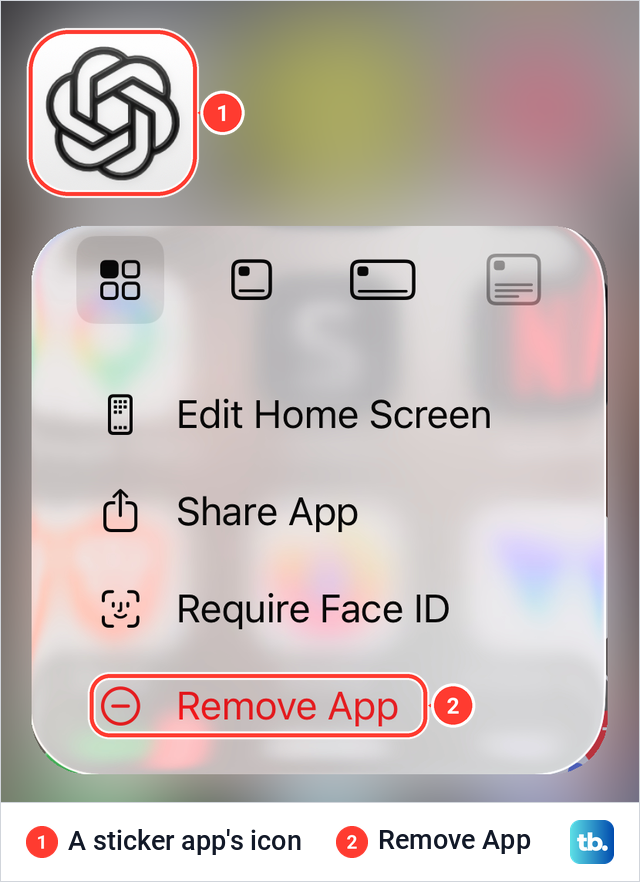
To delete a sticker app, touch and hold its icon on the Home Screen, tap Remove App, then tap Delete App and tap Delete to confirm, as Apple describes. On our iPhone, touching and holding the icon of ChatGPT, one of the apps in Manage Sticker Apps, showed Remove App at the bottom of the menu.
If you can't find the app's icon, Apple's general steps for deleting any app are to search for it with Spotlight and delete it there, or to open Settings > General > iPhone Storage, tap the app's name and choose to offload or delete it. If you may want the app back with its data, offload an app instead of deleting it. A deleted app is not gone for good either, and you can find and reinstall deleted apps from the App Store.
On a child's iPhone, deleting sticker apps one by one only lasts until the next download. Apple says that with Family Sharing you can use Ask to Buy to help control app downloads and in-app purchases, so set up Family Sharing on iPhone and turn Ask to Buy on for the child.
Cancel a sticker subscription before you delete the app
If a sticker app charges a subscription, removing the app does not stop the payments. Apple's words are that if you delete an app, it "doesn't automatically cancel in-app subscriptions". So cancel the subscription in Settings first, where Apple's steps start by tapping your name and then Subscriptions.
Delete a Memoji
Memoji are not in the Live Stickers pack. Apple says your Memoji automatically become sticker packs that live in your keyboard. On our iPhone, Memoji had its own row in the Messages + list and its own entry, Memoji Stickers, in Manage Sticker Apps.
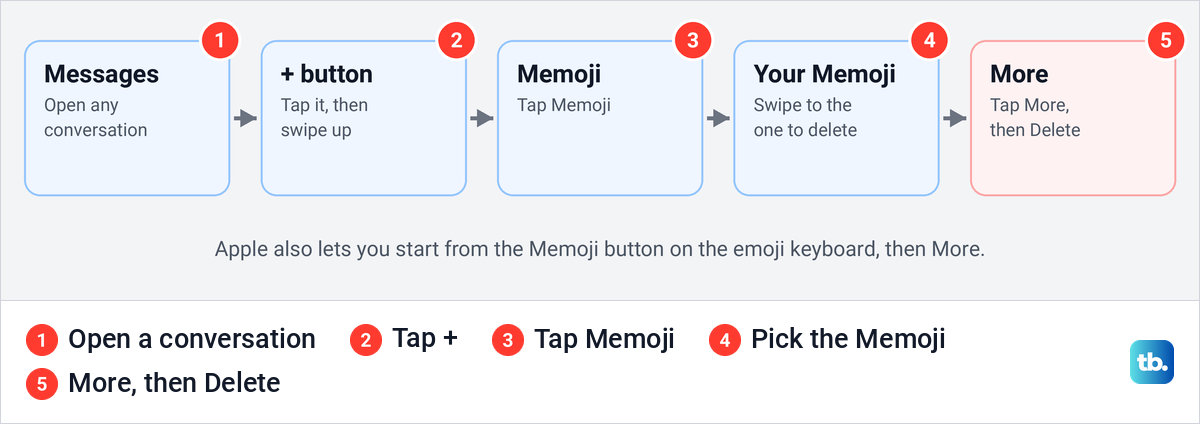
Apple's steps are to open a conversation in Messages, tap the + button, swipe up and tap Memoji. Swipe to the Memoji you want to delete, tap the More button, then choose Delete from Edit, Duplicate and Delete. From the emoji keyboard, Apple's other route is the Memoji button, then More.
Apple says Memoji sync across your devices when you use two-factor authentication, the same Apple Account on each device and iCloud Drive turned on. With that setup your Memoji are available on your other devices too, so check them after you delete one.
Delete a Genmoji
Genmoji you create are saved with your stickers, Apple says, and its steps for deleting one start from any text field. Tap the Emoji button or the Next Keyboard key to switch to the emoji keyboard, then swipe right or tap the Stickers button. Touch and hold the Genmoji and tap Delete. Making new Genmoji needs Apple Intelligence, which Apple says is not available on all iPhone models.
When a sticker will not delete
First check which section you are in. A sticker in the clock section offers only Remove, while the Live Stickers pack offers Delete. If the Messages menu does not show Delete, try Apple's Photos Markup route.
On a work or school iPhone, Apple says Mobile Device Management may stop you deleting apps. A sticker app there may have to stay, and Apple's advice is to contact your device administrator for help.
Your sticker collection syncs through iCloud and your Apple Account. If an iPad or Mac keeps showing a sticker you removed on the iPhone, work through our fixes for when iCloud is not syncing on that device.
How we tested this guide
We tested this on an iPhone 17 Pro with iOS 26.6, opening the Stickers drawer in Messages and the touch and hold menu on a sticker.
Frequently Asked Questions
Why can't I delete stickers on my iPhone?
Check which section you are in. On our iPhone a sticker in the recently used section offered only Remove, while the Live Stickers pack offered Delete. Stickers from apps sit in their app's own pack in the drawer's top row; to take them out of Messages, turn the app off in Settings > Apps > Messages > iMessage Apps. Apple's Photos Markup route is another way to remove a sticker you made.
Can I delete a sticker from the recently used section?
Not with a Delete button. On our iPhone, touching and holding a sticker behind the clock showed only Remove, and Apple's guides give no steps for clearing that section. To delete a sticker you made, use Delete in the Live Stickers pack.
Does deleting a sticker on my iPhone delete it on my iPad and Mac?
Your devices share one collection. Apple says your stickers sync with iCloud to your iPhone, iPad, Mac and Apple Vision Pro when they are signed in to the same Apple Account. If another device still shows a sticker you deleted, check that iCloud is syncing on that device.
How do I delete a Memoji on iPhone?
Apple's steps are to open a conversation in Messages, tap the + button, swipe up, tap Memoji, swipe to the Memoji, tap More and choose Delete. Apple also says each Memoji automatically becomes a sticker pack in your keyboard.
How do I remove a sticker app that is not on my Home Screen?
Turn it off in Settings > Apps > Messages > iMessage Apps, where each app has its own switch. To delete it, use Apple's general steps for any app: find it with Spotlight and delete it there, or use Settings > General > iPhone Storage.
Can I get a deleted sticker back?
Apple's sticker pages describe no undo for the sticker collection. You can make a sticker again from the photo, save a friend's sticker again from the conversation with Save to Stickers, and download a deleted sticker app again from the App Store.