iPhone stickers are built into iOS, so a separate sticker maker is not needed for the basics. You can turn photo subjects, Live Photos, Memoji, Genmoji, and iMessage sticker packs into stickers you send in Messages, use from the keyboard, or place with Markup.
Make a sticker from a photo first
The fastest route starts in Photos; use a Live Photo when you want an animated sticker.
- 1.Open Photos and open the photo full screen.
- 2.Touch and hold the subject, then release when the options appear.
- 3.Tap Add Sticker.
- 4.Tap Add Effect if you want a style, then close the sticker menu.
Create one from the keyboard
Open a supported app and tap a text field.
Tap the Emoji button or the Next Keyboard key.
Tap the Stickers button, then tap Add Stickers.
Search for a photo or pick People or Animals.
Tap the photo, then tap Add Sticker.
Use this route when you are already typing and want to stay in the app.
Build Live Stickers inside Messages
Messages can create Live Stickers directly inside a conversation. Start with a Live Photo when you want movement.
Open Messages and open a conversation.
Tap Add, tap Stickers, then tap the Live Stickers button.
Tap Add, choose a photo, and tap Add again.
Tap Add Effect, choose Comic, Shiny, or another effect, then tap Done.
If this method fails, create the sticker in Photos or from the keyboard, then return to Messages and send it from Stickers.
Fix missing Add Sticker options
The most common cause is that iPhone cannot lift a usable subject from the image or the app only offers the photo-cutout action.
Use a photo with a distinct subject and try from Photos first.
Photo cutouts require iOS 16 or later on iPhone XS, iPhone XR, and later. Sticker creation is a separate, later feature: Apple added it in iOS 17, so on iOS 16 you can lift and copy a subject but Add Sticker never appears.
In Safari, the menu may show Copy Subject instead. That isolates the subject, but it does not save it to your sticker collection unless Add Sticker appears and you choose it.
Use Add Sticker wherever the menu offers it. Copying or pasting a subject is only a cutout action, not the native sticker-creation path.
If someone cannot see sticker updates you made in Messages, their device needs iOS 17.2, iPadOS 17.2, macOS 14.1, watchOS 10.2, visionOS 1, or later.
Make Memoji sticker packs
Memoji automatically become sticker packs in the keyboard for Messages, Mail, and some third-party apps.
- 1.Open Messages and tap Compose or open a conversation.
- 2.Tap Plus, swipe up, and tap Memoji.
- 3.Swipe right and tap New Memoji.
- 4.Customize skin tone, hairstyle, eyes, and other features, then tap Done.
Use Genmoji on Apple Intelligence iPhones
Genmoji applies on Apple Intelligence-capable iPhones with Apple Intelligence turned on. Apple lists iPhone 15 Pro models and iPhone 16 models or later for iPhone support, with language and region limits.
Open Settings, tap Apple Intelligence & Siri, then tap the button next to Apple Intelligence or tap Turn on Apple Intelligence.
Tap a text field, tap Emoji or Next Keyboard, then tap Genmoji at the top right of the onscreen keyboard.
Add concepts, existing emoji or Genmoji, a description, or a person.
Refine the variations, then tap Done. Genmoji are saved with your stickers.
To use Image Playground instead, open Image Playground, tap New Image, add concepts, a description, a person, or a photo, tap Style, choose Genmoji, refine the preview, and tap Add Emoji.
Download third-party sticker packs
Open Messages and start a new message or open a conversation.
Tap Plus, then tap the Store icon.
Tap Get or the price next to a sticker app, then tap Install.
Enter your Apple Account password if asked.
Swipe down or tap Close to return to Messages.
Open Stickers, choose the sticker app or pack from the top row, then tap a sticker to send it or drag it onto a message bubble.
Third-party sticker packs come through iMessage apps, and each creator controls its own sticker-making tools.
Save and clean up your stickers
When someone sends a Live Sticker you want to reuse, open the conversation in Messages and touch and hold the sticker. If it was sent as its own message, tap Save to Stickers.
If the sticker was placed on a message bubble, tap Sticker Details, then tap Save.
To use stickers in a document or image, open a supported app with Markup, tap Add, tap Add Sticker, and drag the sticker into place. Rotate it with a second finger before lifting, or resize it by dragging an outline dot.
To remove a custom sticker from the collection, open a photo in Photos, tap Edit, tap Markup, tap Add, tap Add Sticker, touch and hold the sticker, then tap Remove.
To delete a sticker placed on a message bubble, touch and hold the message bubble in Messages, tap Sticker Details, swipe left on the sticker, and tap Delete. Deleting from Sticker Details is available on iPhone only.
To edit, duplicate, or delete a Memoji, open Messages, tap Compose or open a conversation, tap Plus, swipe up, tap Memoji, choose the Memoji, tap More, then choose Edit, Duplicate, or Delete.
To delete Genmoji, tap a text field, open Emoji or Next Keyboard, swipe right or tap Stickers, touch and hold the Genmoji, and tap Delete.
If this method fails, use the keyboard Stickers button to confirm the sticker is still in your collection, then remove it from Photos through Markup.
Manage shared and parent-managed iPhones
For a child’s or shared iPhone, image creation may be limited even when photo stickers, Memoji, and installed sticker packs still work. Screen Time controls Apple Intelligence image creation from Settings > Screen Time > Content & Privacy Restrictions > Intelligence & Siri > Image Creation.
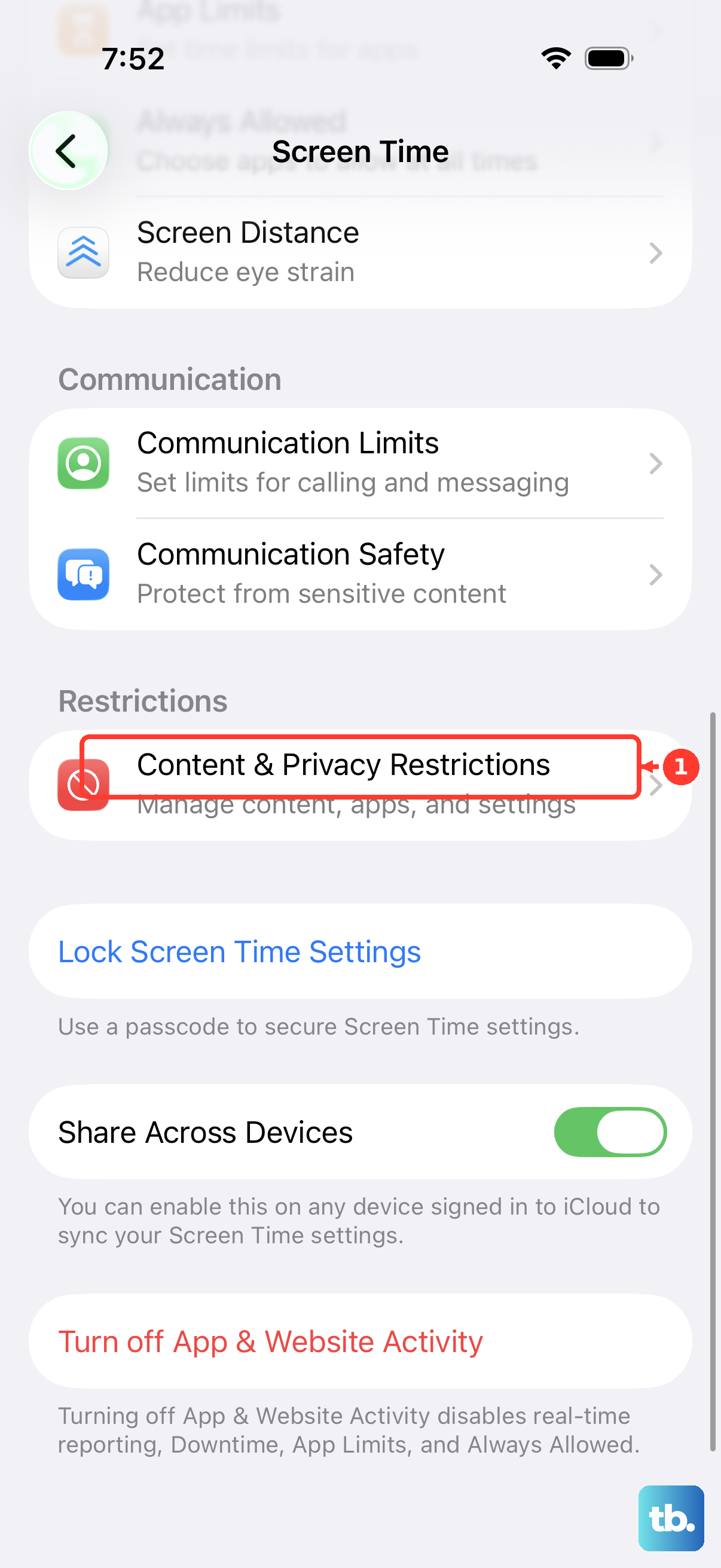
Turn on Content & Privacy Restrictions, then choose Allow or Don’t Allow for Image Creation. This affects Genmoji, Image Playground, and Image Wand on supported iPhones.
To turn off Apple Intelligence creation at the device level, open Settings > Apple Intelligence & Siri and tap the button next to Apple Intelligence. Keep using photo stickers, Memoji, or installed sticker packs when Apple Intelligence image creation is unavailable.
Frequently Asked Questions
Do iPhone stickers sync to other Apple devices?
Yes. Stickers sync with iCloud across iPhone, iPad, Mac, and Apple Vision Pro when the devices use the same Apple Account.
Can I make animated iPhone stickers?
Yes. Start with a Live Photo when creating the sticker in Photos or Messages, and iPhone creates an animated Live Sticker.
Why can’t I make Genmoji on my iPhone?
Genmoji requires an Apple Intelligence-capable iPhone with Apple Intelligence turned on. Apple lists iPhone 15 Pro models and iPhone 16 models or later, with language and region limits.
Can I use iPhone stickers outside Messages?
Yes. Memoji stickers work in Messages, Mail, and some third-party apps. Existing stickers can also be placed in supported documents or photos with Markup.