
Your Samsung Galaxy S26+ uses cached data to make apps load faster, but over time, that temporary data can pile up and cause issues. If you're noticing apps crashing, general sluggishness, or getting low storage warnings, clearing the cache is a great first step. It's a safe way to free up space without deleting any of your personal photos, messages, or account information.
Use Device Care for a Quick Cleanup
The fastest way to run Samsung's built-in performance check is through Device care. Swipe down and open Settings, then tap Device care. Tap Optimize now to scan for app crashes, close background apps, and check for malware.
If one app is the problem, use the app-specific cache steps below. Samsung documents app-cache clearing under Settings > Apps, while Clear data resets that app to its factory-default state.
Clear Cache for a Specific App
If one app in particular is acting up, you can target it directly. Head to Settings > Apps, then find and select the problematic app from the list. Tap on Storage, and you'll see two buttons: Clear cache and Clear data.
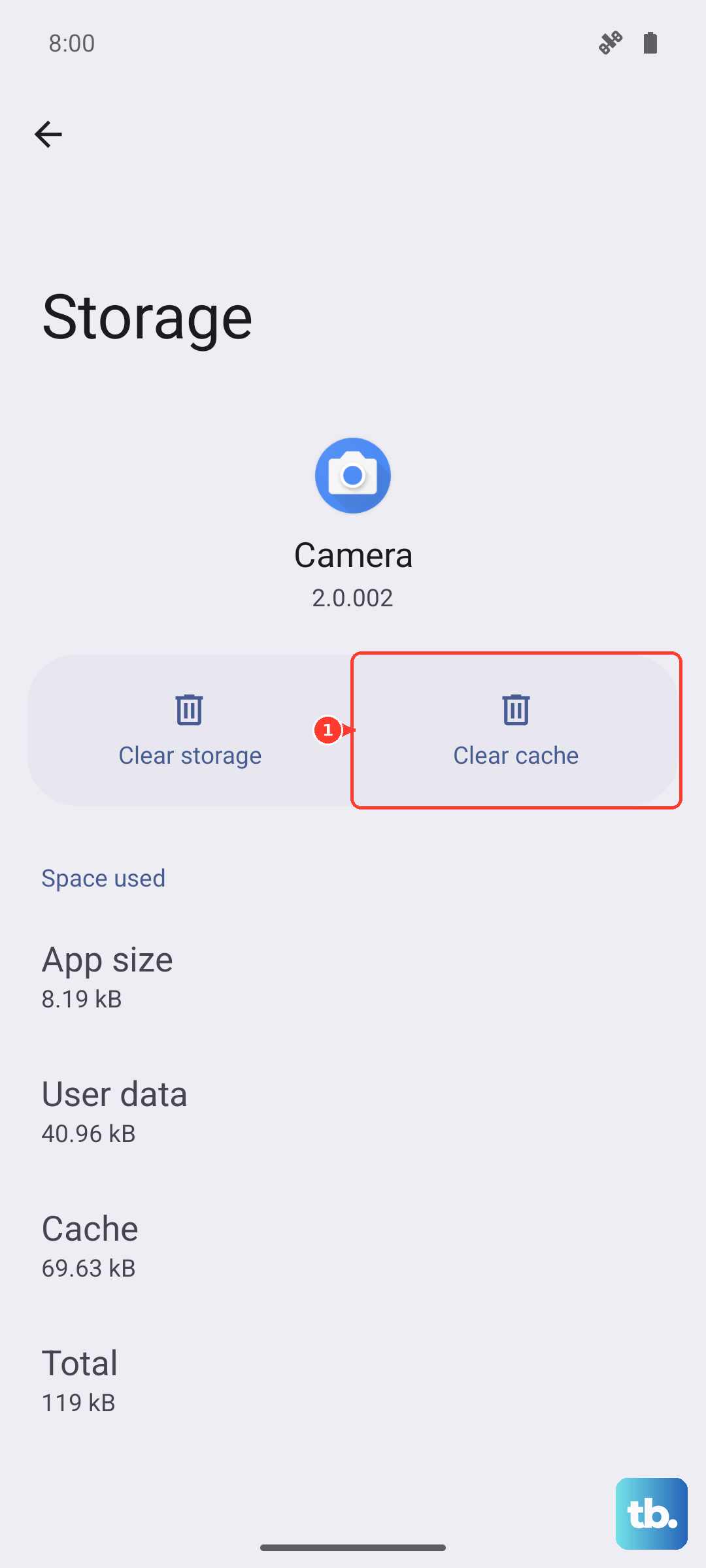
Always tap Clear cache first. This only removes temporary files. The Clear data option is much more drastic, as it will reset the app, deleting your login information and any saved preferences within it.
Clear Your Browser Cache
If you use Samsung Browser, open the app and tap More options (the three vertical dots). Go to Settings > Personal browsing data > Delete browsing data. Make sure Cached images and files is selected, then tap Delete data and confirm with Delete.
For Google Chrome users, the process is similar. Tap the three dots in the corner, go to Settings > Privacy and security > Clear browsing data. Select Cached images and files and tap Clear data. Your saved passwords and bookmarks will remain safe.
Wipe the System Cache Partition
This is a deeper clean for the Android system itself, not your personal data. It's perfect for fixing odd glitches or lag after a software update. First, power your Galaxy S26+ completely off.
Press and hold the Volume Up button and the Side/Power button at the same time. When you see the Samsung logo, let go. You'll boot into a blue recovery menu. Use the Volume Down button to highlight Wipe cache partition, then press the Power button to select it. Confirm the action, then select Reboot system now.
Manage Messages and Media Storage
Your Messages app can take up storage through old conversations and multimedia messages. Open the Messages app, tap the three-dot menu, and go to Settings > More settings. Turn on Delete old messages if you want Samsung Messages to remove old messages after the app reaches its message limits.
You can also manually review conversations, long-press on ones filled with photos and videos, and delete them. For a broader cleanup, check Settings > Battery and device care > Storage > Clean now, as it often identifies large media files you can safely remove.
Restart Your Phone Regularly
It sounds too simple, but a restart can clear minor glitches. On newer Galaxy phones, swipe down with two fingers and tap the Power icon, or press and hold the Side button and Volume Down button together until the Power menu appears. Tap Restart, then tap Restart again to confirm.
If your phone is frozen and won't respond to the screen, you'll need to force restart it. Press and hold the Volume Down button and the Side/Power button together for about 10 seconds until the Samsung logo appears. This is different from the button combo for the recovery menu.
Set Up Automatic Maintenance
You can set your S26+ to handle some cleanup on its own. Go to Settings > Device care > Auto optimization > Auto restart. Turn on Restart when needed, or choose Restart on schedule if you want to set the day and time.
Also, consider using Samsung Cloud or Google Photos to back up your pictures and videos. Once they're safely in the cloud, you can use the "Free up space" feature in these apps to remove the full-resolution copies from your phone's internal storage, leaving only smaller, cached thumbnails behind.











