
Factory resetting your Samsung Galaxy Tab A9+ is a powerful way to wipe it clean and start over. It's a final step for fixing stubborn software glitches, clearing out performance slowdowns, or preparing the tablet for a new owner. I'd always recommend trying other fixes first, but when you need it, here's how to do a factory reset correctly and safely.
Back Up Everything Before You Start
This step is non-negotiable. A factory reset will permanently delete all your apps, photos, documents, and settings from the tablet's internal storage. Your first stop should be Settings > Accounts and backup. From here, you can back up to your Samsung account or to Google Drive.
For a more complete backup, especially with the Tab A9+'s large storage capacity, I'd suggest using Samsung's Smart Switch app on a Windows PC or Mac. It creates a full device image you can restore later. Also, double-check that your photos are syncing to Google Photos or Samsung Cloud.
Sign Out of Samsung and Google Accounts
To avoid getting locked out by Factory Reset Protection (FRP), you need to remove your main accounts. Go to Settings > Accounts and backup > Manage accounts. Tap on your Samsung account, then select Remove account. Do the same for your primary Google account.
This tells the system you're intentionally resetting the device. If you skip this and the tablet can't verify your identity after the reset, you'll be completely blocked from using it.
Perform the Reset from Your Settings Menu
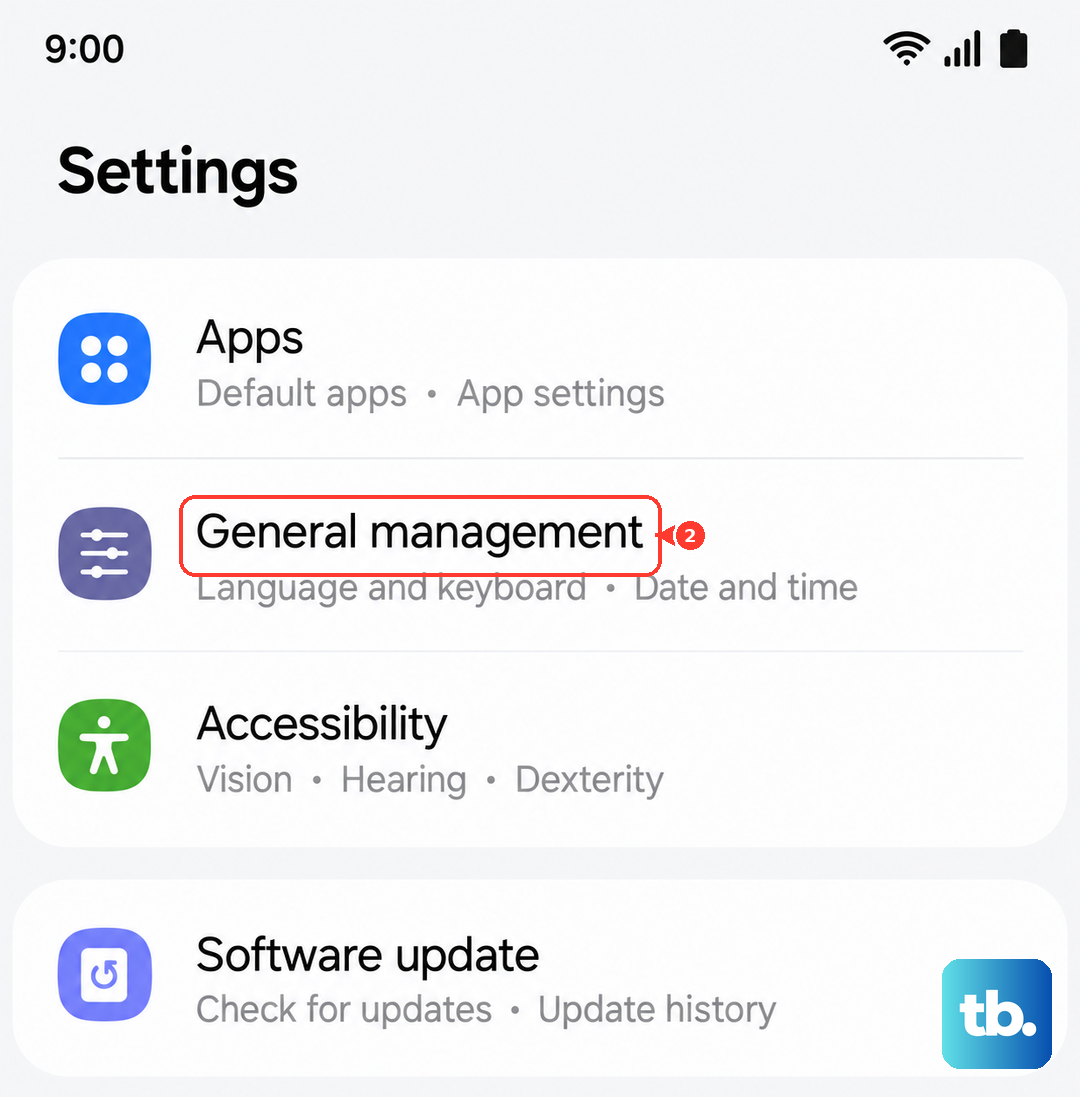
This is the standard method when your tablet is working and you can access the menus. Open Settings, then go to General management > Reset > Factory data reset. You'll see a detailed list of everything that will be erased.
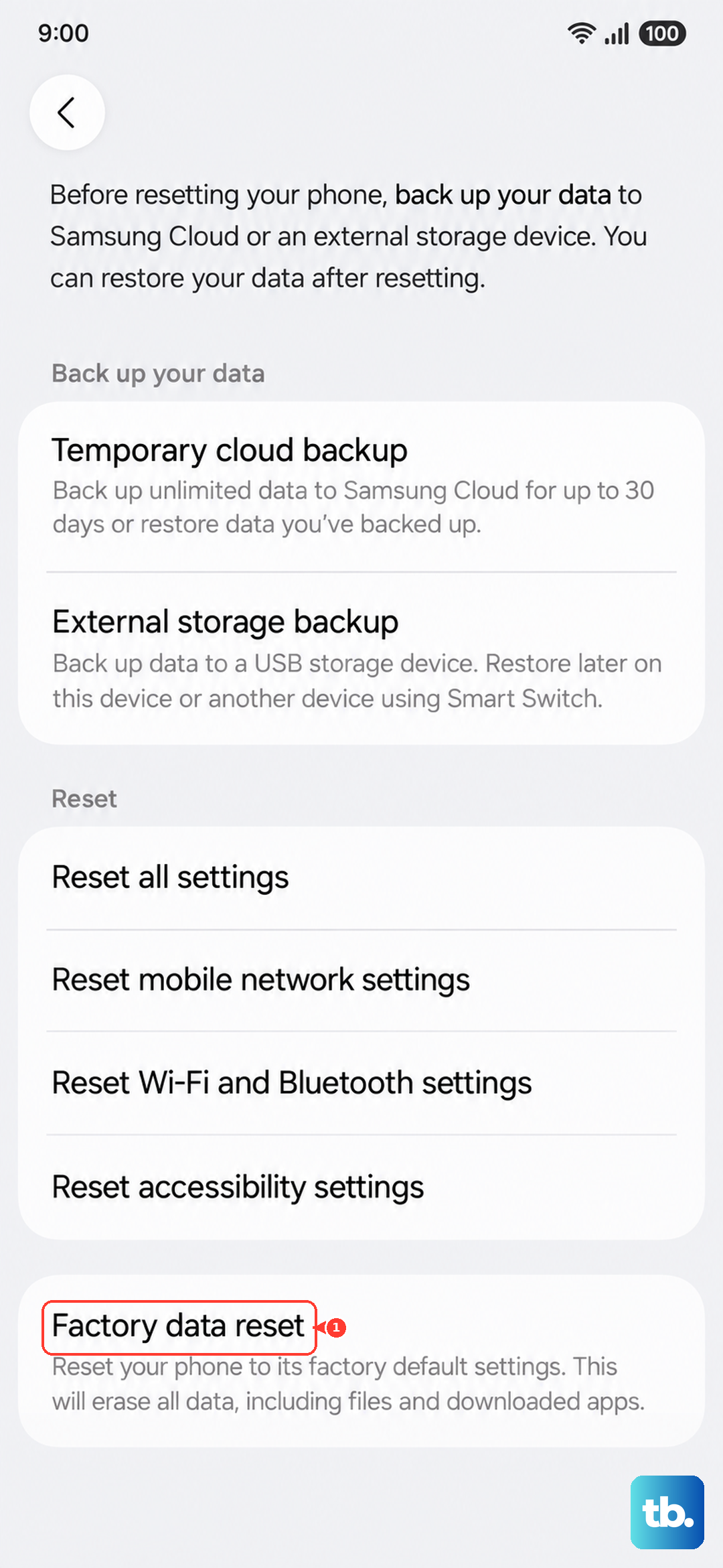
Scroll to the bottom and tap Reset. You'll be asked to enter your PIN, pattern, or password for security. Finally, tap Delete all. The tablet will restart and begin the wiping process, which can take several minutes given the 7040mAh battery and storage size. When it's done, you'll see the initial Android setup screen.
Using Recovery Mode for a Hard Reset
If your Galaxy Tab A9+ is frozen, stuck in a boot loop, or won't turn on normally, you'll need to use the hardware buttons. First, make sure the tablet is powered off. Press and hold the Volume Down button and the Power button simultaneously for about 10 seconds to force a restart, then release as soon as you see the Samsung logo.
Immediately after releasing, press and hold Volume Up and Power together. Hold them until the blue "Recovery booting..." text appears, then let go. Use the Volume Down button to highlight Wipe data/factory reset and press the Power button to select it. Confirm by selecting Factory data reset.
Once the process finishes, you'll be back at the main recovery menu. Select Reboot system now with the Power button. The tablet will boot up fresh.
Try a Less Drastic Reset First
A full factory reset isn't always necessary. The Tab A9+ has options for targeted resets that can solve specific problems. Go to Settings > General management > Reset. Here you'll find Reset network settings, which clears Wi-Fi passwords and Bluetooth pairings, and Reset accessibility settings.
For general sluggishness, which the Snapdragon 695 chip can sometimes exhibit with too many background apps, try Reset app preferences. This resets app permissions and default apps without deleting any of your data.
Setting Up Your Tablet After the Reset
After the reset, you'll walk through the standard Android setup. Connect to a Wi-Fi network and sign back into your Google and Samsung accounts. When prompted, choose to restore your data from the backup you created earlier.
This is a good time to be selective. If you were resetting to fix a performance issue, consider setting up as a new device first to see if the problem is gone before restoring all your old apps and data.
When a Factory Reset Makes Sense
For the Galaxy Tab A9+, a reset is most useful for persistent software bugs, major slowdowns that aren't helped by closing background apps, or preparing it for sale. If you're experiencing poor battery life, try checking for app drain in the battery settings first, as the 15W charging is quite slow for a full recharge.
Before doing a full reset, you can also clear the system cache from recovery mode. This fixes update glitches without deleting data. In recovery, select Wipe cache partition instead of the factory reset option, then reboot.











