
Your Samsung Galaxy S25+ stores temporary cached data to help apps load faster, but over time this cache can get bloated and cause slowdowns or storage issues. Clearing it out is a safe way to refresh your phone's performance without losing any personal data.
Clear an Individual App's Cache
For a targeted fix, head to Settings > Apps. Find and tap on the app that's acting up, like Instagram or Chrome. On its info page, select Storage, then tap Clear cache. This wipes the temporary files while keeping your logins and saved data intact.
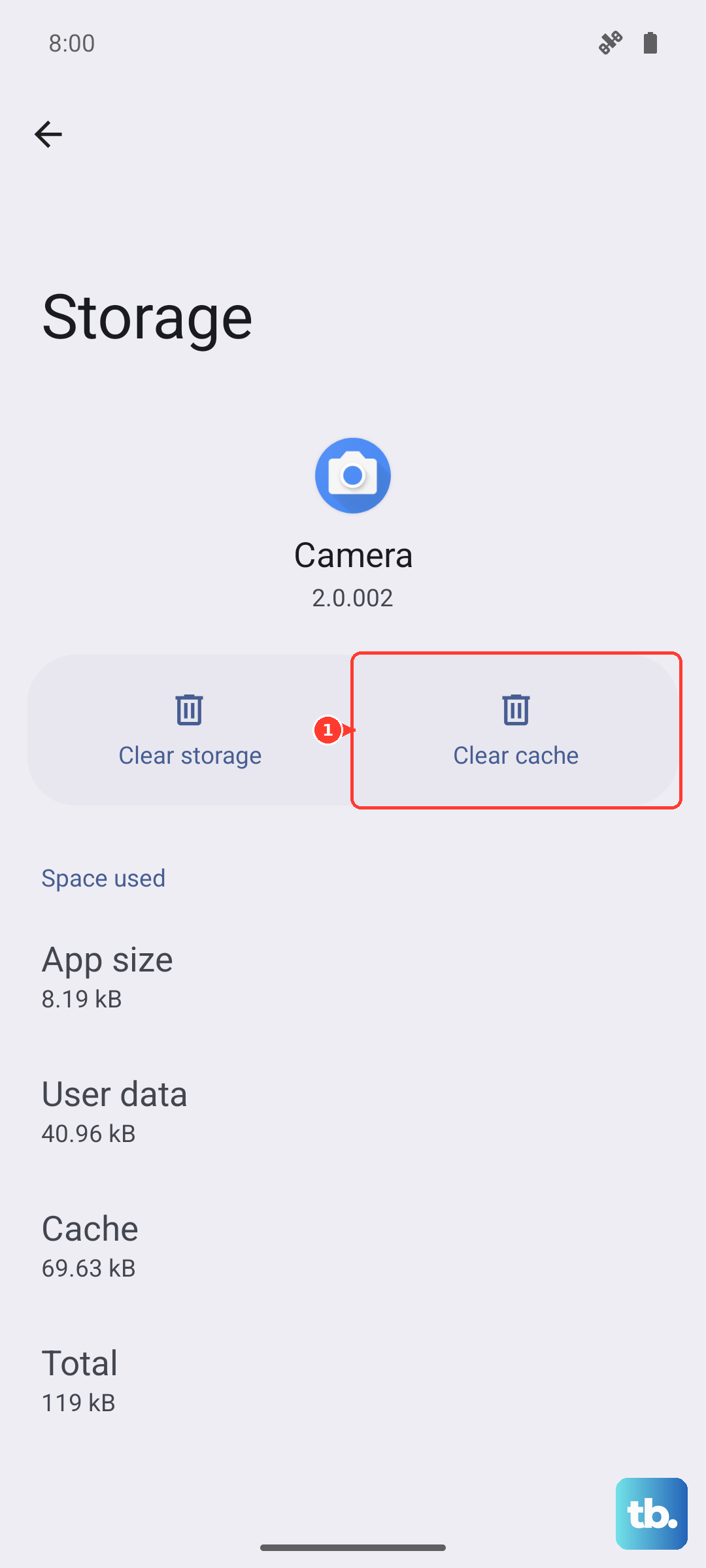
I'd start with apps that are known to build up large caches, such as streaming services, social media platforms, and web browsers. If an app is frequently crashing, this is often the first thing to try.
Use Device Care for a Full Cleanup
The quickest way to clear cache across your entire phone is with Samsung's built-in tool. Open Settings > Battery and device care. Tap on Storage and then hit the blue Clean now button. This automatically scans and removes cached data from all your apps at once.
You can also tap Apps not used recently or review the large files section here to do some deeper cleaning. Making this a weekly habit helps keep your S25+ running smoothly.
Clear Your Browser Cache
If web pages are loading slowly or acting strange, your browser cache is likely the culprit. In the Samsung Internet app, tap the menu (three lines), go to Settings > Personal browsing data > Delete browsing data. Check Cached images and files and tap delete.
For Google Chrome users, the path is Menu > Settings > Privacy and security > Clear browsing data. You can choose a time range and select Cached images and files to clear.
Wipe the System Cache Partition
This is a more thorough step that clears system-level cache, which can help after a software update or if the phone feels generally laggy. First, power off your Galaxy S25+ completely.
Press and hold the Volume Up button and the Side key together. When you see the Samsung logo, let go. Use the volume buttons to highlight Wipe cache partition and press the side key to select it. Confirm, then select Reboot system now. Your personal files and settings remain untouched.
Manage Messages and Media Storage
The Samsung Messages app can hold onto a lot of cached media. Open the app, tap the three-dot menu, and go to Settings > More settings > Delete old messages. You can set it to auto-delete messages older than a certain time.
For a manual clean, go through individual conversations and delete threads full of videos and photos. Also, check Settings > Battery and device care > Storage to see a breakdown of what's taking up space.
Enable Automatic Maintenance
Your S25+ can handle some cleanup on its own. Go to Settings > Battery and device care and tap the three-dot menu in the top right. Select Automation and you can turn on options like Auto optimize daily and Auto restart when needed.
This lets the phone perform optimizations, including clearing some caches, during times you aren't using it. It's a great set-it-and-forget-it feature.
Restart Your Phone Regularly
Never underestimate a simple restart. It clears out the phone's active memory (RAM) and temporary system caches that build up during daily use. Just press and hold the side key, tap Restart, and let the phone reboot.
If your phone is completely unresponsive, you can force a restart by pressing and holding the Volume Down button and the Side key together for about 10 seconds until the screen goes black and the Samsung logo reappears.