
Your iPhone 17 Pro stores a surprising amount of temporary data, or cache, from Safari and your apps. Over time, this can eat into your storage and sometimes cause websites to load slowly or apps to behave oddly. Clearing it out is a quick way to free up space and give things a fresh start.
Clear Safari Cache and History
For a complete reset of your browsing data, head to Settings > Safari. Scroll all the way down and tap Clear History and Website Data. Confirm your choice. This will log you out of most websites and wipe your history, cookies, and all cached site files.
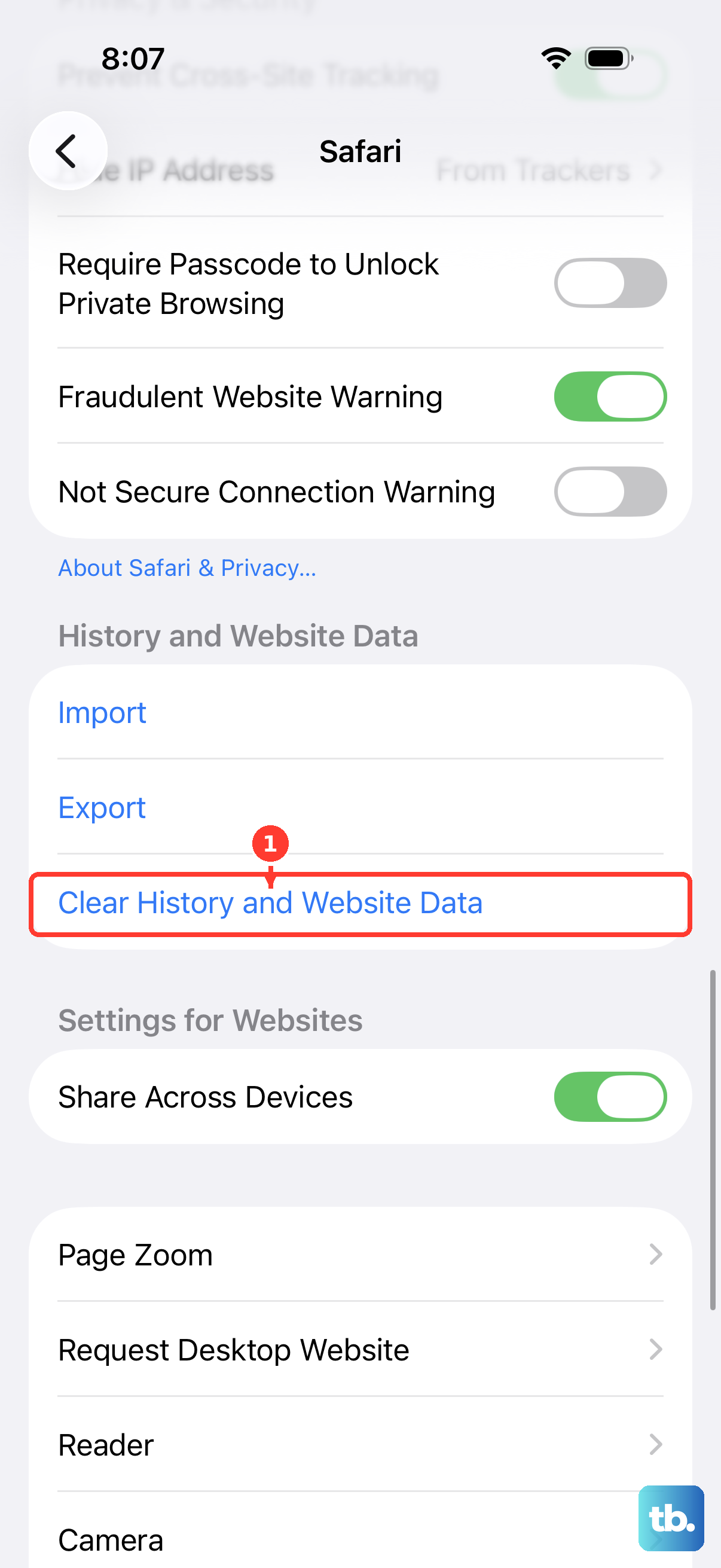
If you want to keep your browsing history but still dump the bulky cached files, there's a more targeted option. Go to Settings > Safari > Advanced > Website Data. Here, you can tap Remove All Website Data to clear the cache without touching your history.
Use Offload App to Clear App Cache
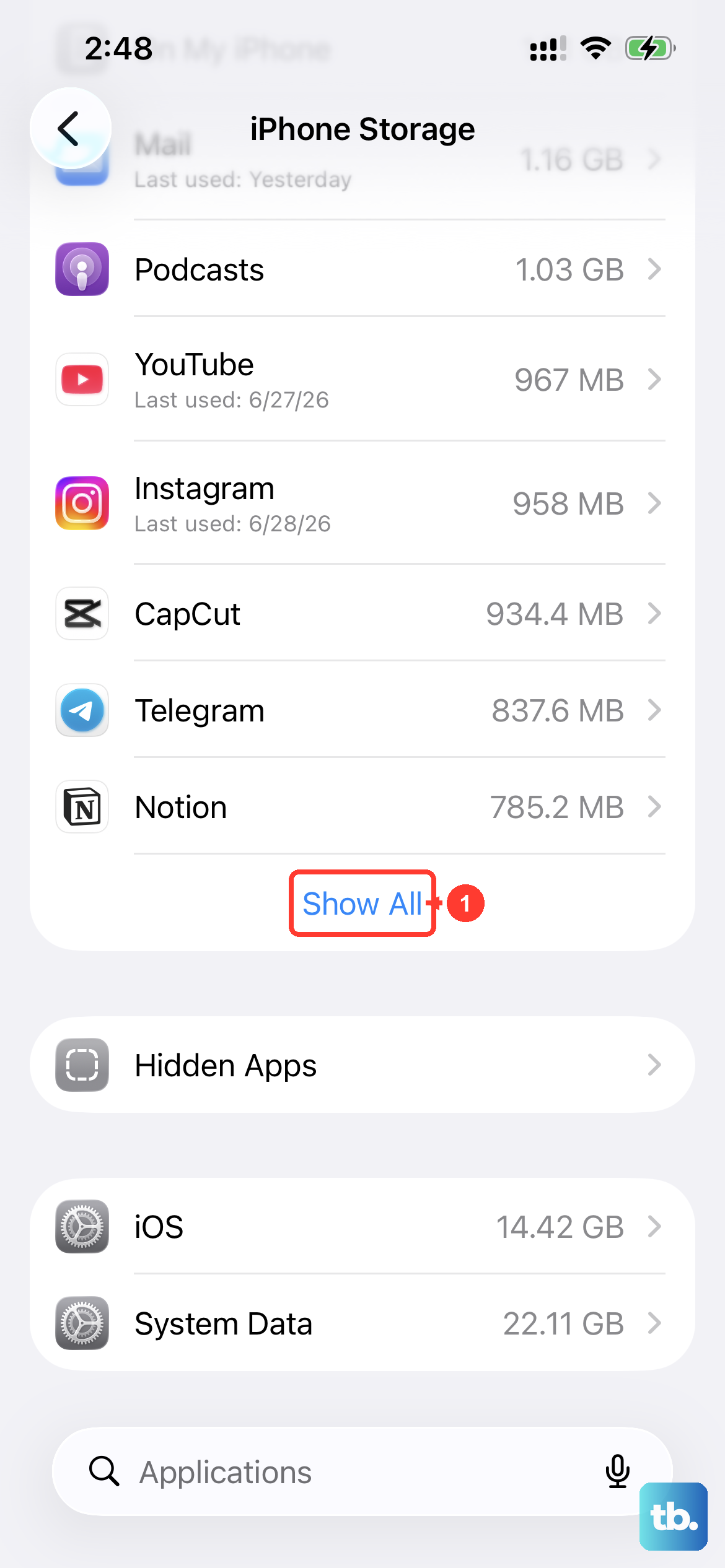
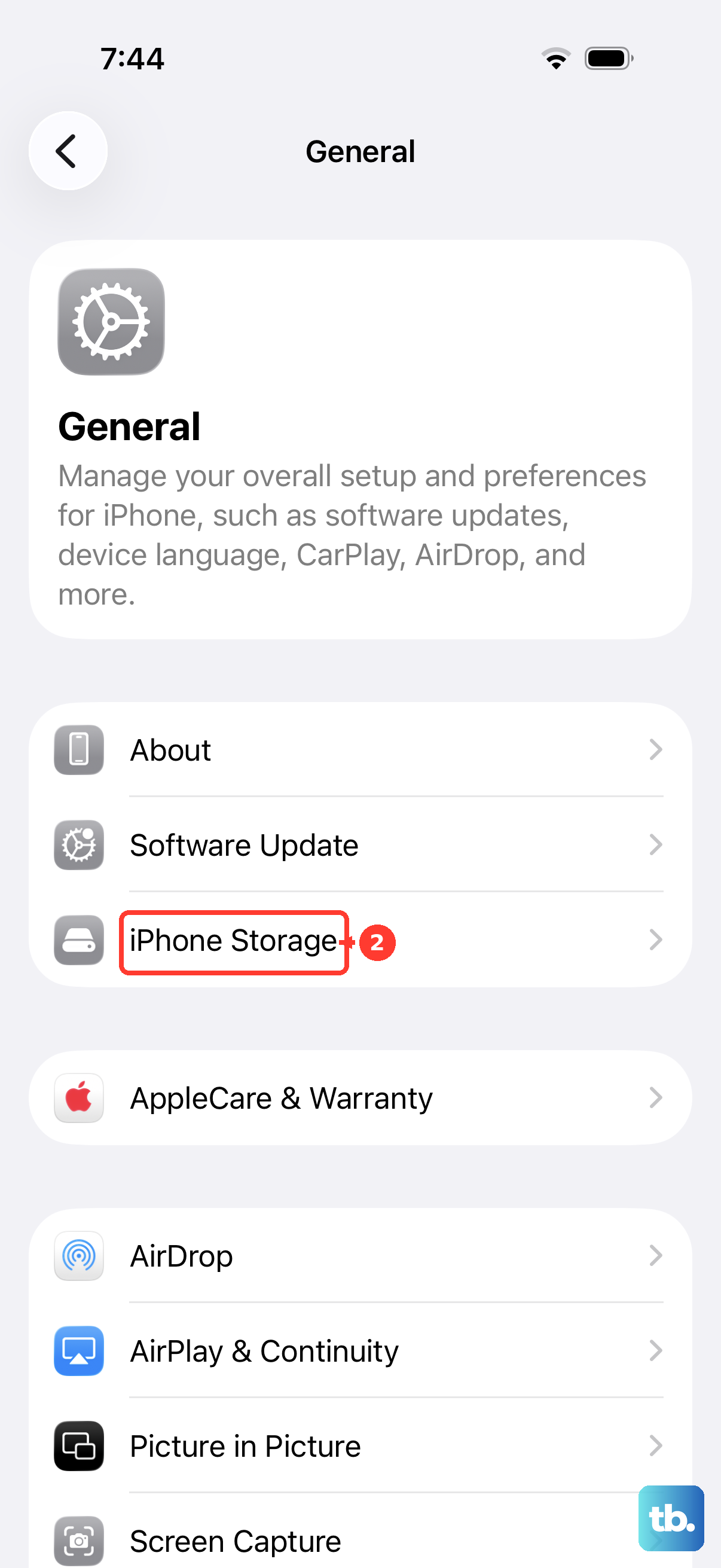
iOS 26 doesn't have a simple "clear cache" button for most apps, but offloading is the next best thing. Open Settings > General > iPhone Storage. After a moment, you'll see a list of all your apps sorted by size. Tap on any app, like Instagram or Spotify.
You'll see an option for Offload App. Tapping this removes the app itself but keeps all your documents and data. You can then reinstall it from the App Store. This process deletes the app's cached temporary files, often freeing up hundreds of megabytes.
Delete and Reinstall Apps for a Deep Clean
When offloading isn't enough, a full delete and reinstall is the most thorough method. Press and hold the app's icon on your Home Screen, tap Remove App, and then choose Delete App. This erases the app and all its associated data, including every bit of cache.
Head to the App Store to download it again. Remember, you'll need to sign back in and set up any preferences from scratch. I'd save this for apps that are particularly sluggish or taking up an unreasonable amount of space.
Manage Your Messages Storage
The Messages app can silently hoard gigabytes of photos, videos, and GIFs. To see the breakdown, go to Settings > General > iPhone Storage and tap on Messages. You'll see categories for photos, videos, and other attachments.
You can tap into each section to review and delete items you don't need. For automatic cleanup, go to Settings > Messages > Keep Messages and change it from Forever to 30 Days or 1 Year. This will periodically clear out old conversations and their media.
Flush the DNS Cache
If websites are timing out or taking forever to load, your DNS cache might be the culprit. The fastest fix is to toggle Airplane Mode. Swipe into your Control Center and tap the airplane icon, wait about 10 seconds, and then tap it again to turn it off.
This forces your iPhone 17 Pro to clear its network cache and look up fresh addresses for websites. A simple restart, which I'll cover in a moment, does this too along with other system maintenance.
Review iPhone Storage Recommendations
Your phone has built-in tools to help manage space. Go to Settings > General > iPhone Storage and look at the colored bar and recommendations at the top of the screen. iOS 26 might suggest enabling Offload Unused Apps automatically.
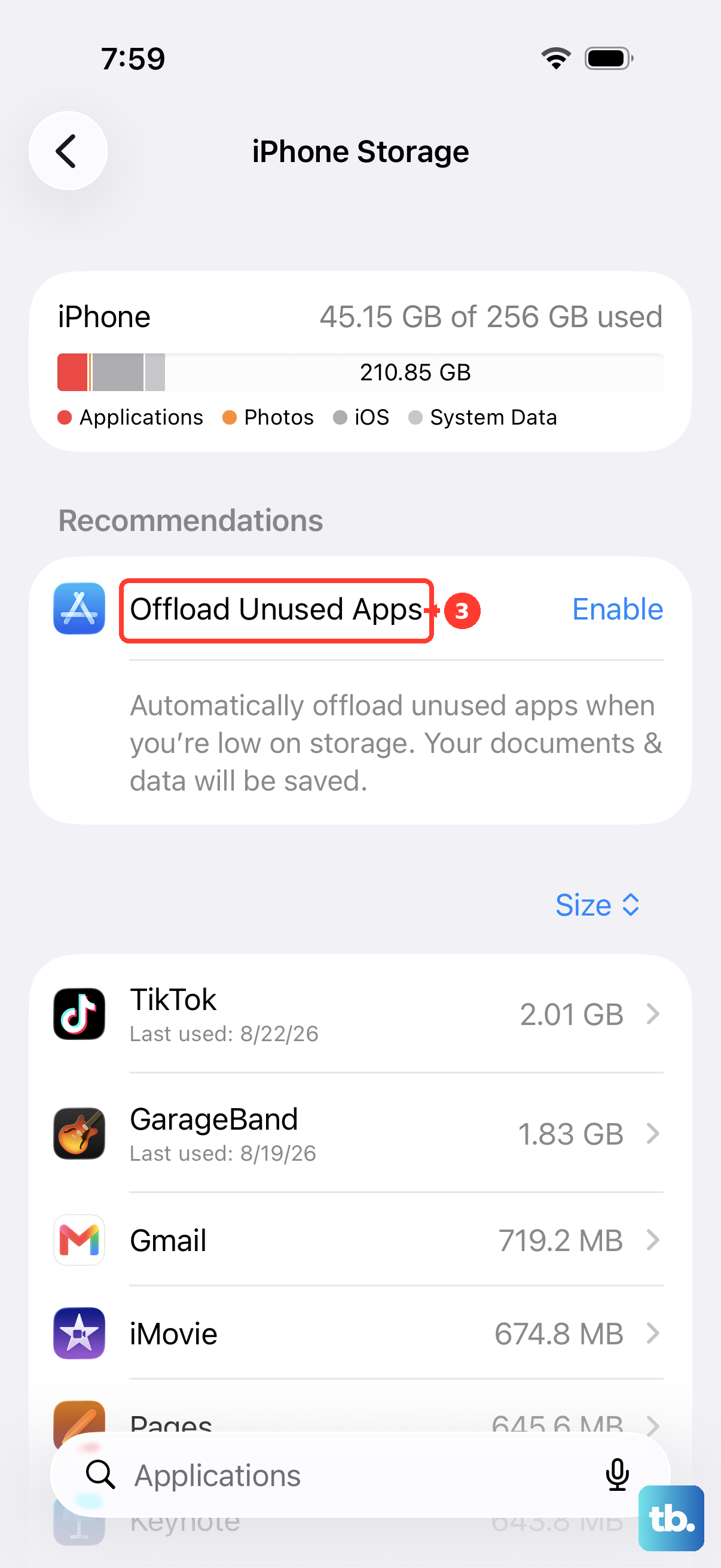
It can also prompt you to review large attachments or empty the Recently Deleted album in Photos. These automated tips are a great way to stay on top of clutter without having to dig through every app manually.
Restart Your iPhone 17 Pro
Never underestimate a restart. It clears out temporary system files, frees up RAM, and can resolve a host of minor glitches. To restart your iPhone 17 Pro, quickly press and release the Volume Up button, then the Volume Down button, then press and hold the Side button until you see the Apple logo appear.
Making this a weekly habit helps keep everything running smoothly. It's one of the simplest and most effective maintenance steps you can take.